Configure static mode
First, create an event profile for autoscaling and select static mode under Scaling mode.
In static mode, oneclick™ manages exclusively the destinations that already belong to the destination pool. The available settings depend on whether you use single user or multi user.
Select scaling type
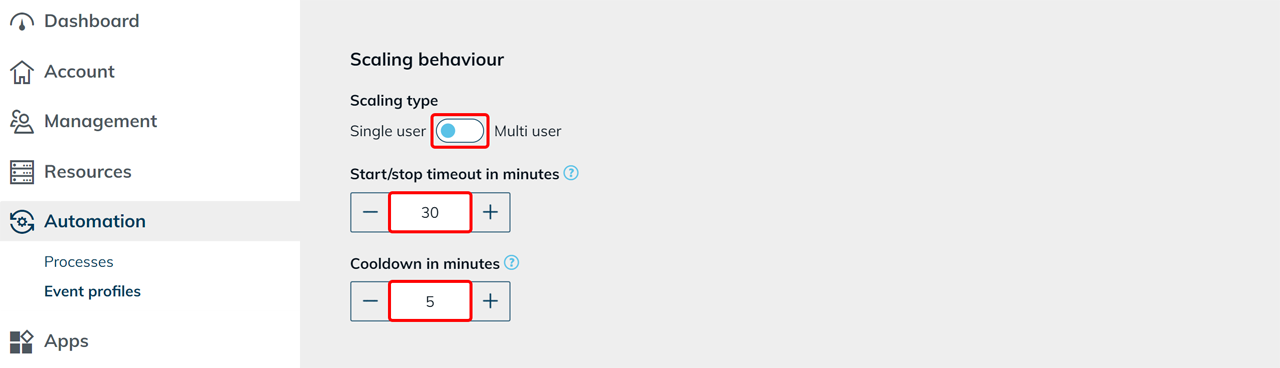
Select the desired scaling type:
- Single user
is suitable for compute-intensive applications with exclusive system usage (e.g. CAD applications). - Multi user
is suitable for scenarios with multiple users per system.
Start/stop timeout in minutes
This value defines the maximum duration for starting or stopping a destination. If the operation is not completed successfully within this period, the operation is canceled. The affected destination remains in the destination pool.
Cooldown in minutes
The cooldown prevents oneclick™ from repeatedly starting and stopping a destination when the load is close to a threshold.
After a load-related scaling action, oneclick™ waits for the defined time before the system scales in the opposite direction.
The default value is 5 minutes. Set the value to 0 to disable the cooldown.
Single user
For single user, one user uses one destination at a time. Define how many free running destinations oneclick™ keeps available and within which limits oneclick™ starts or stops the existing destinations.
Configure scale up
If the number of free running destinations falls below the defined value under Number of reserved running systems, oneclick™ starts an existing stopped destination. The defined Maximum number of running systems is not exceeded.
Configure scale down
If the number of free running destinations exceeds the defined value under Number of reserved running systems, oneclick™ stops a destination that is no longer needed. The defined Minimum number of running systems (running reserve) is not undercut.
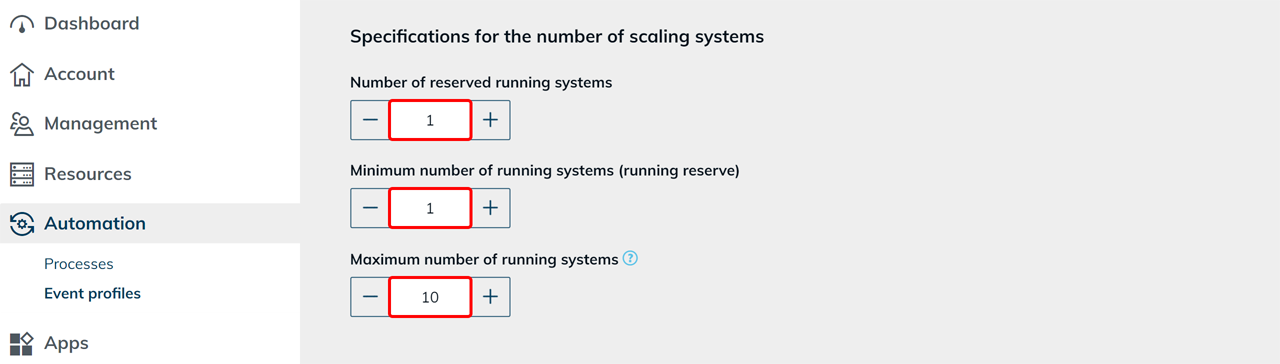
Define number of running systems
-
Number of reserved running systems
Define how many free and immediately available destinations oneclick™ should keep available. -
Minimum number of running systems (running reserve)
Define the minimum number of destinations that must be running. oneclick™ does not undercut this value when scaling down. -
Maximum number of running systems
Define the maximum number of destinations that may run at the same time. Once this value is reached, oneclick™ does not start any further destinations.
Configure scaling down to zero running destinations under Configure scale to zero.
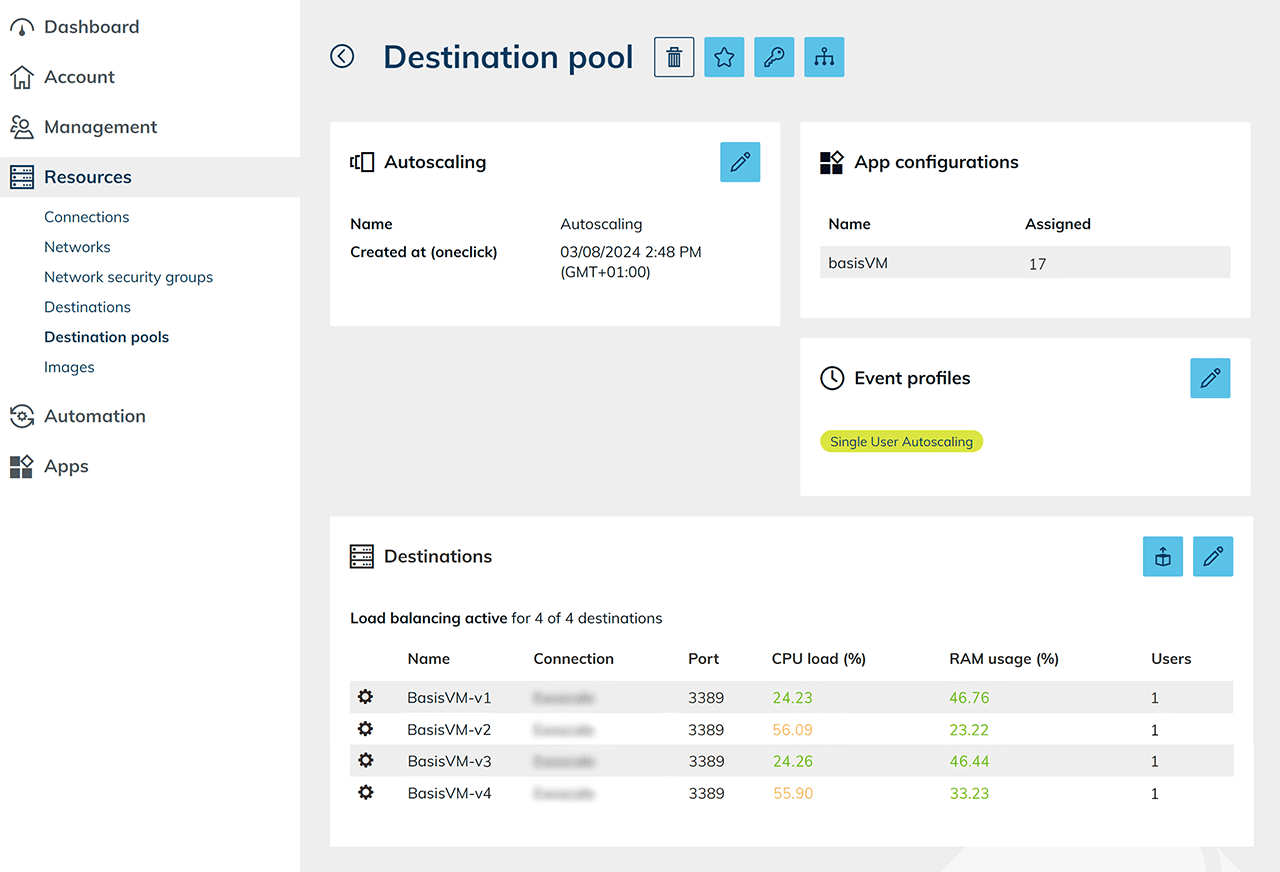
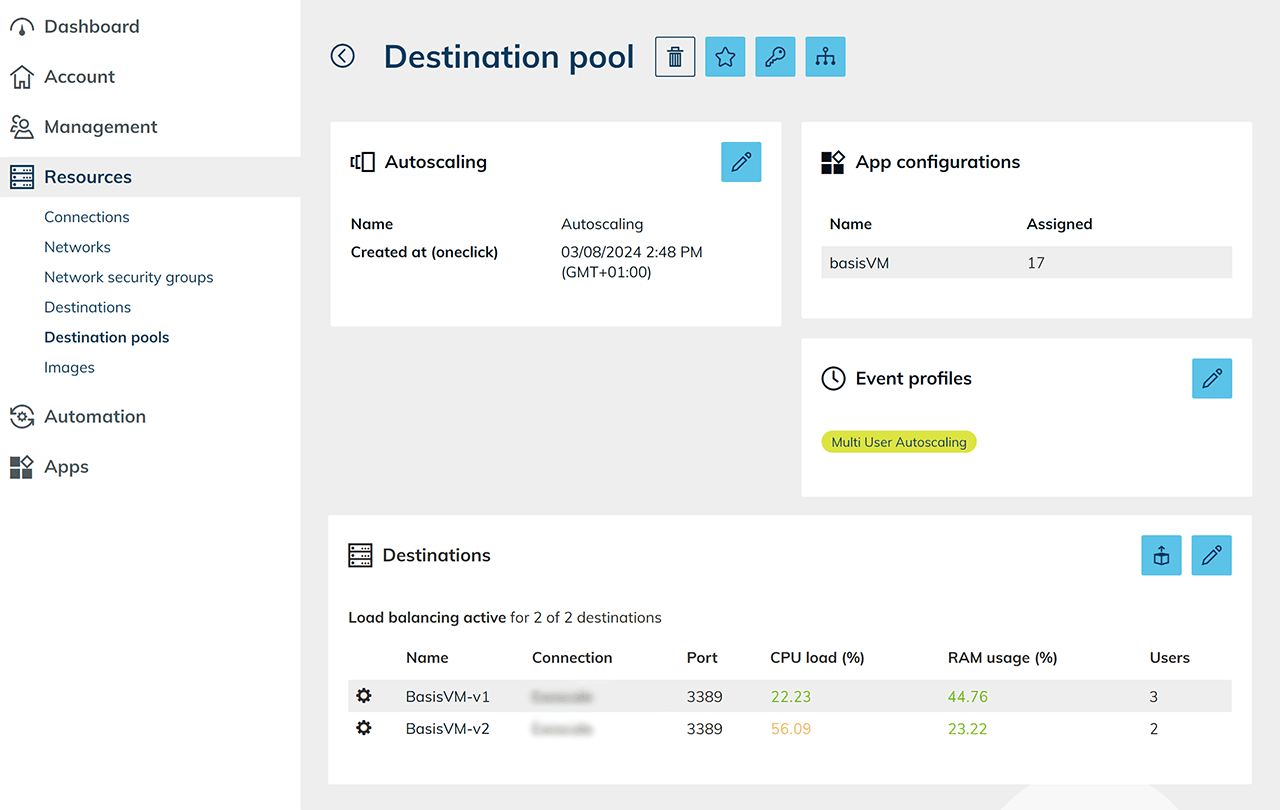
 The configured load distribution and the assigned event profiles are displayed in the details of the destination pool.
Define the execution interval and save your settings.
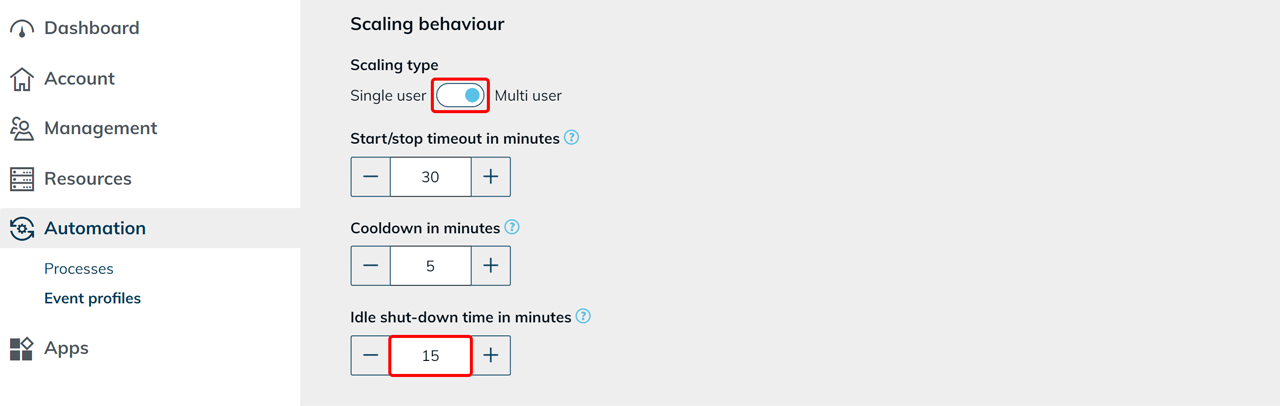
Multi user
For multi user, multiple users can work on one destination at the same time. oneclick™ starts and stops the existing destinations based on the defined threshold values.
Idle shut-down time in minutes
In this field, define how long a running destination remains running without active users. The default value is 15 minutes. After the defined time has elapsed, oneclick™ stops the destination.
The defined Minimum number of running systems (running reserve) is not undercut.
The idle shut-down time does not apply to:
- freshly started destinations
- destinations that have just been automatically woken up
- destinations in maintenance mode
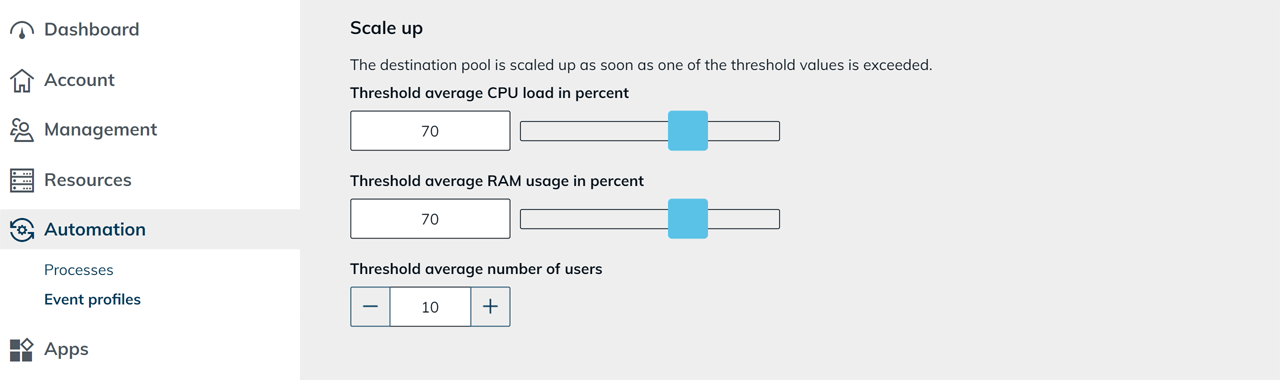
Configure scale up
- Define the threshold value for the average CPU load.
- Define the threshold value for the average RAM usage.
You define the threshold values here. How CPU load and RAM usage are measured depends on the destination pool's load balancing settings. - Define a threshold value for the average number of users.
If the utilization reaches or exceeds at least one of the defined threshold values, oneclick™ starts existing stopped destinations. The defined Maximum number of running systems is not exceeded.
Configure scale down
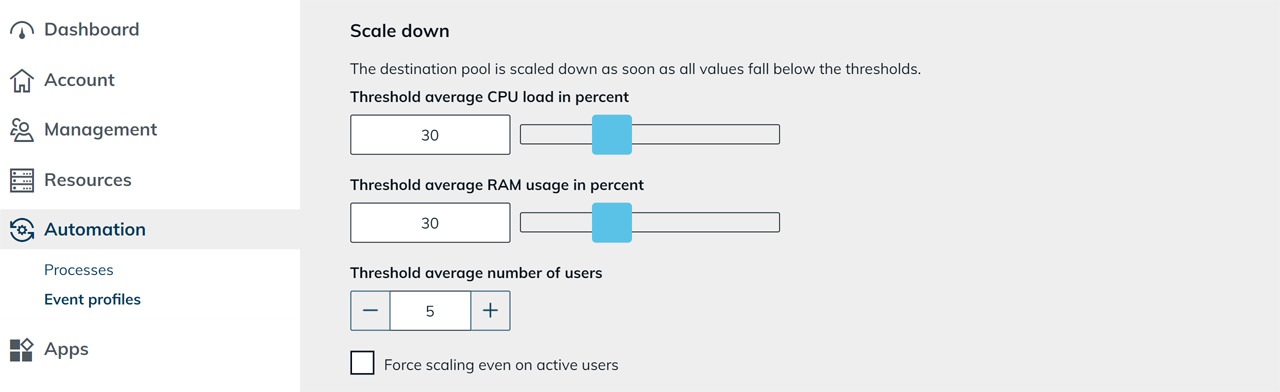
- Define the threshold value for average CPU load.
- Define the threshold value for average RAM usage.
- Define a threshold value for the average number of users.
If the utilization reaches or falls below all defined threshold values, oneclick™ stops one running destination that is no longer needed per check. The defined Minimum number of running systems (running reserve) is not undercut.
Notes on threshold values
For multi user, oneclick™ shows a note directly on the affected field if a load criterion is set so that it no longer affects scaling. This applies to both CPU utilization and RAM usage at the following values:
- Scale up:
100 % - Scale down: at least
99 %
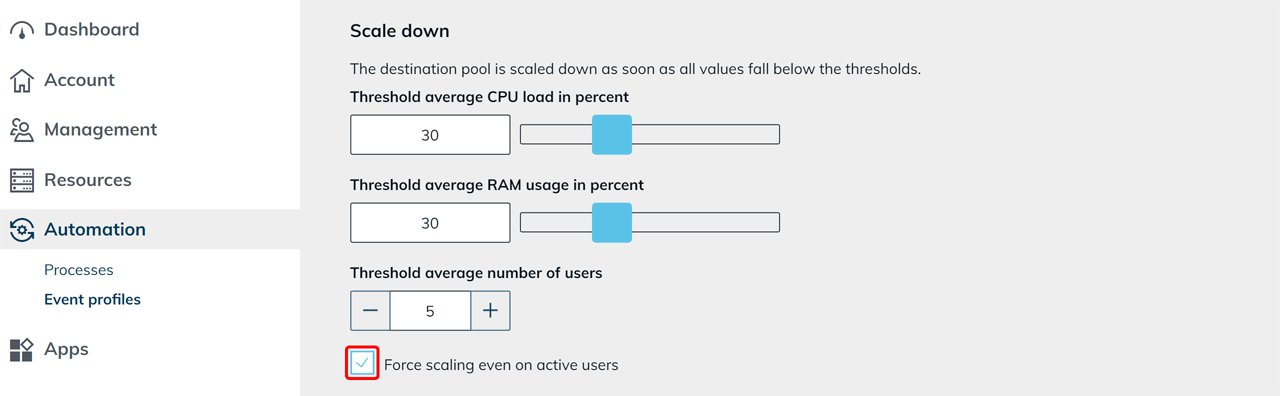
Force Scale Down: Force scaling down even with active users
Force Scale Down is available for multi user. Enable Force scaling even on active users so that oneclick™ stops a destination even if users are still logged in.
The value defined under Start/stop timeout in minutes determines the lead time. At the start of the lead time, oneclick™ shows the affected users a warning message with the remaining time.
After the lead time has elapsed:
- oneclick™ ends the active user sessions
- in static mode, oneclick™ stops the affected destination
Forced scaling down can cause unsaved changes to be lost. Only enable this function for controlled maintenance or emergency scenarios.
Define number of running systems
-
Minimum number of running systems (running reserve)
Define the minimum number of destinations that must be running. oneclick™ does not undercut this value when scaling down. -
Maximum number of running systems
Define the maximum number of destinations that may run at the same time. Once this value is reached, oneclick™ does not start any further destinations.
Configure scaling down to zero running destinations under Configure scale to zero.
 The details view of the destination pool shows the configured load distribution, the current utilization values (CPU, RAM, number of users), and the assigned event profile.
Configure scale to zero
With scale to zero, the destination pool can scale all the way down to zero running destinations.
- Single user: Set Number of reserved running systems and Minimum number of running systems (running reserve) to
0. - Multi user: Set Minimum number of running systems (running reserve) to
0.
oneclick™ stops the last unused destination after the defined Idle shut-down time has elapsed.
If a connection request arrives while no destination is running, oneclick™ automatically starts the most recently stopped destination.
Define execution interval
Define the start time from which the settings of the event profile apply.
For example, if you want to use the settings from Monday to Friday:
- Select Monday in the calendar menu.
- Define the desired start time.
- Under Repeat only, select Monday.
- Click the Plus icon to create another event.
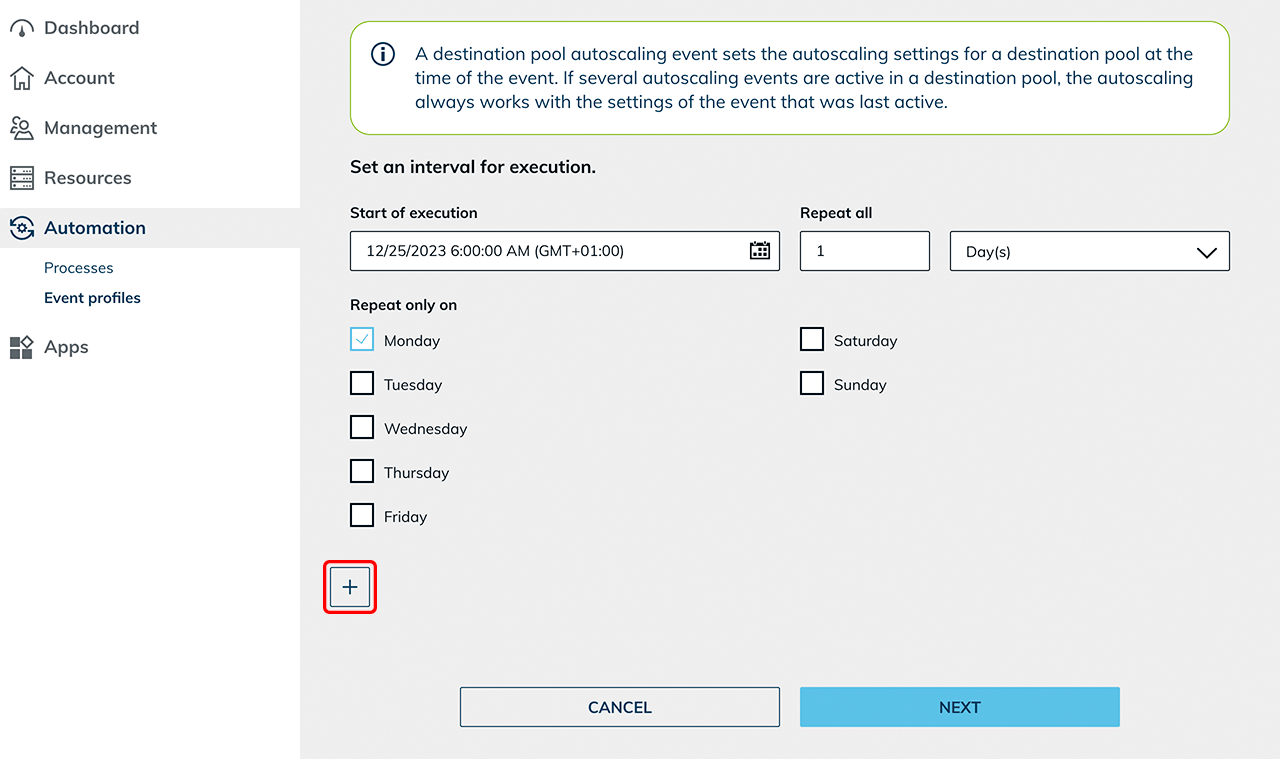
In the new event, configure the settings for the weekend:
- Select Friday in the calendar menu.
- Define a time in the evening from which the weekend settings apply.
- Under Repeat only, select Friday.
From this point on, the weekend event overrides the previously applicable settings. The event for Monday then reactivates the settings for the weekdays. - Click Next.
- Assign a name and Save your settings.
Determine a suitable profile based on the actual usage times. Test the settings with a limited number of users before using the configuration productively.