Autoscaling behavior
Autoscaling starts as soon as the start time of the autoscaling event is reached. If the start time is already in the past, oneclick™ starts autoscaling immediately after saving. The further behavior depends on whether you use elastic mode or static mode.
Elastic mode
Initialize destinations
During the first execution cycle, oneclick™ creates the configured clone VMs based on the selected base VM.
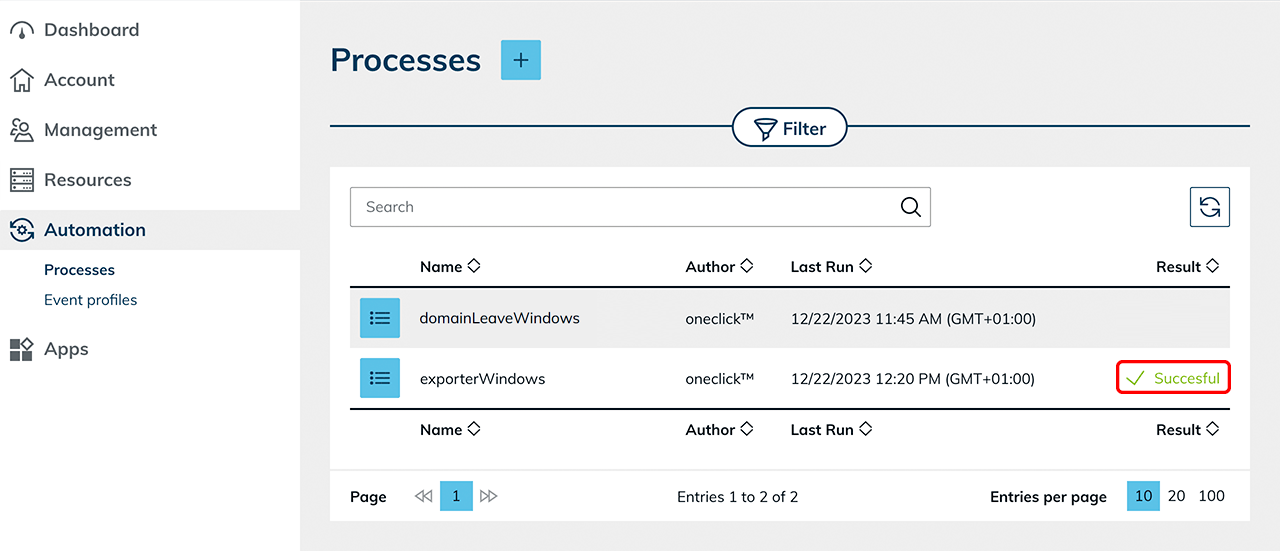
On each clone VM, oneclick™ installs the Windows Exporter using the exporterWindows process. The Windows Exporter provides the metrics for CPU, RAM, and number of users. Without these metrics, oneclick™ cannot scale based on load.
The installation may take a few minutes. Click Automation in the menu, and then click Processes to check whether oneclick™ installed the Windows Exporter successfully. oneclick™ checks every 30 seconds whether the clone VM provides metrics and restarts the process if an error occurs.
After successful initialization, oneclick™ moves the clone VMs into the configured state.
For a configuration with one stopped and one running VM, oneclick™ stops one of the two clone VMs:
 The other clone VM remains active and is ready for a user login:

Scale up destinations
When scaling up, oneclick™ first starts existing stopped clone VMs. If this is not sufficient, oneclick™ creates new clone VMs based on the selected base VM.
For load-based scale up, oneclick™ creates as many systems per check as you have defined under Amount of systems to be scaled in one step. If systems are missing from the configured reserves, oneclick™ replenishes them completely. oneclick™ never exceeds the Maximum number of additional systems.
Scale down destinations
When scaling down, oneclick™ selects an automatically created clone VM that is no longer needed.
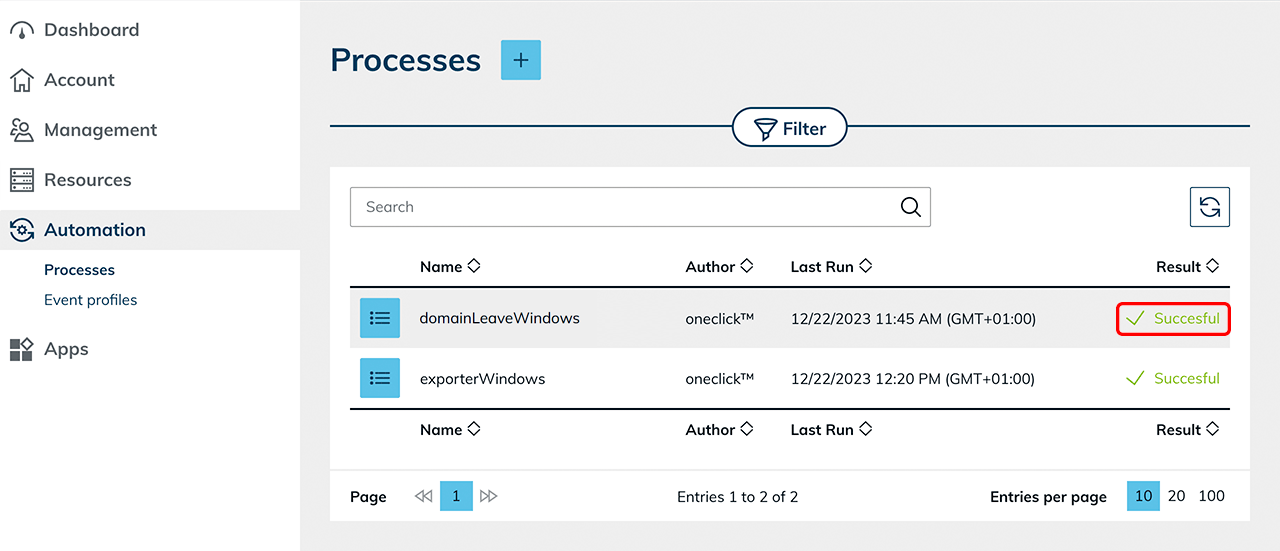
Before removing the VM, oneclick™ runs the domainLeaveWindows process on it. This causes the VM to leave the directory service domain. If the VM is not running, oneclick™ starts it again for this purpose. oneclick™ then removes the VM.
oneclick™ never removes manually added destinations — it only removes them from autoscaling management.
Static mode
In static mode, oneclick™ does not create or remove any virtual machines. oneclick™ manages exclusively the existing destinations of the pool.
Scale up destinations
When scaling up, oneclick™ starts an existing stopped destination.
Scale down destinations
When scaling down, oneclick™ stops a destination that is no longer needed. oneclick™ does not delete the destination. It remains in the destination pool and, if a domain connection exists, a member of the domain.
Scale to zero in operation
If scale to zero is configured in elastic mode or in static mode and no destination is running anymore, oneclick™ automatically starts the most recently stopped destination when a connection request comes in.
In the autoscaling history, the automatic start appears, depending on the scaling mode, as Wake (elastic) or Wake (static).
oneclick™ does not wait, on the first connection attempt, until the started destination is fully available. If the destination is not yet reachable, retry the connection.
Monitor autoscaling
Check scaling metrics
oneclick™ checks the configured scaling metrics once per minute. When oneclick™ detects a required scaling action, it starts that action immediately within the same check. A delay of up to one minute can therefore occur between a load change and the system's response, depending on how long it takes until the next check. Wake-on-Connect reacts directly to the connection attempt and does not depend on this check interval.
Check autoscaling history
In the autoscaling history, you can check the scaling actions that were executed, the affected destinations, and any errors that occurred.
Missing metrics in elastic mode
If a clone VM does not provide CPU, RAM, or user metrics, oneclick™ waits up to 30 minutes for the metrics. If the clone VM is not yet running, oneclick™ starts it first.
If the clone VM still does not provide any metrics after 30 minutes, oneclick™ marks it as faulty. In the autoscaling history, an entry Scaled up with the status Error or an entry Timeout appears.
oneclick™ then removes the faulty clone VM and creates a new clone if the capacity is still required.
Resume paused autoscaling
If three consecutive evaluations fail with a persistent error, oneclick™ pauses autoscaling for that destination pool. Persistent errors are errors that cannot be resolved by retrying, for example a destination that no longer exists or invalid credentials. Temporary errors, such as a cloud provider being briefly unavailable, do not pause autoscaling. A successful evaluation resets the counter. You can see the paused state and the most recent error in the destination pool details.
Check and resolve the cause. Then click the Rocket icon in the destination pool details to resume autoscaling.
Administrative interventions
Destinations in maintenance mode
oneclick™ does not take destinations in maintenance mode into account when making scaling decisions: oneclick™ does not stop or remove destinations in maintenance mode and does not wake them up for a connection request. This applies to both scaling modes.
In elastic mode, oneclick™ can start a stopped destination in maintenance mode if additional capacity is required. Remove destinations that must remain untouched from the destination pool.
Manually delete destinations
Elastic mode
If you manually delete an automatically created clone VM, oneclick™ detects the deviation from the configured target state. oneclick™ creates a new clone VM if required.
Static mode
If you delete a destination or remove it from the destination pool, oneclick™ does not create a new destination. This reduces the available capacity of the pool.
Operate individual systems outside of autoscaling
Elastic mode
If a user should work on a fixed destination independently of autoscaling:
- Manually clone the base VM.
- Add the VM to the destination pool.
- Assign this destination specifically to the user via the app instance.
oneclick™ does not manage the manually added VM through autoscaling.
Static mode
Add destinations that oneclick™ should not start or stop automatically to a separate destination pool without autoscaling.
Disable autoscaling
Remove the assigned autoscaling event profile from the destination pool.
Elastic mode
After removing the event profile:
- oneclick™ removes the clone VMs automatically created by autoscaling according to the configuration
- oneclick™ ends automatic scaling
- the base VM and manually added destinations remain in the pool
Static mode
After removing the event profile:
- oneclick™ ends automatic scaling
- the existing destinations remain in the pool
- oneclick™ no longer starts or stops the destinations automatically