Remove a destination from a pool for maintenance
Use this procedure if you want to shut down, rebuild, or temporarily remove a destination completely from a pool for longer maintenance work.
If the destination remains in the pool during maintenance, use maintenance mode instead.
Prepare access for maintenance
First, create a separate destination pool for access during maintenance. This allows you to continue accessing the destination after you remove it from the production pool.
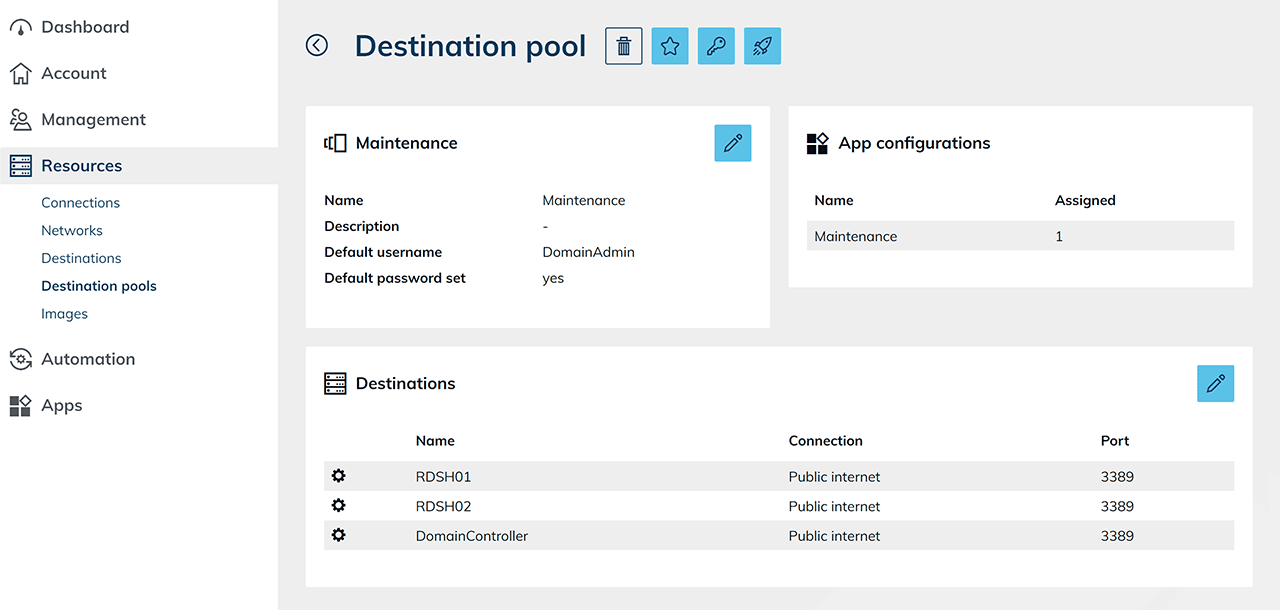
- Create a destination pool and add the destinations that you want to maintain through this pool. You do not need load balancing for this pool. Configure default credentials if required.
- Create an app configuration.
Enable Allow to keep the login data when changing the destination if you want oneclick™ to retain the credentials when changing the destination within the app instance. This is useful if you do not use default credentials and the same credentials apply to the destinations. For administrative access to the destination, select Start as an admin session.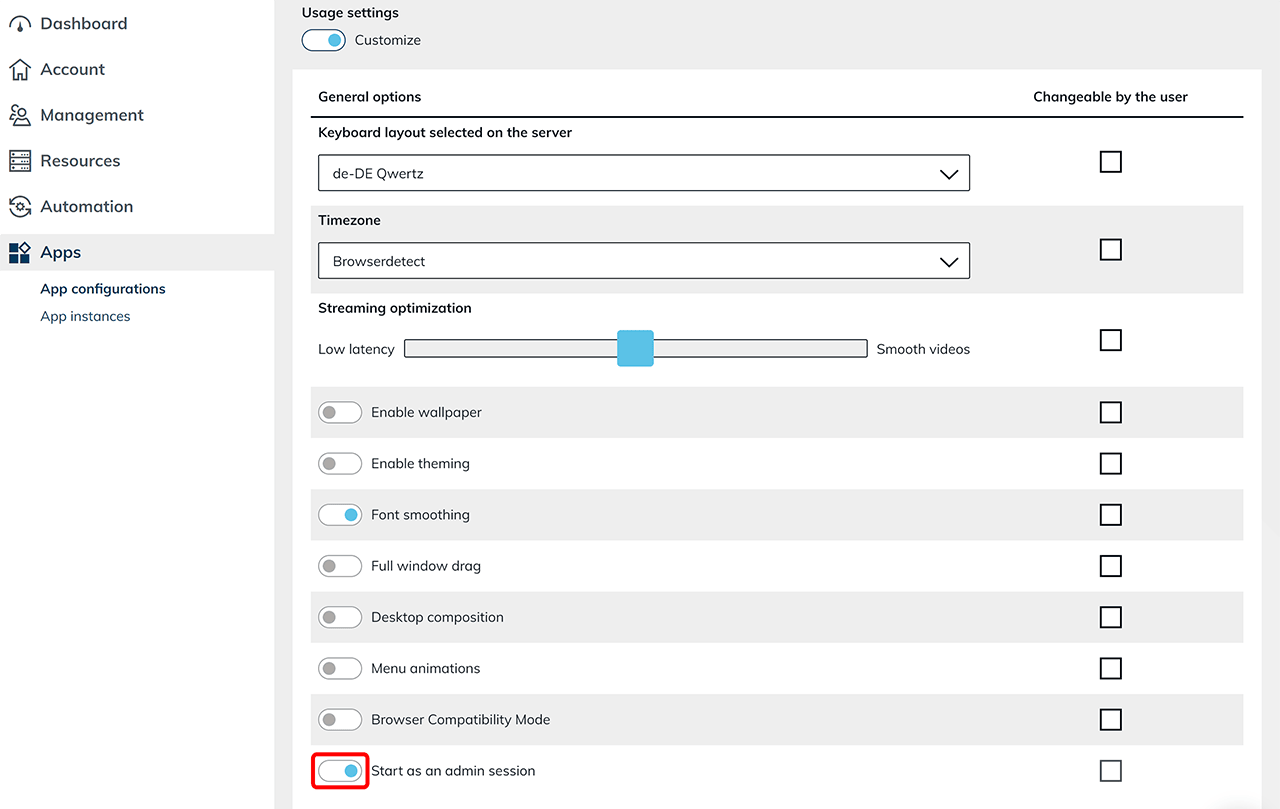
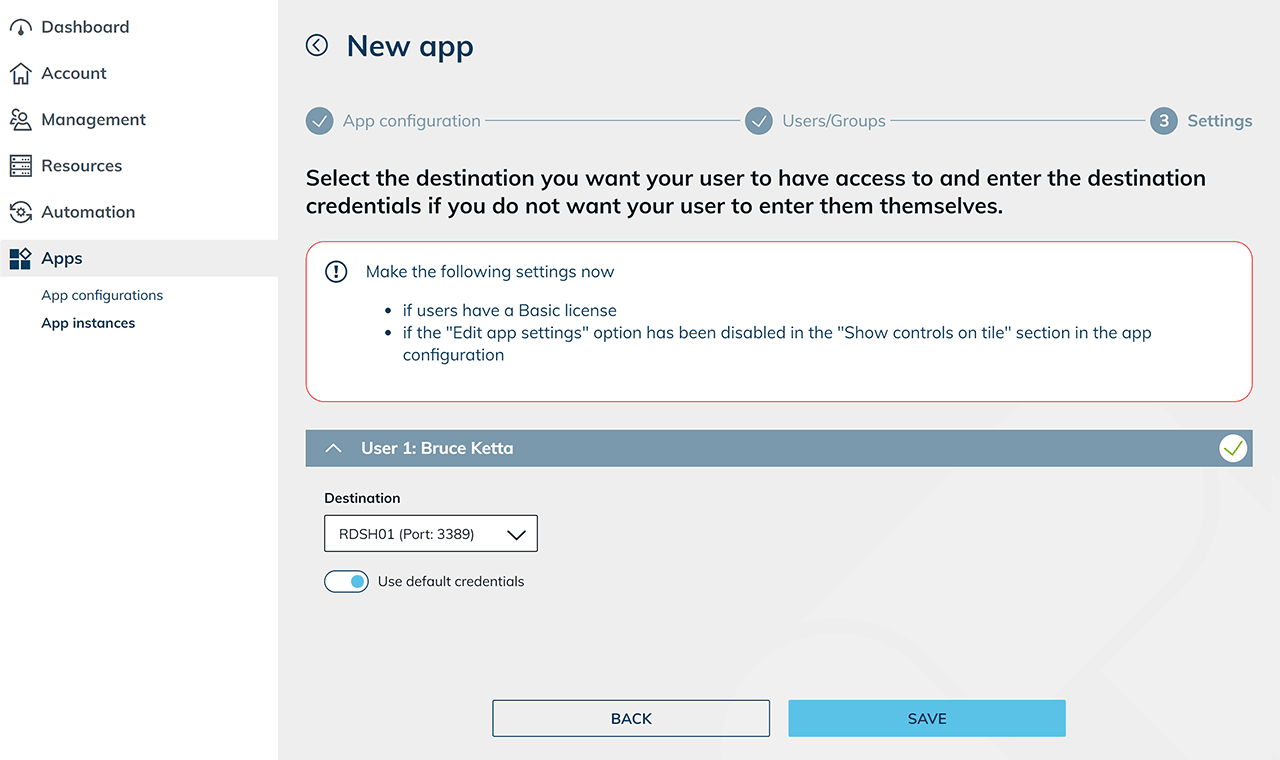
- Create an app instance for your user and select the destination that you want to maintain.
Remove the destination from the production pool
- Log off all users from the destination or shut down the destination. Shutting down the destination usually ends existing sessions. If you use roaming user profiles, they can be written back during this process.
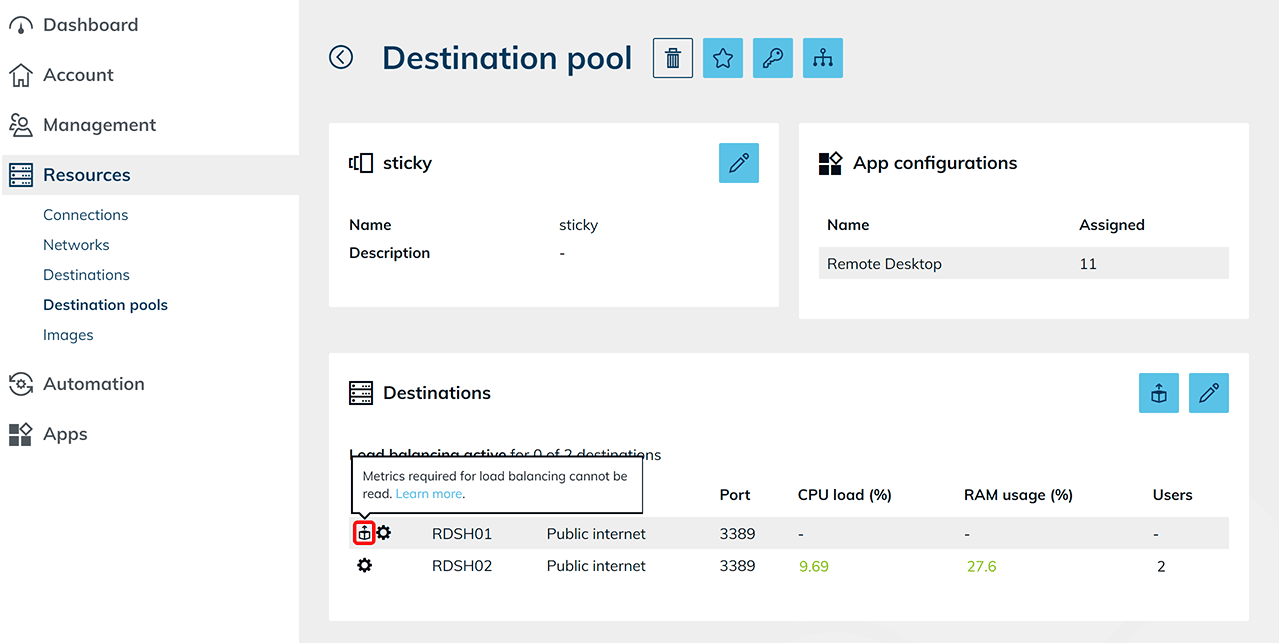
- If you have shut down the destination, the Windows Exporter can no longer transmit metrics. oneclick™ therefore displays a Box icon next to the destination.
- If you have set at least one minute under Sticky user sessions for "Period in which existing sessions are to be used again", make sure that all users are logged off from the destination or that the destination is shut down. Then click the Bracket icon under Sticky Session to Delete selected sticky user session.
For maintenance work, you can alternatively use maintenance mode. When you enable it, oneclick™ automatically removes the reuse of existing user sessions if no session is still running and no access permission applies. In this case, you do not need to use the Bracket icon.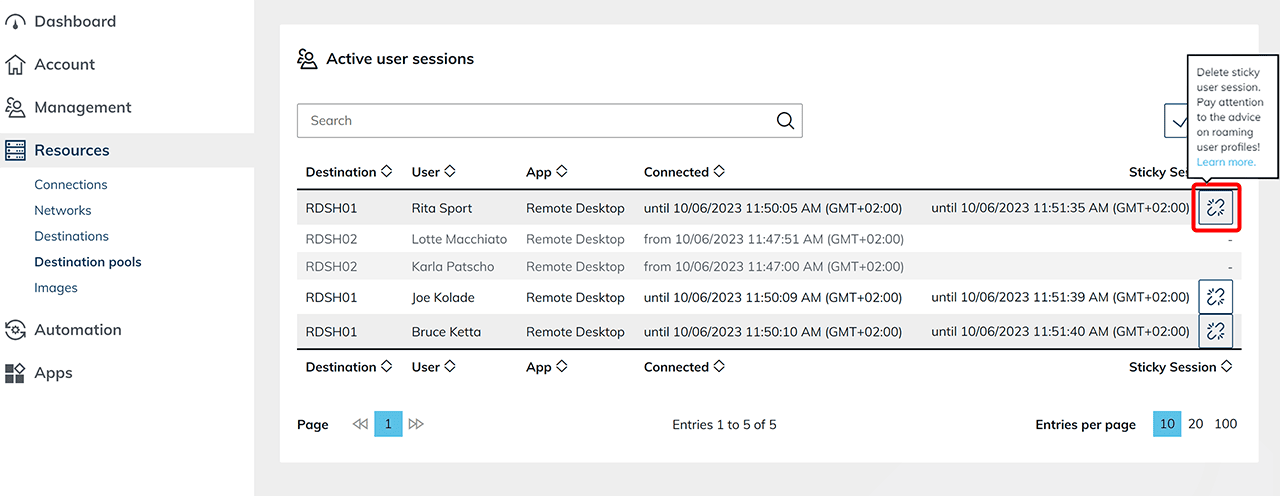
- Click the Pencil icon.
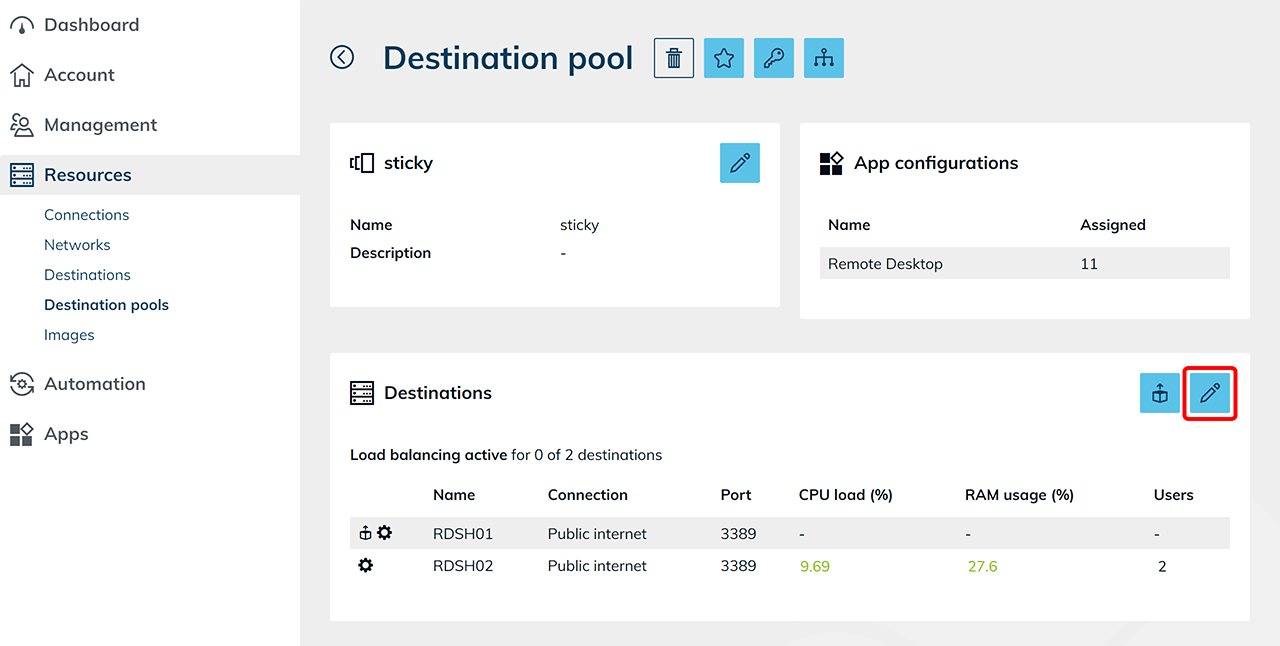
- Deselect the relevant destination and click Save.
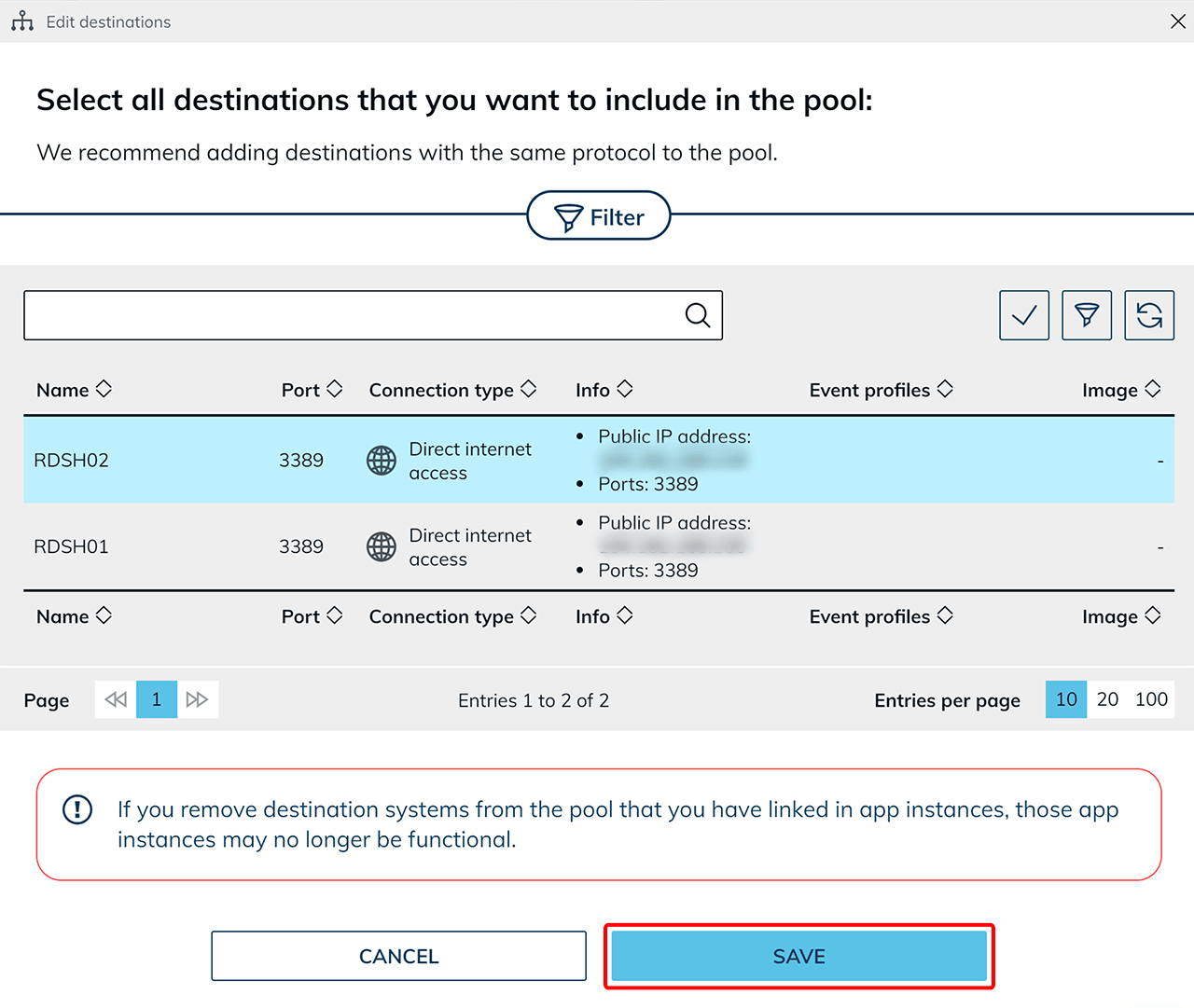
If the destination is shut down, oneclick™ cannot uninstall the load balancing service when removing the destination from the pool and displays an error message. Ignore this message if you want to add the destination back to the pool after maintenance.
oneclick™ then distributes new user connections among the remaining available destinations in the pool.
Maintain the destination and add it back to the pool
- Connect to the destination using the prepared app instance and perform the maintenance work.
- After completing the maintenance, open the production destination pool again and click the Pencil icon.
- Select the maintained destination and click Save.
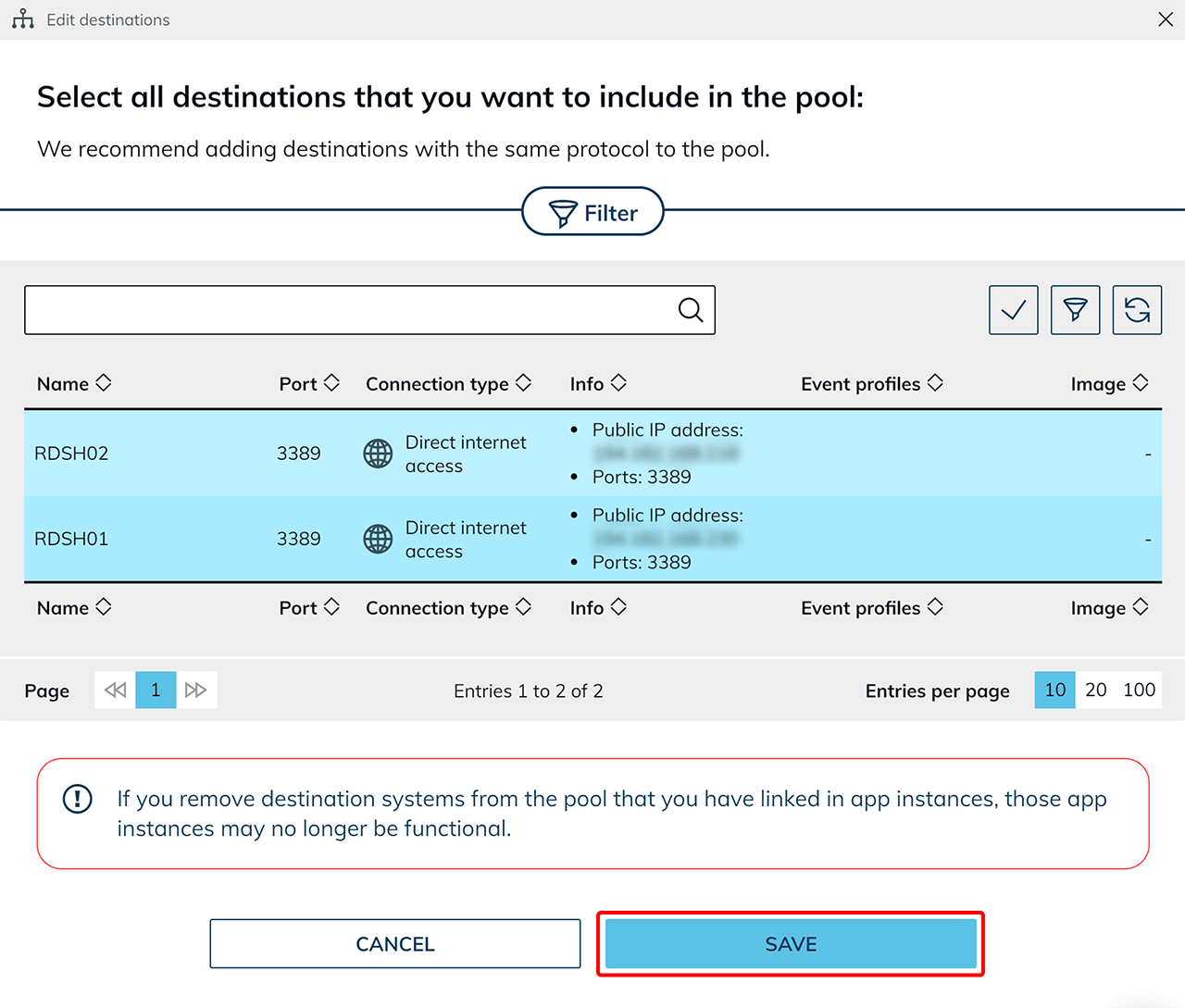 The destination is then available for user connections again.