Autoscaling with Read Out Base VM
Do you want to use a VM from your cloud subscription for autoscaling?
VMs created directly in oneclick can be used for autoscaling without any issues. However, if you have retrieved the VM from your existing cloud subscription, you need to configure the following setting to enable autoscaling on this virtual machine:
Note: The VM must be added to an existing domain beforehand!
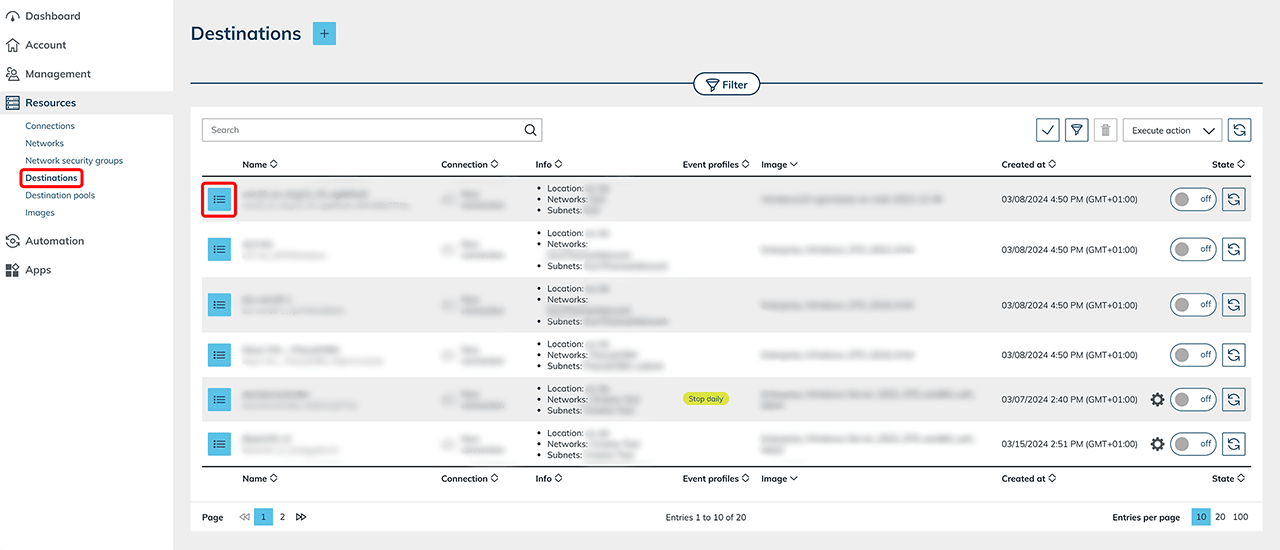
- Navigate to the Resources tab and go to Destinations.
- Select the VM imported from your cloud subscription and click on the List icon.
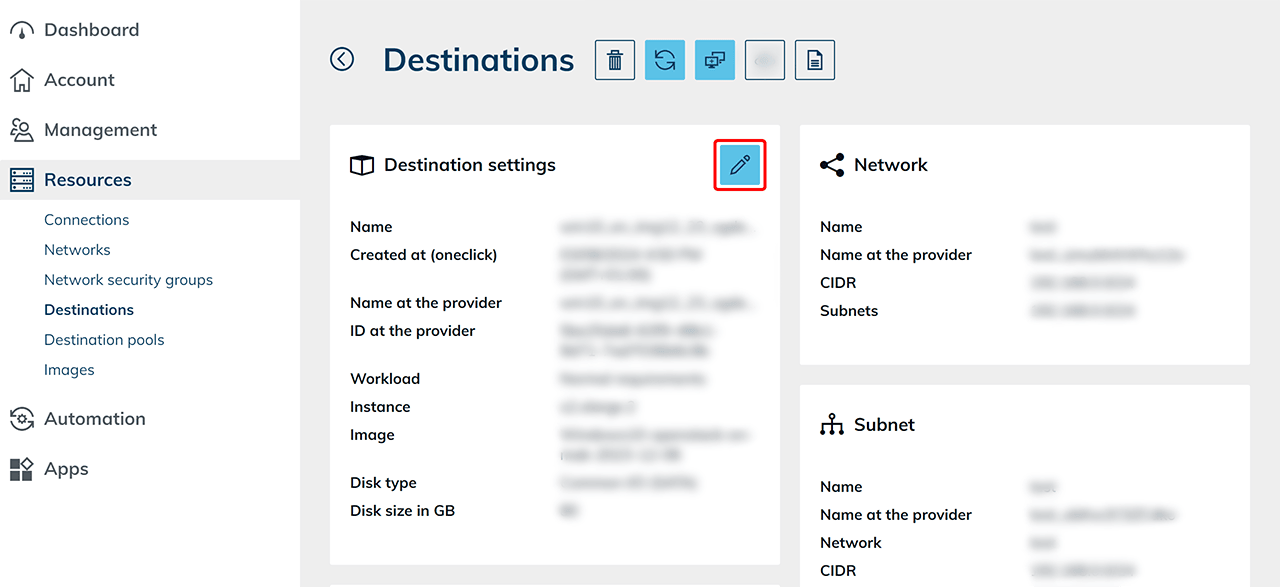
- In the „Destination settings“ tile, click on the edit Pencil icon.
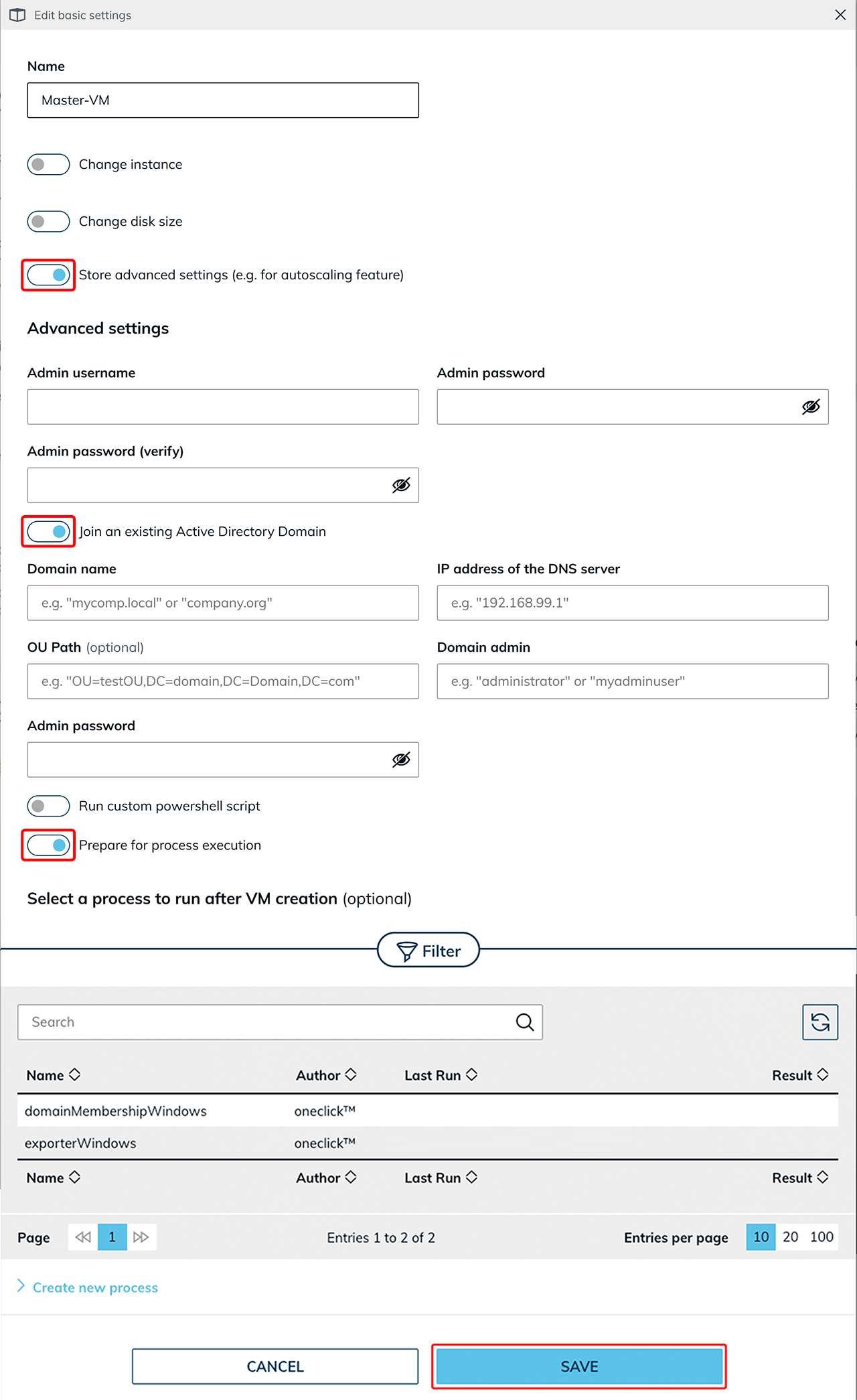
- Activate the switch "Store advanced settings (e.g., for autoscaling function)". If this switch is not visible in your view, the corresponding VM image is no longer usable.
- Some information is required for oneclick™ to be able to clone the VM: First, enter the admin credentials. Then add the domain join details. Make sure the "Prepare for process execution" switch stays enabled.
- Click Save to confirm.
 The VM is now available for autoscaling.