RDP Client Settings
With the configuration of the RDP client, you can precisely define how remote connections behave – for example, which monitors are used or which display options are active.
Limit monitors selectively
Would you like to use only specific monitors during a Remote Desktop (RDP) session instead of all connected screens? This is possible by manually editing the associated .rdp file.
1. Open the .rdp file
Right-click the existing .rdp file and select “Open with > Notepad” (or “Editor”).

2. Define monitor selection
Directly after the line use multimon:i:1, add the following entry:selectedmonitors:s:0,1 This limits the RDP session to the monitors with internal IDs 0 and 1. If, for example, you want to use only the third monitor, use: selectedmonitors:s:2.
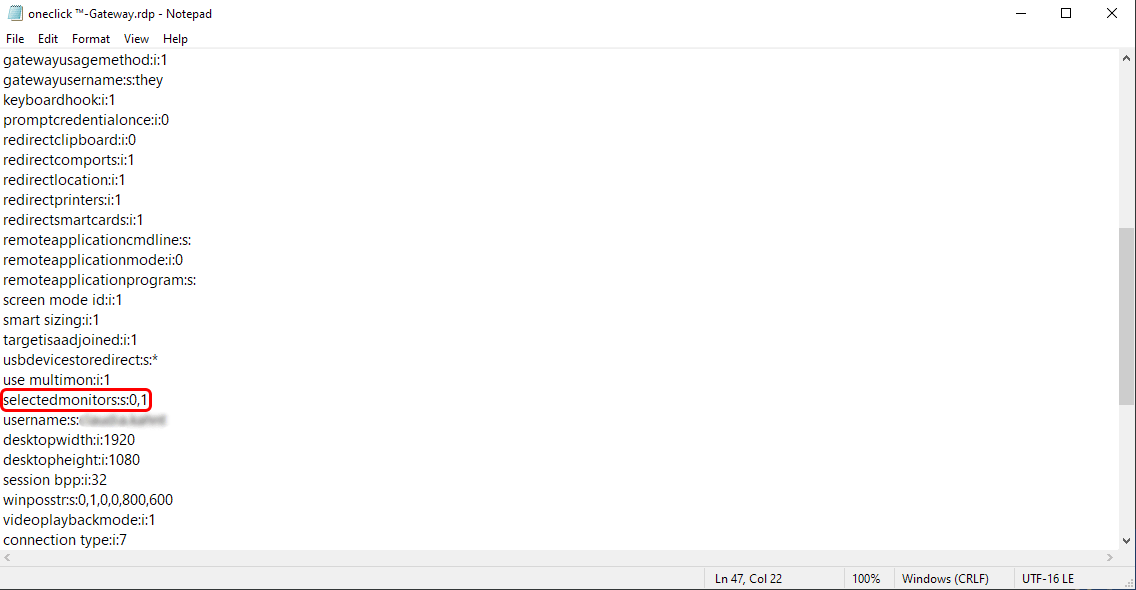
3. Save
Save your changes and start the connection as usual.
The visible order of monitors in the display settings (e.g., “1 | 2 | 3”) is not relevant. Windows internally assigns monitor numbers in the order in which they are detected – for example, during startup or when plugged in.