RemoteApp sessions: Log off immediately and allow multiple sessions
This article applies to multi-user environments with Remote Desktop Session Host (RDSH) where you deliver remote apps.
When a user closes a remote app in oneclick™, the associated Windows session is not automatically logged off. The connection may be disconnected while the session remains active on the server. When the user launches another remote app, Windows may reuse the existing session.
You can configure two different scenarios using Group Policy on the Remote Desktop Session Host:
- Log off a RemoteApp session immediately after closing: Prevent a disconnected session from being reused when another remote app is launched.
- Allow multiple Windows sessions for the same user: Enable a user to run several independent Remote Desktop sessions simultaneously on the same session host.
Important: Multiple remote apps can also run simultaneously within the same Windows session. You do not need to allow multiple sessions per user for this.
Open Group Policy
You need administrator rights on the session host or permission to edit the corresponding Group Policy Object (GPO) to configure the following settings.
- On the session host, press Win + R.
- Enter
gpedit.msc. - Press Enter.
The Local Group Policy Editor opens.
If you manage your session hosts centrally through Active Directory, use Group Policy Management instead of the Local Group Policy Editor. Link the Group Policy Object (GPO) to the organizational unit (OU) containing your session hosts.
Note the difference between the policy paths:
- Local Group Policy Editor: Computer Configuration > Administrative Templates
- Domain GPO: Computer Configuration > Policies > Administrative Templates
The remaining paths to the individual settings are identical.
This guide uses Computer Configuration. Check whether other Group Policy settings for session time limits are already configured and could affect the intended behavior.
1. Log off a RemoteApp session immediately after closing
Use this setting if a disconnected RemoteApp session should be logged off as quickly as possible. The user can then start a new session instead of reconnecting to the disconnected session.
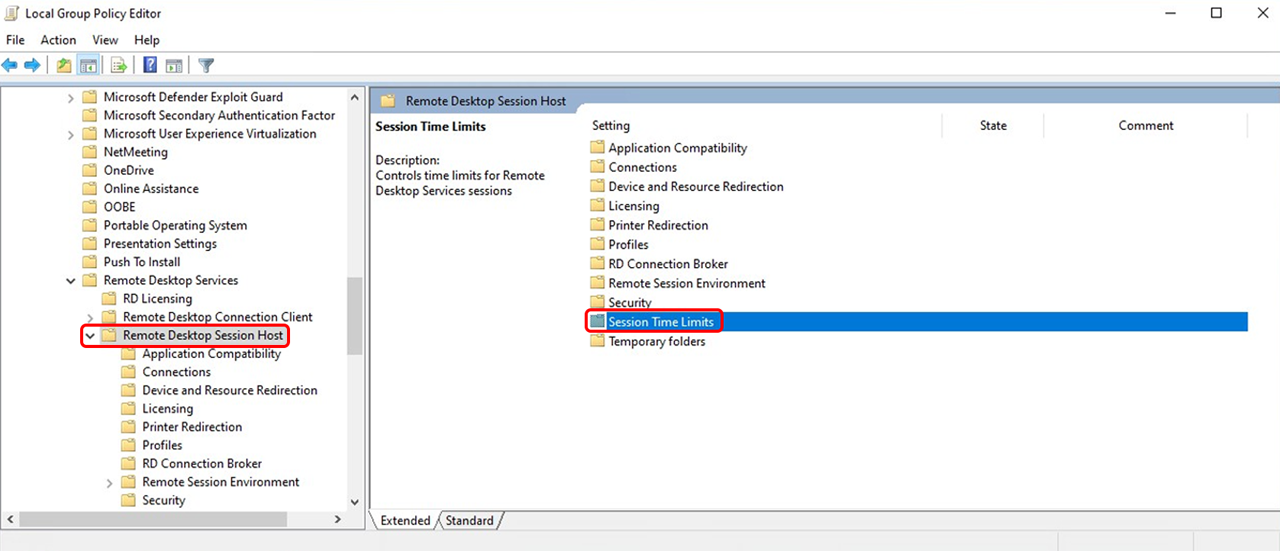
- Under Computer Configuration > Administrative Templates, navigate to Windows Components > Remote Desktop Services > Remote Desktop Session Host > Session Time Limits.
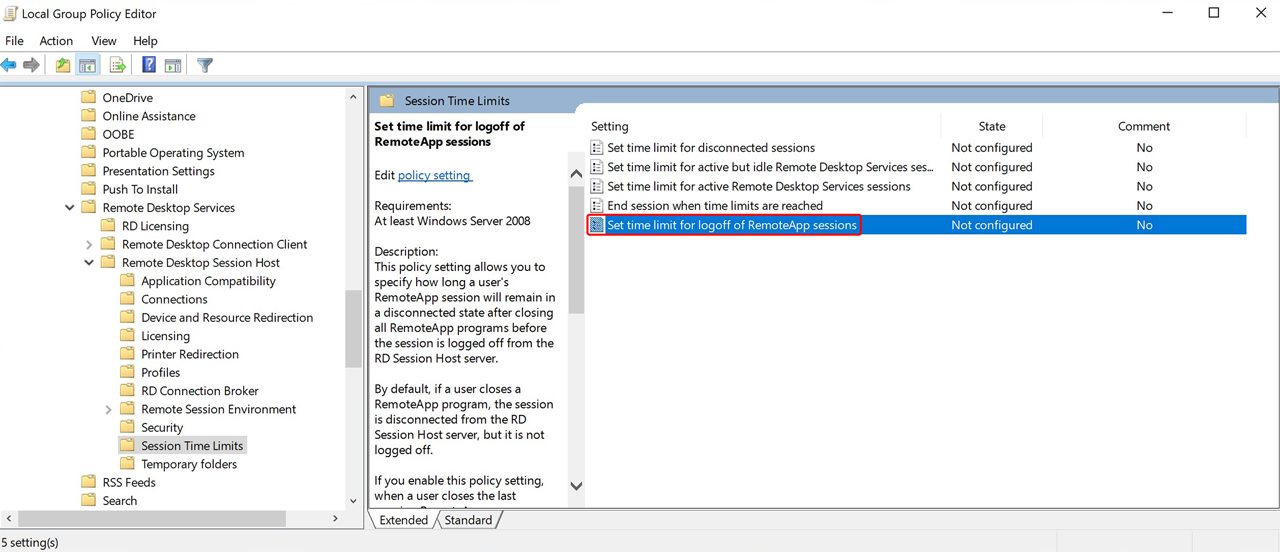
- Double-click Set time limit for logoff of RemoteApp sessions.
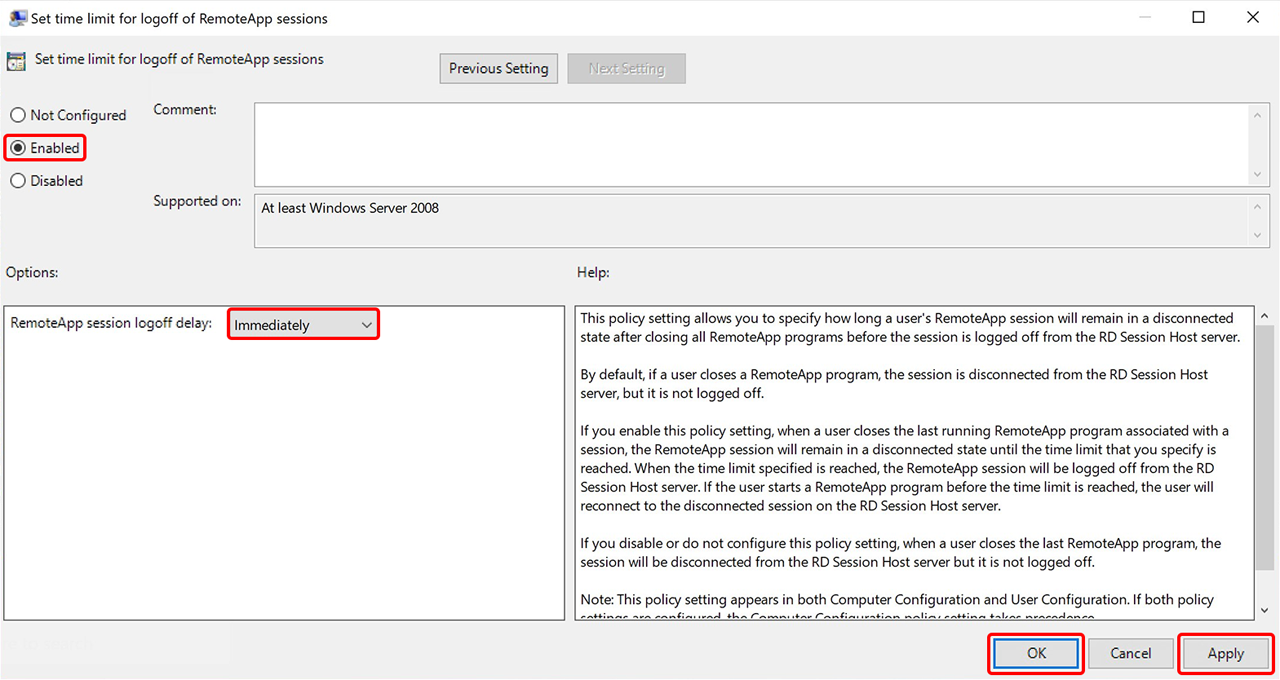
- Select Enabled.
- Set "RemoteApp session logoff delay" to Immediately.
- Click Apply, then OK.
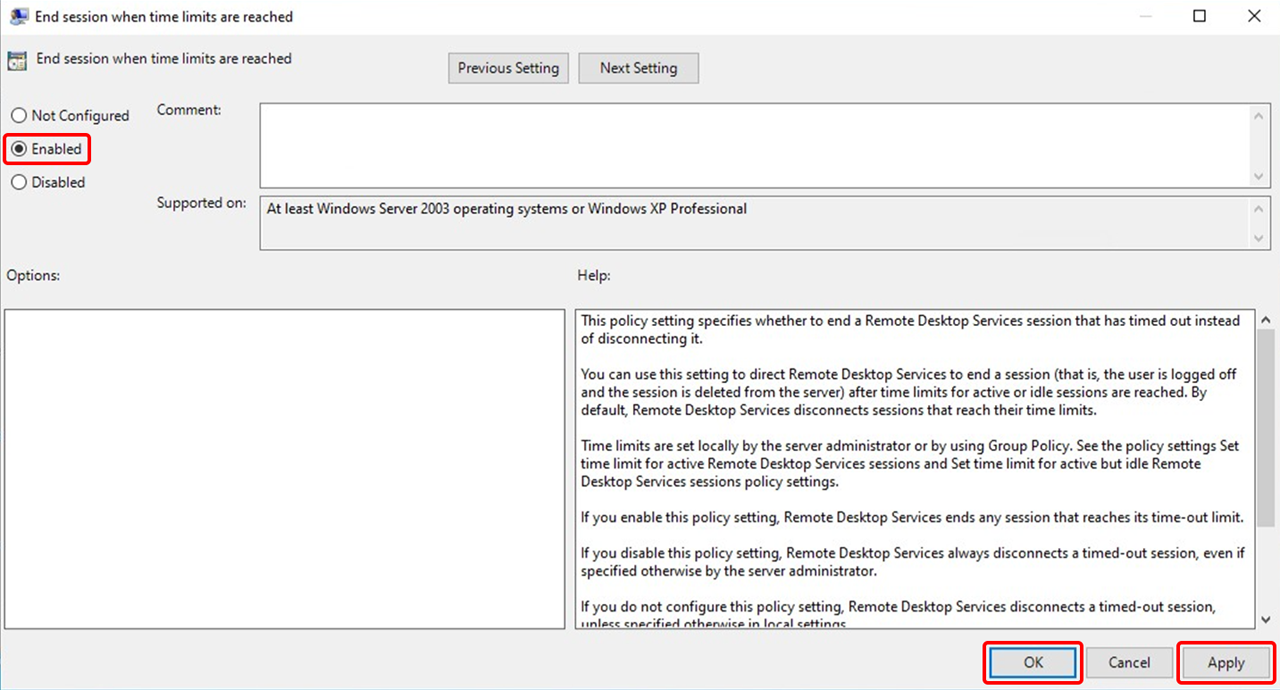
- Next, double-click End session when time limits are reached.
- Select Enabled.
- Click Apply, then OK.
Please note: After all RemoteApp windows and all notification area icons started by the user have been closed, the session remains active for another 20 seconds. If the user does not launch another remote app during this time, Windows disconnects the session. The configured logoff delay then takes effect. With the Immediately setting, Windows logs off the session without any additional delay.
For more information, see the Microsoft documentation.
Logging off a RemoteApp session may cause unsaved changes in running applications to be lost. Test this behavior before using the configuration in production and inform the affected users.
2. Allow multiple separate sessions per user
If a user needs multiple independent Remote Desktop sessions on the same session host, you can allow them through Group Policy.
- Under Computer Configuration > Administrative Templates, navigate to Windows Components > Remote Desktop Services > Remote Desktop Session Host > Connections.
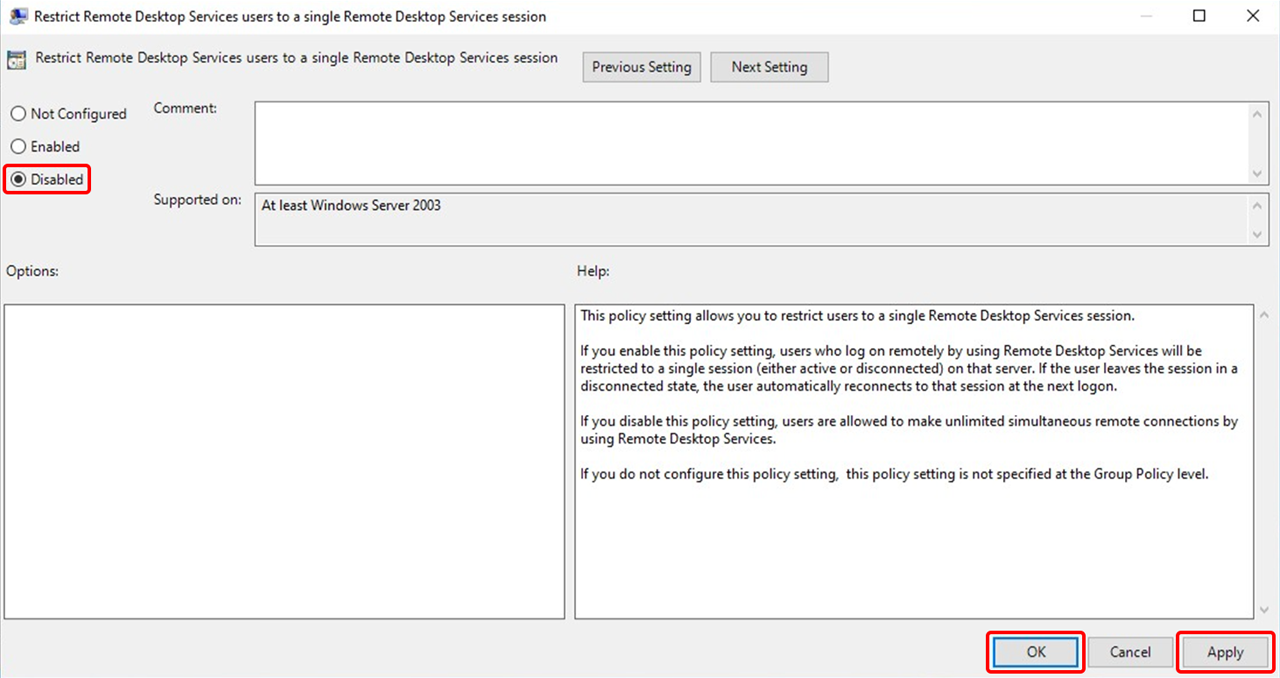
- Double-click Restrict Remote Desktop Services users to a single Remote Desktop Services session.
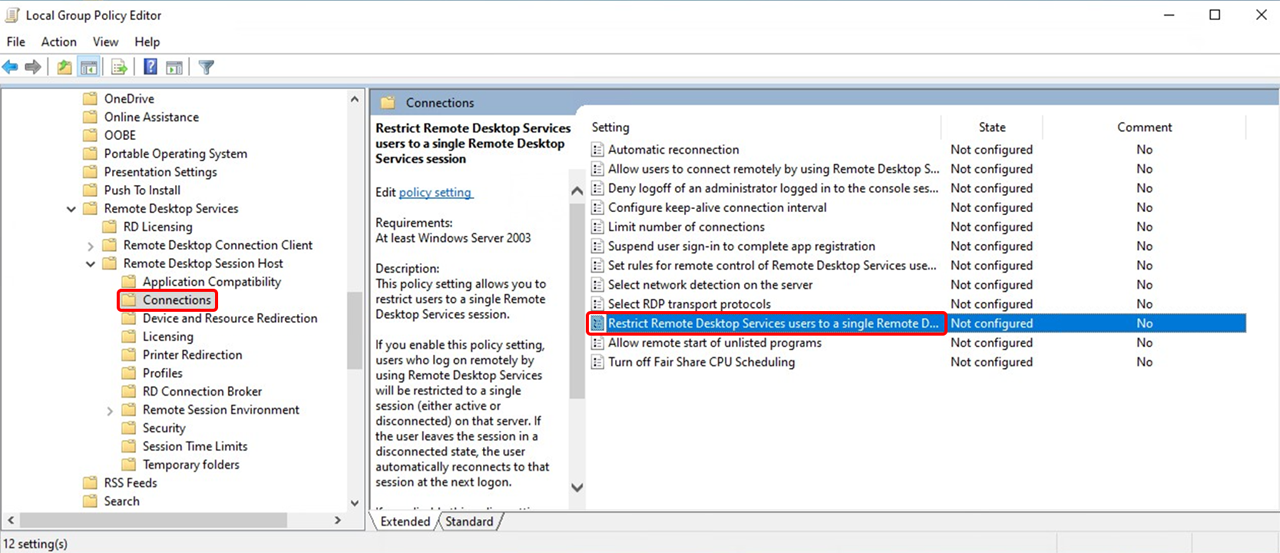
- Select Disabled.
- Click Apply, then OK.
- Next, double-click Limit number of connections.
- Select Enabled.
- Under "RD Maximum Connections allowed", enter a sufficiently high value, for example
999999. - Click Apply, then OK.
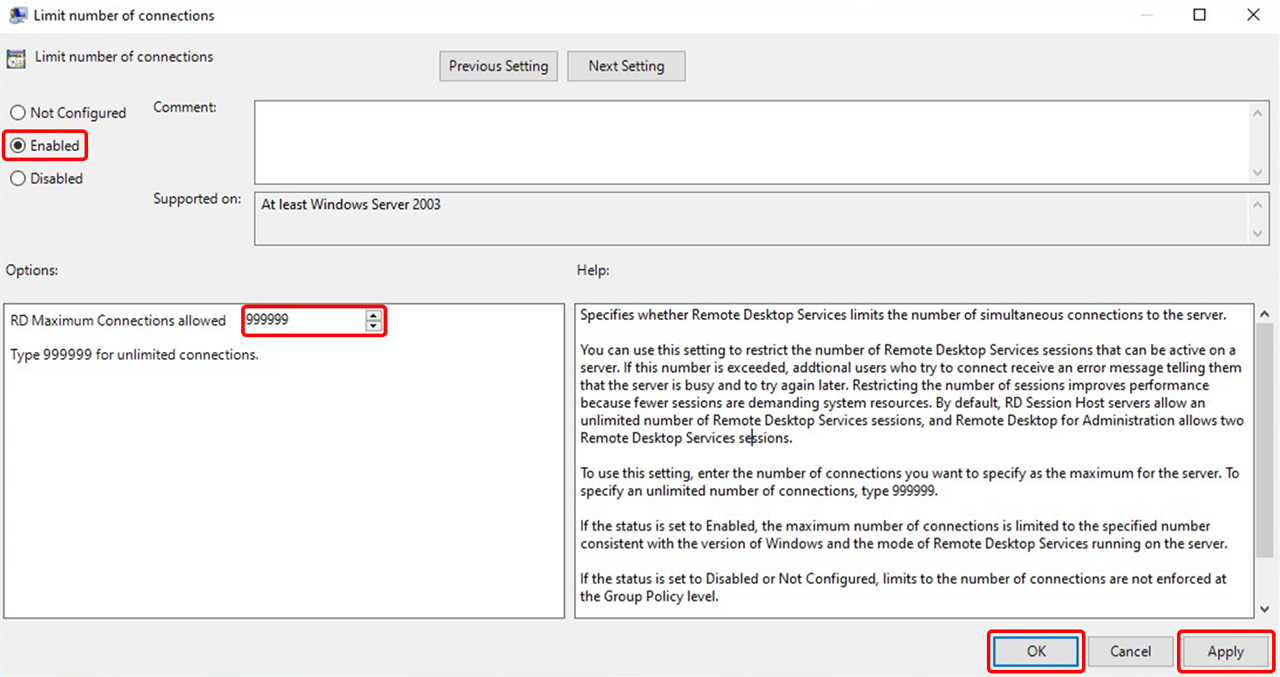
Please note: The value 999999 allows an unlimited number of connections at the Group Policy level. Other restrictions of the RDS deployment may still apply.
Disabling the single-session restriction allows additional Windows sessions. However, it does not mean that Windows automatically starts each remote app in a separate session. Additional sessions also increase the load on the session host.
In the article Time limit for disconnected sessions, the single-session restriction is enabled instead. These settings are mutually exclusive. Decide whether you want to allow one or multiple sessions per user.
3. Apply Group Policy settings
You have two options to apply the changed settings on the session host:
Update Group Policy
- On the session host, open PowerShell or Command Prompt as an administrator.
- Run the following command:
gpupdate /force
- Verify the applied Group Policy settings and test the behavior with a newly established Windows session.
Alternatively: Restart the server
Restart the session host to reapply Group Policy settings during system startup.
Restarting the server interrupts all active user sessions. Inform the affected users and schedule the restart outside regular usage hours whenever possible to avoid data loss.
Which setting fits your goal?
| Goal | Relevant instructions |
|---|---|
| Log off a disconnected RemoteApp session as quickly as possible after closing | Section 1 |
| Run multiple remote apps simultaneously within the same session | No changes to the single-session restriction required |
| Allow multiple separate Windows sessions per user | Section 2 |
| Limit the duration of disconnected sessions in combination with load balancing and restrict users to a single session | Time limit for disconnected sessions |
| Keep processes running on the server after closing the application window | Stop disconnection |