MS Teams: Optimize Resources
Microsoft Teams can be used within a oneclick™ environment.
For meetings, it is recommended to use Microsoft Teams in the local browser of the end device.
Using Microsoft Teams in the local browser
For optimal use of camera, microphone, and screen sharing, use Microsoft Teams in the browser of your local end device.
- Open a browser on your end device.
- Go to https://teams.microsoft.com.
- Sign in with your Microsoft account.
Using Microsoft Teams within a remote session
Microsoft Teams can also be started and used within a remote session.
In this case, audio and video data are transmitted via the remote connection.
For meetings and screen sharing, it is recommended to use Microsoft Teams in the local browser of the end device.
Reduce Microsoft Teams resource usage on virtual machines
Microsoft Teams can consume significant system resources on virtual machines. To optimize resource usage, you can apply a configuration in the Windows registry.
-
Start PowerShell as Administrator.
To do this, open Windows Search, type "PowerShell", right-click Windows PowerShell, and select Run as administrator.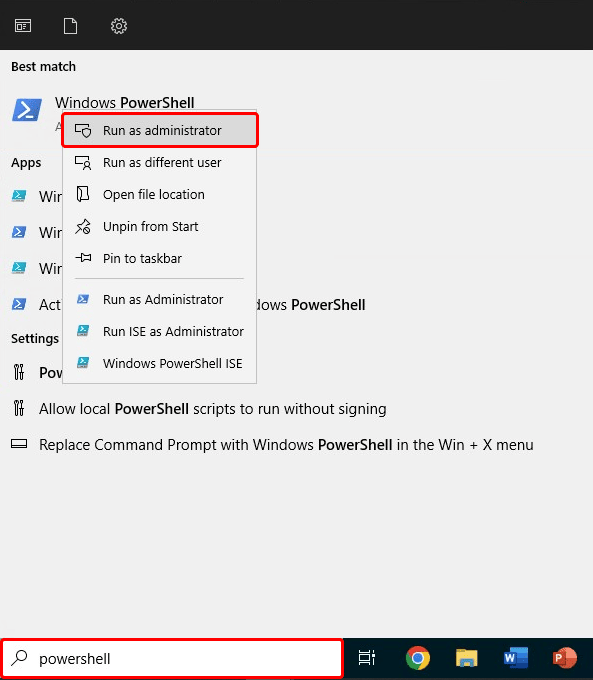
-
Enter the following PowerShell command and press Enter:
New-Item -Path "HKLM:\SOFTWARE\Microsoft\Teams" -Force -
Then enter the following command and press Enter again:
New-ItemProperty -Path "HKLM:\SOFTWARE\Microsoft\Teams" -Name IsWVDEnvironment -PropertyType DWORD -Value 1 -Force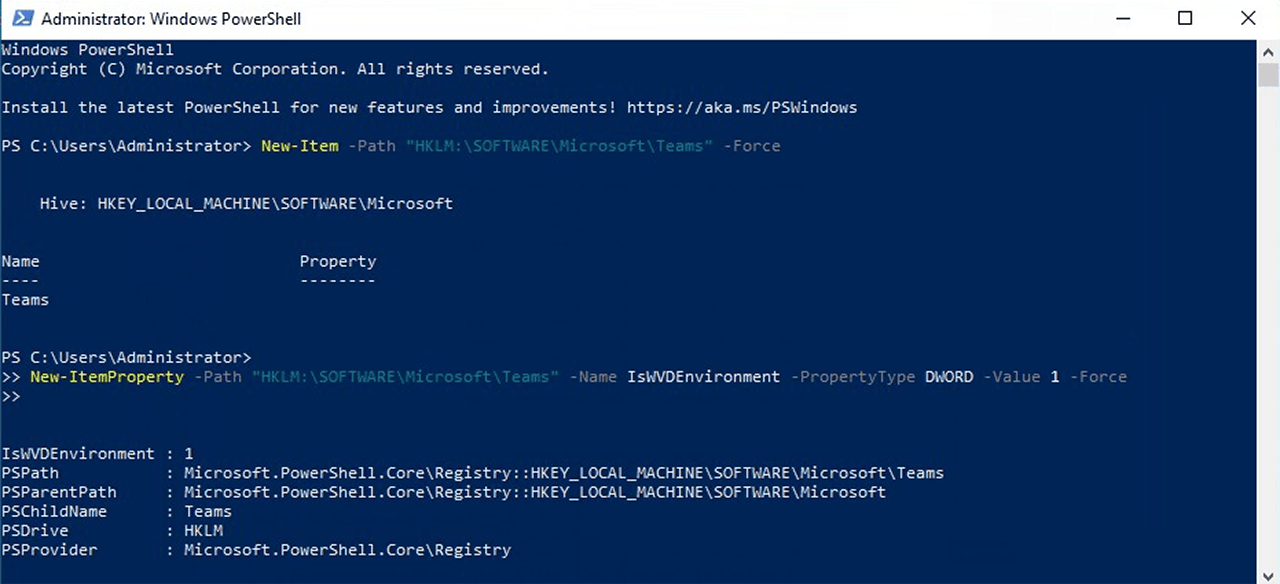
-
Restart Microsoft Teams.
If Teams is already running, right-click the Teams icon in the taskbar, select Quit, and then start Teams again.
Verify registry entry
To verify that the entry was created successfully, run the following PowerShell command:
Get-ItemProperty -Path "HKLM:\SOFTWARE\Microsoft\Teams" -Name IsWVDEnvironment
Revert the change
To remove the configuration, run the following PowerShell command:
Remove-ItemProperty -Path "HKLM:\SOFTWARE\Microsoft\Teams" -Name IsWVDEnvironment -Force
Additional ways to reduce resource usage
You can also adjust the following settings in Microsoft Teams:
- Disable GPU hardware acceleration
- Disable Teams auto-start
- Clear the Teams cache
- Reduce notifications
- Minimize background processes
Close Microsoft Teams when the application is not actively in use.