Adopt time zone of the end device
If you want the time zone of your local computer (from which you access oneclick™) to also determine the time zone of your connected resource (Remote Desktop, Virtual Machine, Server, etc.), you need to set the registry key for time zone redirection on the servers.
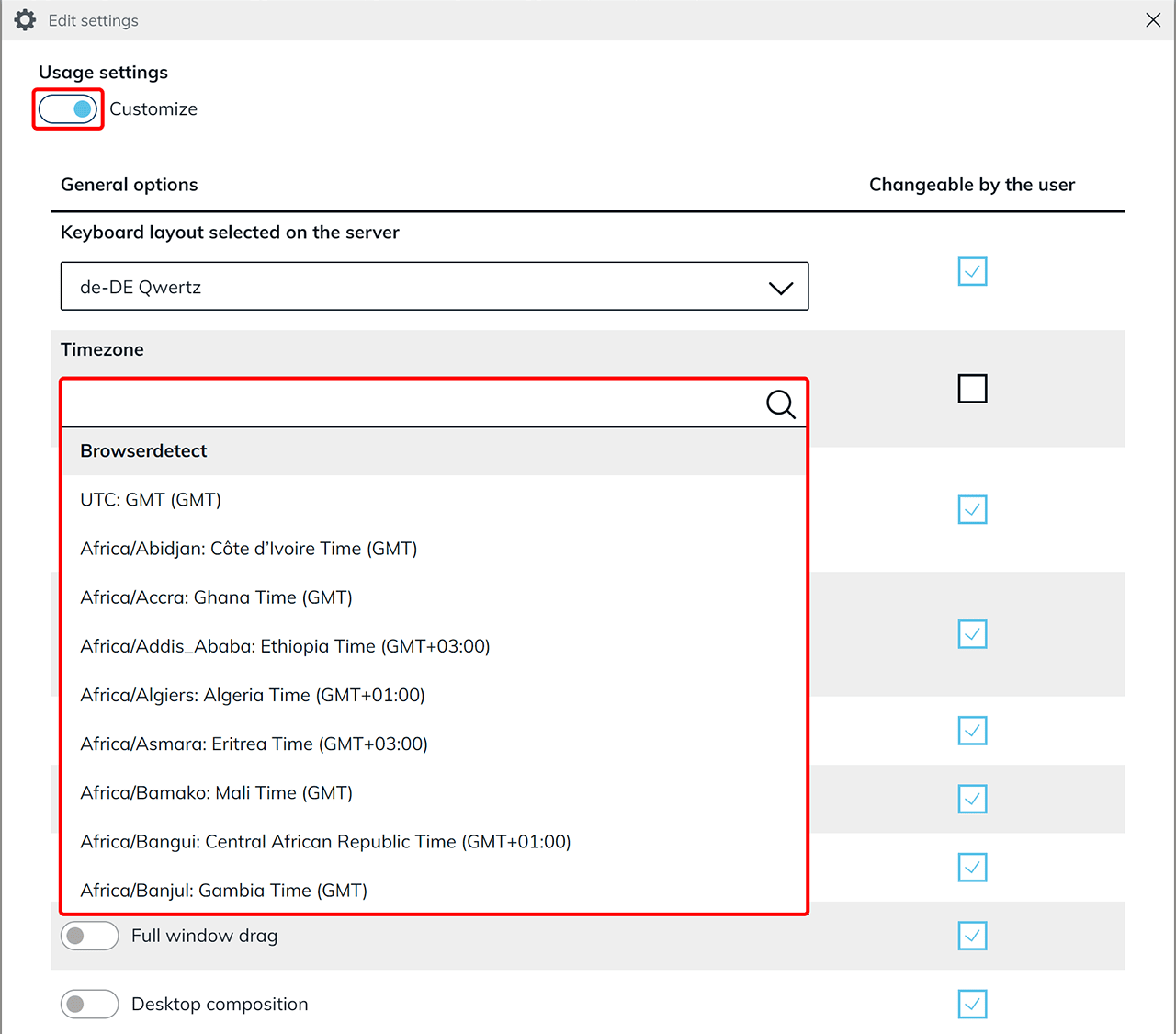
Additionally, in the app configuration under usage settings, you must adjust the time zone to match that of your connected resource.
For a Single Server
- Search for "Registry Editor" in the Start menu.
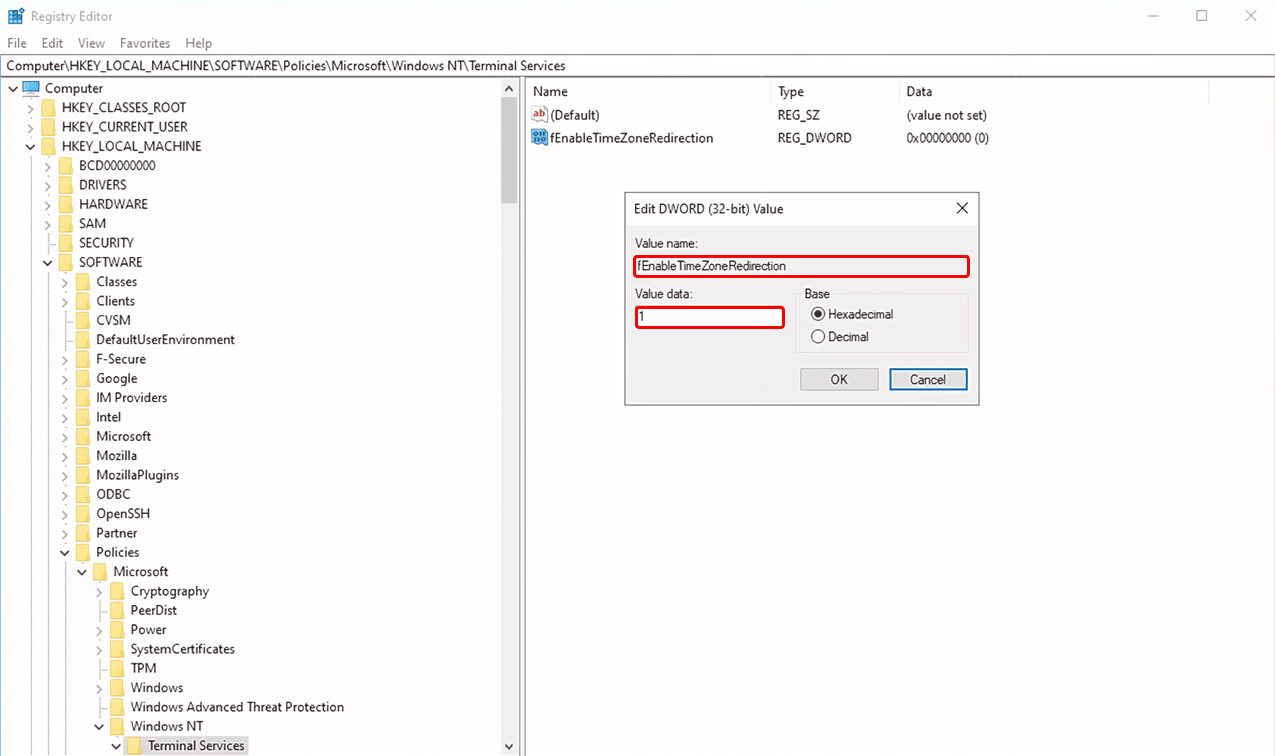
- Navigate to:
HKEY_LOCAL_MACHINE\SOFTWARE\Policies\Microsoft\Windows NT\Terminal Services - Right-click in the empty space within the "Terminal Services" folder. Select New > DWORD (32-bit) Value.
- Rename the new entry to
fEnableTimeZoneRedirection. - Double-click it to edit, set the Value data to 1, and confirm with OK.
The time of your local device is now recognized in the connected resource.
Time Zone for Multi-User
Enable time zone redirection via Group Policy (GPO).
- Press Windows + R to open the Run window.
- Type
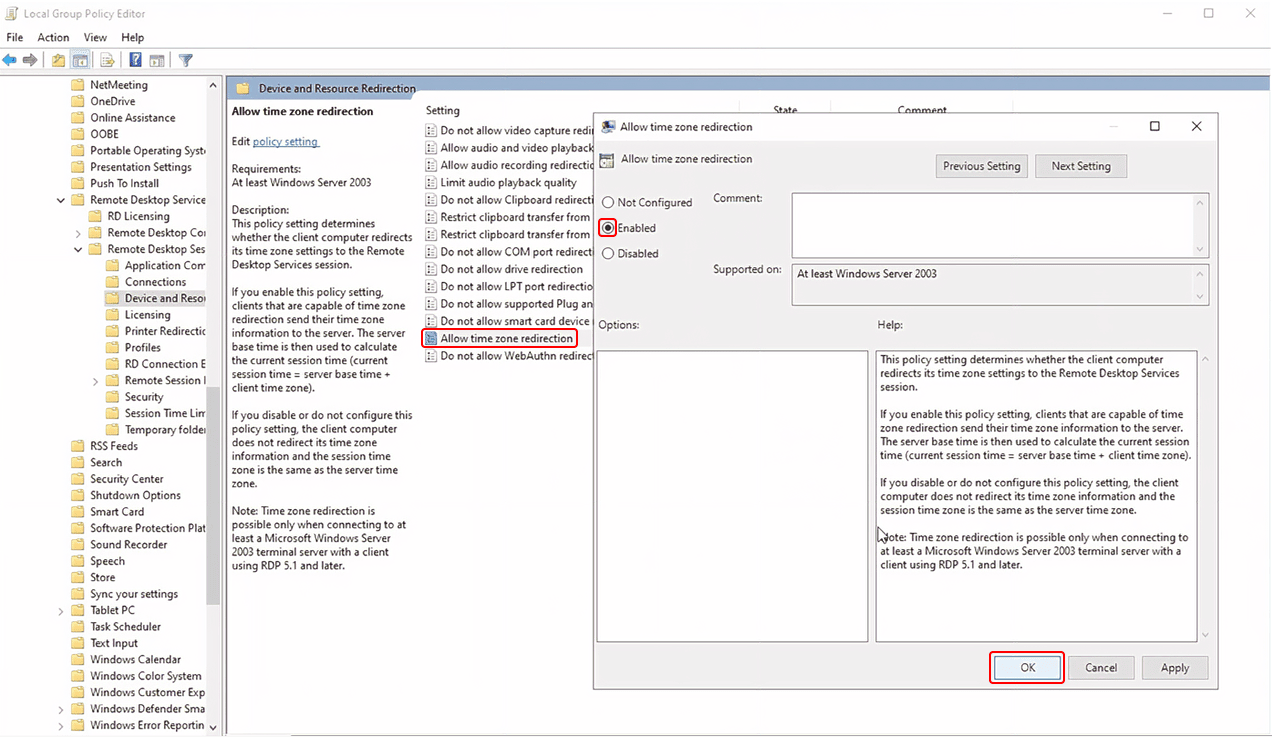
gpedit.mscand press Enter. - Navigate to: Computer Configuration > Administrative Templates > Windows Components > Remote Desktop Services > Remote Desktop Session Host > Device and Resource Redirection > Allow time zone redirection
- Double-click "Allow time zone redirection". Select "Enabled", then confirm with "Apply" and "OK".
App Configuration
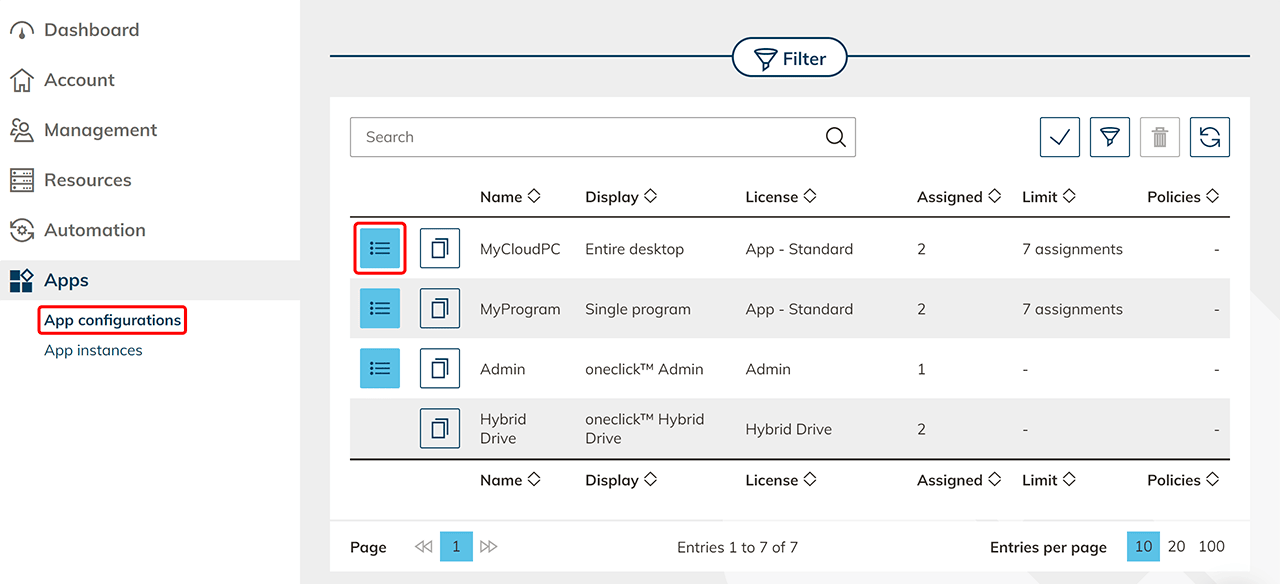
- Click on the Apps tab in the menu and select App configurations.
- Switch to the details page of your app configuration by clicking on the List icon.
- Click on the pencil icon in the ‘Settings’ tile.
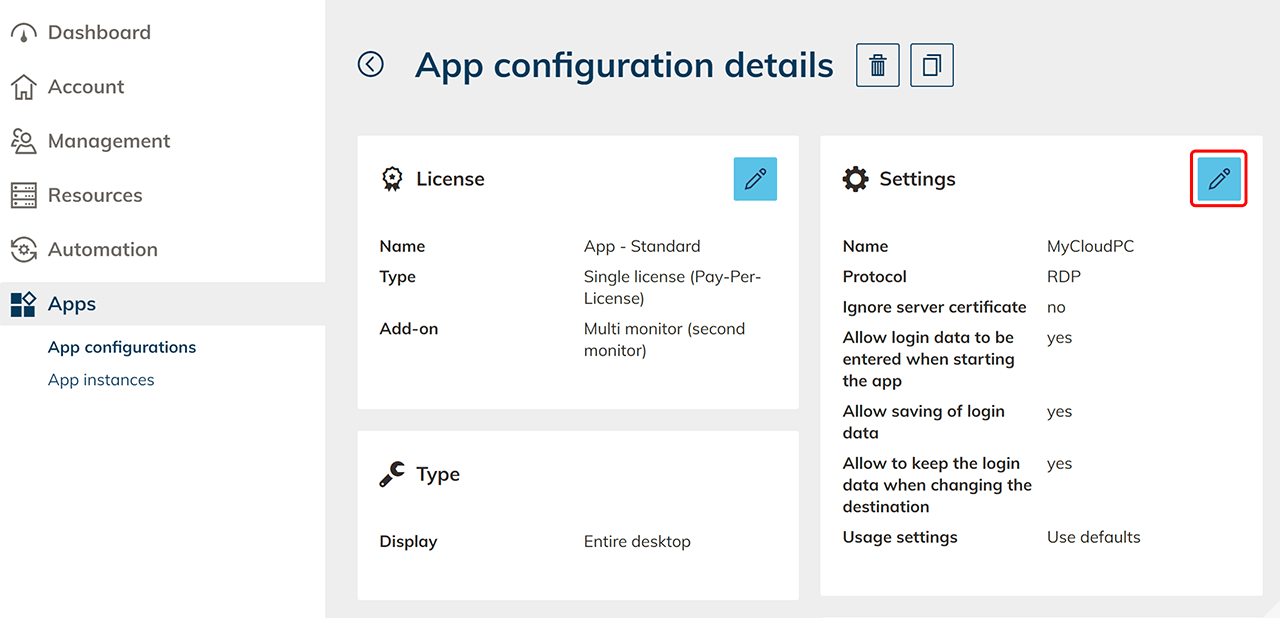
- Under ‘Usage settings’, select the Customize option and make your desired changes under ‘Time zone’. Finally, Save your settings.