User must change the password at next login
You set up a new server for your company and want your users to change their password on the next login attempt?
Perform the following steps to automate this process:
1. Preparing the users in your Active Directory
- First open your connected Active Directory.
- Switch here to the view in which your users are listed.
- Right-click the user to whom you want to apply the rule and select Properties.
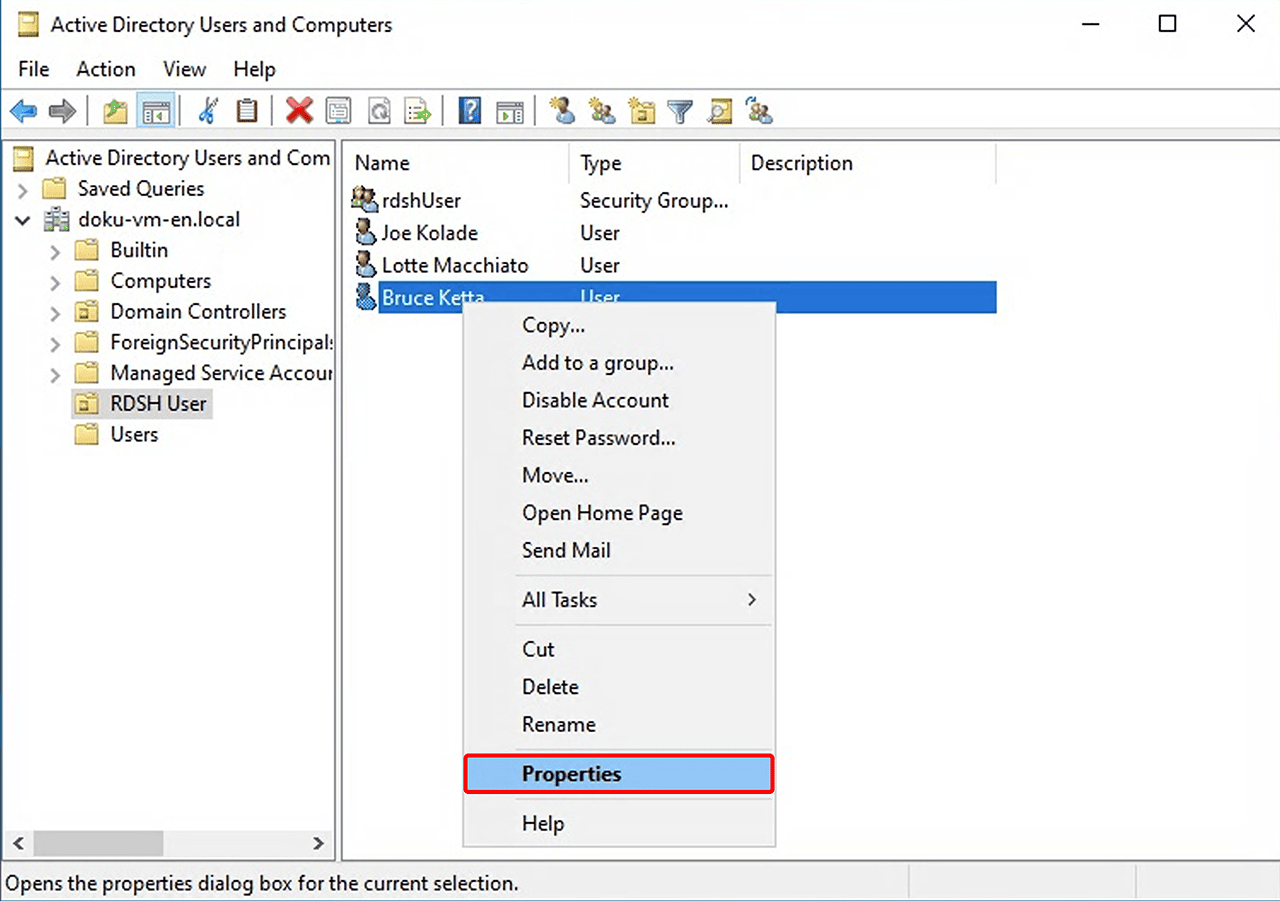
- In the upper part of the opened window, switch to the Account tab.
- In the bottom “Account options” window, scroll down to the “User must change password at next logon” entry and select the checkbox to the left of it.

- Confirm your entries with OK.
2. Disable NLA on the Windows server
-
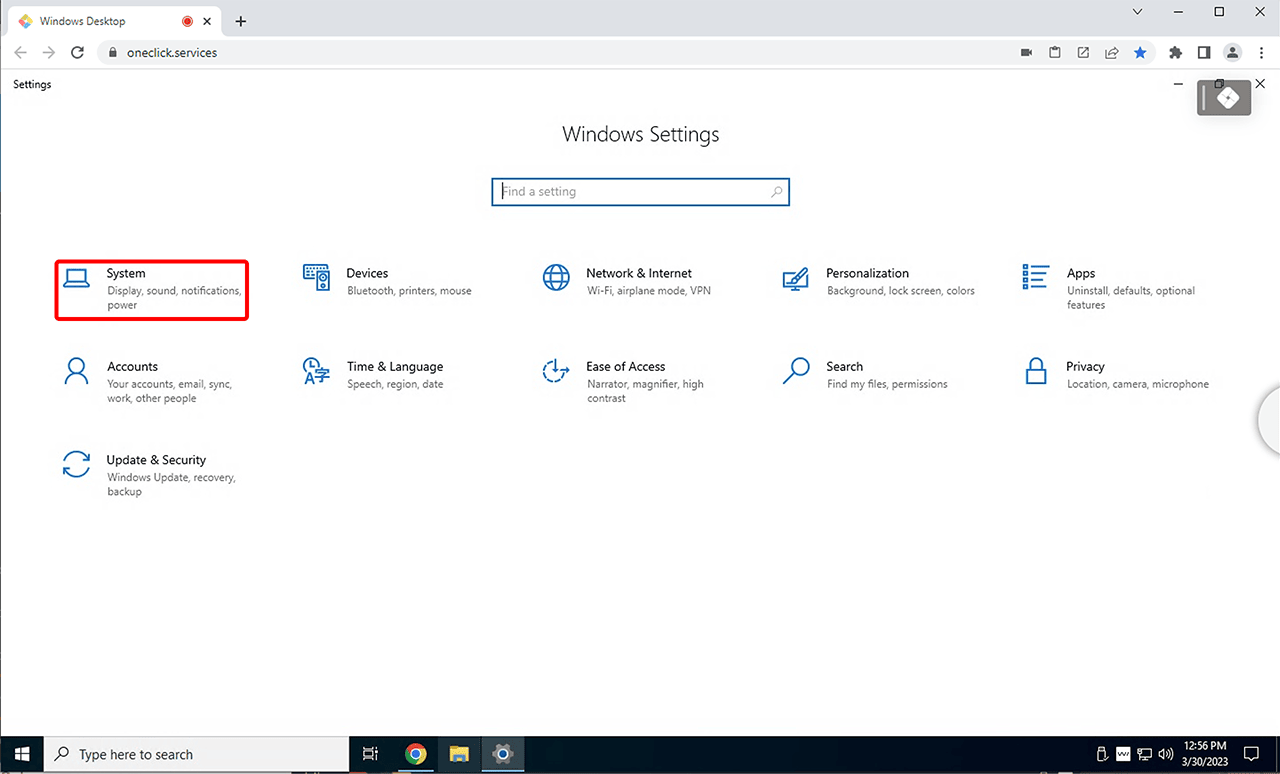
On your Windows server or on your VM, open the system settings.

-
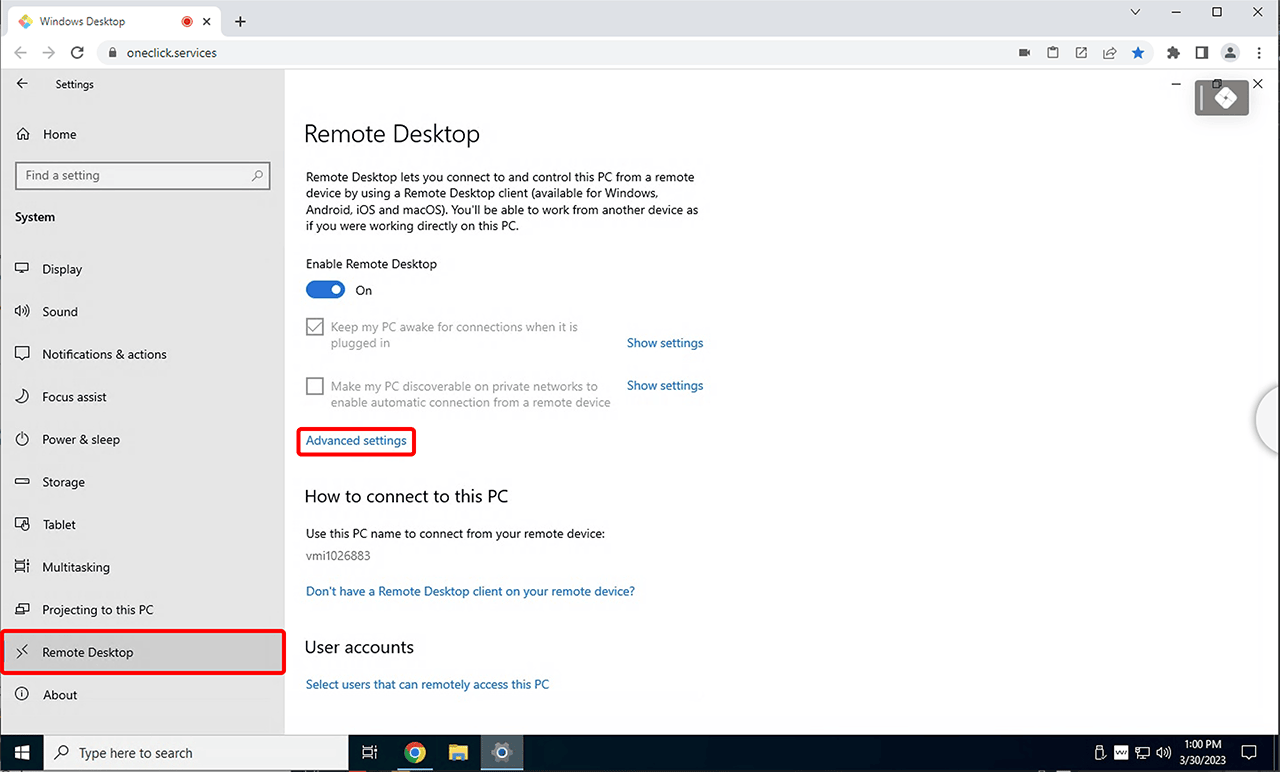
Select the menu item System then Remote Desktop and click Advanced settings here.
-
If this option is not available to you, first enable Remote Desktop on your PC by clicking on the displayed button.
-
Disable the “Require computers to use Network Level Authentication to connect (recommended)” feature here.
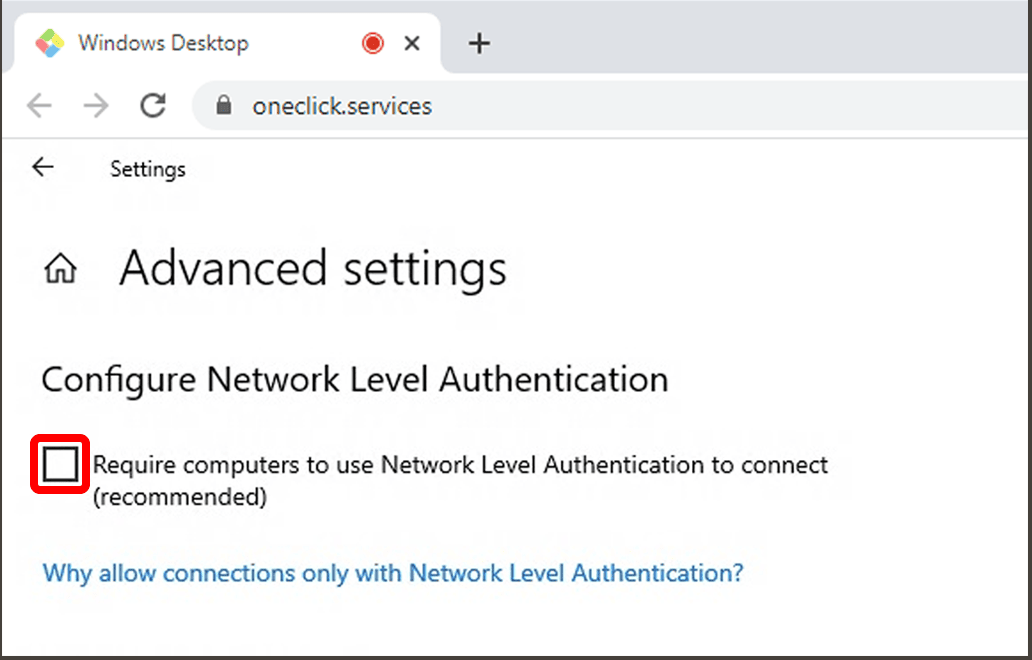 _Disabling NLA can lead to a security risk from fake servers. oneclick™ uses its streaming technology to ensure that the server called up is authentic and not fake. In this way, “man-in-the-middle” attacks can be consistently excluded and a secure connection can still be established permanently._
3. Change the app configuration in the oneclick™ admin
- Switch to your app configuration in oneclick™.
- Open the settings by clicking on the List icon.

- Click on the Pencil icon at “Settings”.
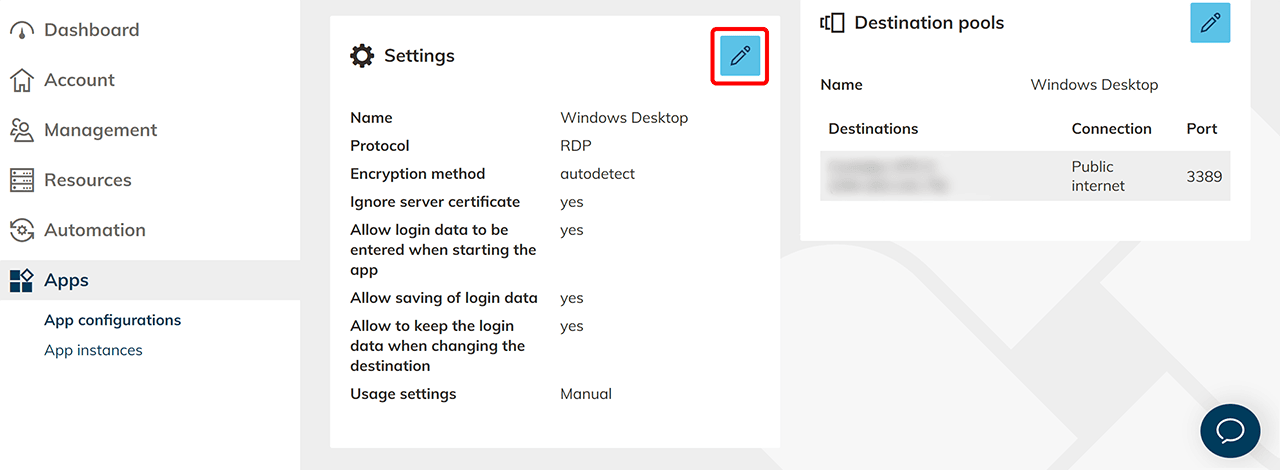
- Now activate the switch next to “Customize” in the opened window under the “Connection settings” item.
- Select “TLS” as encryption method. In this case, the switch next to the entry “Ignore server certificate” must be activated.
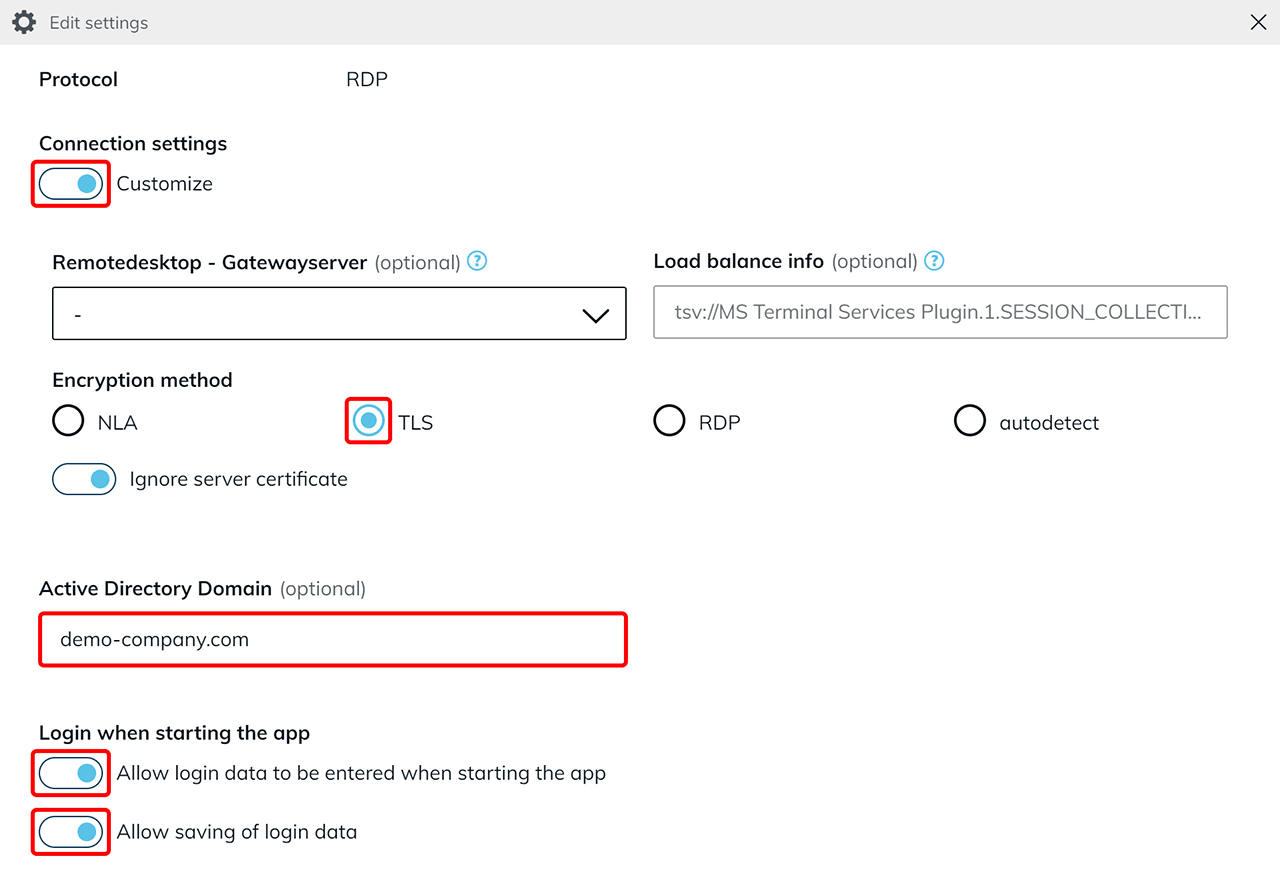 When using an RDSH environment, it is also mandatory to enter a specific a domain under “Active Directory Domain”. If no domain is specified here, your users will receive the error message “Username or password is incorrect.”
 - In the “Login when starting the app” section, activate “Allow login data to be entered when starting the app” so that your users can enter their login data by themselves. Optionally, you can also activate the second subitem here. This allows the login data to be saved, which means that they don’t have to be entered again each time the user logs in.
- Finally, confirm your entries with Save.
4. Steps to be performed by the user
-
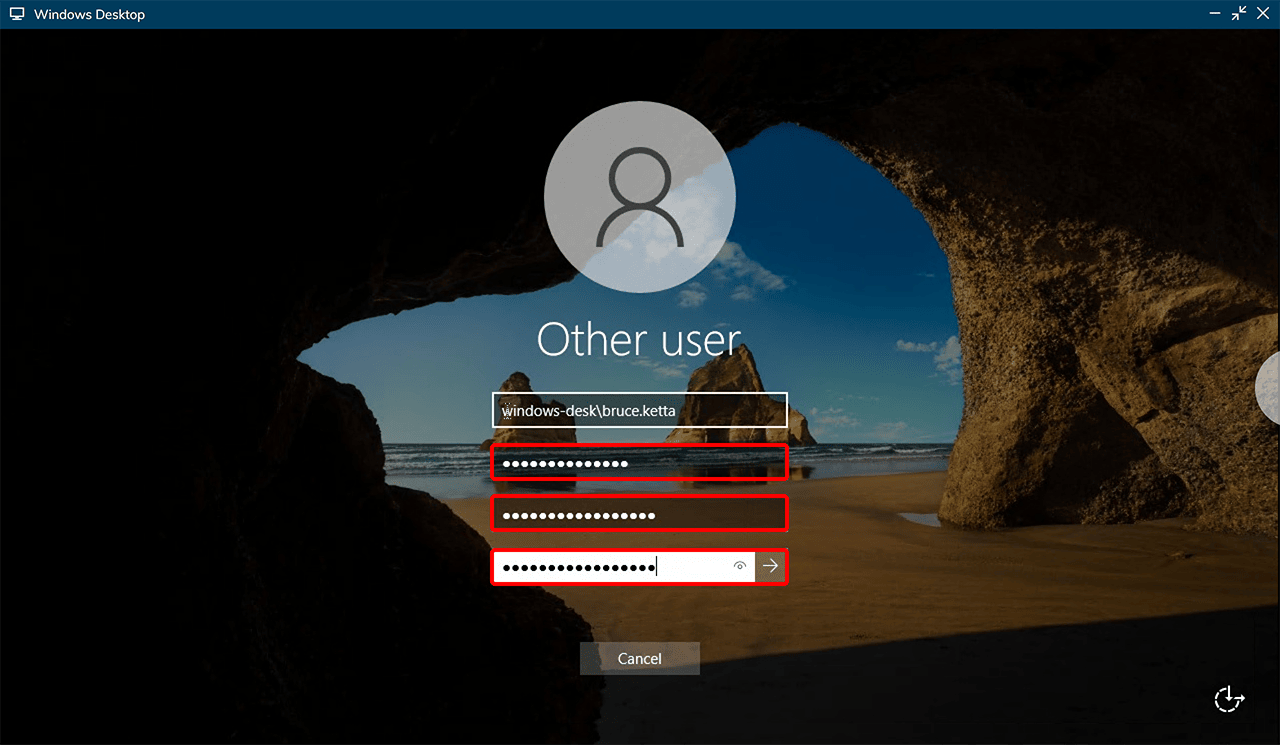
The user will now receive a message that he must change his password next time he tries to log in. After confirming with OK, the user is redirected to a form where he has to enter his previous password and a new one. The copy-and-paste function from Windows is not supported here!

-
Lastly, after the next login, it is necessary for the user to store his newly chosen password in oneclick™.