Delivering a remote app
The following is only possible with a multi-user environment (Virtual Desktop Infrastructure, RDSH) – not with a single user environment (Virtual Desktop).
If you want to deploy a single program (remote app) in oneclick™ (and not a full Windows desktop), follow these steps:
Configuration on the server
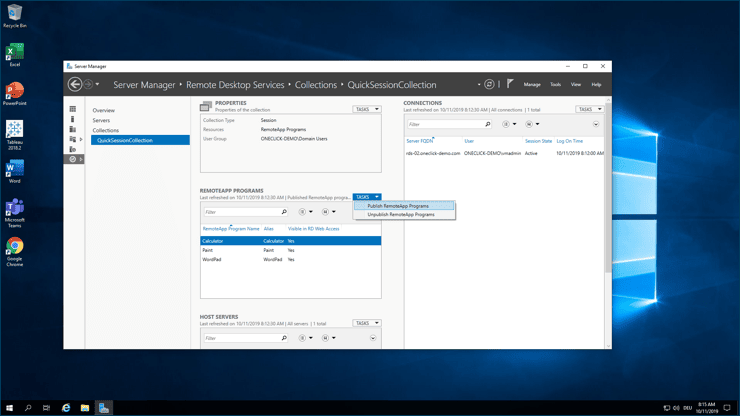
- On your server go to Server Manager / Remote Desktop Services / Collections / QuickSessionCollection.
- In the “RemoteApp Programs” area, click on TASKS and then select Publish RemoteApp Programs.
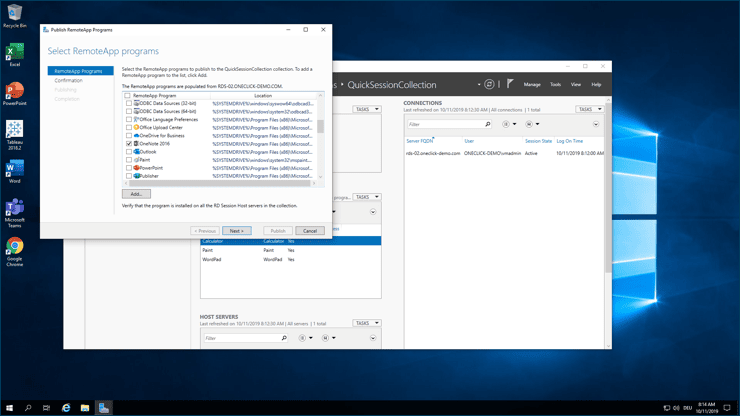
- Select the program you want to publish and follow the dialog.
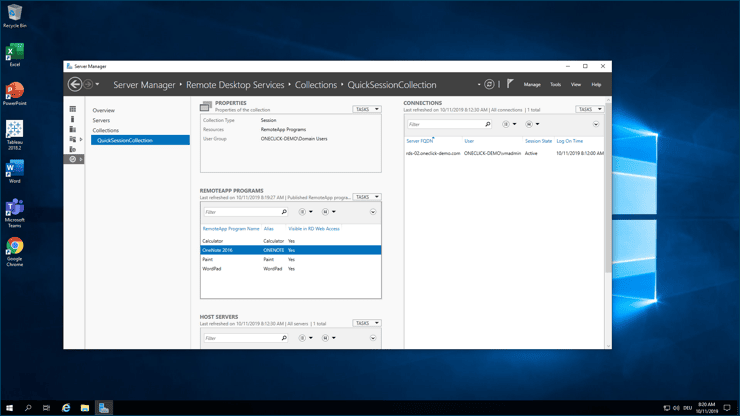
- The app can now be accessed individually via oneclick™. Please memorize the correct spelling of the alias.
Configuration in oneclick™
- Switch to the oneclick™ Admin and create a new app configuration.
- Go to the Apps menu, go to App configurations and click on the Plus icon
- Select the resource type, in which you created your server, and the Single Program view.
- Select your server.
- In the App Configuration settings, you can now enter the “Active Directory Domain”, optionally the “Load Balance Info” and also the “Name of the Remote App”.
Make sure that you insert the following two dashes before the alias name: ||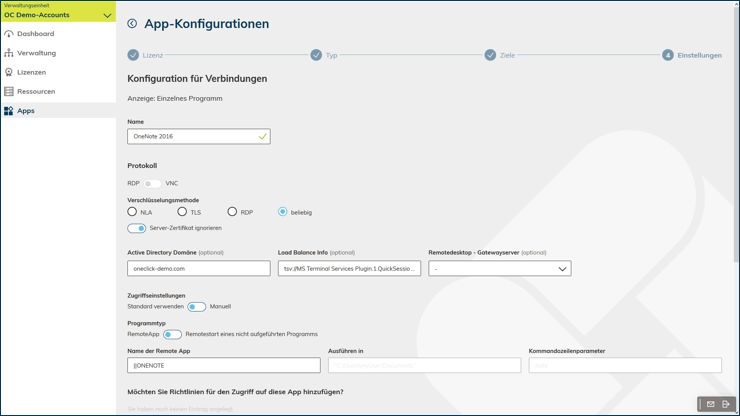
- Configure the access as required and then click Save.
- Next, assign the configuration to your users.
For more information on using the Remote App, see our user documentation.