Change usage setting for users
You have already created an app configuration for which you want to change the usage settings afterwards?
You can use the usage settings for the connected resource:
- Use oneclick™ gateway
- Change keyboard layout
- Select time zone
- Adjust streaming settings
- Activate display options such as the desktop design
- Activate Admin Session
- Make audio settings
- Enable or disable oneclick™ PDF printer.
Edit usage settings
- Click on Apps in the menu and select the App configurations.
- Go to the detail page of your app configuration by clicking on the List icon.
- In the "Settings" tile, click on the Pencil icon.
- Customize the "Usage Settings". You can make settings here. If you want the user with a professional license to be able to change these display options himself, check the box next to the corresponding options under "Changeable by the user".
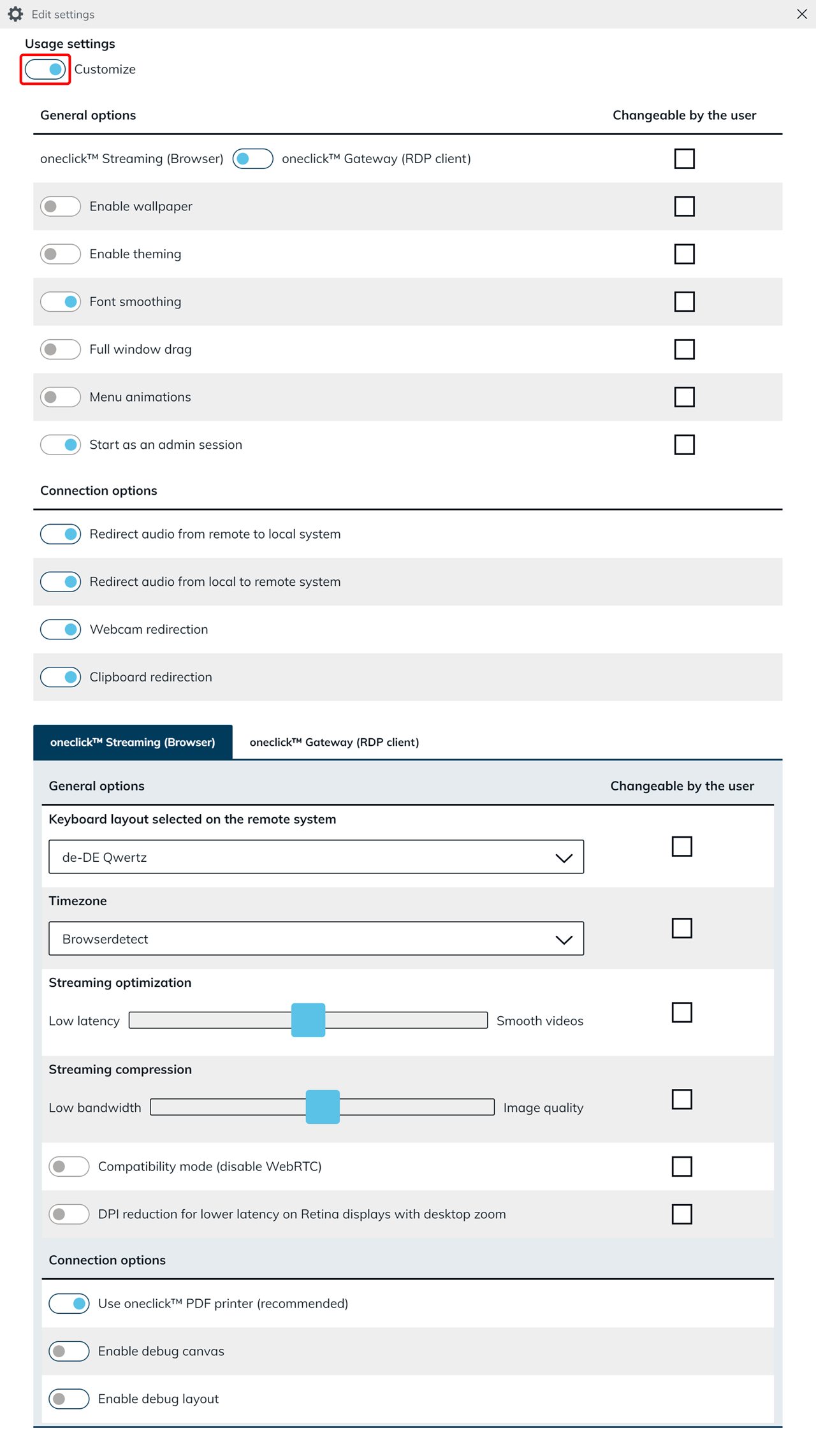 The settings you can make here depend on the app license (Standard or High Performance).
 - Click Save.
"Changeable by the user" activated
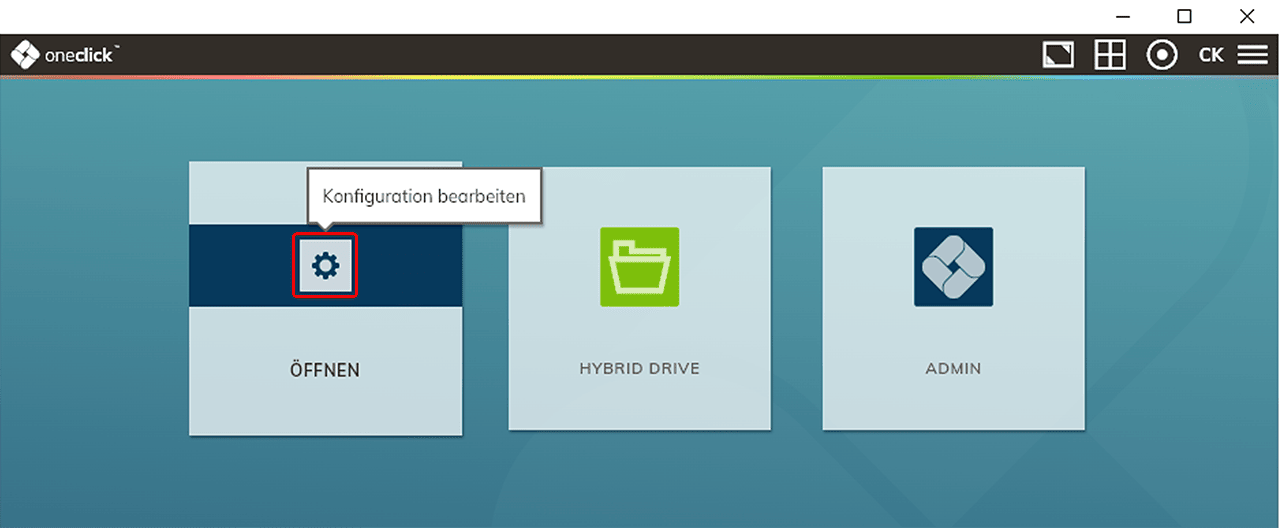
When using a oneclick™ Professional license, on the oneclick™ Desk you can move the mouse pointer (without clicking) over the app tile. The app-setting control appears. Click on the Gear icon. In the opening menu, all the display options that you have selected as " Changeable by the user" will be available. Have a look of how the menu and the other control-elements look like. If you don´t see the app-setting control make controls on app-tiles visible.
Note: When using a oneclick™ Basic license, a user can not change any of these options independently.