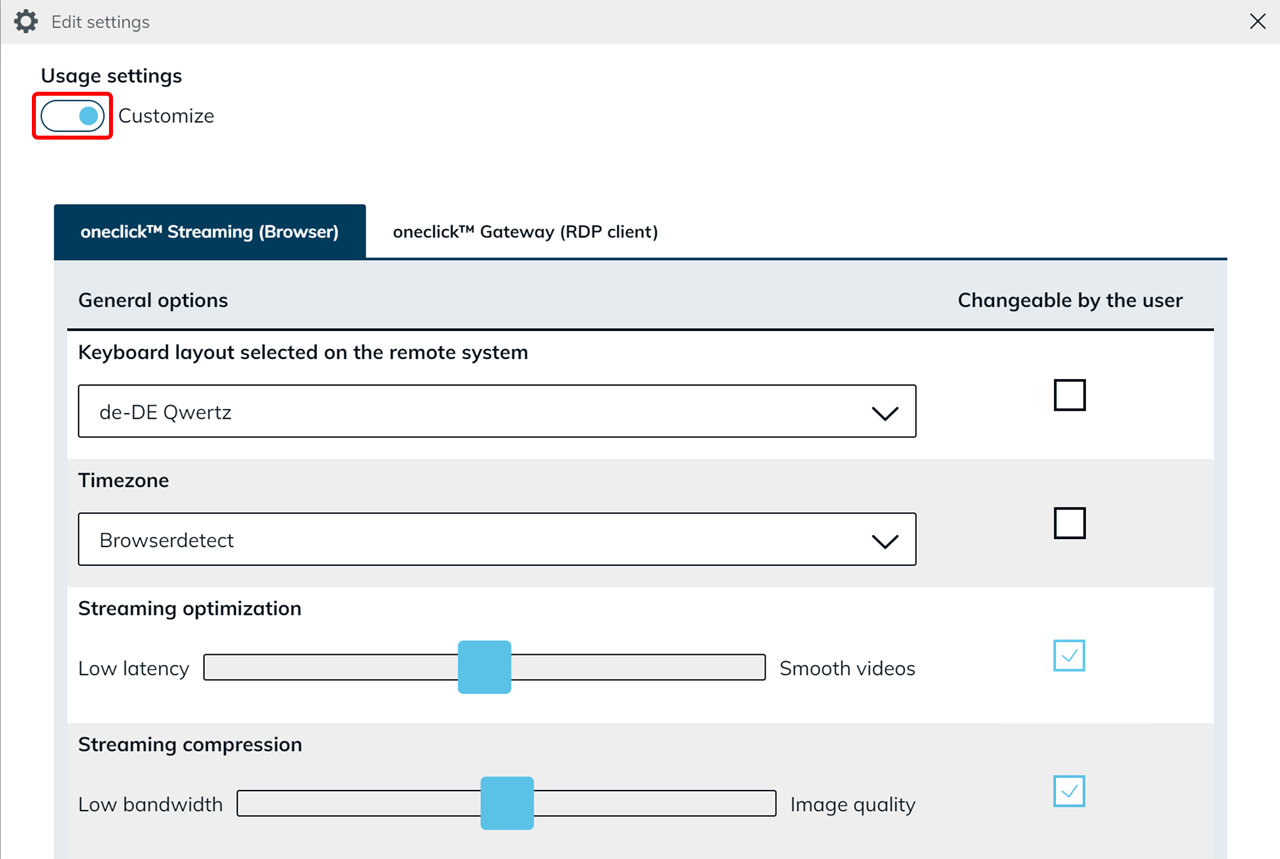
Adjust streaming settings
Streaming optimization and streaming compression allow users to adjust the video quality and transmission.
With streaming optimization, latency can be reduced if, WebRTC is not used, for example. The “Smooth videos” setting enables a smoother display of moving images by activating WebRTC automatically. As soon as the user watches a video for a few seconds, a smoother display is guaranteed.
Working with a low bandwidth, you can adjust the image quality under streaming compression to minimize latency. Reduce the quality to ensure a smoother experience. If the display of the picture is too blurry, you can select a higher quality. Note the this can lead to increased latency.
To adjust the usage settings for your users, proceed as follows:
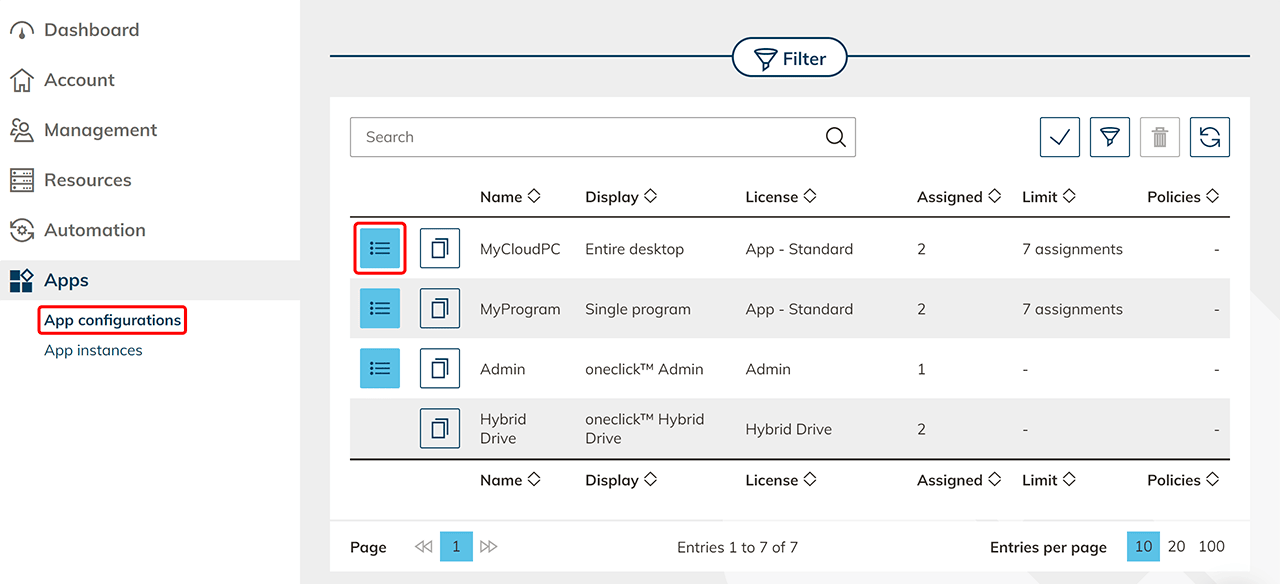
- Click on the Apps tab in the menu and select App configurations.
- Go to the details page of your app configuration by clicking on the List icon.
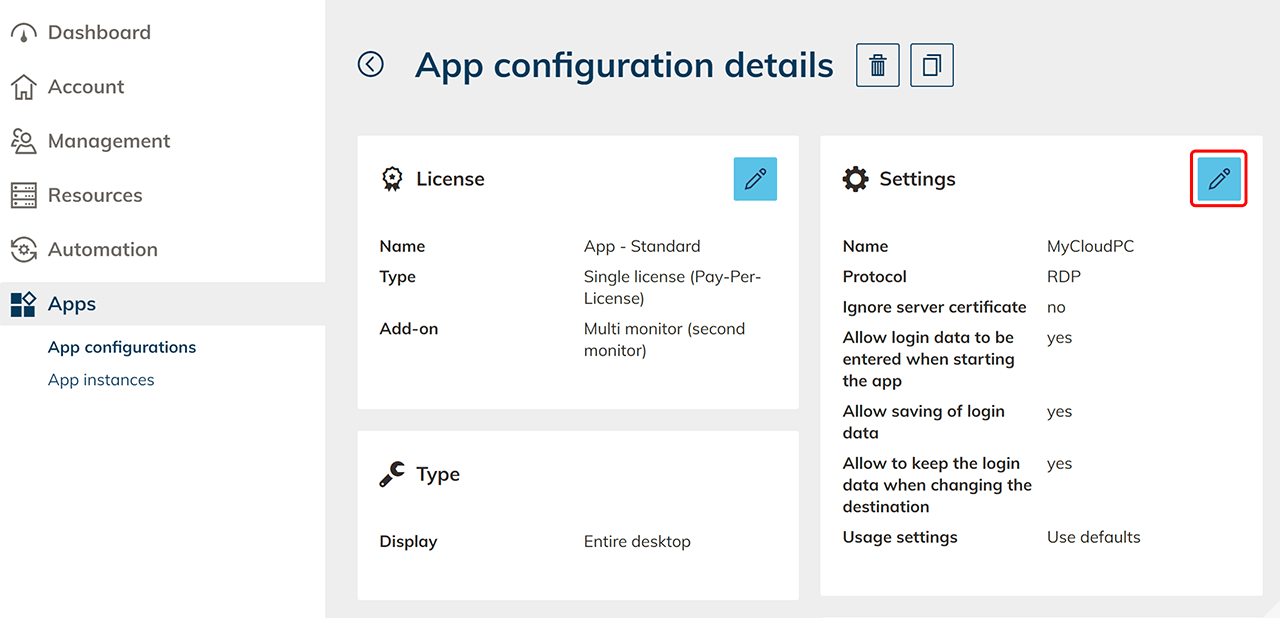
- Click on the Pencil icon in the "Settings" tile.
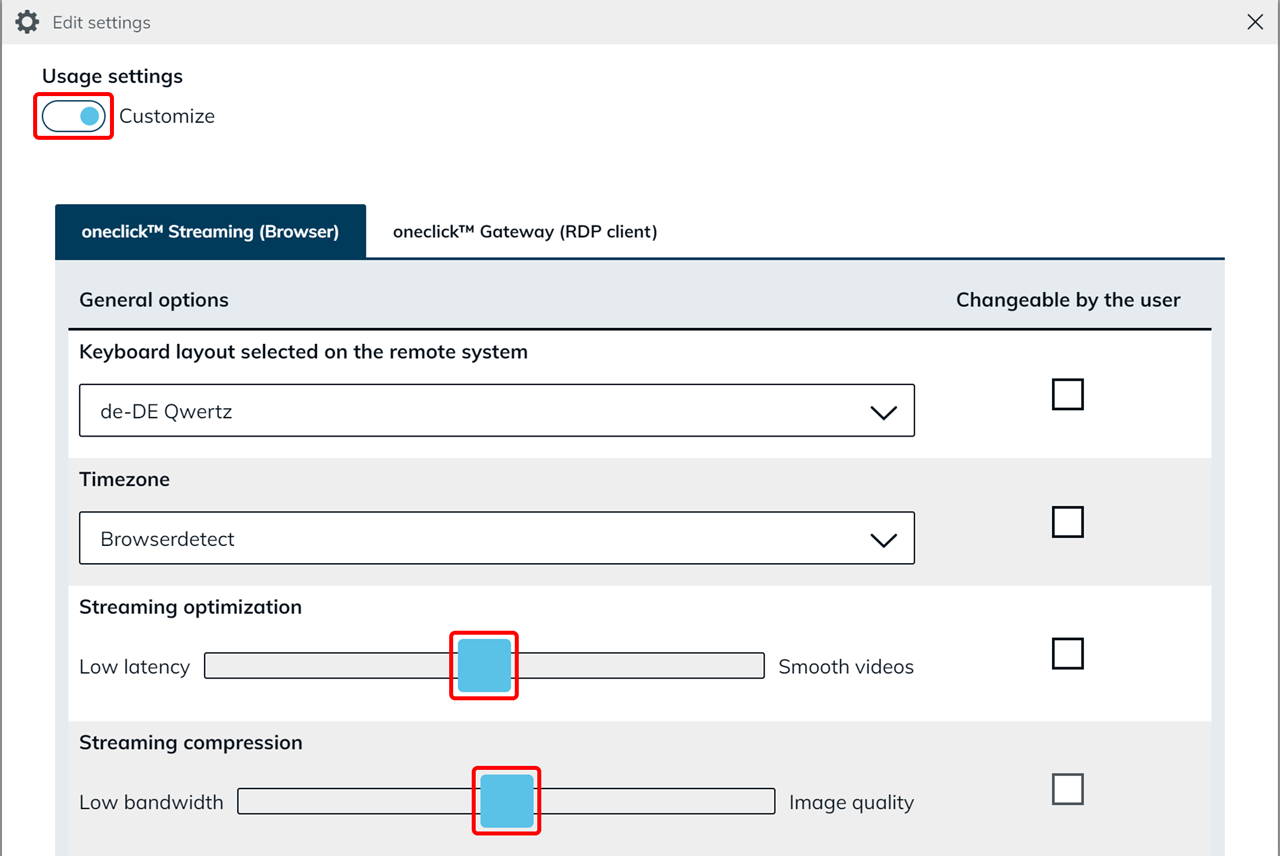
- Under "Usage settings", select the Customize option and carry out the required changes.
Streaming optimization:
- Low latency (shorter response time) If users work primarily with text-based content and only make a few image changes, it is recommended to select the “Low latency” option. Please note that moving images such as videos will be displayed less smoothly.
- Smooth videos (smoother moving image playback with low bandwidth) If you move the slider towards “Smooth videos”, WebRTC is activated “faster”, which means that moving images are displayed more quickly and smoothly.
Streaming-compression:
- Low bandwidth Move the slider to “Low bandwidth” to reduce the picture quality and minimize the required amount of data. This enables uninterrupted streaming even with slow internet connections, although this can affect the visual quality.
- Image quality Streaming compression in high image quality ensures optimum detail and clarity of the content. However, this setting requires sufficient bandwidth and can increase latency.
Allow users to customize streaming settings
You should also make sure to activate advanced settings on the “oneclick™ Desk Tile”. This allows your professional user to make adjustments independently according to their needs. Depending on whether they are working with text or video, they can test the settings and adjust them individually.
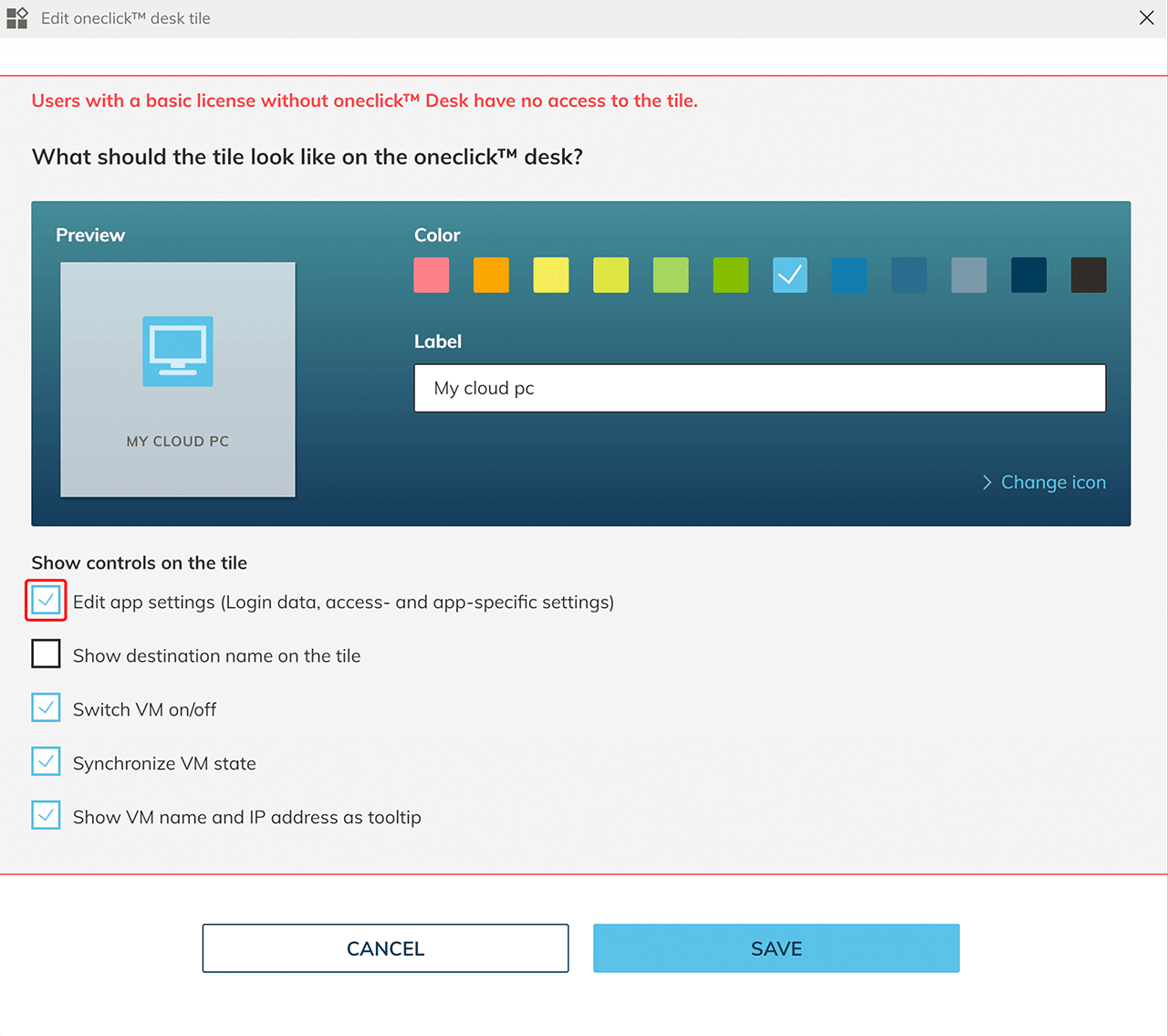 By clicking on the Gear icon, these settings are displayed to the user.

Please note that your users can only see these options if you have checked the “Changeable by the user” box under “Streaming optimization” in the usage settings of the app configuration, previously.
_