Customize App Tile
Want to make an app tile easier to recognize in the workspace or adapt it to your branding?
In the app configuration, Professional users can customize the tile on the Unified Workspace by changing its color, label, or icon, or by uploading a custom icon.
You can apply these changes both when creating a new app configuration and when editing existing apps.
Customization during creation
While creating an app configuration, you can customize the app tile directly in the final step of the process by personalizing it.
Customizing existing apps
If an app configuration already exists, you can customize the tile at any time.
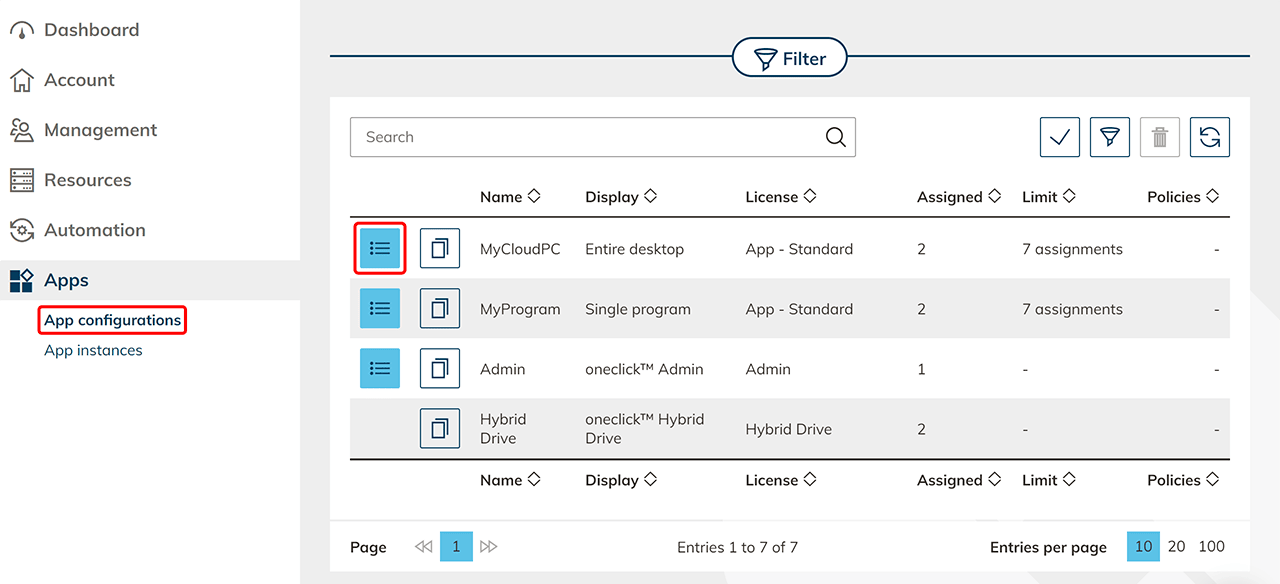
- Open the Apps tab in the admin area and click App configurations.
- Locate the desired configuration and open the detail view using the List icon.
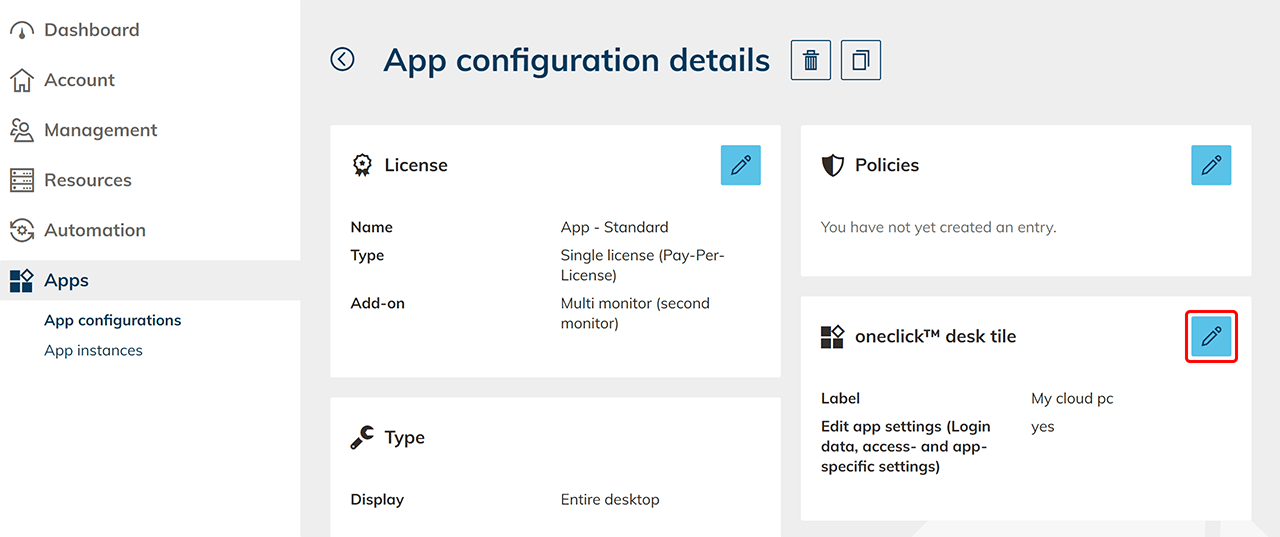
- In the “oneclick™ Desk tile”, click the Pencil icon.
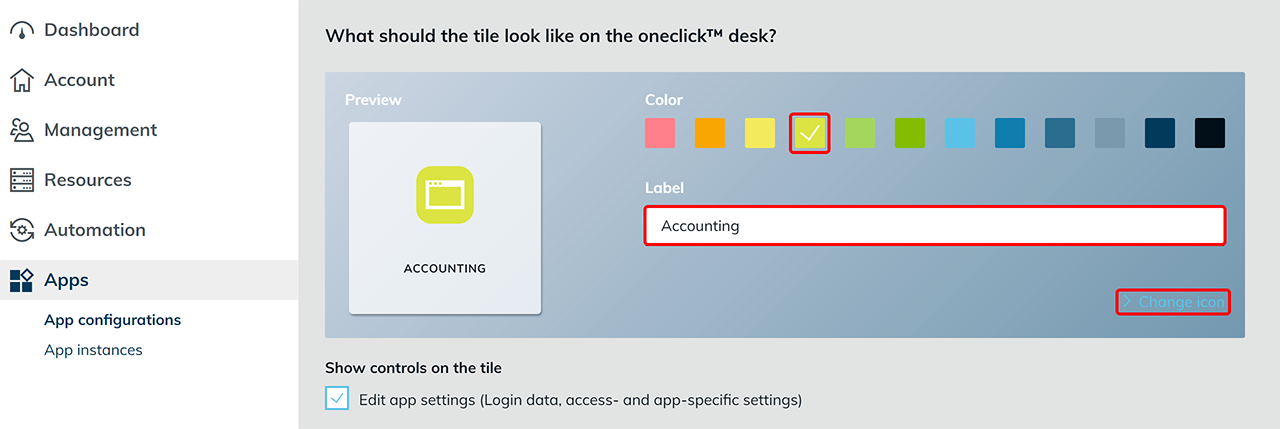
- Customize the app tile.
Color
Change the color by clicking on a color field.
Label
Enter the text you want to display as the app tile label.
Icon
Click Change icon to select an existing icon.
Changes to the color, label, and icon are shown immediately in the tile preview.
Custom icon
Upload icon
-
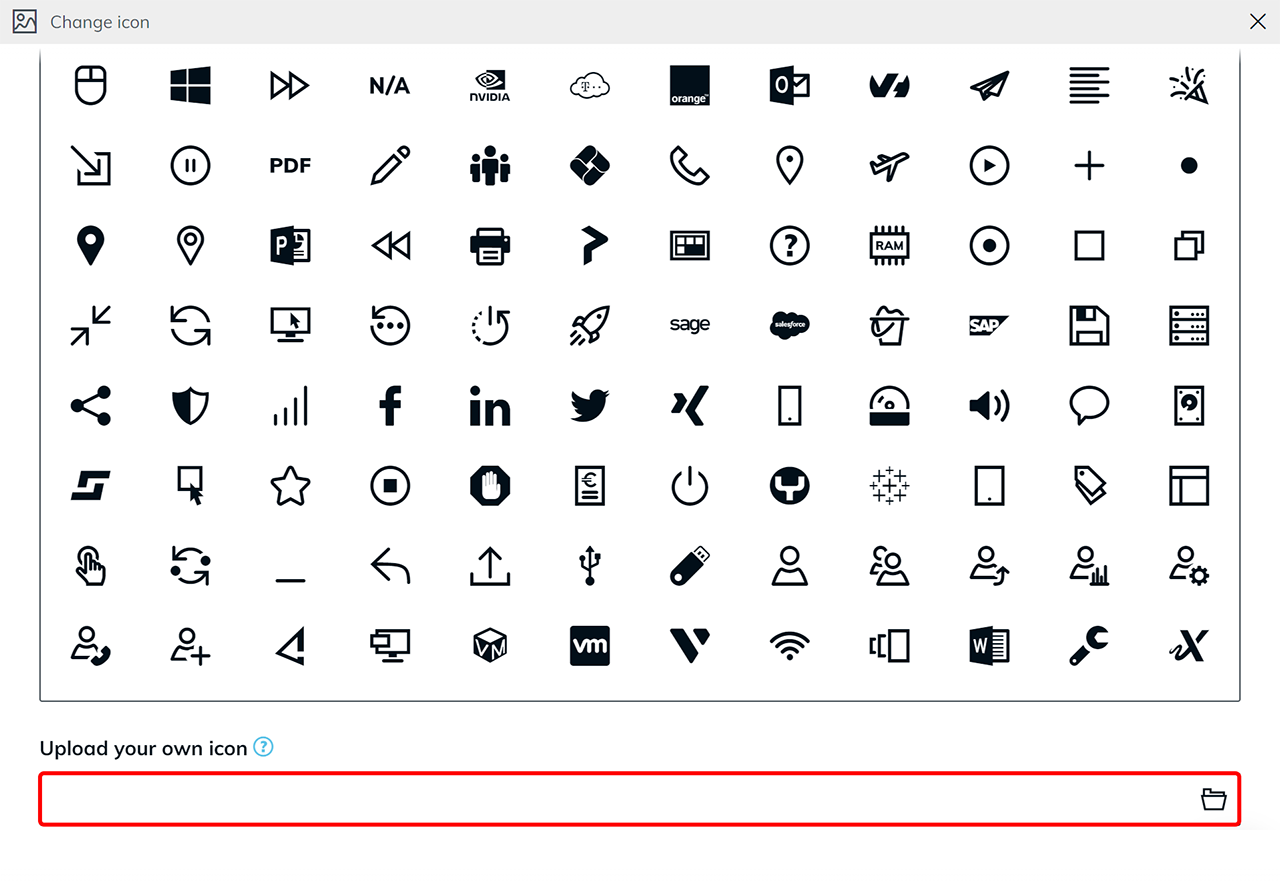
In the “Upload your own icon” area, click the folder icon to select and upload a file from your local system.
-
After the upload, the icon appears in the icon overview. Click the uploaded icon to apply it.
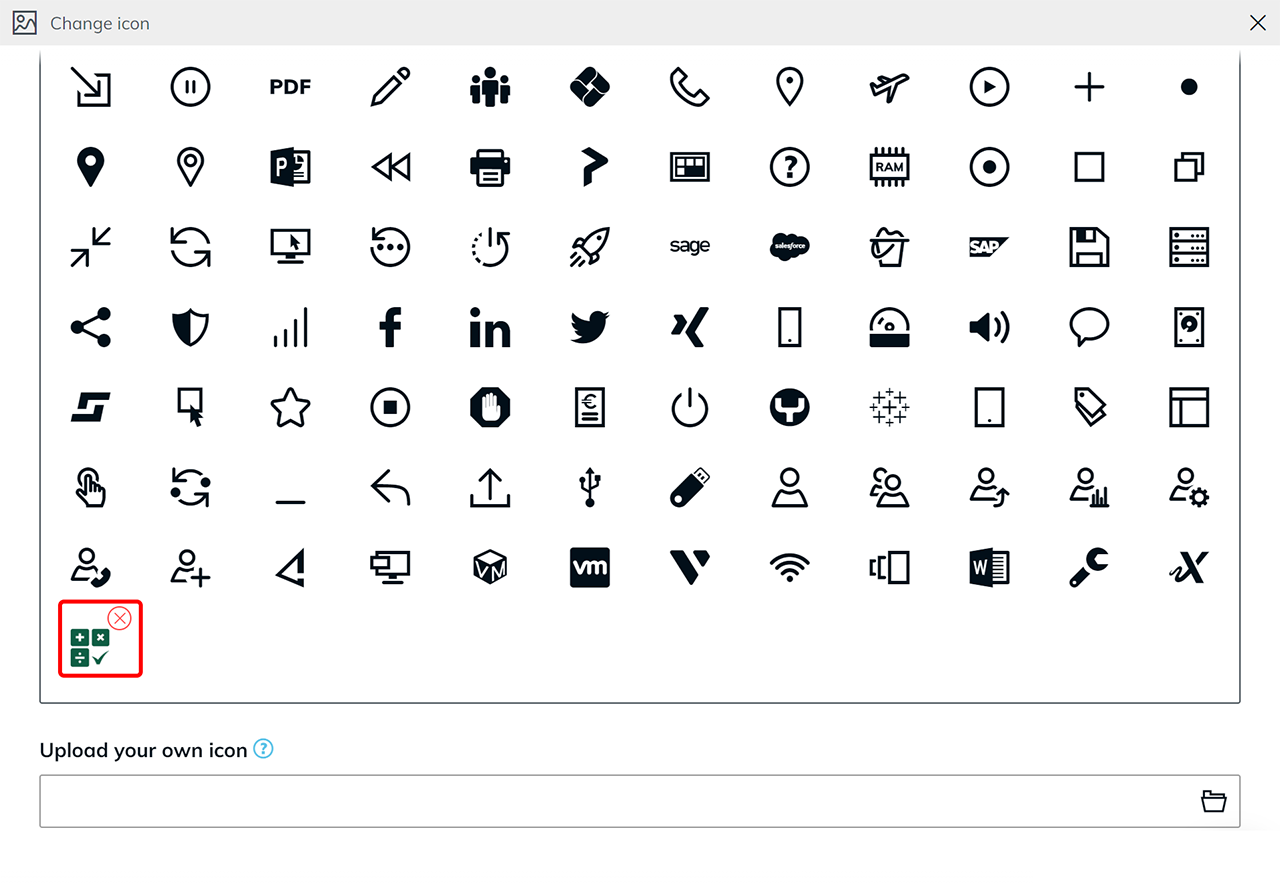
-
Check the tile preview and click Save.
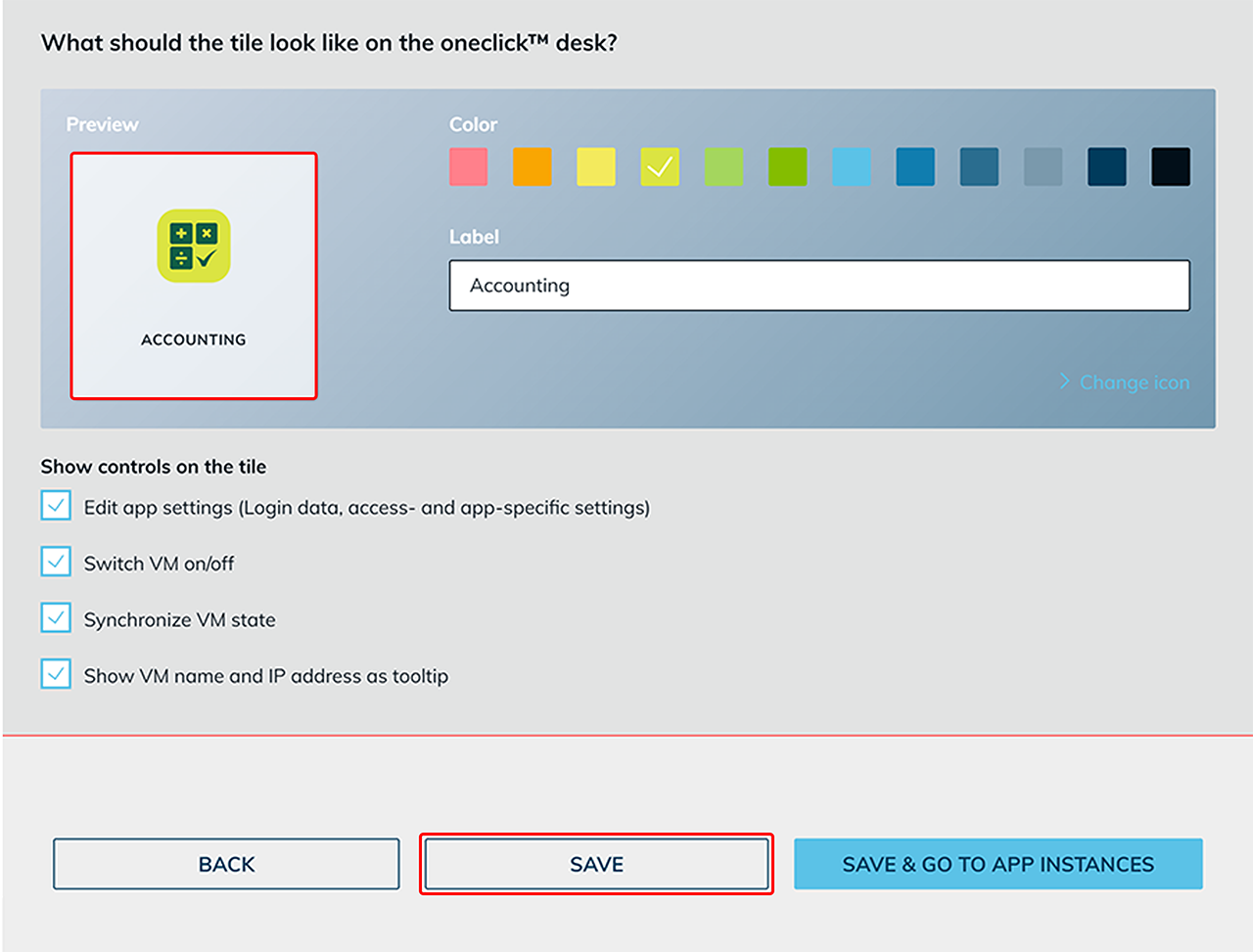
Supported formats: SVG, PNG, JPEG, WebP, ICO
Maximum file size: 256 KBRecommended image size:
- Square, e.g. 256 × 256 px
- Transparent background (PNG or SVG recommended)
File size notes:
- Compress images before uploading.
- Avoid very fine details, as they may be lost at small tile sizes.
Delete icon
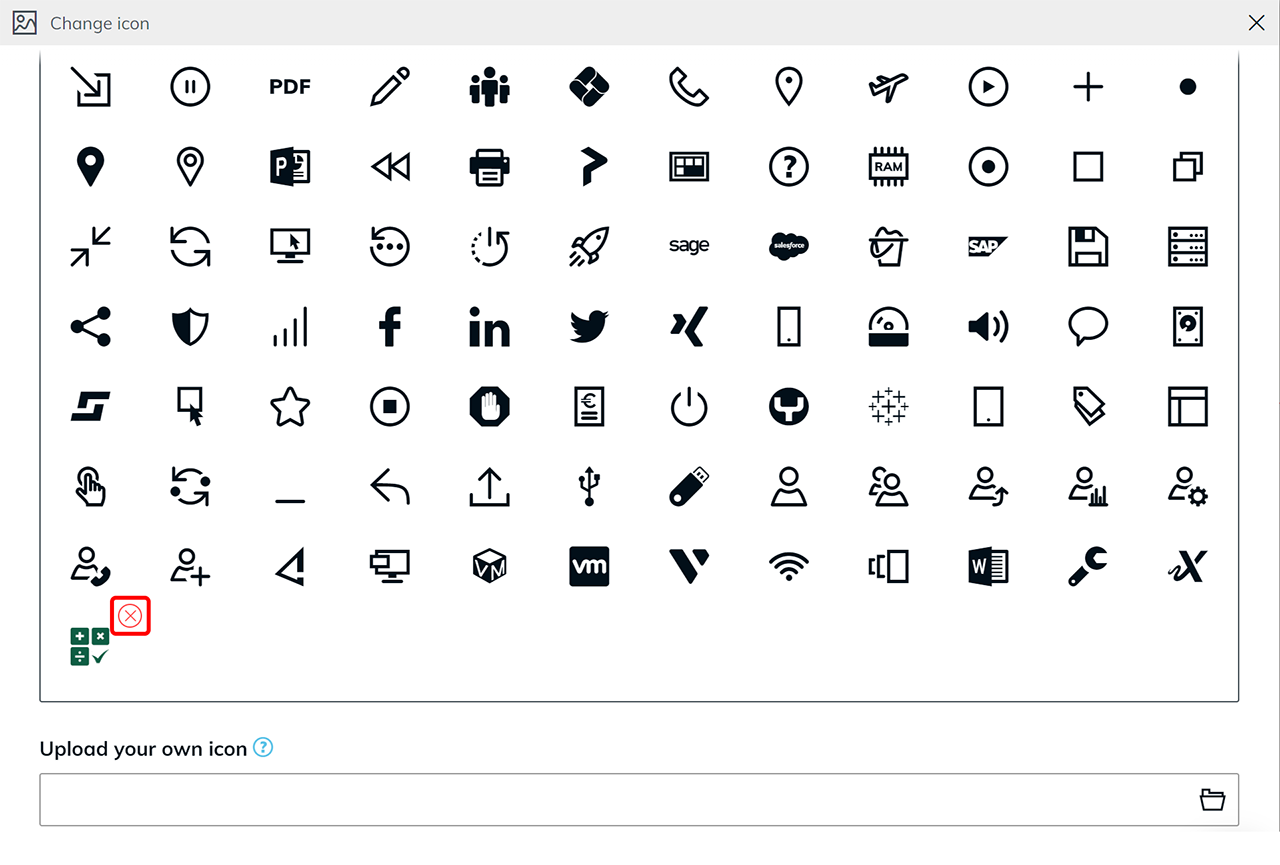
In the icon picker, custom uploaded icons can be removed directly using the X icon.
This keeps the icon selection clean and avoids duplicates, for example after re-uploads due to format or size changes.
Note
Whenever possible, use the standard icons. These are optimized for readability, contrast, and scaling and ensure a consistent appearance in the workspace.
To keep the icon selection tidy, we recommend deleteling unused uploaded icons.