Access to a single program / remote app
To continue you need at least one app license. Have you already activated one?
If you have already connected your server in oneclick™ and want to publish it as a Remote App or single application, make sure to configure all relevant settings in advance for optimal delivery.
If you want to create a Remote App (for example, from a Windows 10 environment), we recommend using the RemoteApp Tool by Kimmknight for a straightforward and efficient setup.
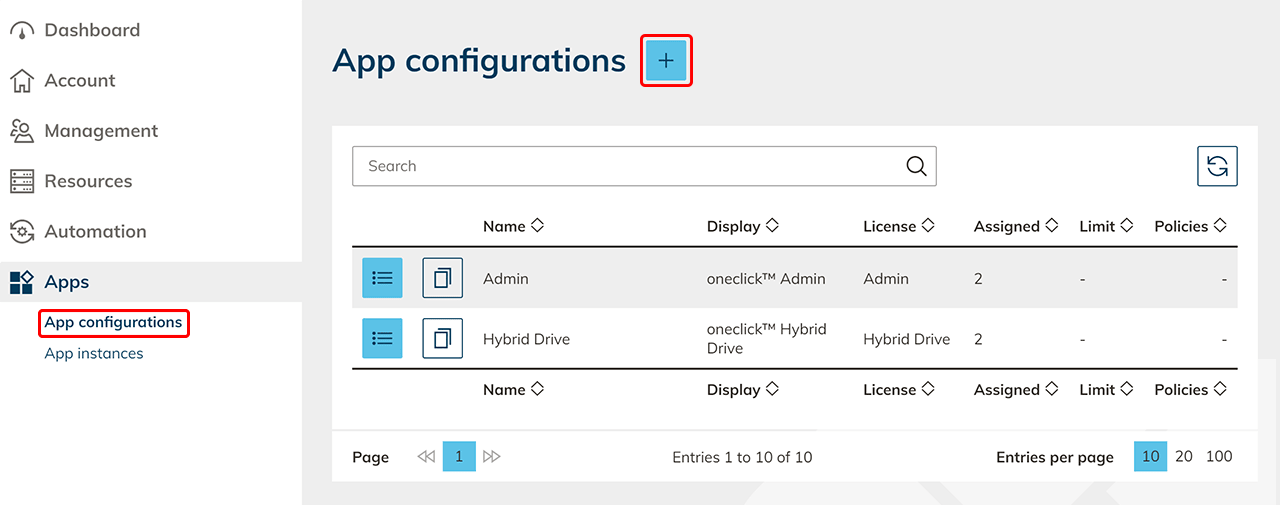
- Click on the Plus icon to create a new app configuration.
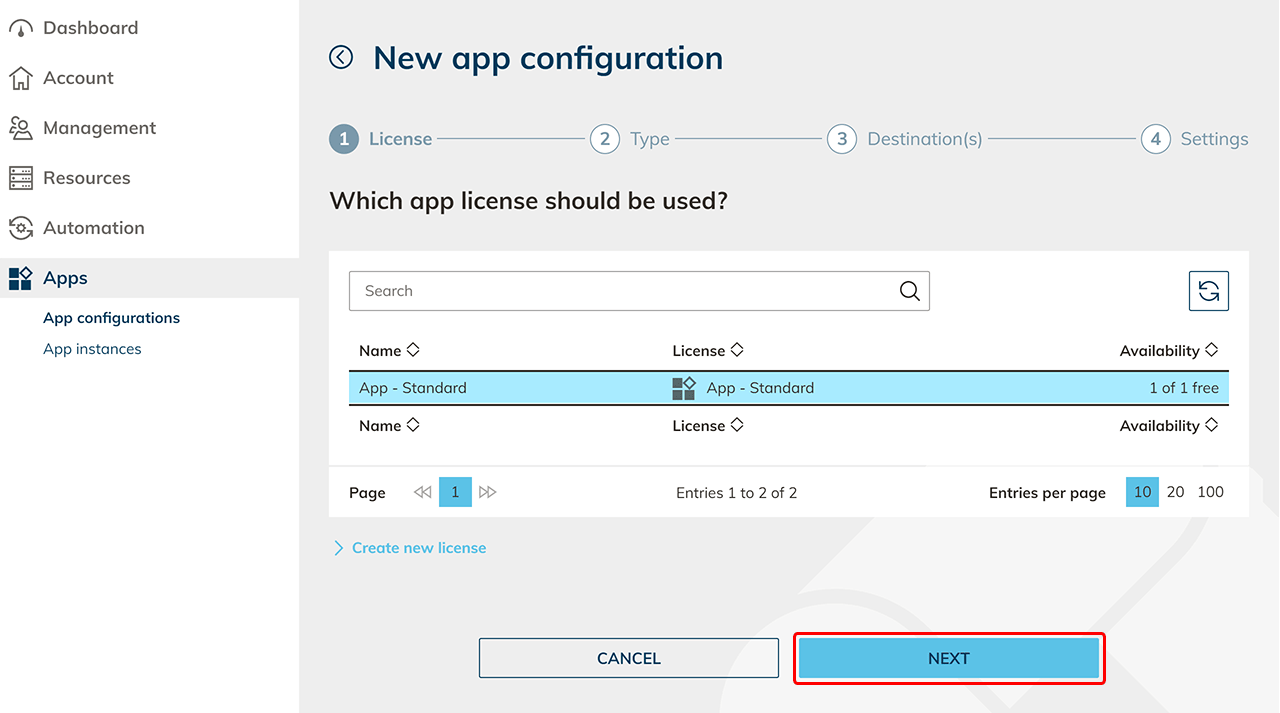
- Select the app license you want to use for this configuration and click Next. Keep in mind that a group license (Pay-Per-Use) can only be assigned to groups later. Individual licenses (Pay-Per-License) can later only be assigned to individual users. You can recognize a group license by the ∞ sign under Availability.
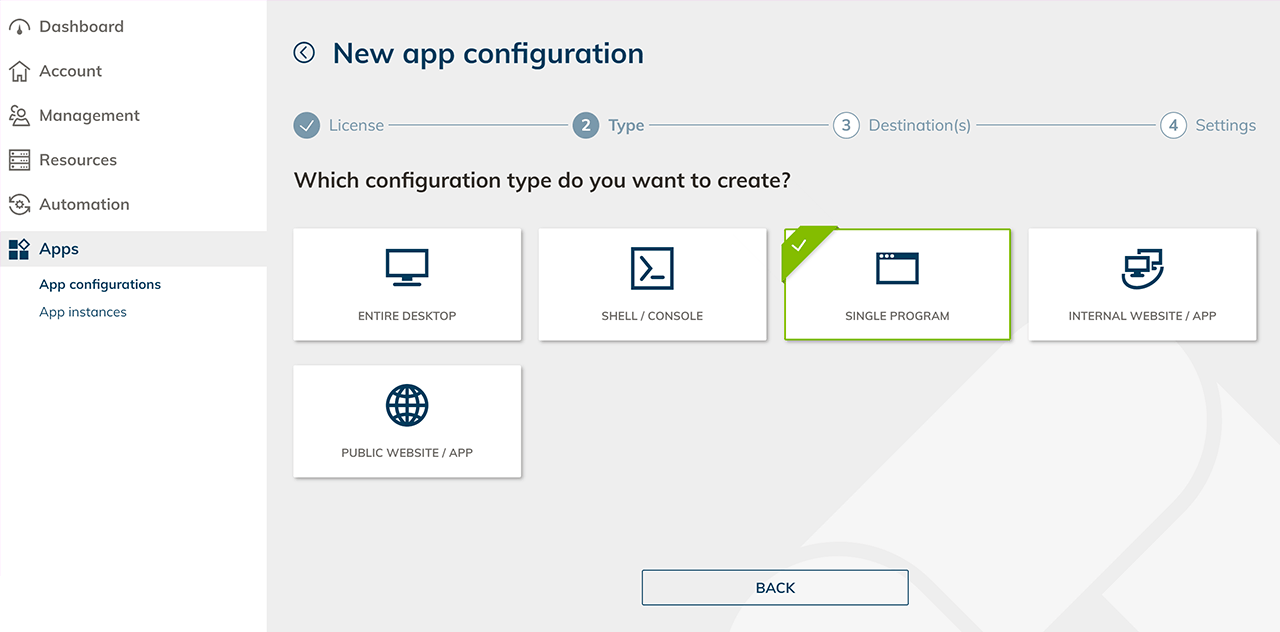
- In the next step you can select the appropriate configuration type (Single Program) for accessing your resources.
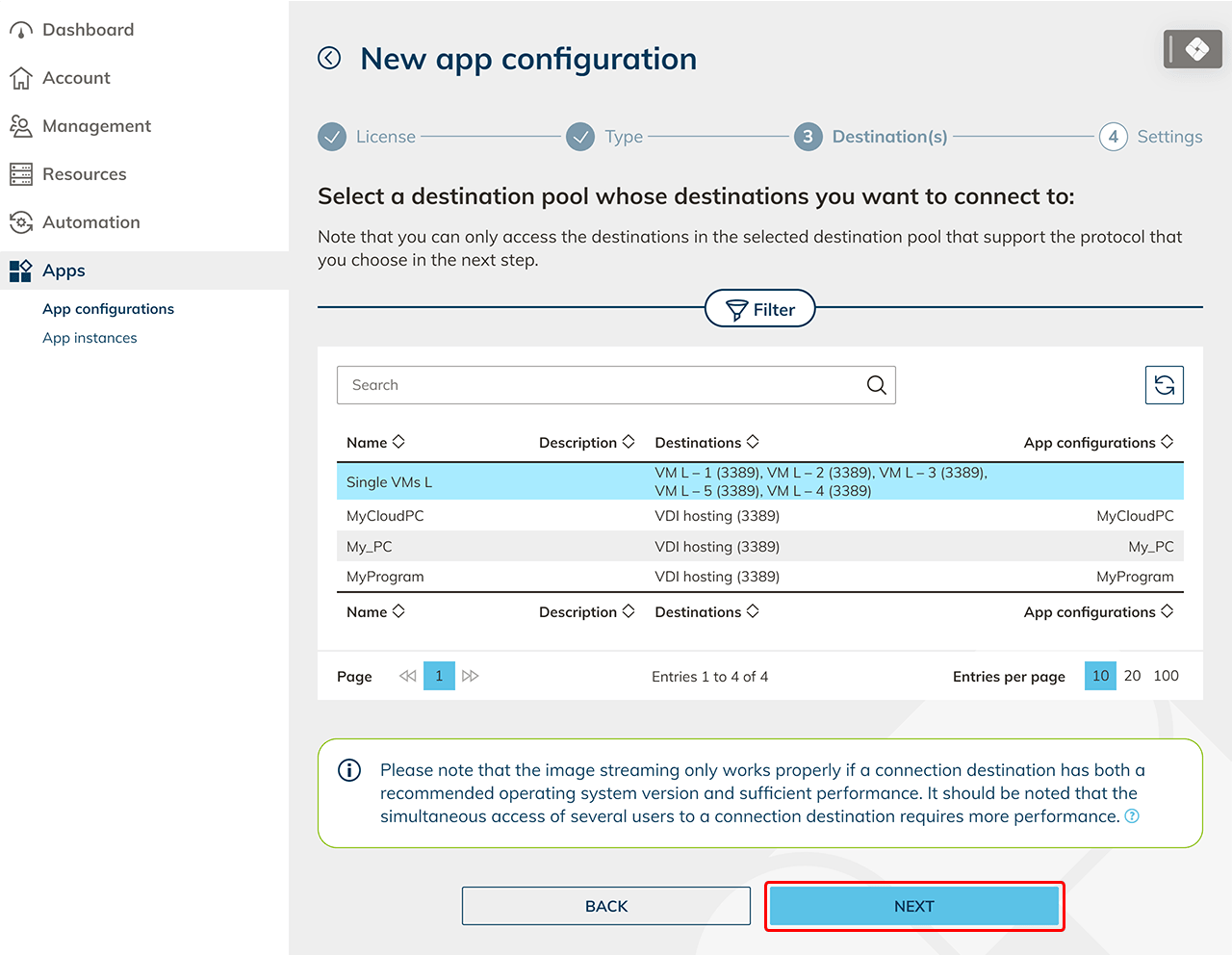
- Select the destination pool to whose destinations you want to connect to and click Next. Note that you can only access the destinations in a pool you picked that supports the protocol you are about to select in the next step.
- In the next step change the settings for access.
- Assign a name for your configuration which you can relate to your destinations.
- Optionally you can customize connection settings for special use cases (e.g. for using a gateway server).
- If you set the encryption method to TLS or RDP, you can start the remote app without entering your user data. Your login information is then entered directly via the Windows login window.
- You can optionally enter an Active Directory domain. If you select “TLS” as the encryption method here, an Active Directory domain must be entered!
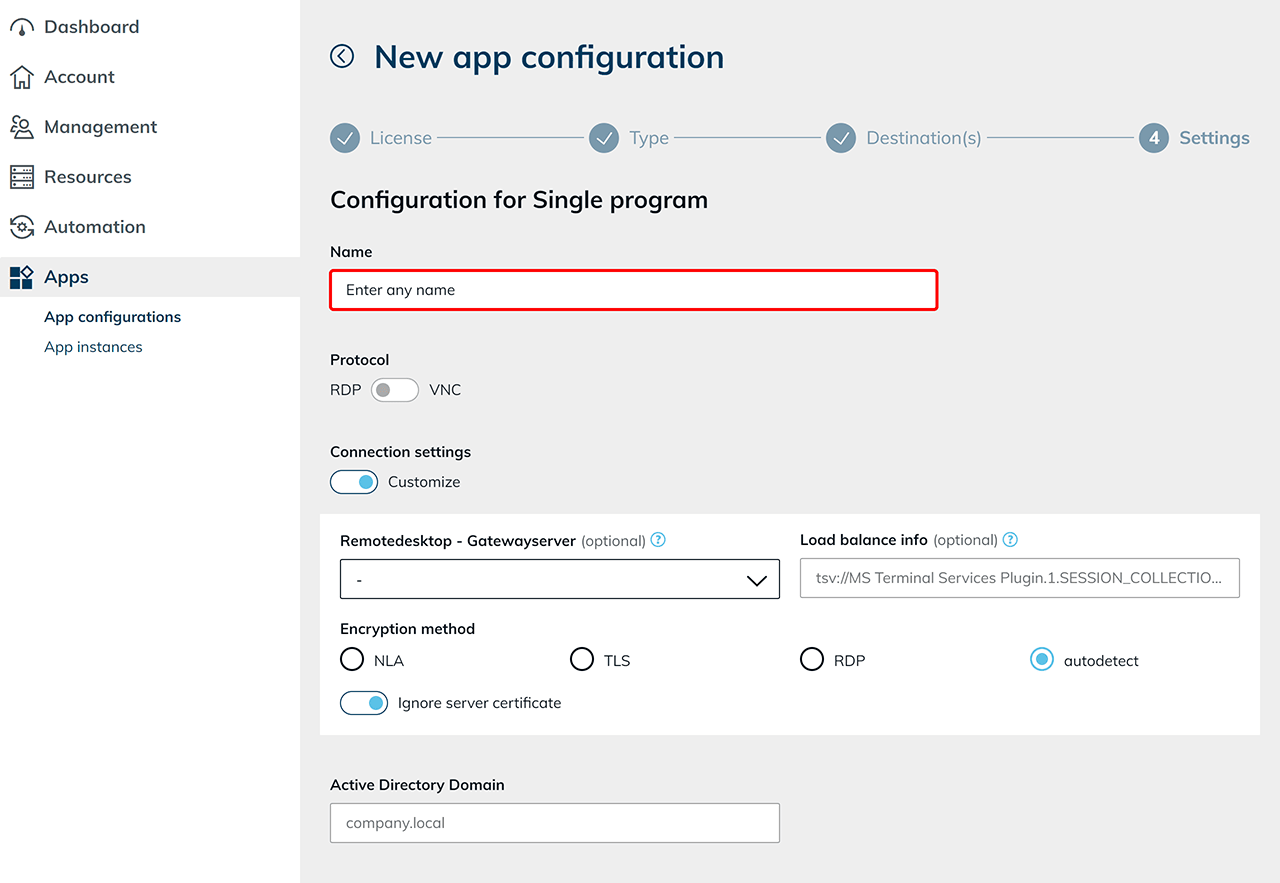
- The option “Allow user to change destination” is enabled by default. If you do not want your users to change the destination independently, disable the corresponding toggle. If you are unsure, you can also restrict the permission later.
- Entering login data from a user is disabled at default at app started.
- In this case, you as the administrator must store the credentials for the destination in the step App Instances or you may assign the app to Professional users only, with the option to edit app settings on the tile.
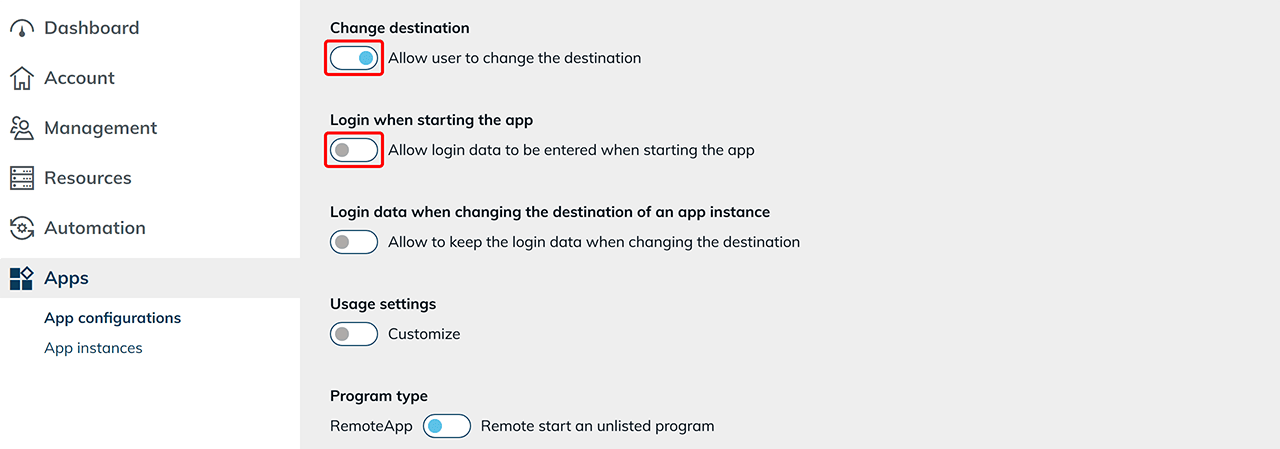
- For users who should enter their data themselves, we recommend to allow entering the login data when starting the app and saving it, if necessary.
- Optionally, you can enable the system to keep the login data in an app instance or on the desk tile when switching the destination. This prevents the data from being deleted from the fields when switching.
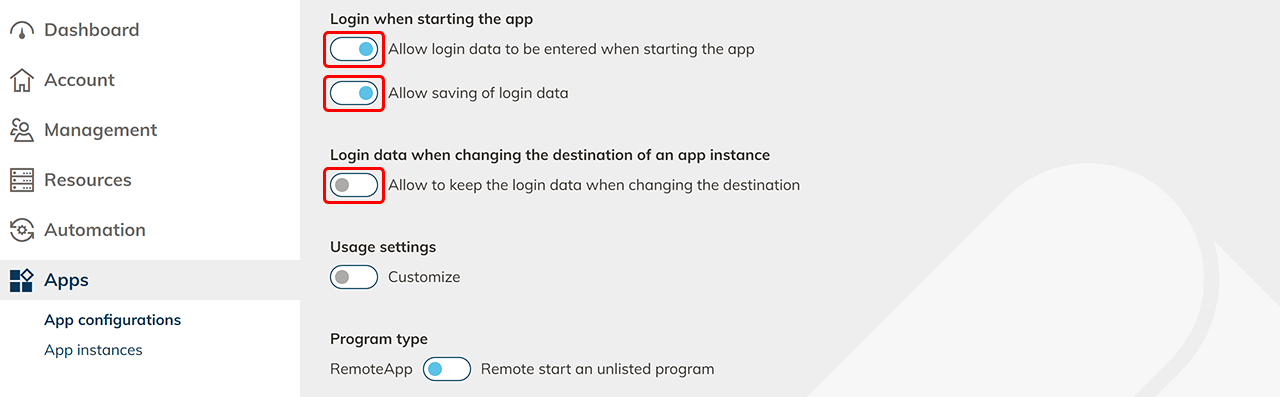
- In this case, you as the administrator must store the credentials for the destination in the step App Instances or you may assign the app to Professional users only, with the option to edit app settings on the tile.
- You can optionally customize the usage settings. Here you define the connection mode and configure the available access settings.
Under Usage settings, select the required connection mode in the row oneclick™ Streaming (Browser) / oneclick™ Gateway (RDP Client). To allow the user to change the connection mode later, select the checkbox Changeable by the user on the right in the same row.
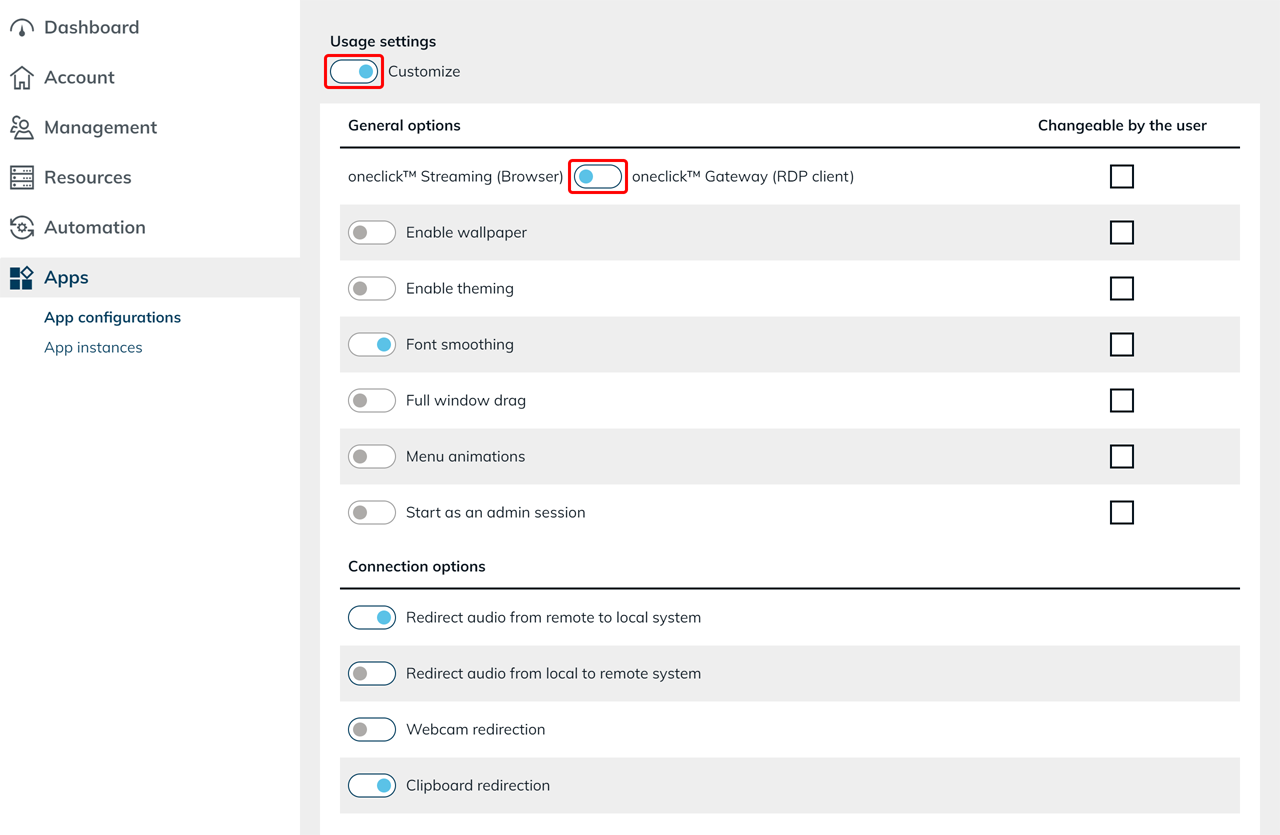
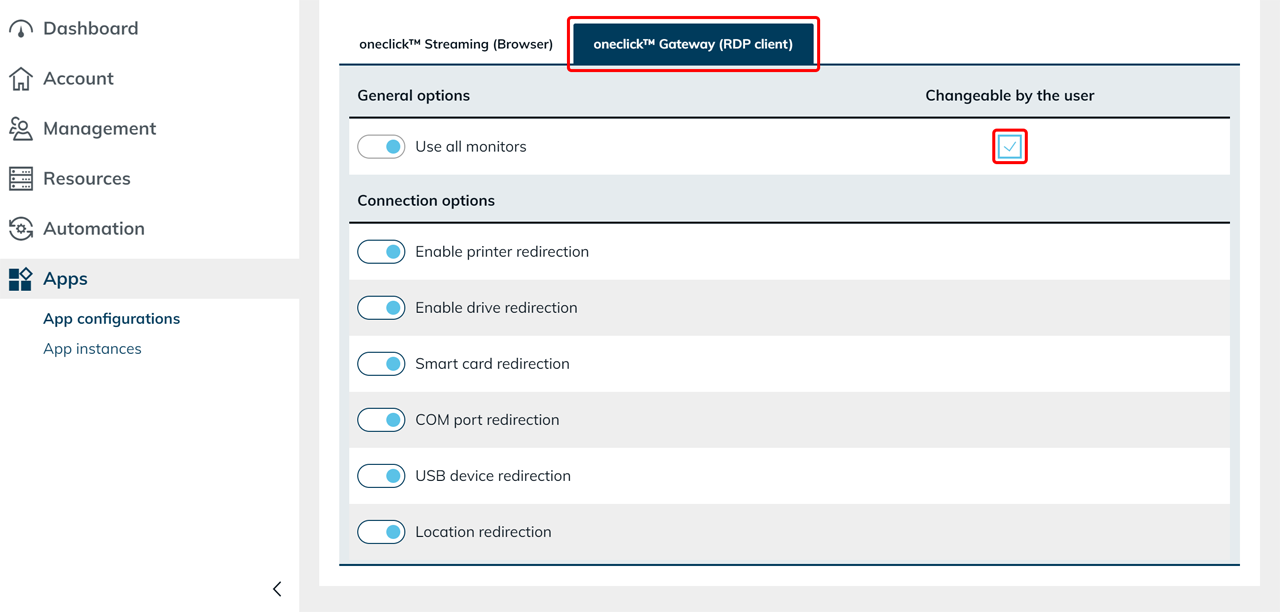
- You can find the settings for each connection mode below in the tabs oneclick™ Streaming (Browser) and oneclick™ Gateway (RDP Client). Open the relevant tab and configure the general settings and connection settings.
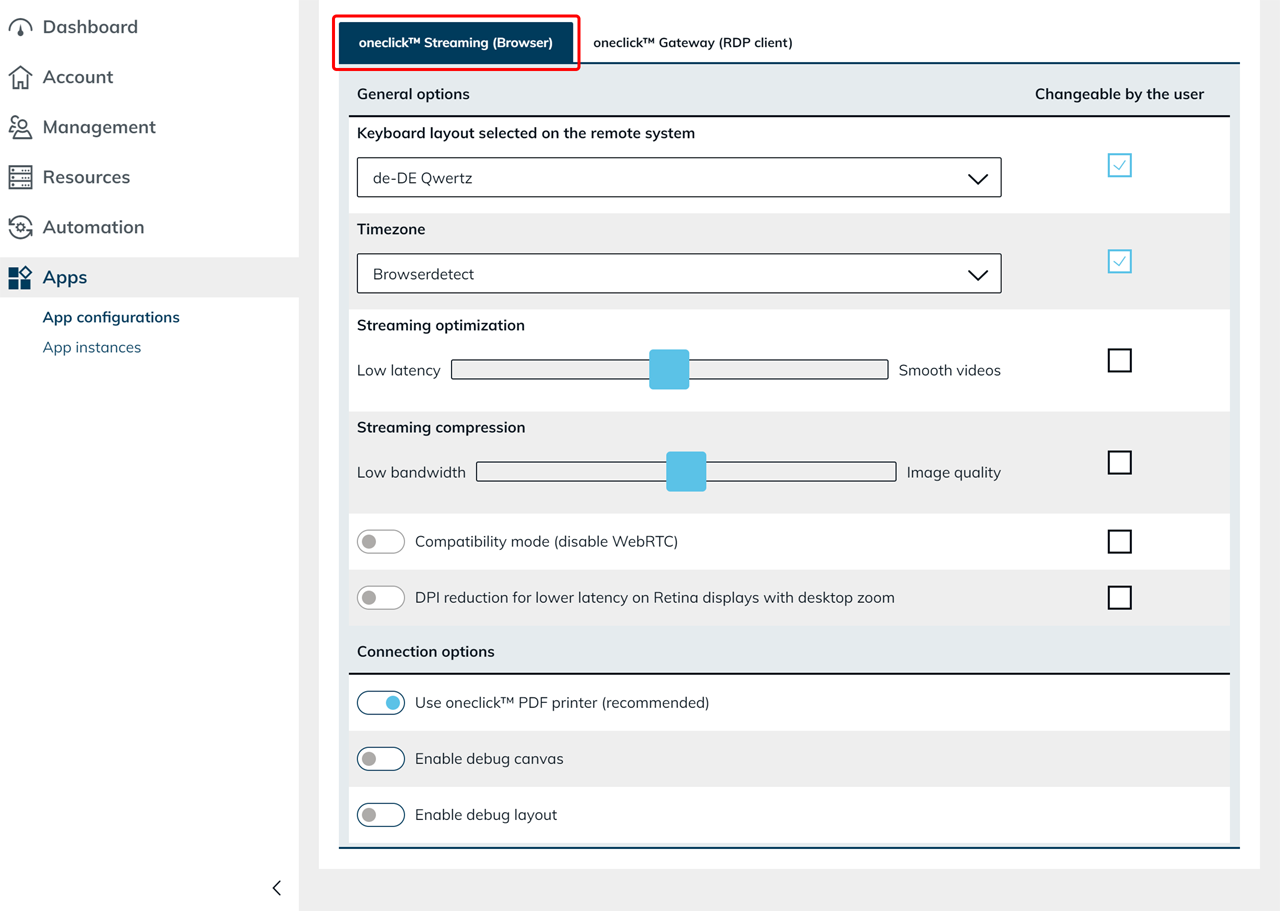
- Select the checkbox Changeable by the user if the user is allowed to change this setting later on the app tile. The user can only change settings that you have enabled for editing.
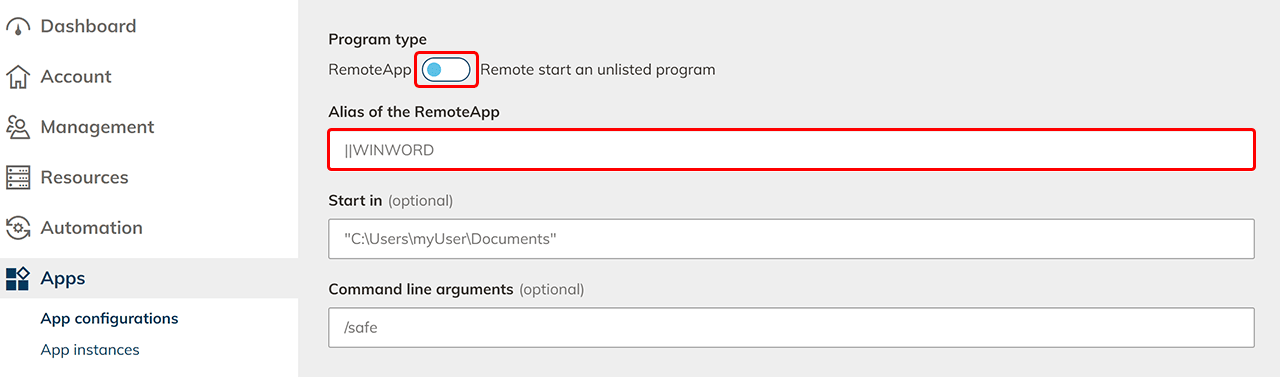
- Choose whether you want to start a Remote App or perform a remote start of an unlisted program.
- Enter the alias of the Remote App. Make sure to insert the following two dashes in front of the name: ||
- Optionally, you can provide the path and command line parameters as well.
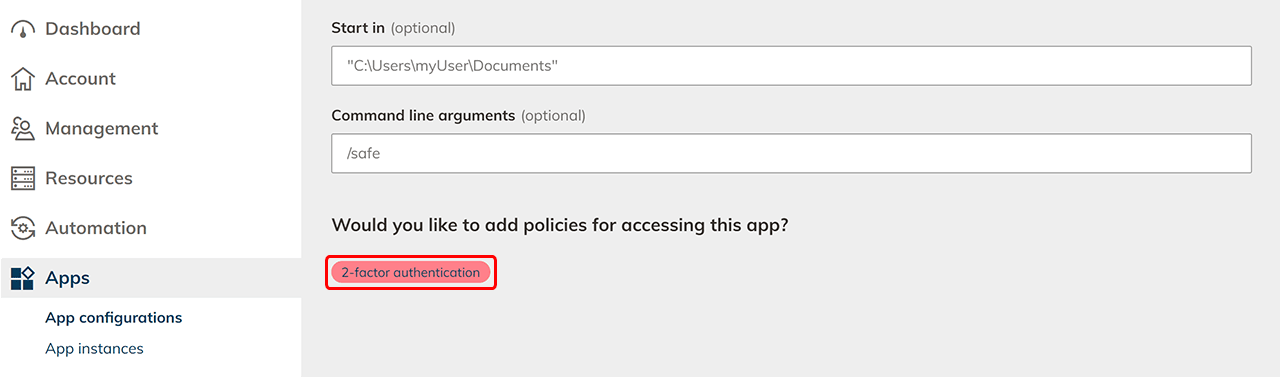
- Select policies if you want to provide extra security for access to apps with this app configuration.
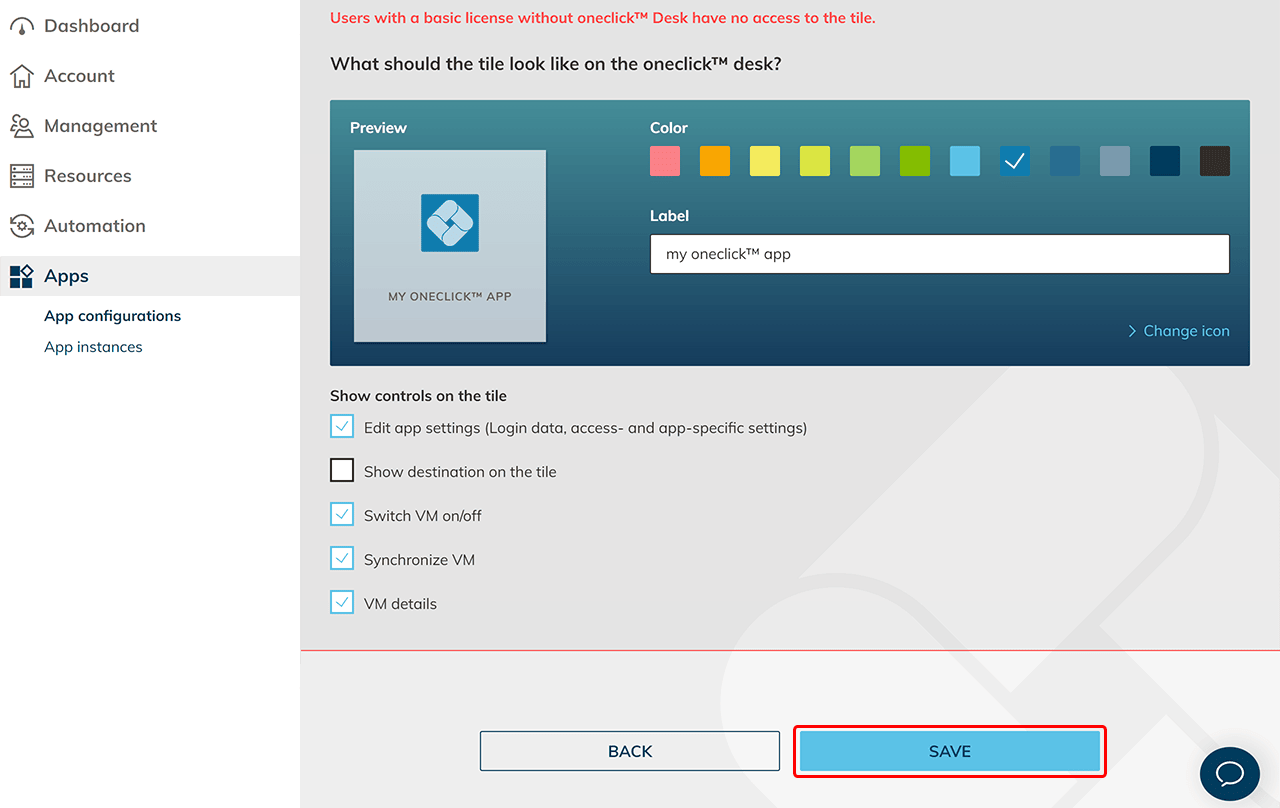
- For Professional users, you can customize the tile in the Unified Workspace by changing the color, label, and icon, or by uploading a custom icon.
- You can choose which controls are displayed on the tile. The following controls can be displayed depending on the type of connection:
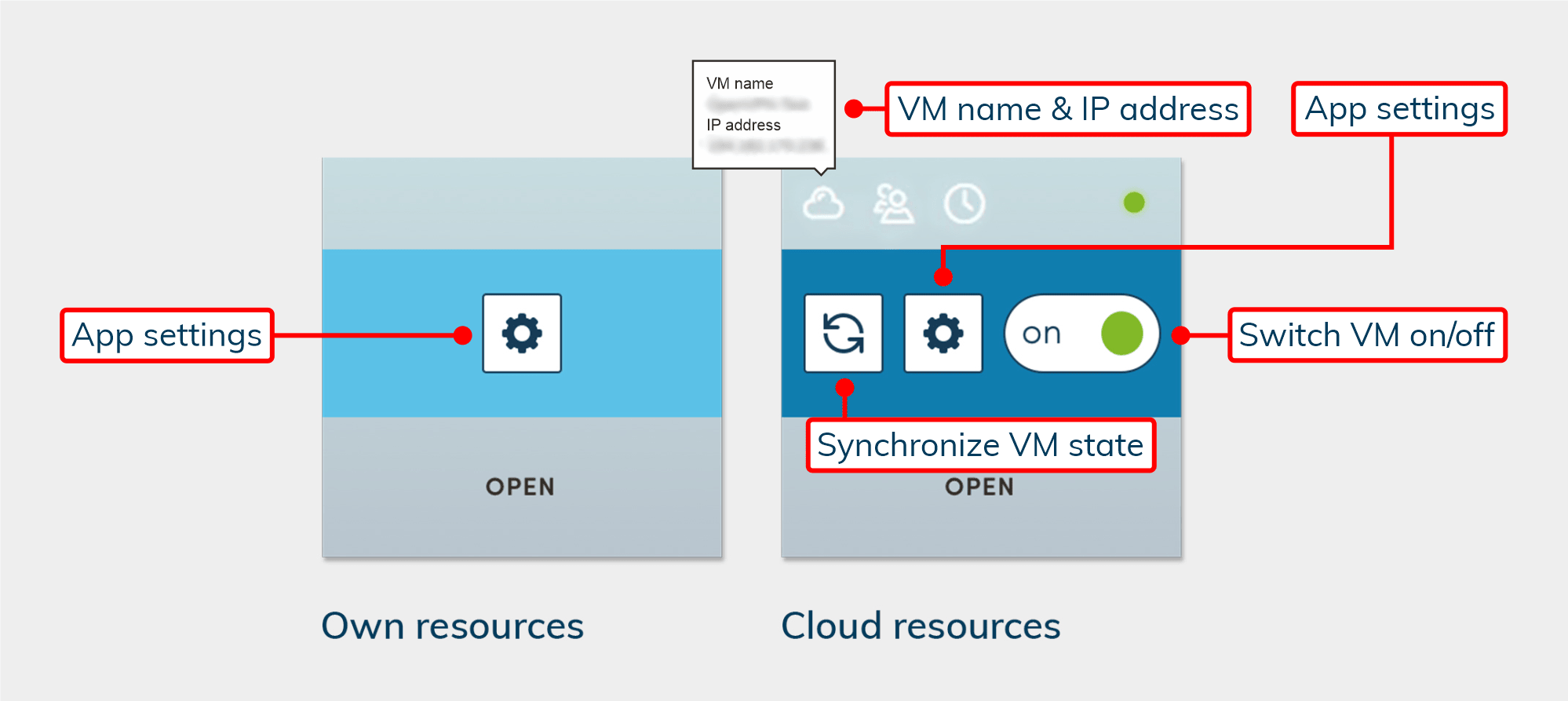 If you do not want the user to be able to use the gear: Edit app settings, make sure to prohibit the "Change password" on the linked remote desktop.
 - Decide whether the name of the destination should also be displayed on the tile.
- You can choose which controls are displayed on the tile. The following controls can be displayed depending on the type of connection:
- Click on Save. The configuration is now created.
- Create an app instance for all users who should have access.
- Note that you give your users few hints for minimizing when using the Remote App.