Access to a public website
To continue at this point you need at least one app license. Do you already have one activated?
Do you have a public website or web app that you want to link to on the Unified Workspace? You can open the website outside of oneclick™ or optionally secure it with Website Access Protection. Website Access Protection opens your website in an isolated container on a oneclick™ server and is therefore not vulnerable from the outside.
- Click Apps in the menu and then on App Configurations.
- Click on the Plus icon to create a new app configuration.
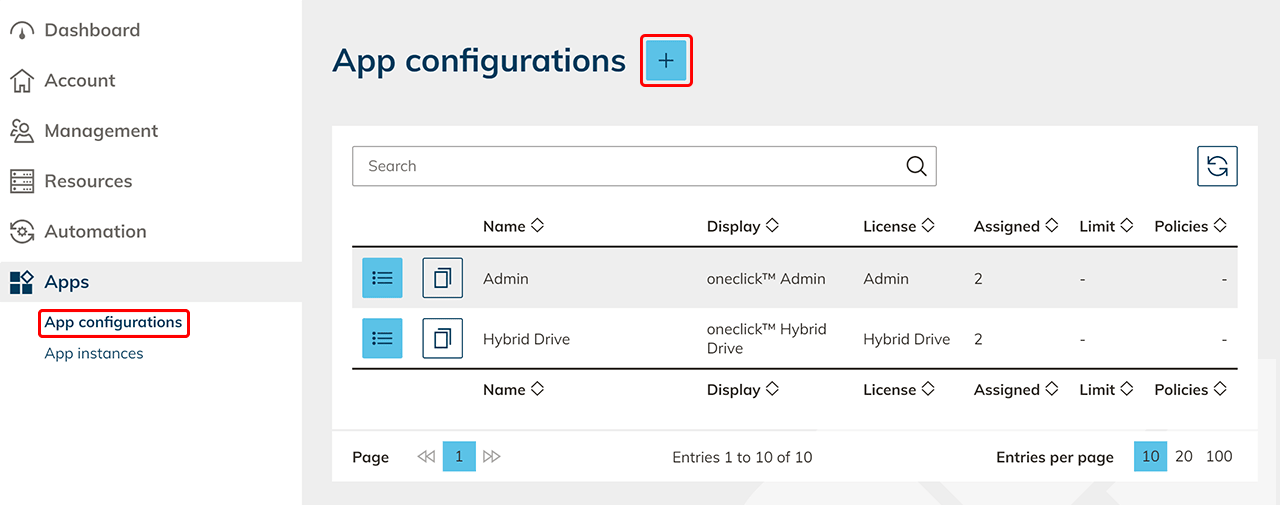
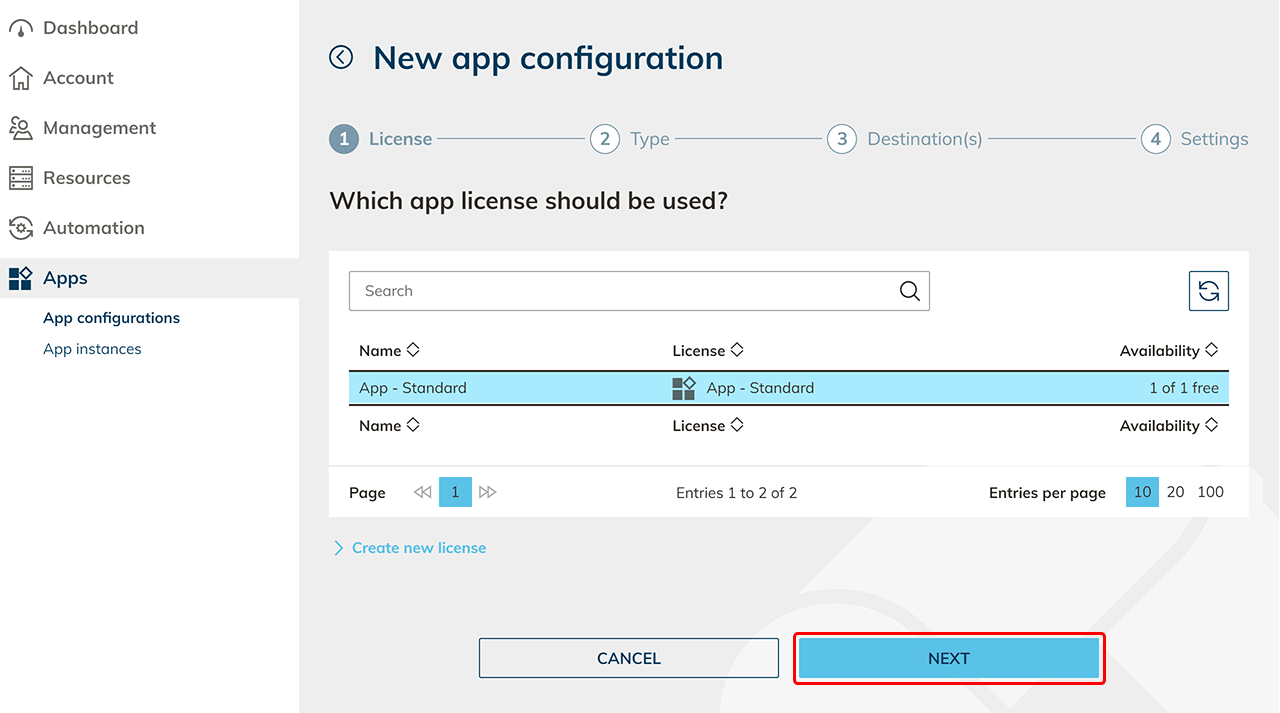
- Select the app license you want to use for this configuration and click Next. Keep in mind that a group license (Pay-Per-Use) can only be assigned to groups later. Individual licenses (Pay-Per-License) can later only be assigned to individual users. You can recognize a group license by the ∞ sign under Availability.
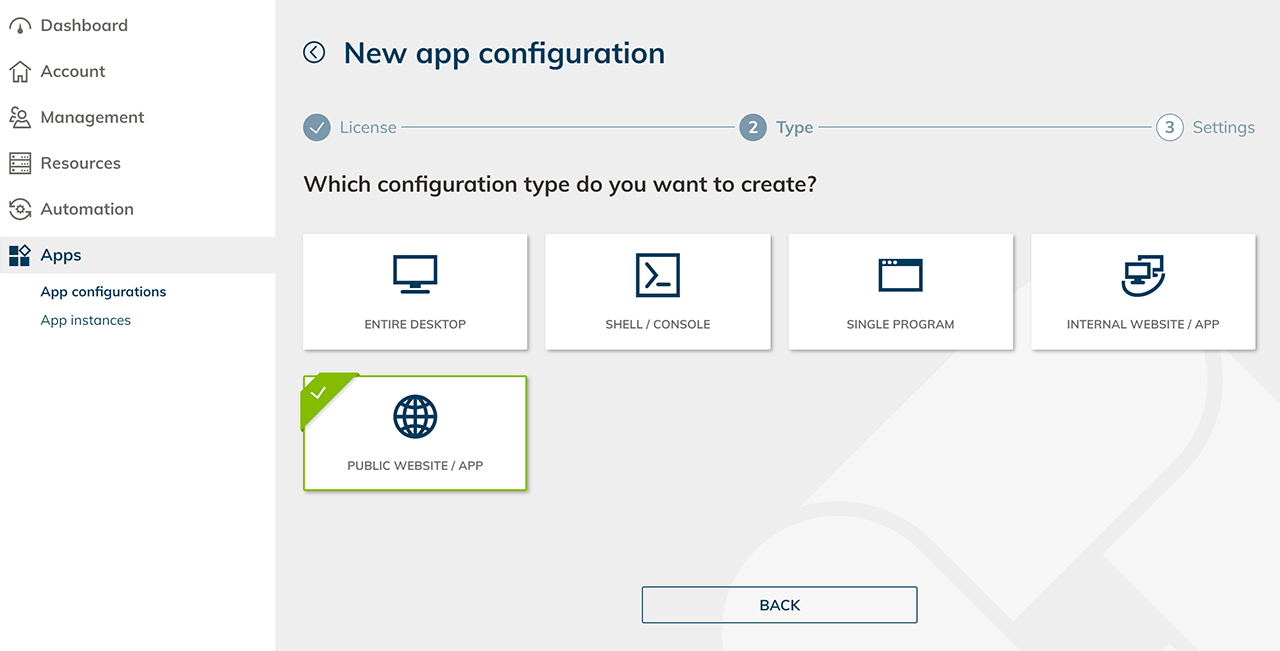
- In the next step you can choose the appropriate configuration type (public Website/App) to access your resources.
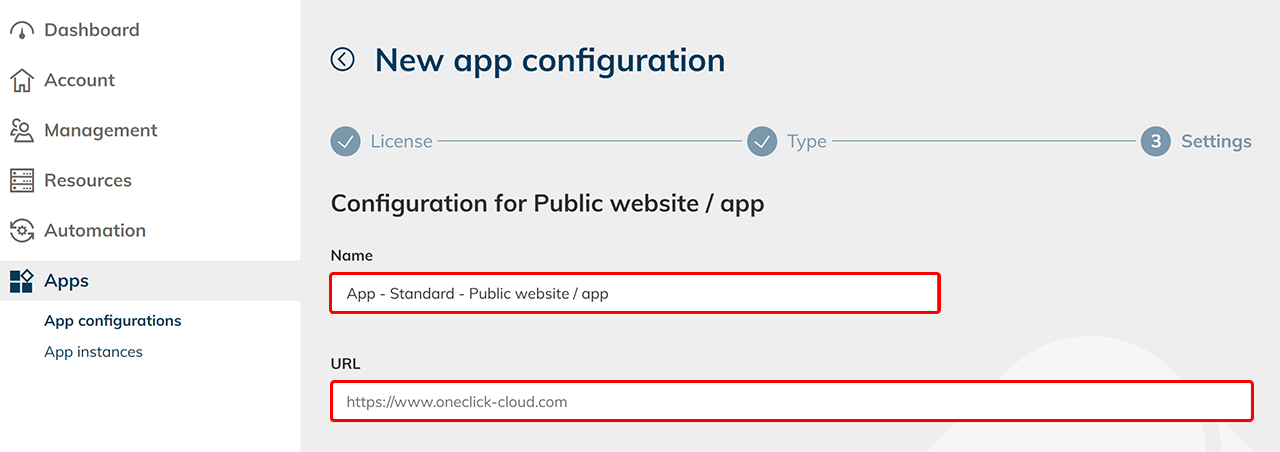
- Now choose the settings for access.
- Enter a name for your configuration.
- Enter the URL of the public website.
- You can choose to secure access to your website or web app using Website Access Protection
- If the web page does not allow to be displayed in the iframe, you should select Open website outside of oneclick™.
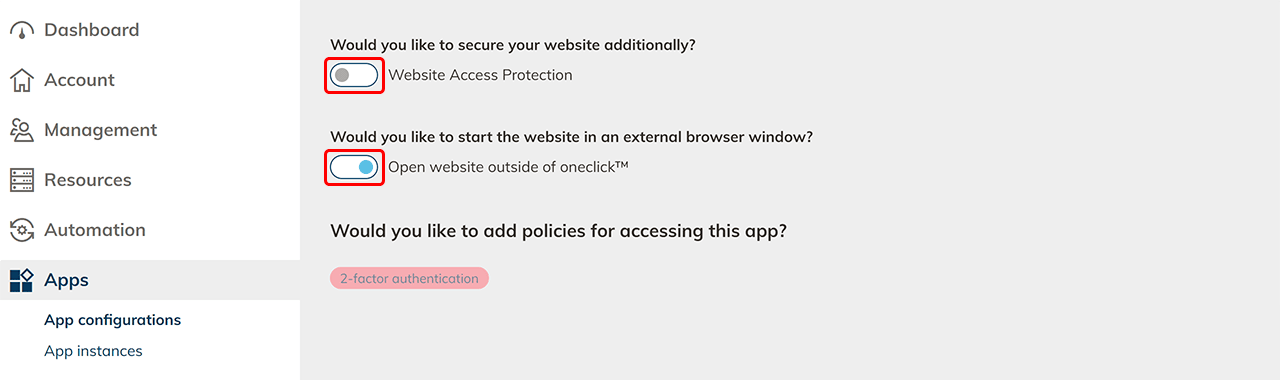
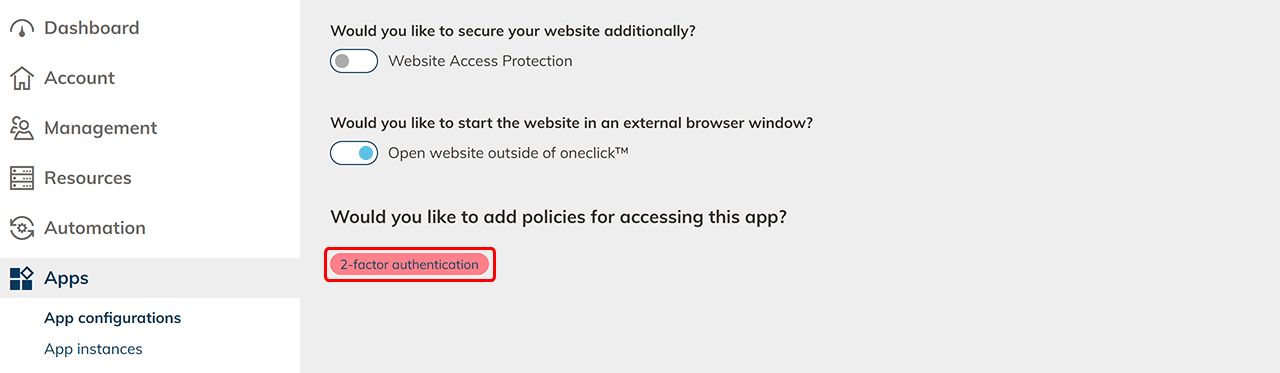
- Select policies if you want to secure app access to this app configuration additionally.
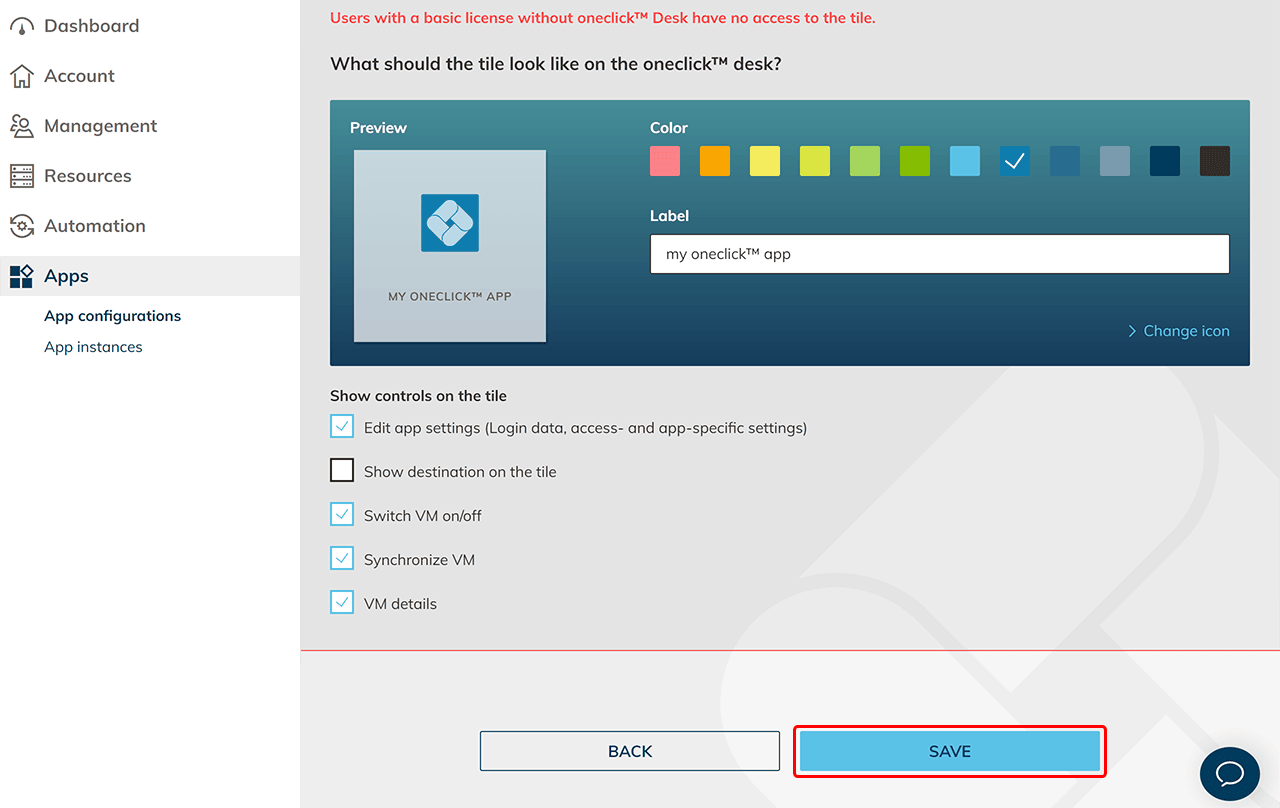
- For Professional users, you can customize the tile in the Unified Workspace by changing the color, label, and icon, or by uploading a custom icon.
- Click Save. The configuration is now created.
- Create an app instance for all users who will have access.