App license

You need app licenses to assign apps to your users. An app allows a user to access a resource connected to oneclick™ (on premises, web or cloud).
-
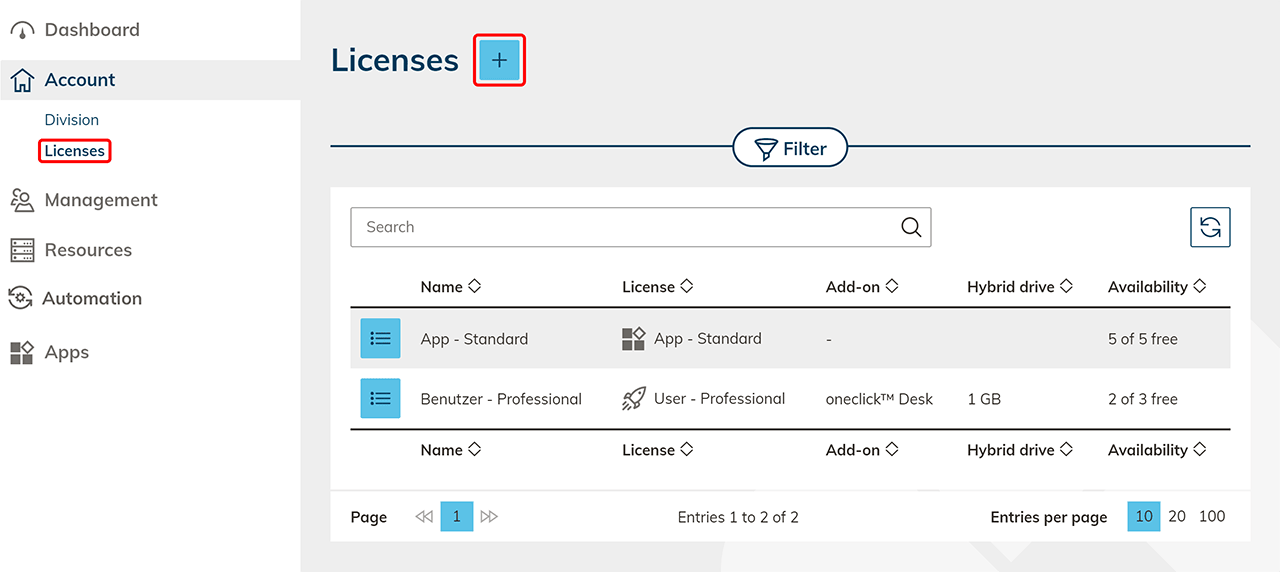
In the Account tab, click on Licenses and then on the Plus icon to create a new license.
-
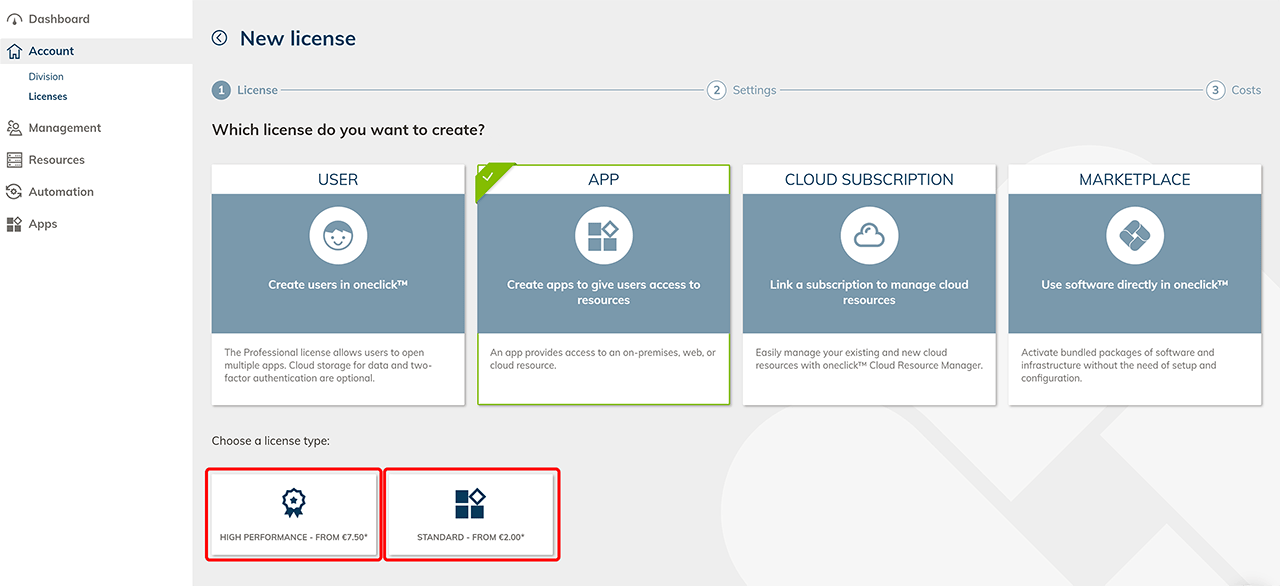
Select the App tile and then click the Standard or High Performance tile.
-
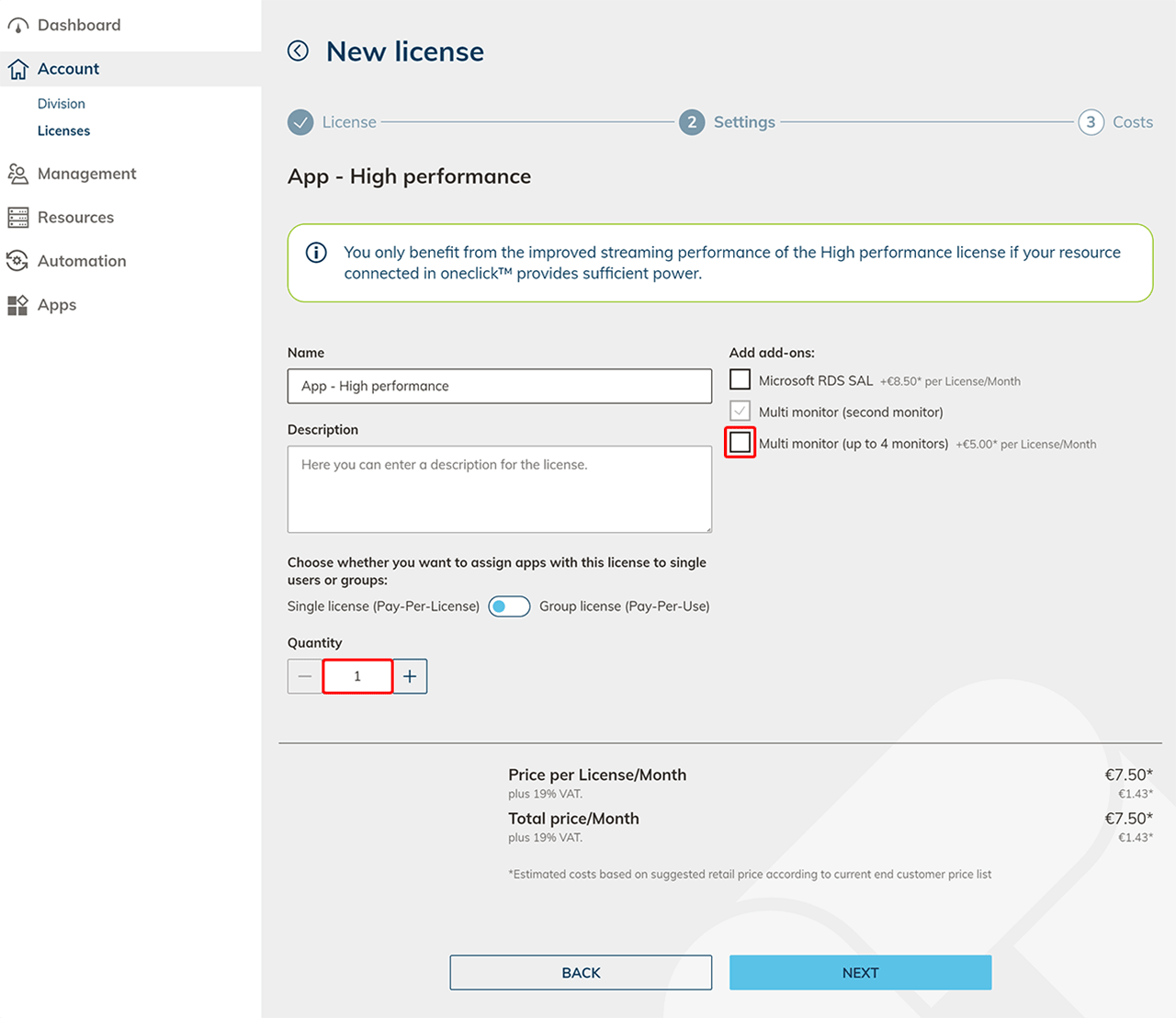
Give the license any name and choose as many app licenses as you want to give apps to your users. For the default app, you can add a second monitor.
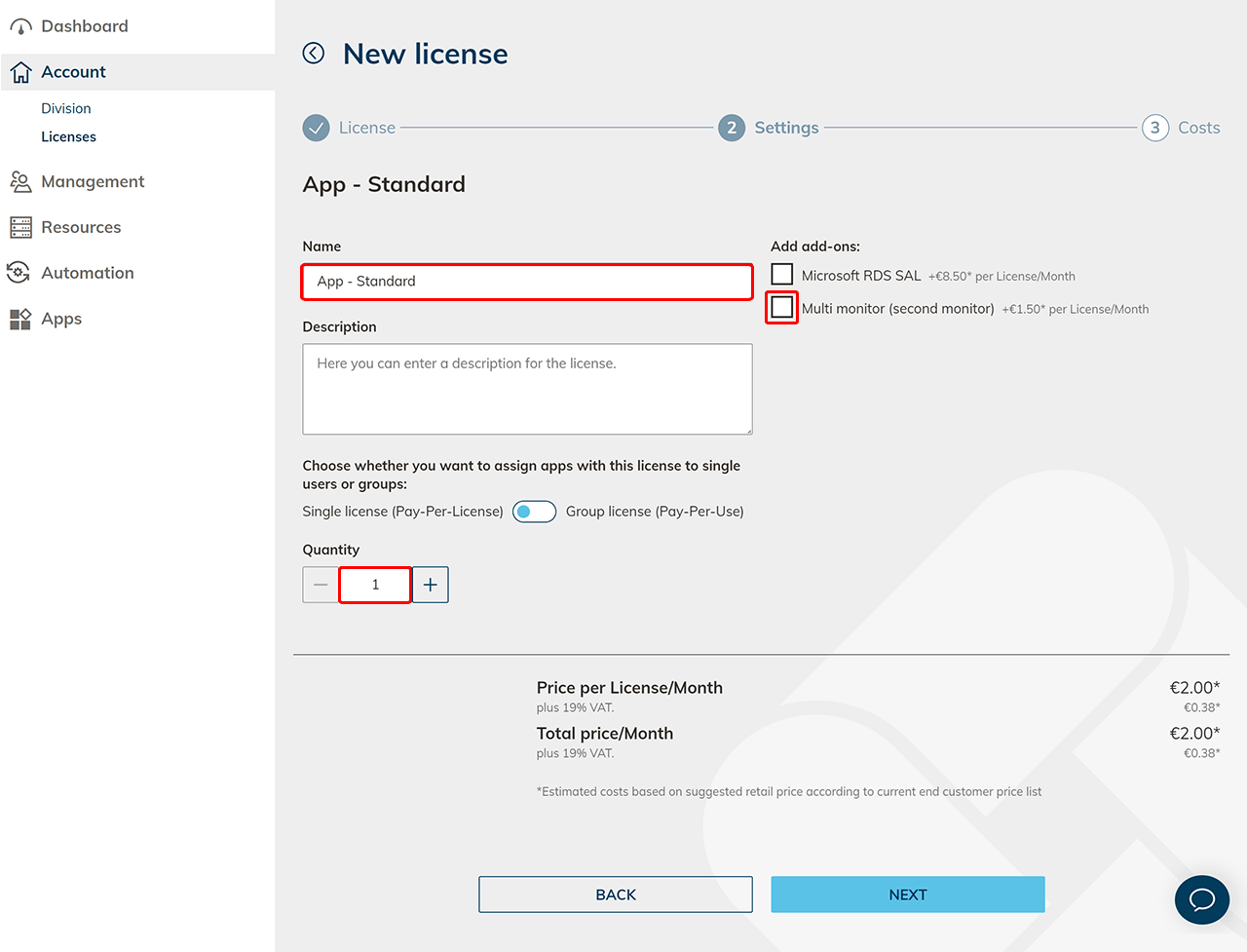
Decide whether you need single (Pay-Per-License) or group (Pay-Per-Use) license. If you have chosen the group license, optionally set limits for group licenses.
If you want to give single licenses to some of your users and group licenses to the others, create a separate app license and app configuration for those users.
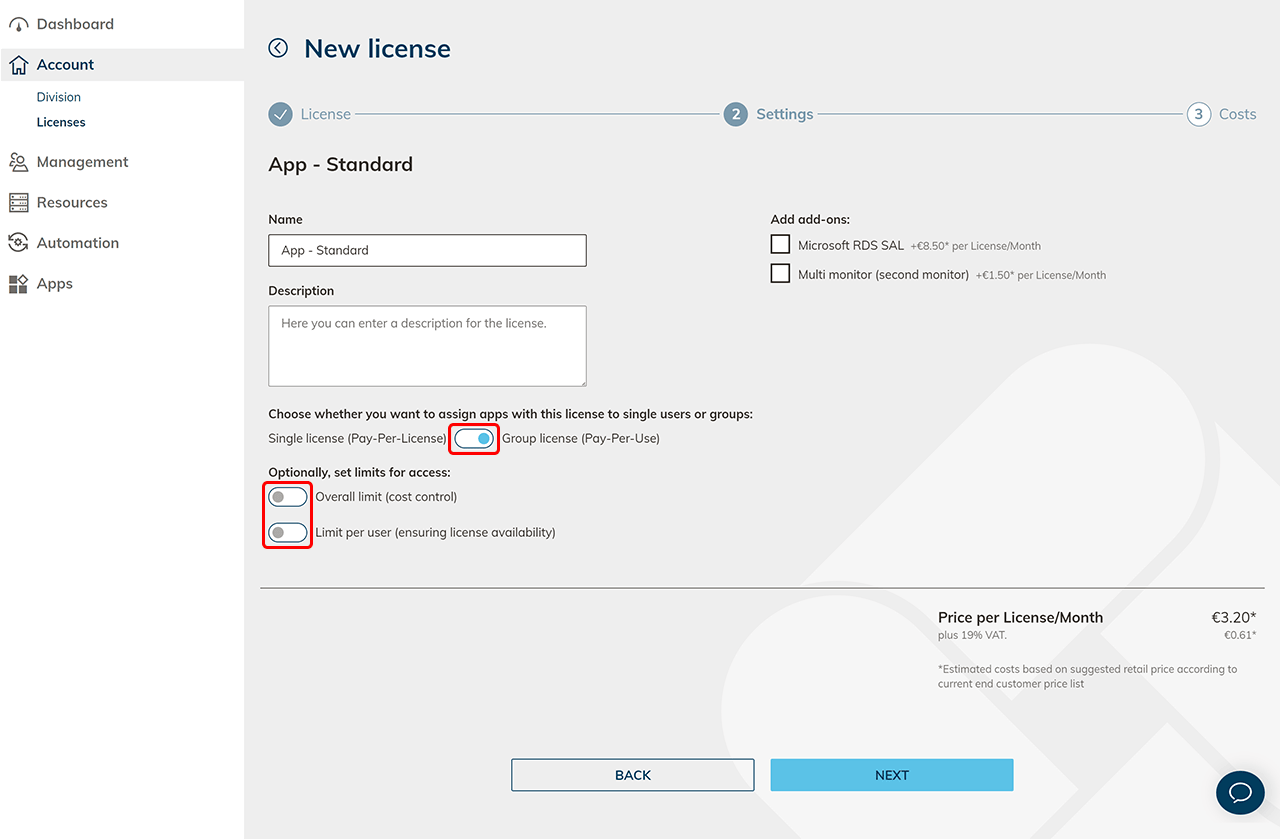
Optionally add add-ons: Optionally select a Microsoft RDS SLA if you have not yet licensed yourself. If you have booked a VD or VDI via oneclick™, you do not need an additional Microsoft license.
Further information on CAL/SAL can be found in the FAQ section on licensing.With a High Performance app, a second monitor is already included. You can add the Multi-Monitor Add-On with up to four monitors. Click on Next.
-
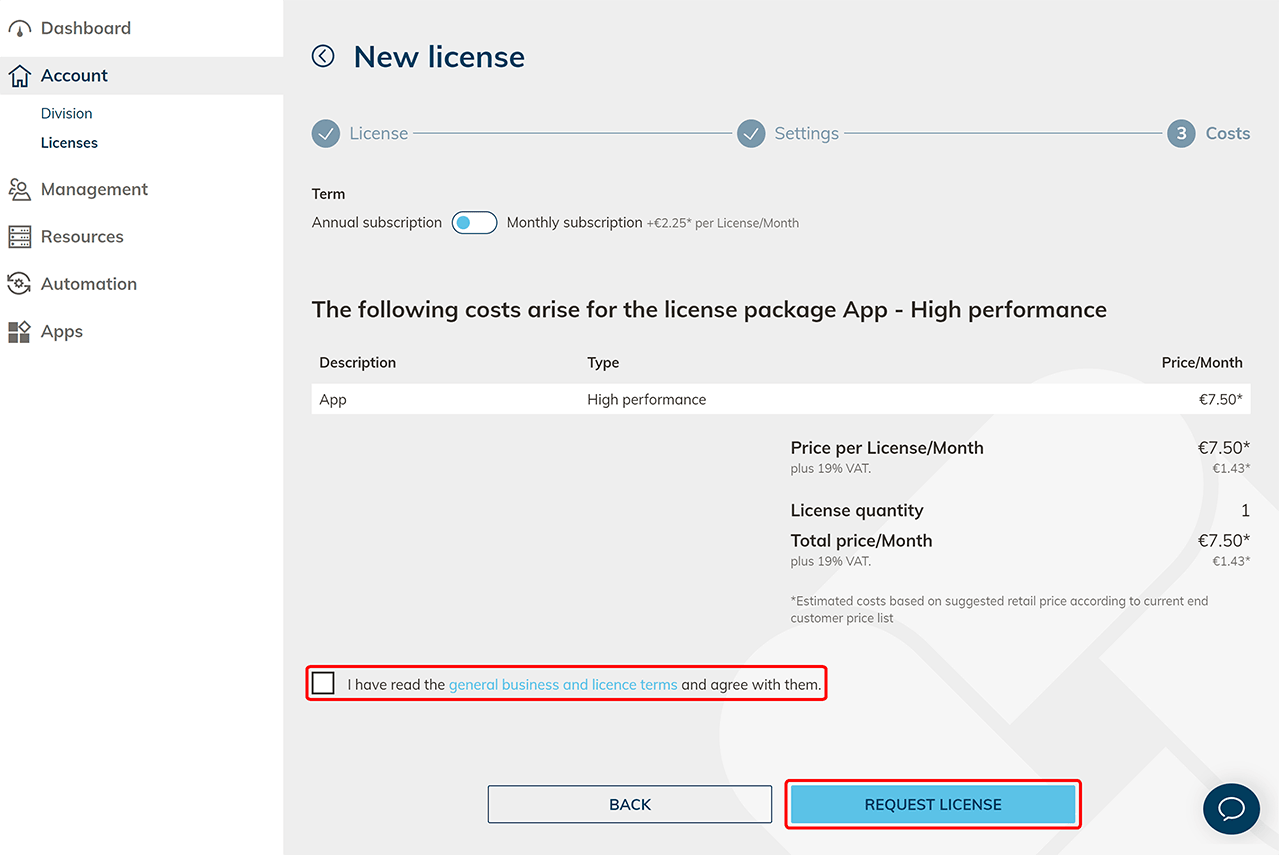
In the last step, you will receive a detailed list of all costs. Click on Request License to complete the process.
-
Now you can create connections or cloud resources and then create apps.