Adding or terminating licenses
You want to increase or decrease the number of licenses you have booked? The steps depend on whether you want to add or terminate licenses.
Adding a license
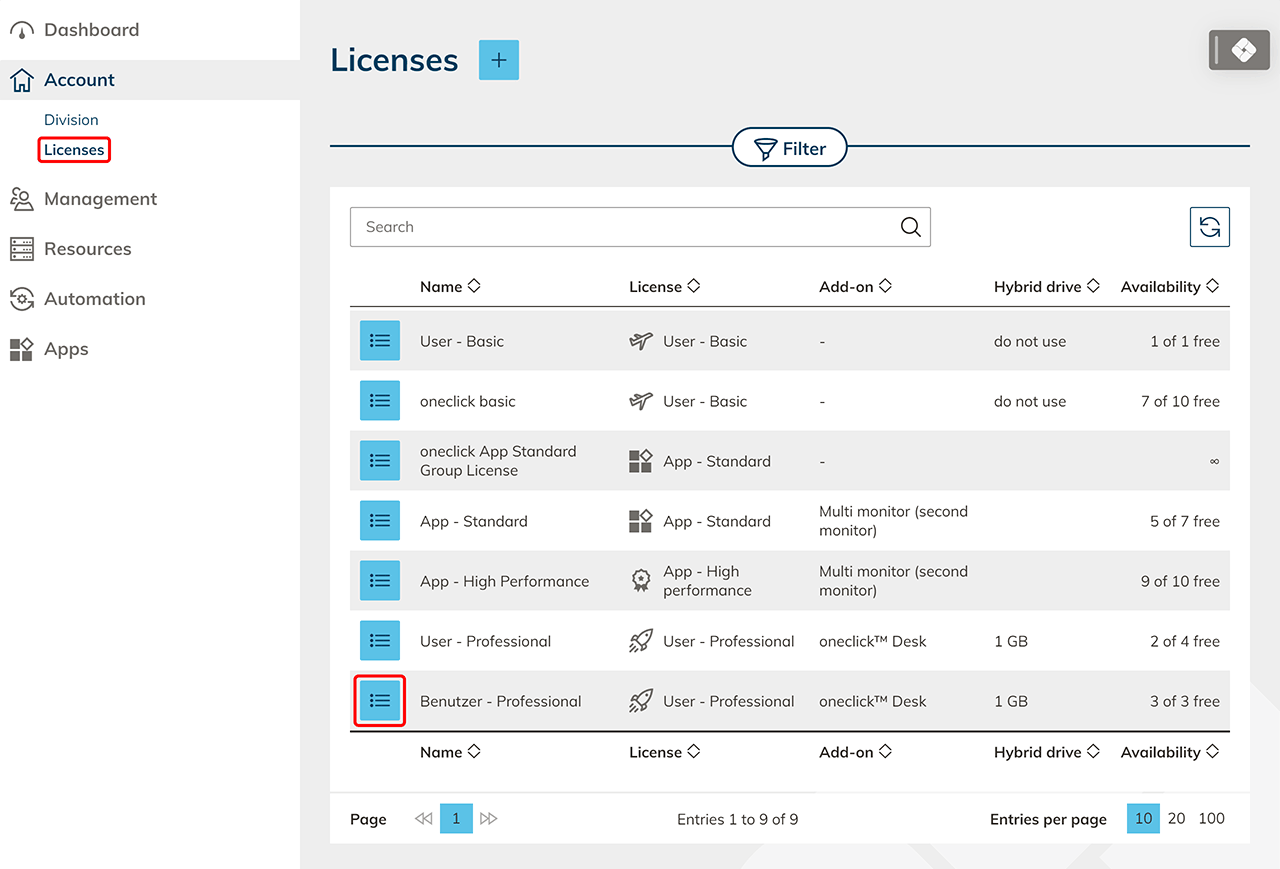
- Click the Account tab, then click on Licenses, and finally on the List icon in the row of the license you want to add.
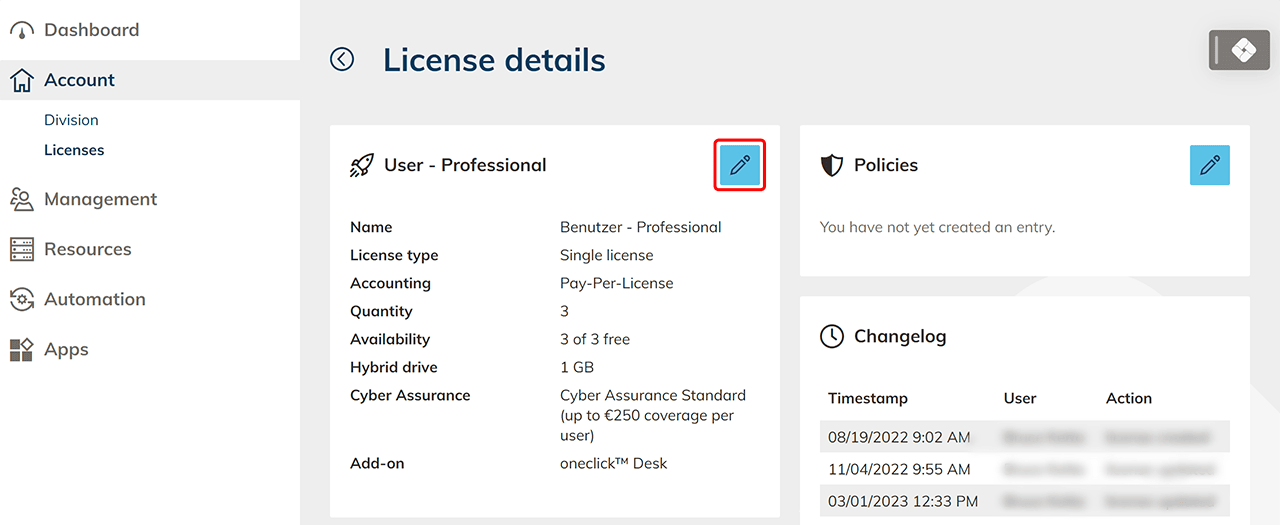
- On the details page, click the Pencil icon.
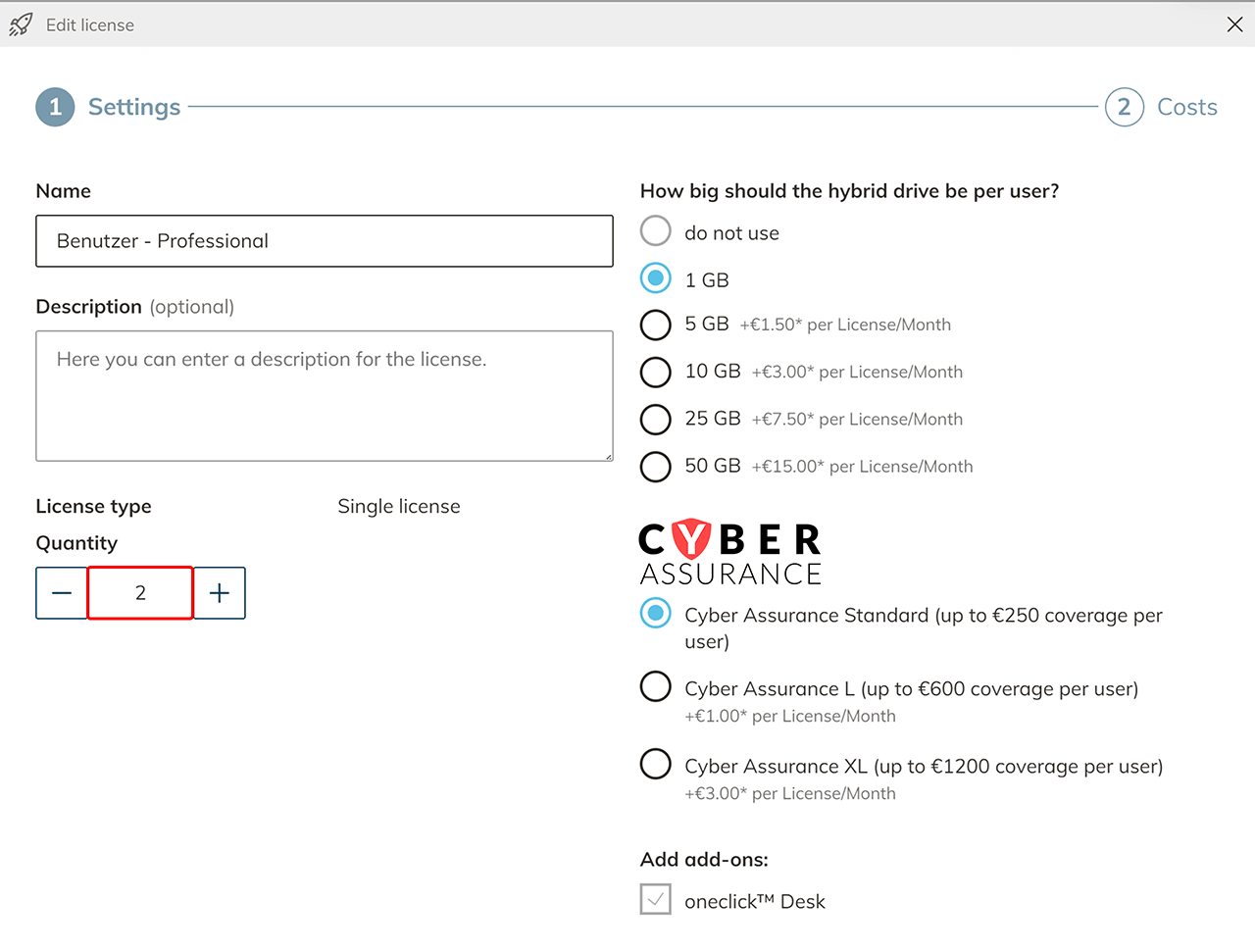
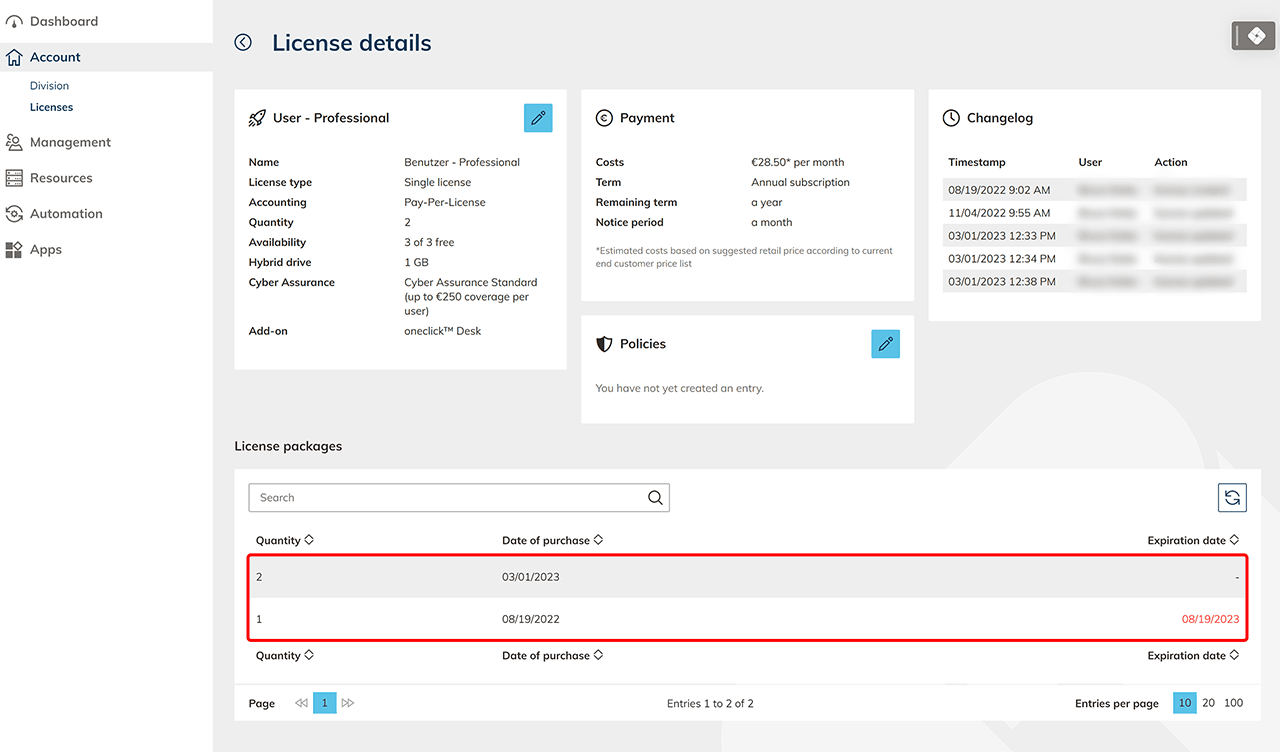
- You see an overview of the individual license packages that exist within this license.
- Increase the license package quantity by hitting the Plus icon. Then click Next.
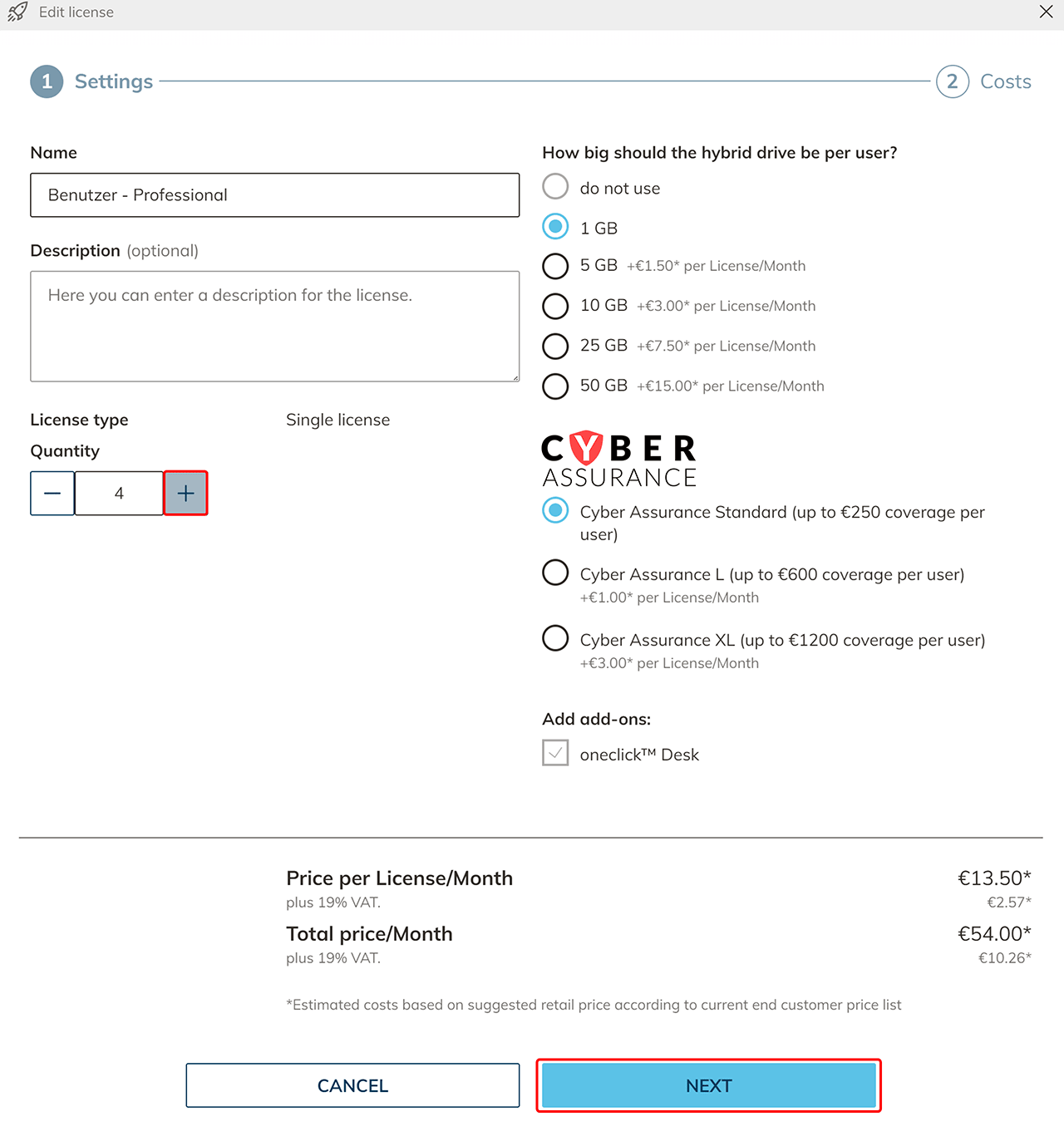
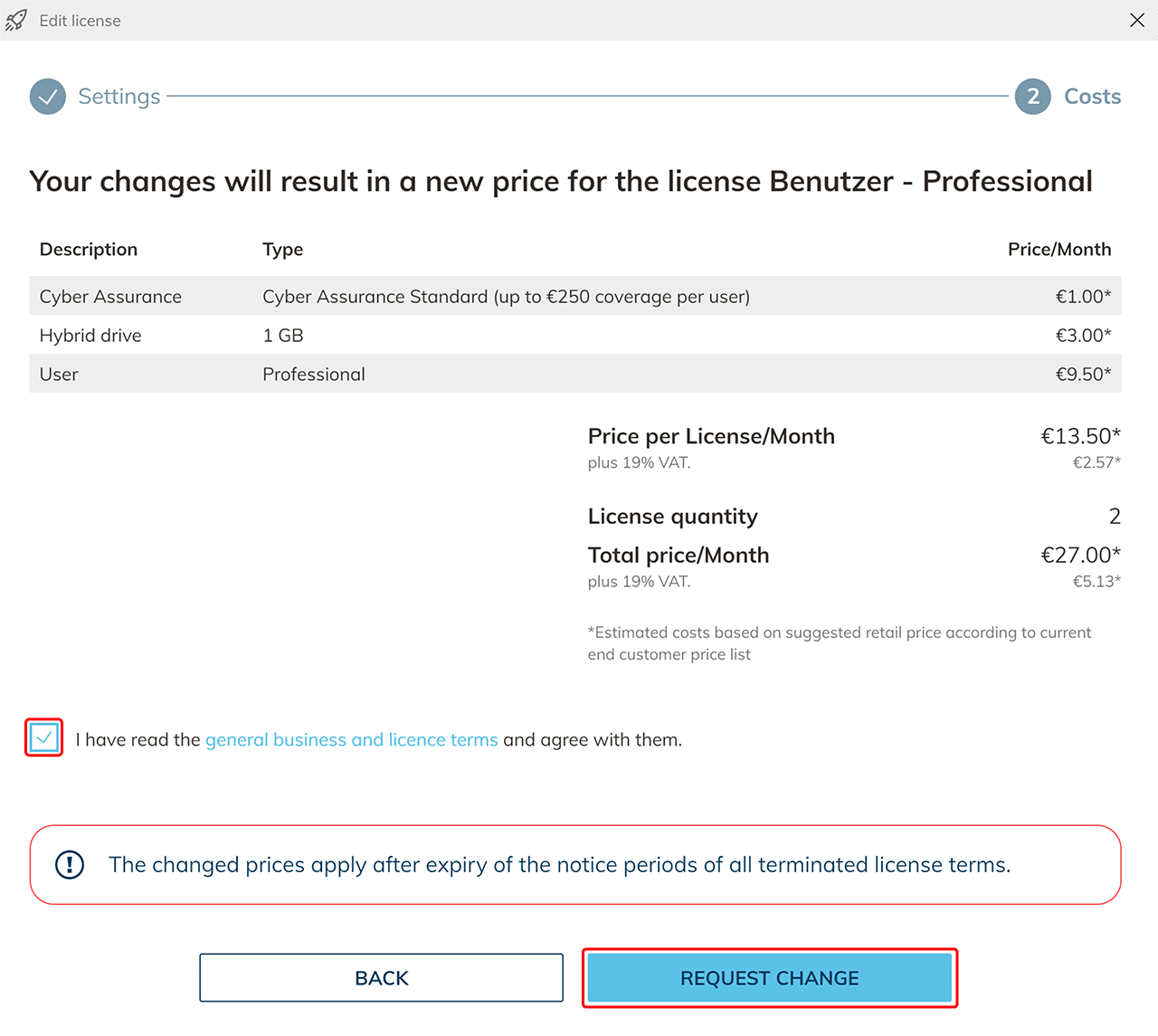
- You will see the new price for your license package. Confirm the AGLBs and click Request Change to complete the process.
- You are now shown different license packages, so that you always have an overview of when how many licenses run or expire.
info
Licenses that you add on the details page have the same billing period as first-purchased licenses. This means that licenses added in the middle of your billing period have the same termination period as first-purchased licenses.
Terminating a license
note
If you terminate single licenses (Pay-Per-License), make sure to delete any users or app instances that are no longer needed in a timely manner. If more single licenses are assigned than the license package actively contains, the entire license package isn't working properly.
- Click the Account tab, then click on Licenses, and finally on the List icon in the row of the license you want to terminate.
- On the details page, click the Pencil icon.
- You see an overview of the individual license packages that exist within this license.
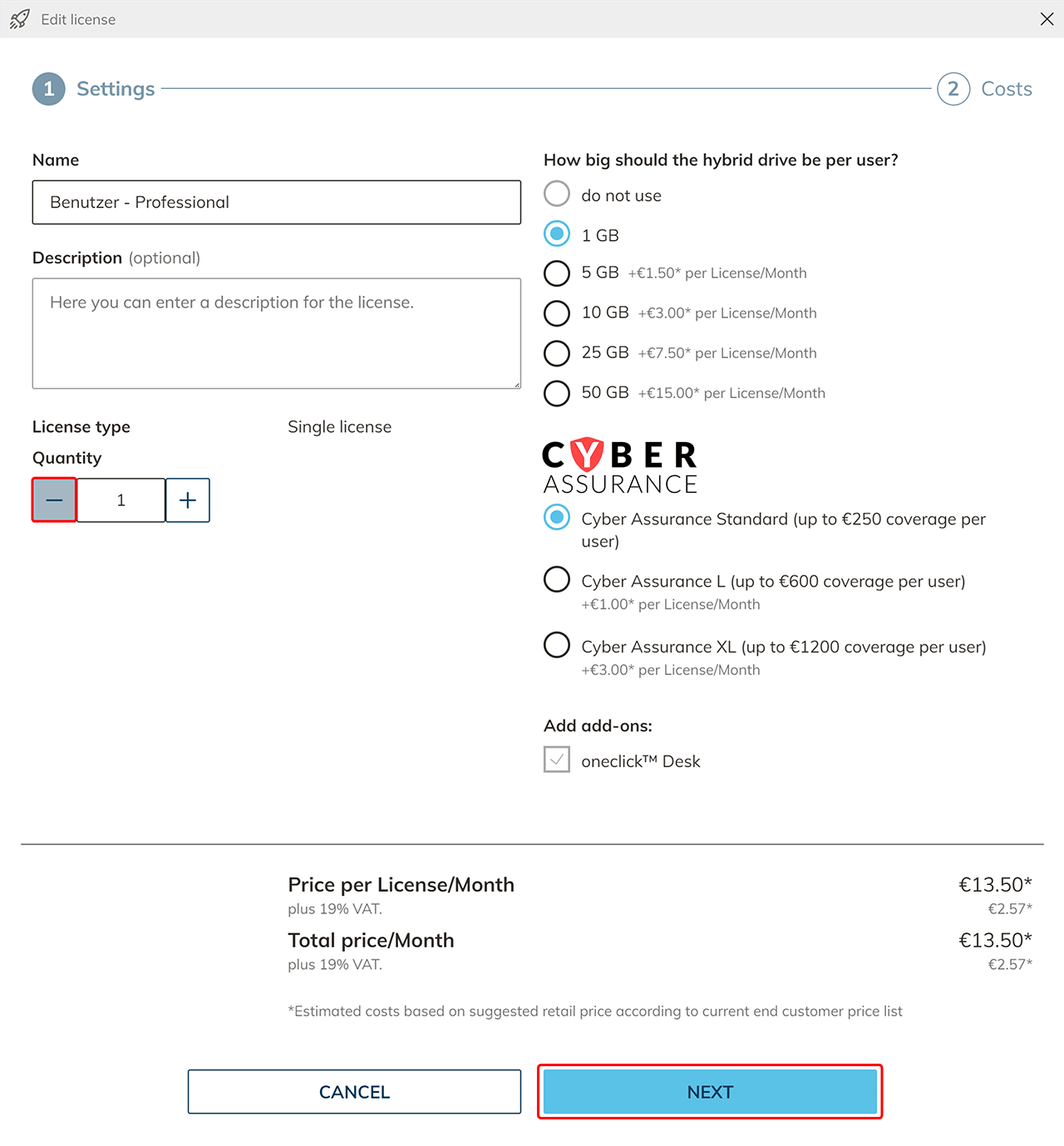
- Decrease the license package quantity by hitting the Minus icon. To terminate all licenses in this package, set the quantity to 0. Then click Next.
- You will see the new price for your license package. Confirm the AGLBs and click Request Change to complete the process.
- You are now shown different license packages, so that you always have an overview of when how many licenses run or expire.
info
The changed prices apply after the expiry of the notice periods of all terminated license packages.