User license

To create a user, you need a User license. This will give your users an account to their oneclick™ workspace. After setup, this workspace contains either an app (Basic user license) or the oneclick™ Desk (Unified Workspace) (Professional user license) where all assigned apps will appear.
- In the Account tab please click Licenses, and then on the Plus icon to create a new license.
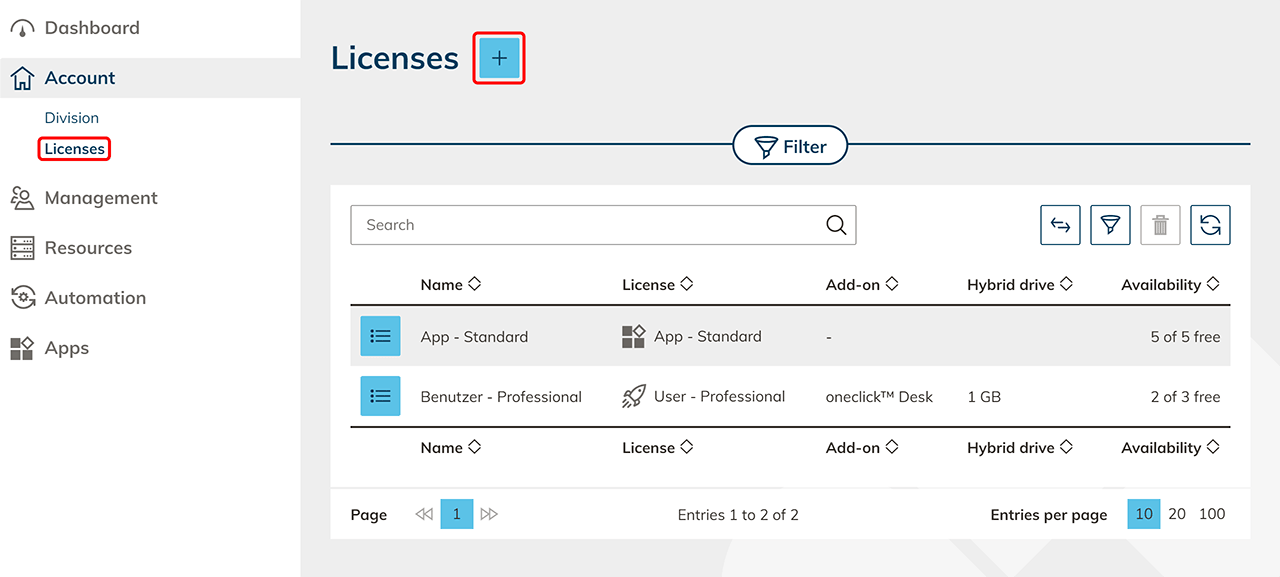
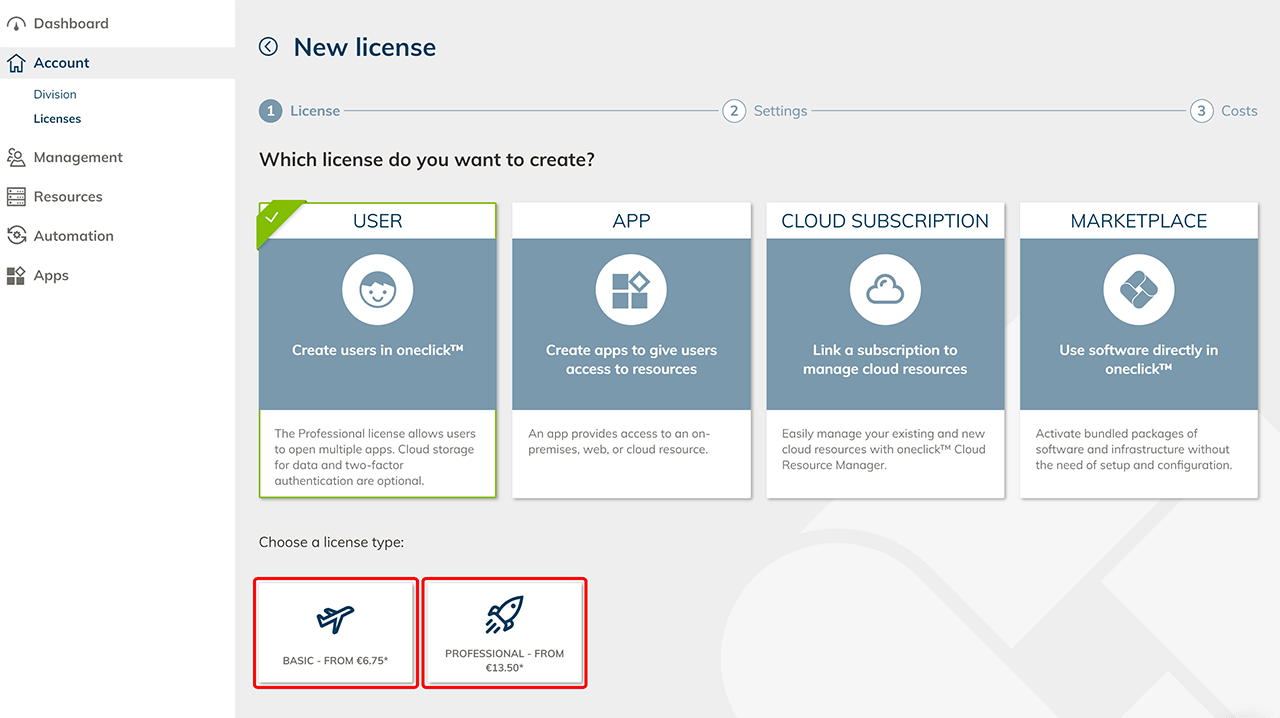
- Select the User tile and then click the Basic or Professional tile.
- User Basic license - allows the use of exactly one app
- User Professional license
- enables the use of multiple apps
- oneclick™ Desk (Unified Workspace) for central access to multiple apps
- Hybrid Drive with 1 GB storage included
- Hybrid Drive app for file sharing
- Enter any name for the license and select as many workspace licenses as you need.
- Basic: Select one or more policies on the left side, e.g. to allow the user to log in by using an identity provider. The policy "Allow login with password" is always activated when a license is purchased and allows the user to access by using his oneclick™ login data. Please refer to our article on deactivating this policy if your users should only be allowed to access via an identity provider or a private Active Directory.
Decide whether you need a hybrid drive or not. Then click Next.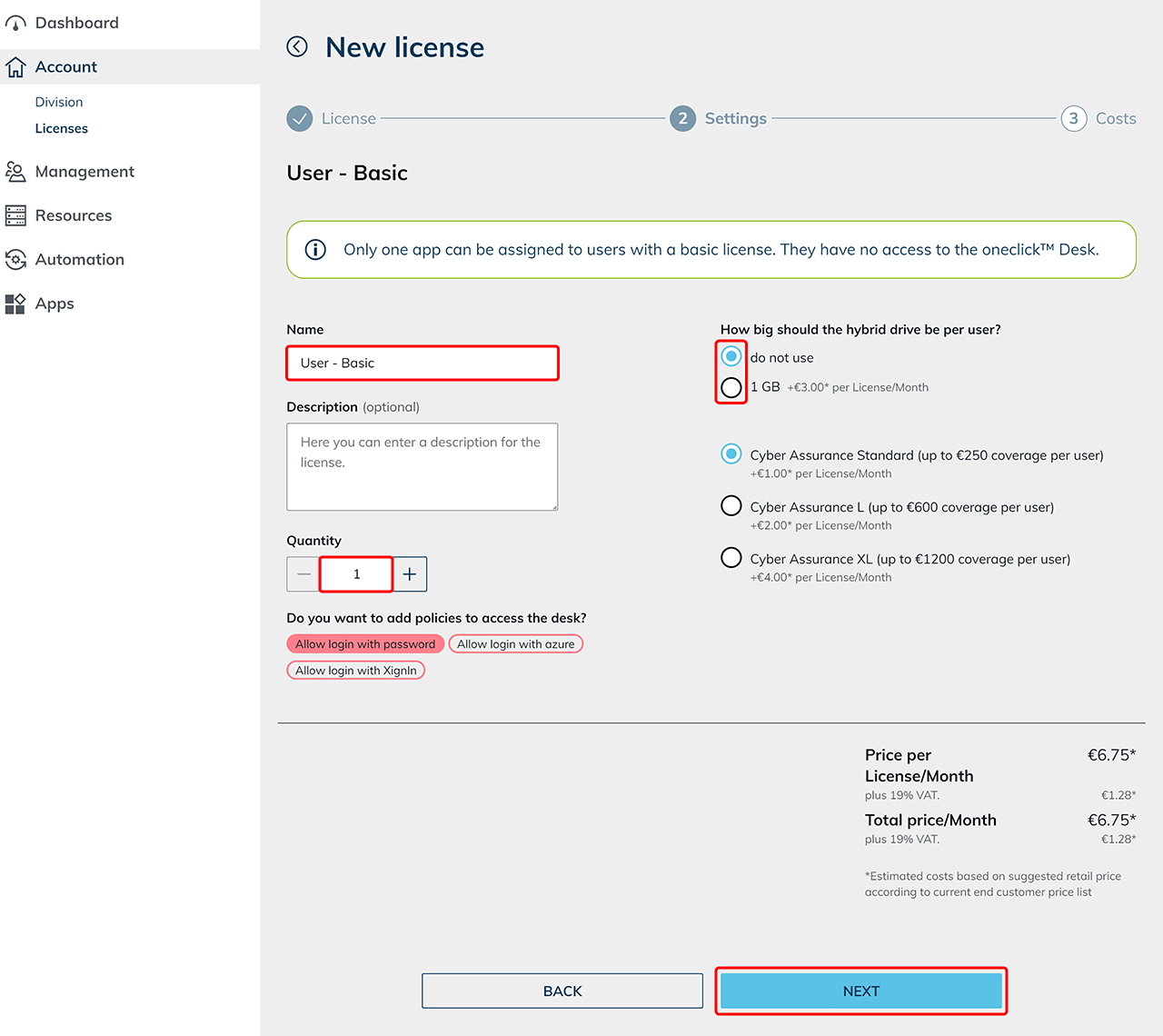
- Professional: Select or combine policies, e.g. to allow login via identity providers.
The policy "Allow login with password" is always activated when a license is purchased and allows the user to access by using his oneclick™ login data. Please refer to our article on deactivating this policy if your users should only be allowed to access via an identity provider or a private Active Directory.
You can also select different sizes for the Hybrid Drive in this step. Click Next afterwards.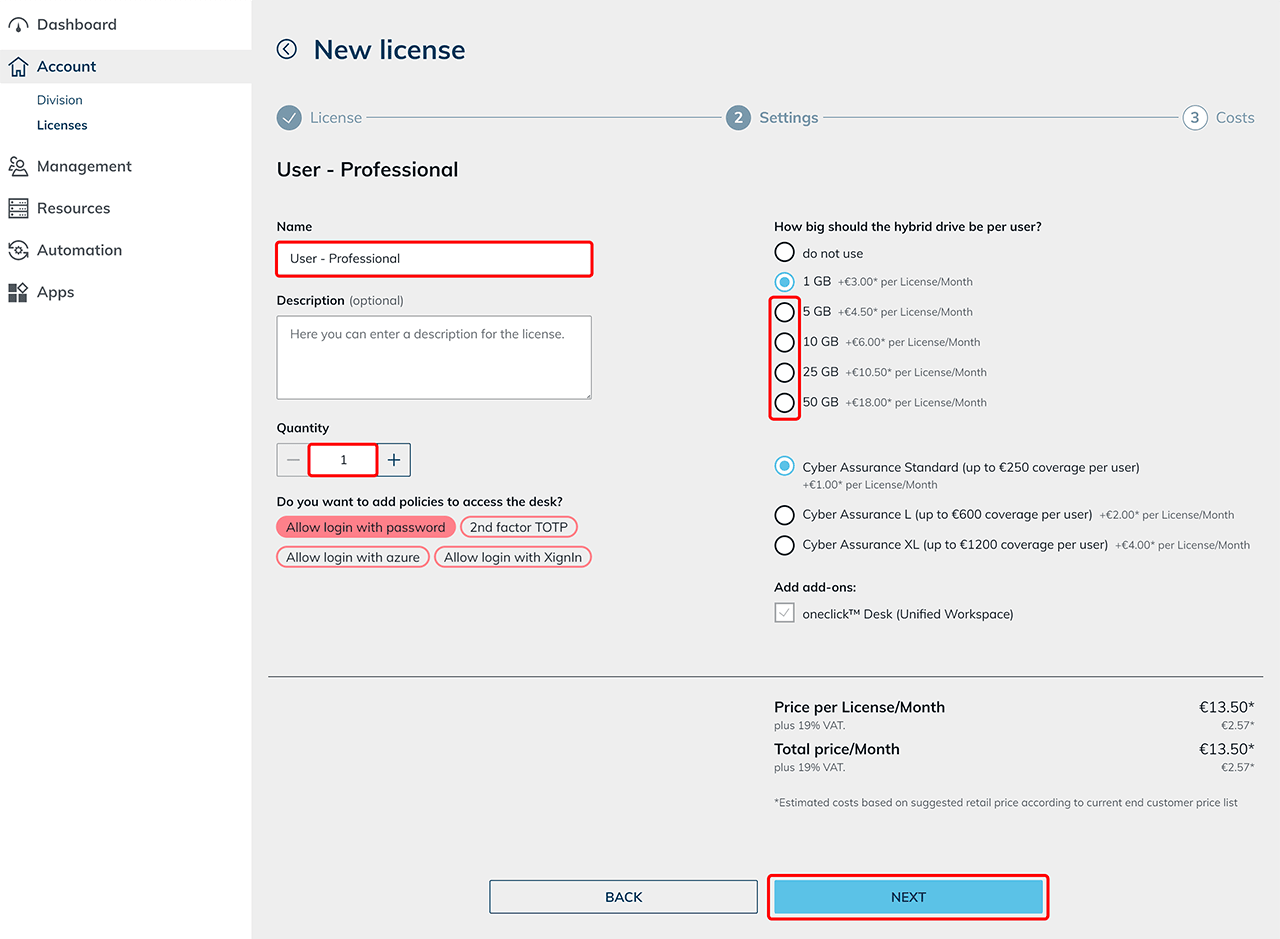
- Basic: Select one or more policies on the left side, e.g. to allow the user to log in by using an identity provider. The policy "Allow login with password" is always activated when a license is purchased and allows the user to access by using his oneclick™ login data. Please refer to our article on deactivating this policy if your users should only be allowed to access via an identity provider or a private Active Directory.
- In the last step, you can choose between "annual and monthly subscription" and a "fixed price and a usage-based billing" and you get a detailed overview of the non-binding cost estimation for endcustomers. With usage-based billing, all users of the monthly "peak" are charged. The "Peak" is the highest number of concurrent accesses per month. A usage-based billing pays off if half or less of your created users will not work in oneclick™ at the same time.
Basic: With a usage-based billing, without the hybrid drive, you only pay for all users of the monthly "peak".
Professional: With a usage-based billing, you pay a low fixed price per user (4€ in the annual subscription) for the infrastructure provided for the hybrid drive. In addition, a surcharge (€16 in the annual subscription) is charged for all users of the monthly "peak".
Confirm the AGLBs and click on Request License to complete the process.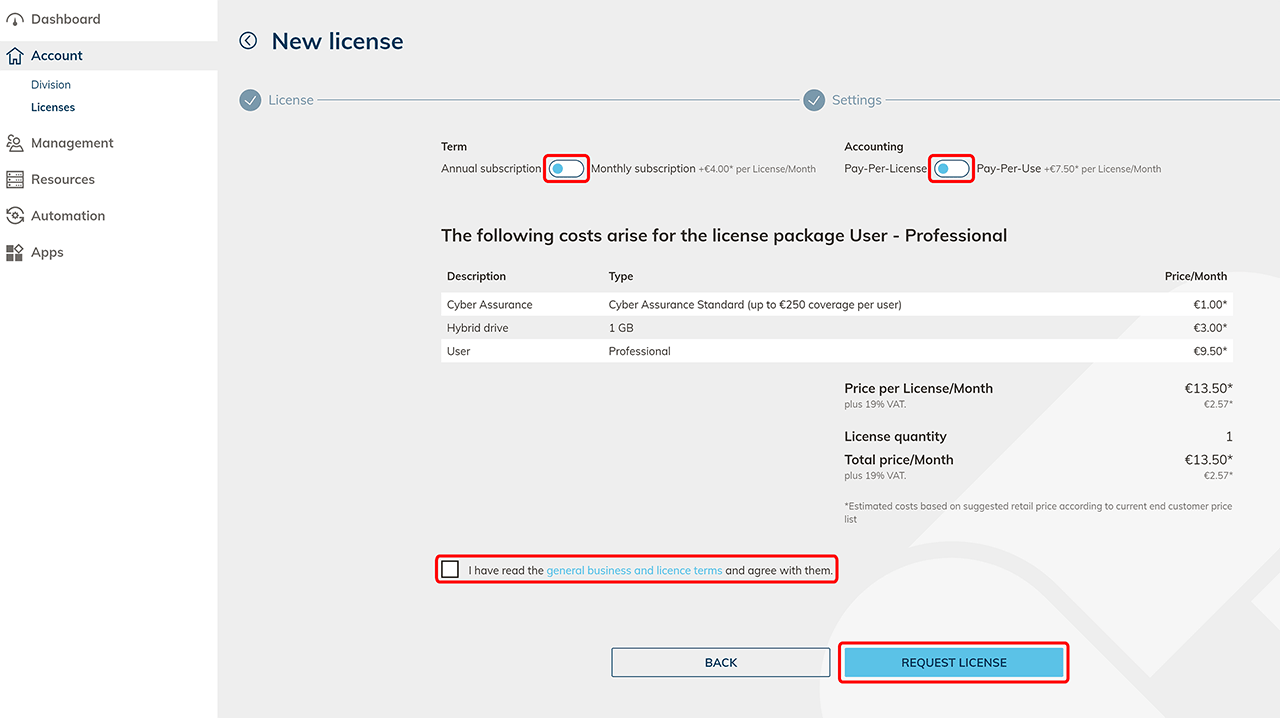
- Now you can create users.