Controls on app tiles (e.g. switch VM on/off, change keyboard-layout)
The apps on the oneclick™ Desk have different controls for each type of resource. You can only see the setting options on your tile that your administrator has enabled for you.
There are tiles with no setting options when hovered over with your mouse. Then there are some with only a gear in the middle as well as those with icons and on/off switches on them. Depending on which tile you have on your oneclick™ Desk, you can see below which functions are covered by each one.
Actions on the tile
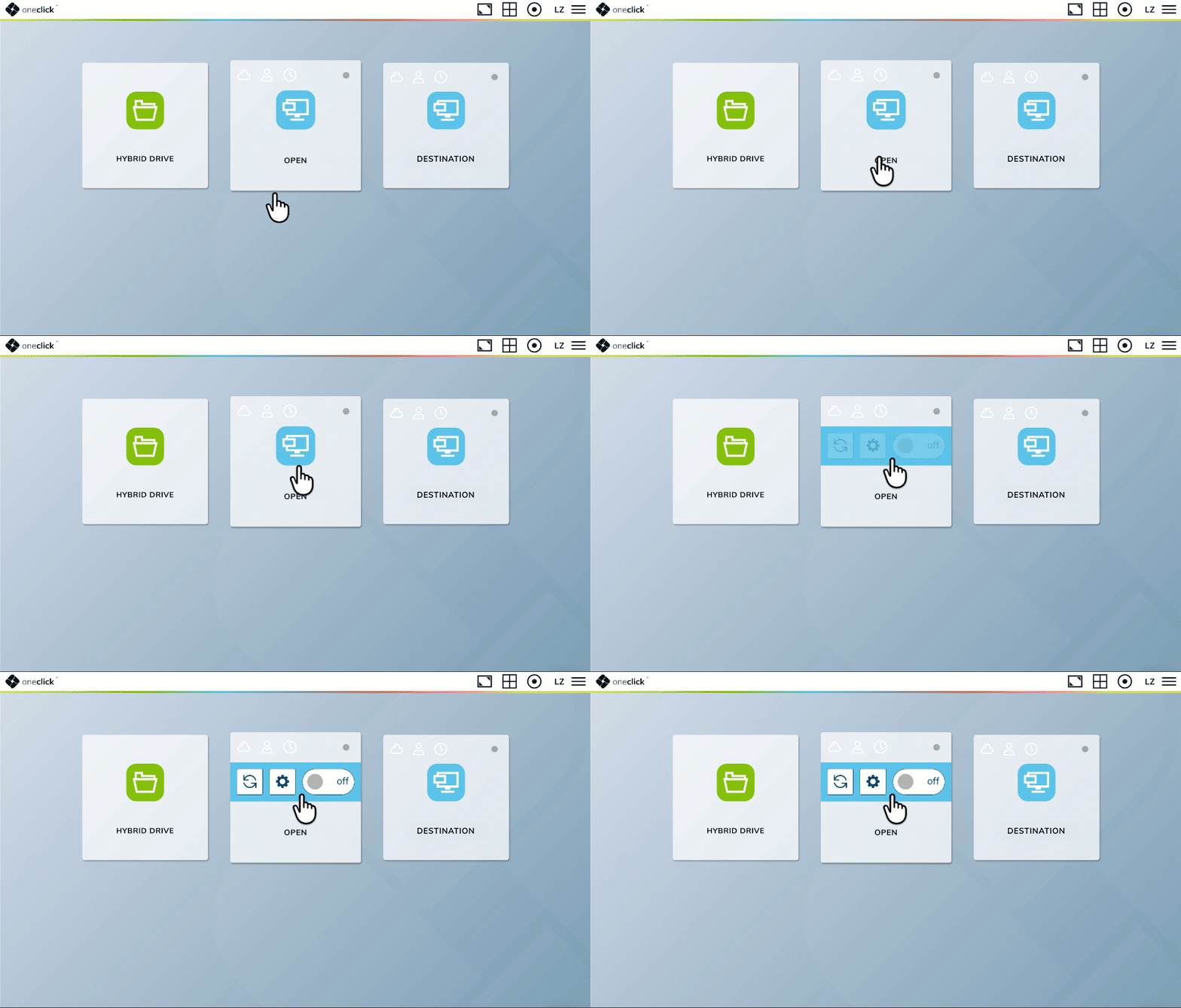
When hovering the center of the tile, three possible actions appear, depending on the settings:
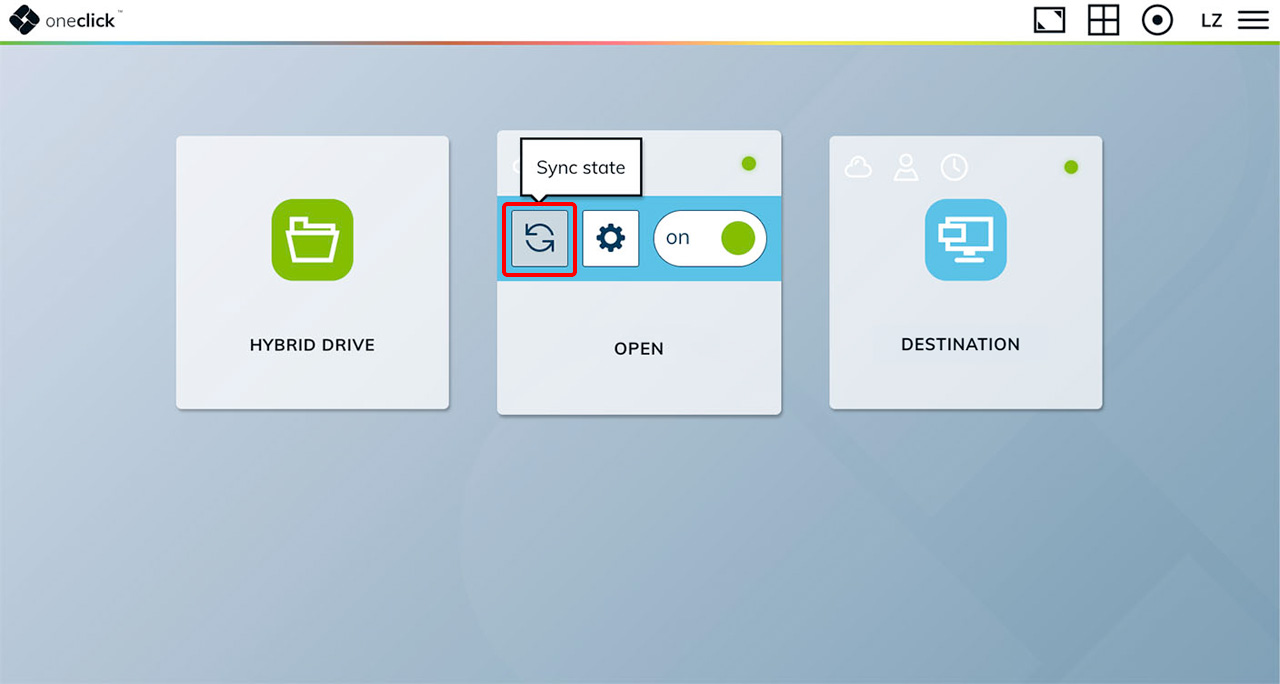
Synchronize VM
With a click on Sync state the status of the machine can be updated. Use this function if your machine has been switched on or off by someone else (e.g. your administrator) or if there is a possibility that your VM has been switched on or off directly through the cloud provider and not via oneclick™.
Edit the configuration
By clicking on the Gear icon you can see the credentials you will be automatically logged in with when opening the tile on the destination (e.g. your Windows desktop or program).
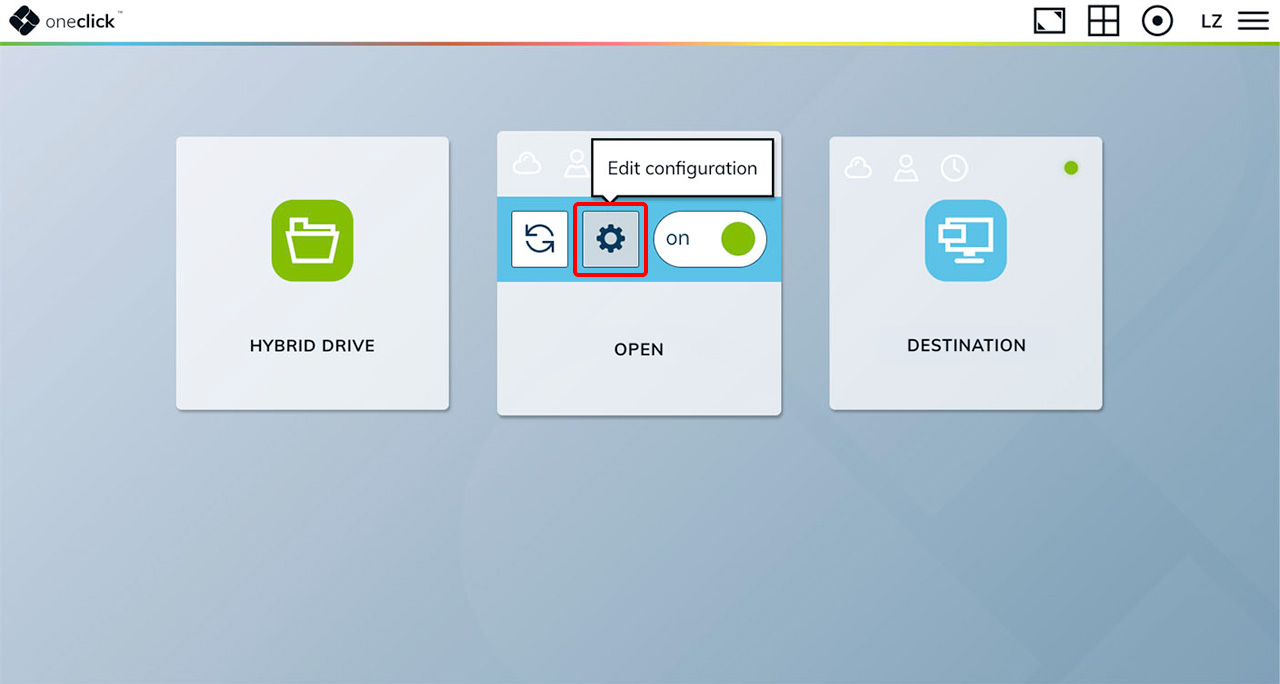
If your administrator has enabled “Advanced settings”, you can change the keyboard layout and enable/disable display options. Depending on what your administrator has enabled, more setting options will be displayed here.
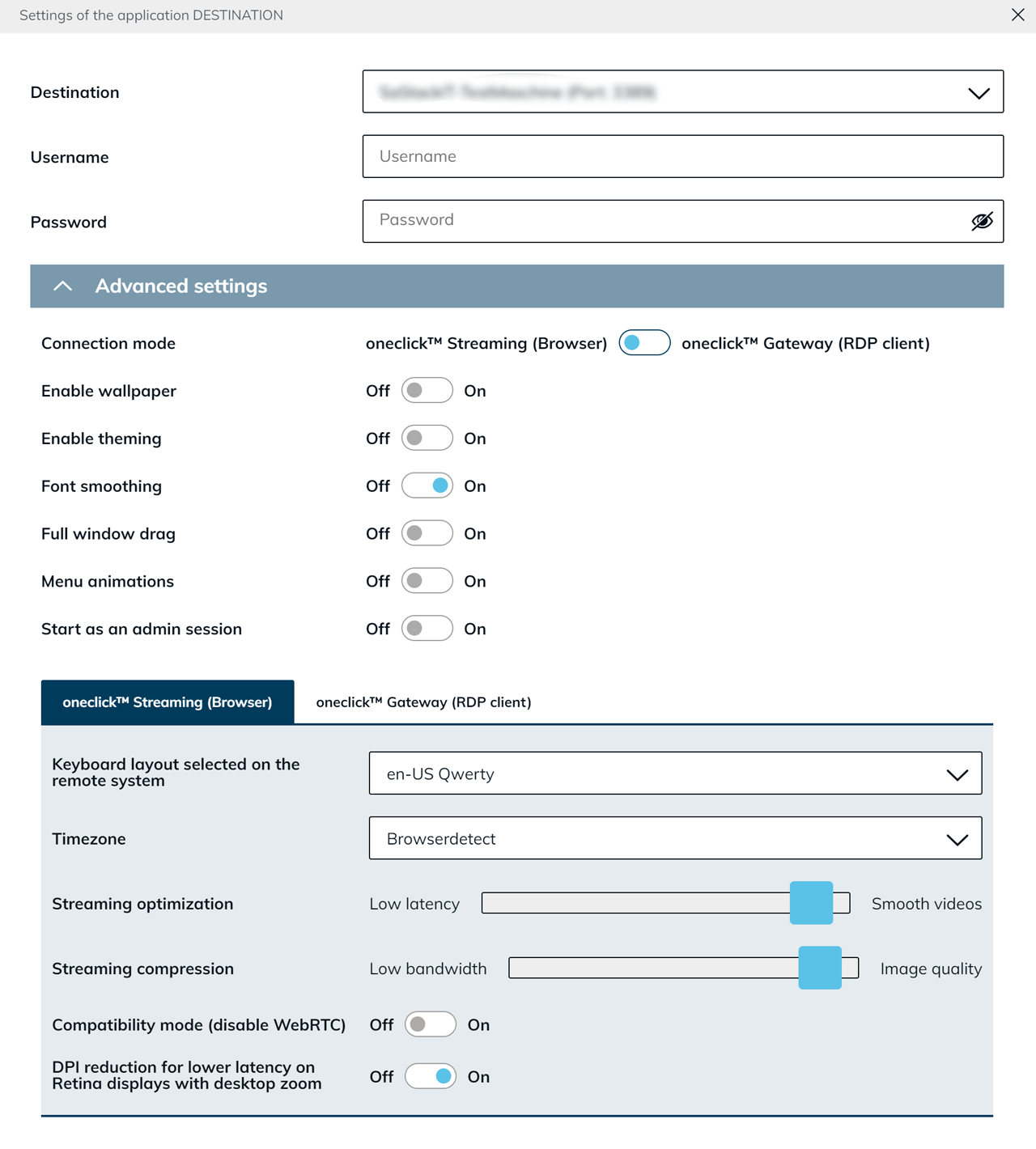
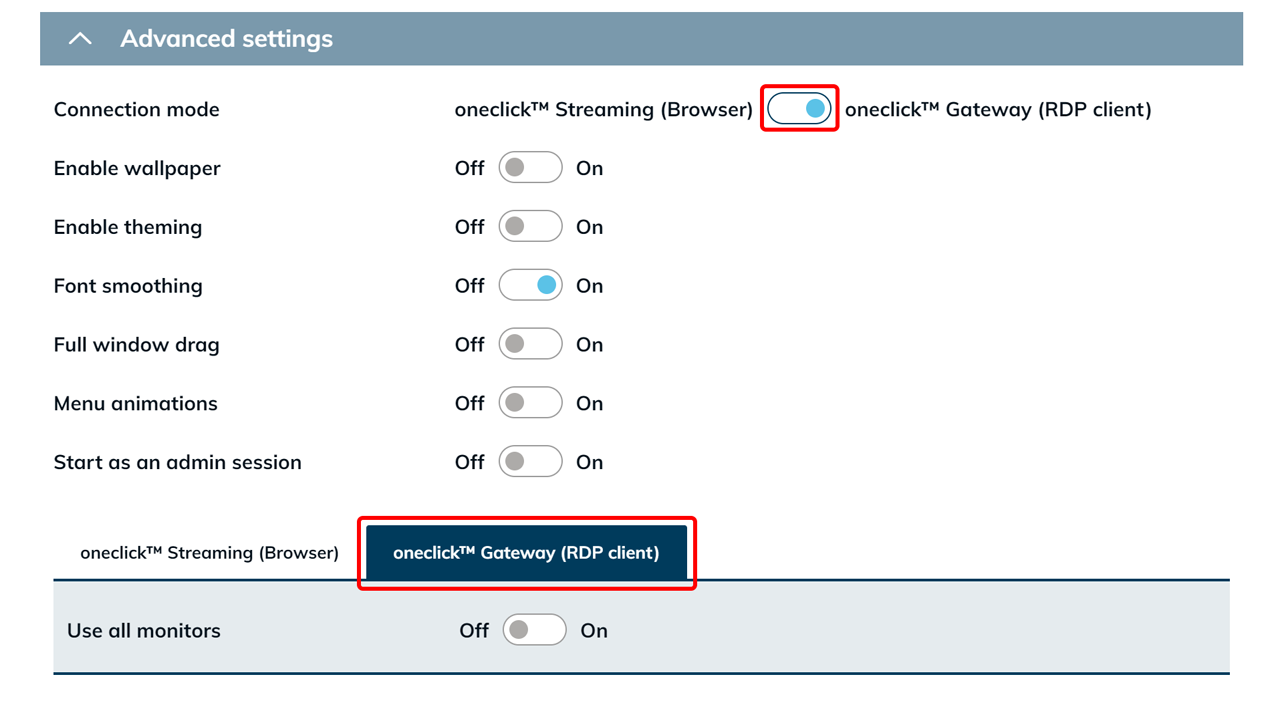
oneclick™ Gateway (RDP client)
You may see an additional selection option for the oneclick™ Gateway under “Advanced Settings”. Whether this option is available depends on the configuration set by your administrator. If the oneclick™ Gateway (RDP client) toggle is visible, you can choose whether the connection is established via the oneclick™ Gateway or via direct streaming.
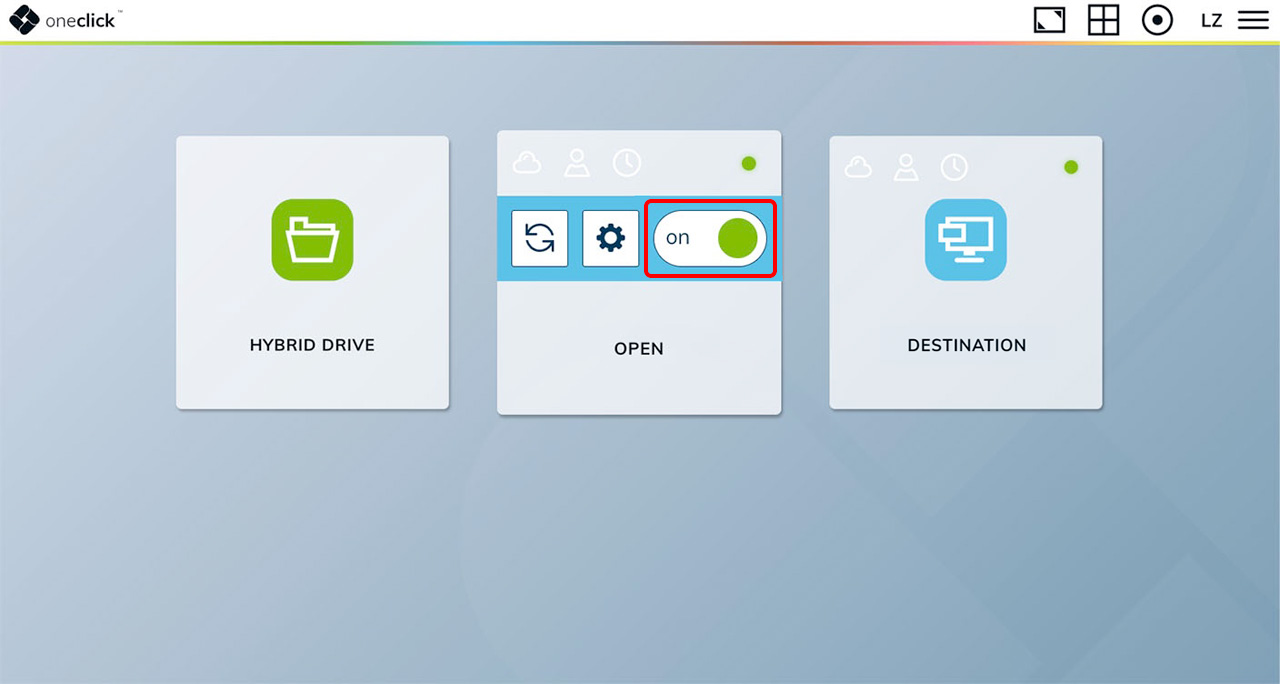
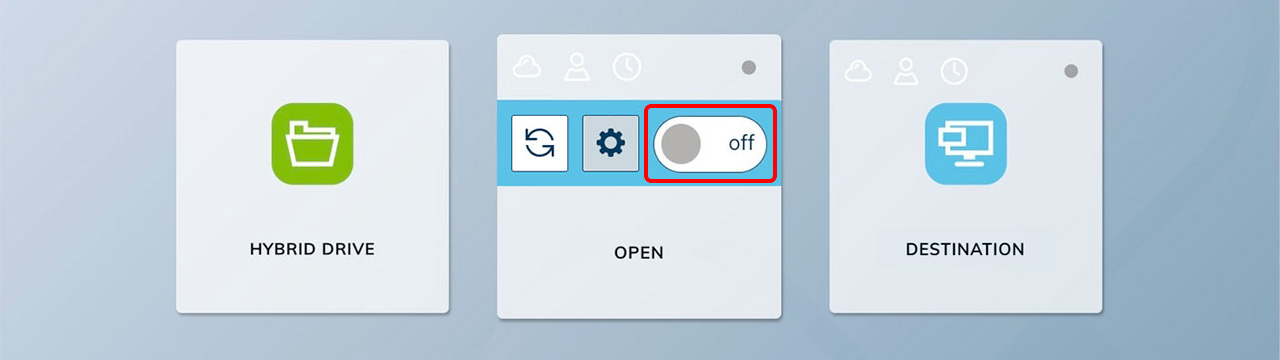
Switch on/off VM
Using the slider, the machine can be started or stopped.
Icons of cloud resources
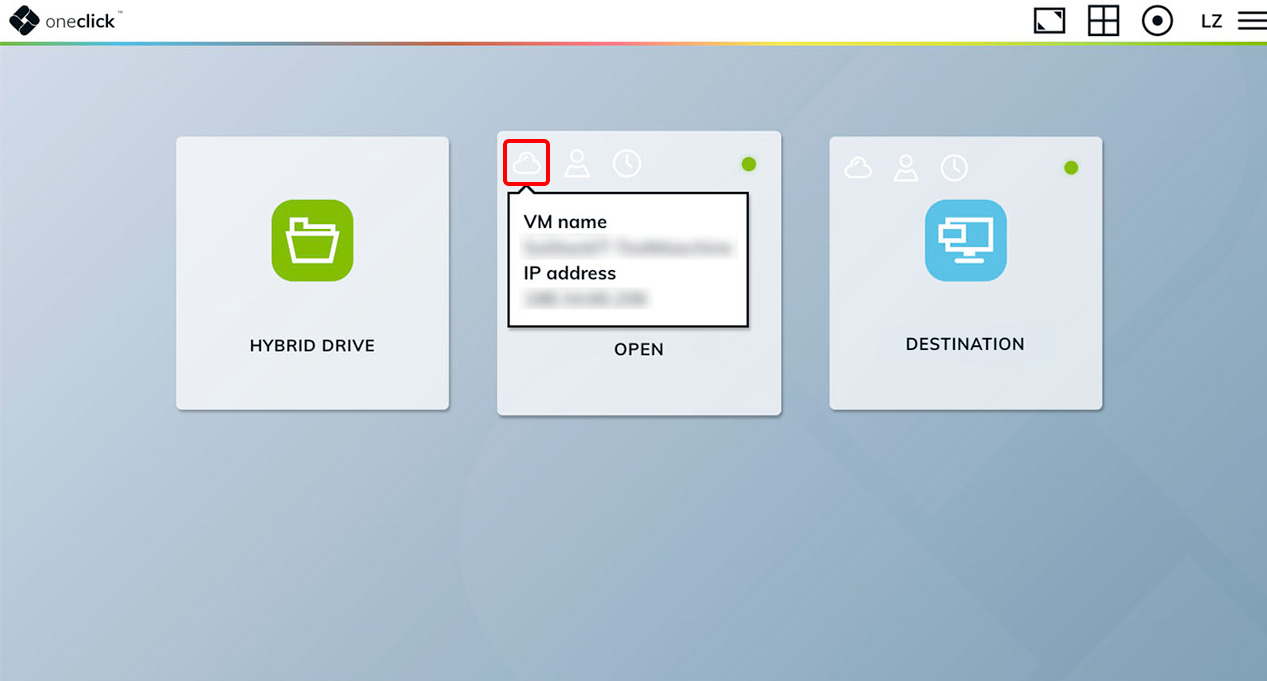
Cloud icon / IP address
All apps with a cloud icon in the upper left corner are cloud resources. If your administrator permitted it, you can see the IP address of the VM by hovering over the cloud icon.
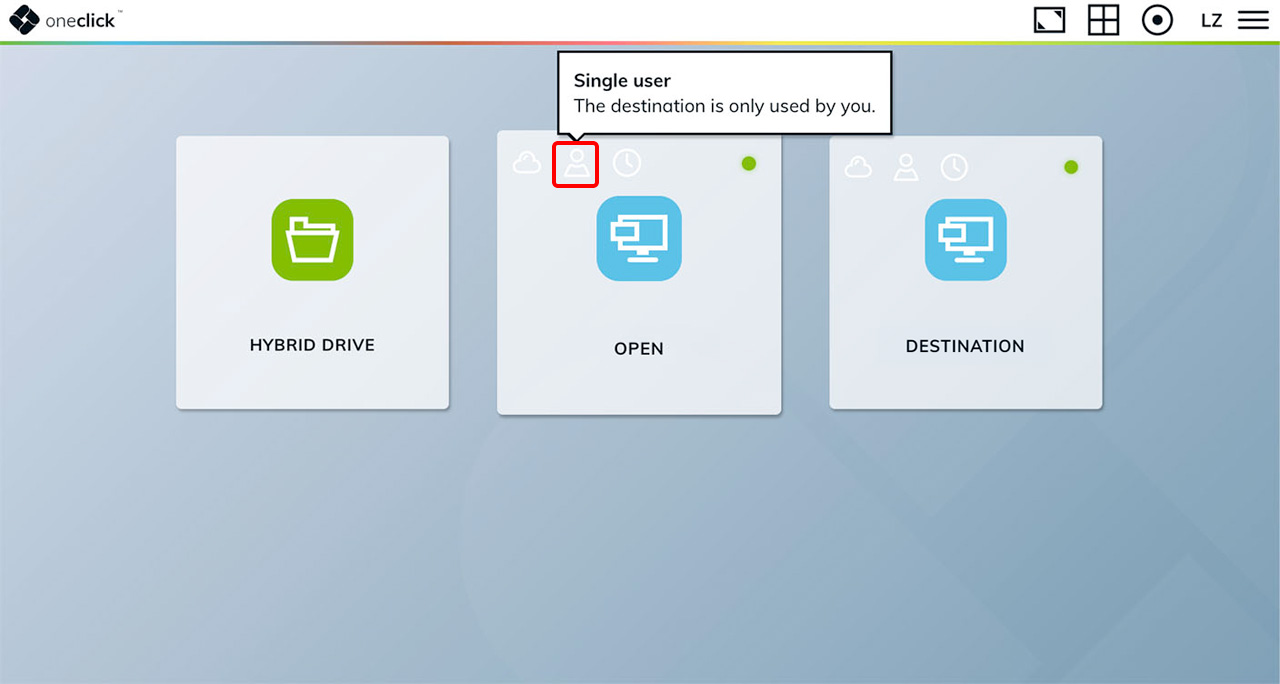
Avatars (Single / Multi-User)
If there is only a small avatar on the tile, it is a single VM. If there are two avatars, it is a multi-user VM and the destination is used by several people.
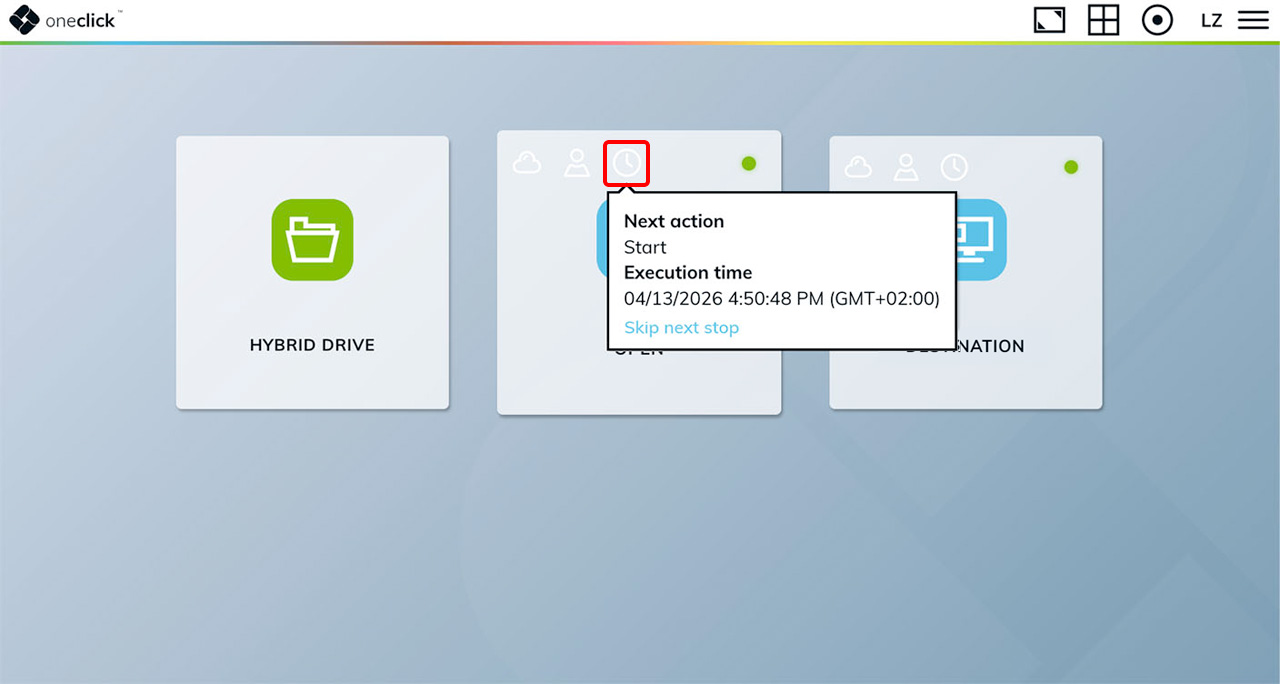
Clock / Event profile
The clock is displayed as soon as an event profile is stored. Your administrator can, for example, set the time at which the VM is started or stopped. You can see which action is automatically executed next here.
If your administrator has enabled the skip option for a scheduled stop event, you will also see a Skip next stop link in the tooltip. Click it to skip the next scheduled stop. A confirmation dialog will appear before the skip is applied. You can skip multiple upcoming stops in a row — the displayed time will always show the next stop that has not been skipped.
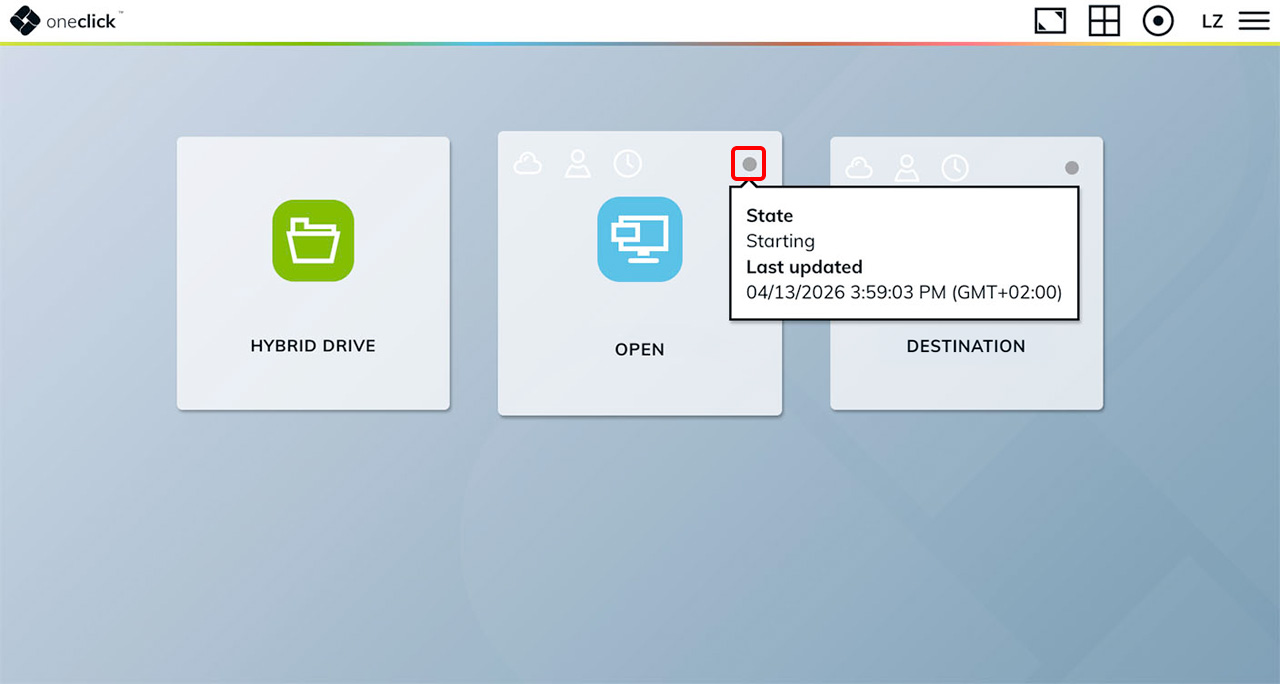
Status dot
The dot in the upper right corner appears green when the VM is enabled and gray when it is disabled. You can also see when the VM status was last updated. We recommend synchronizing the VM to ensure that the displayed status is up to date.