oneclick™ as web app
Generally, for functional reasons, it is not necessary to install oneclick™ as a separate app on your desktop. If you still prefer access via an application, proceed as follows to install oneclick™ as an app using Google Chrome or Microsoft Edge.
Google Chrome: Install website as an app
Proceed as follows to install oneclick™ with Google Chrome as an app.
-
In your browser, go to the web page you want to install as an app. In this case, go to:
oneclick.servicesde.oneclick.servicesPlease ask your company administrator in advance which of the two login pages is correct in your case.
-
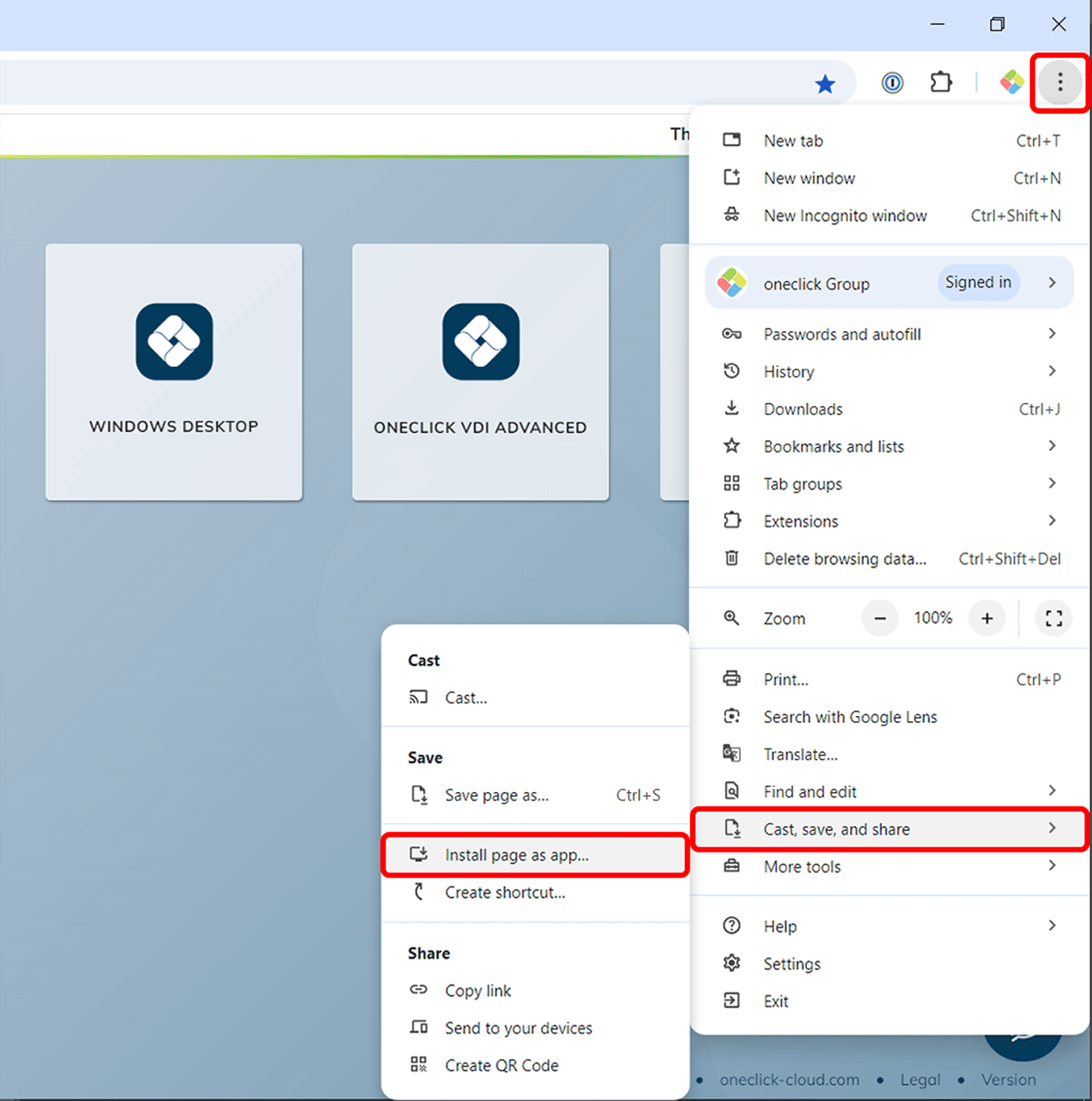
Click on the browser menu with the three dots at the top right.
-
Go to Cast, save and share and select Install page as app...
-
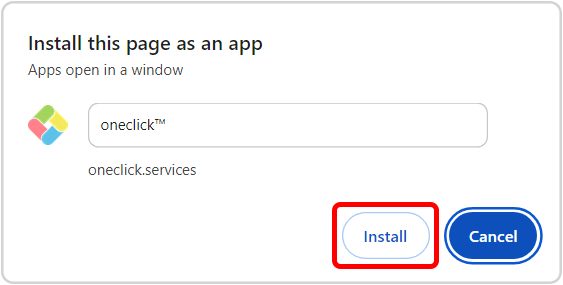
A pop-up will open. Name the app (e.g. oneclick™) and click on Install.
-
A pop-up window will now open at the bottom right of your main screen. Confirm here with Yes to automatically pin the created app to your taskbar.
If you are using a MAC, this window will not appear . In this case, follow the instructions below to keep the app in your Dock.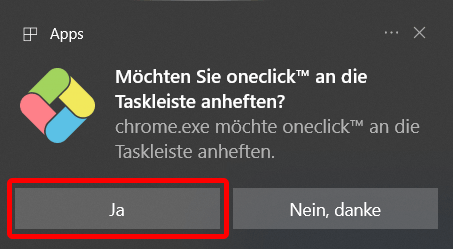 _The icon is now displayed on your taskbar and can be dragged to the desired position.
_
_The icon is now displayed on your taskbar and can be dragged to the desired position.
_
-
In addition, the page is displayed on your desktop as a separate app and opens as usual by double-clicking in a new browser window.

Pinning the created web app to taskbar/Dock manually (Windows and MAC)
Carry out the following steps to pin the created web app to the taskbar on your lokal desktop (Windows) or to keep it in your Dock (MAC) if no pop-up window has opened after creation or if it has been closed by clicking on No, thank you.
- Open the app by double-clicking on the newly created icon on your desktop.
- Windows: Right-click on the visible app icon in your taskbar and select the “Pin to taskbar” entry. The icon is now displayed on your taskbar and can be dragged to the desired position.
- MAC: Right-click on the visible app icon in your Dock and select “Keep in Dock” under Options.
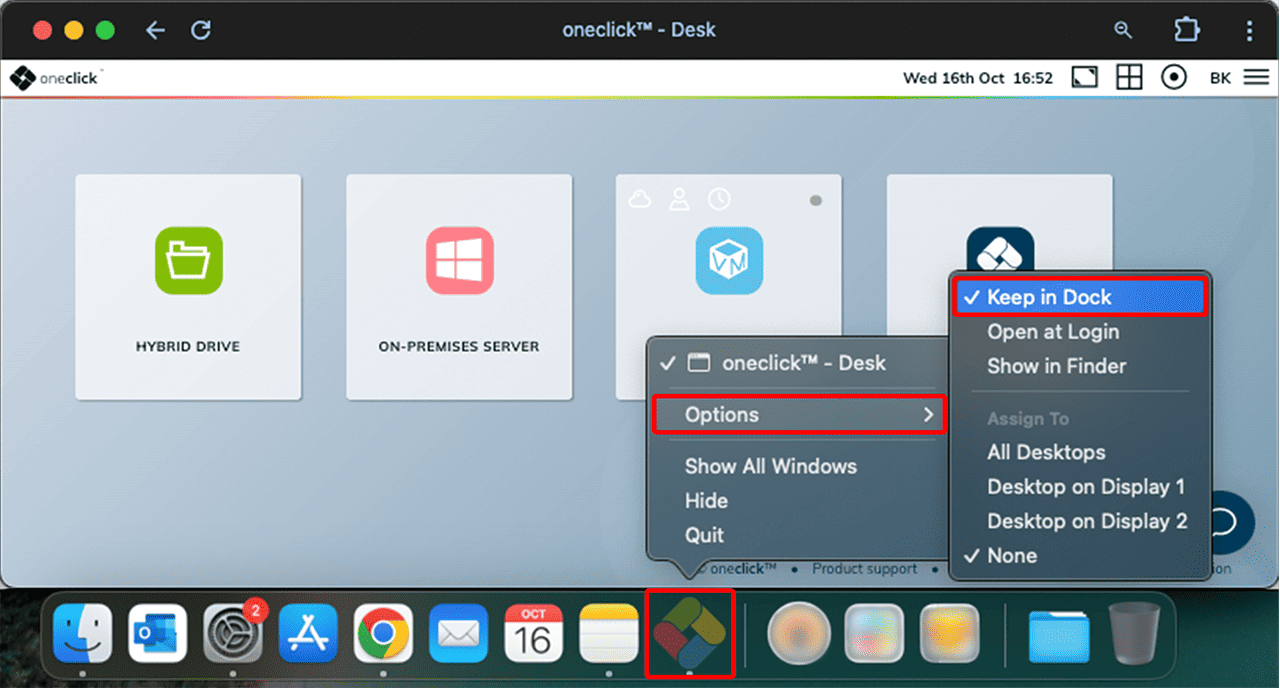 The icon is now displayed in your Dock and can be dragged to the desired position.
Manage access permissions for the app in Chrome
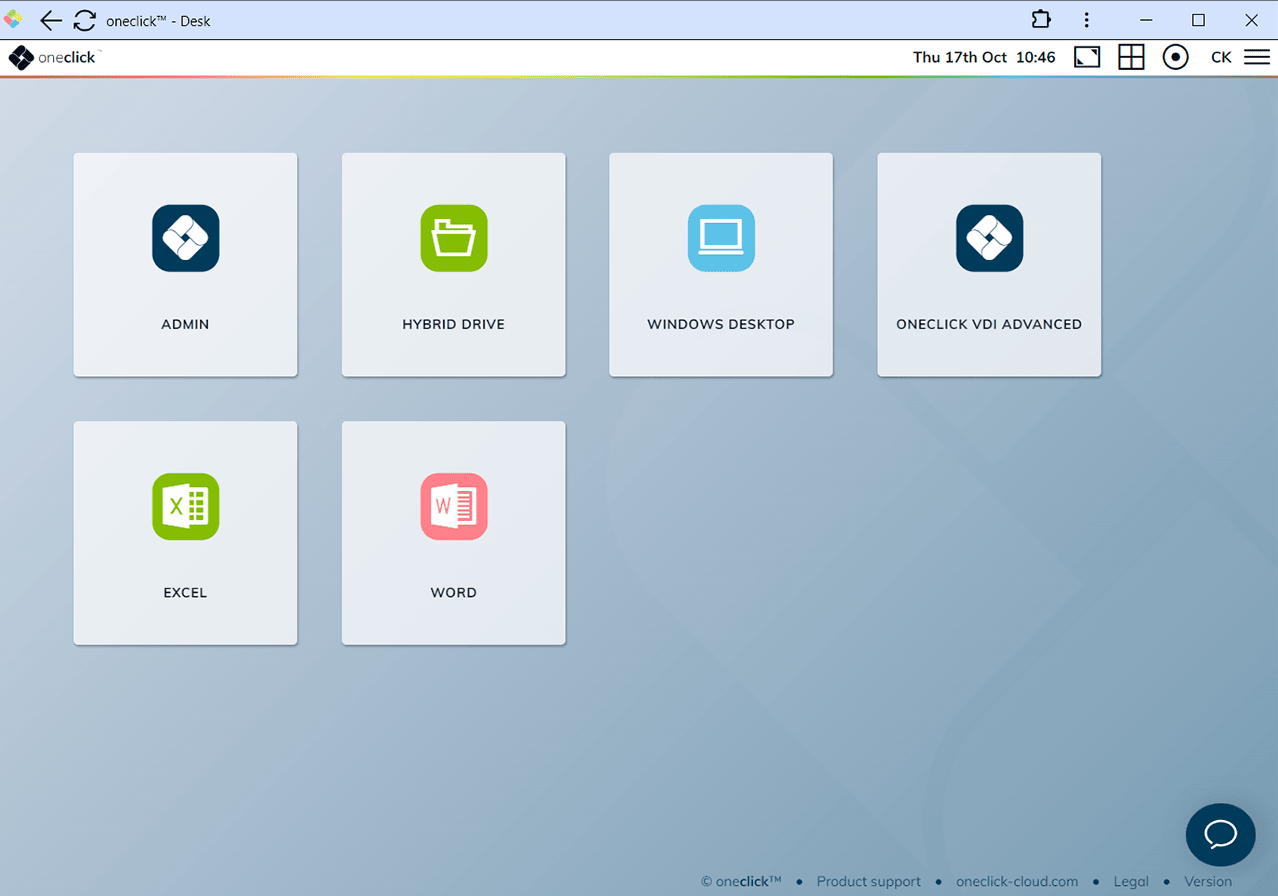
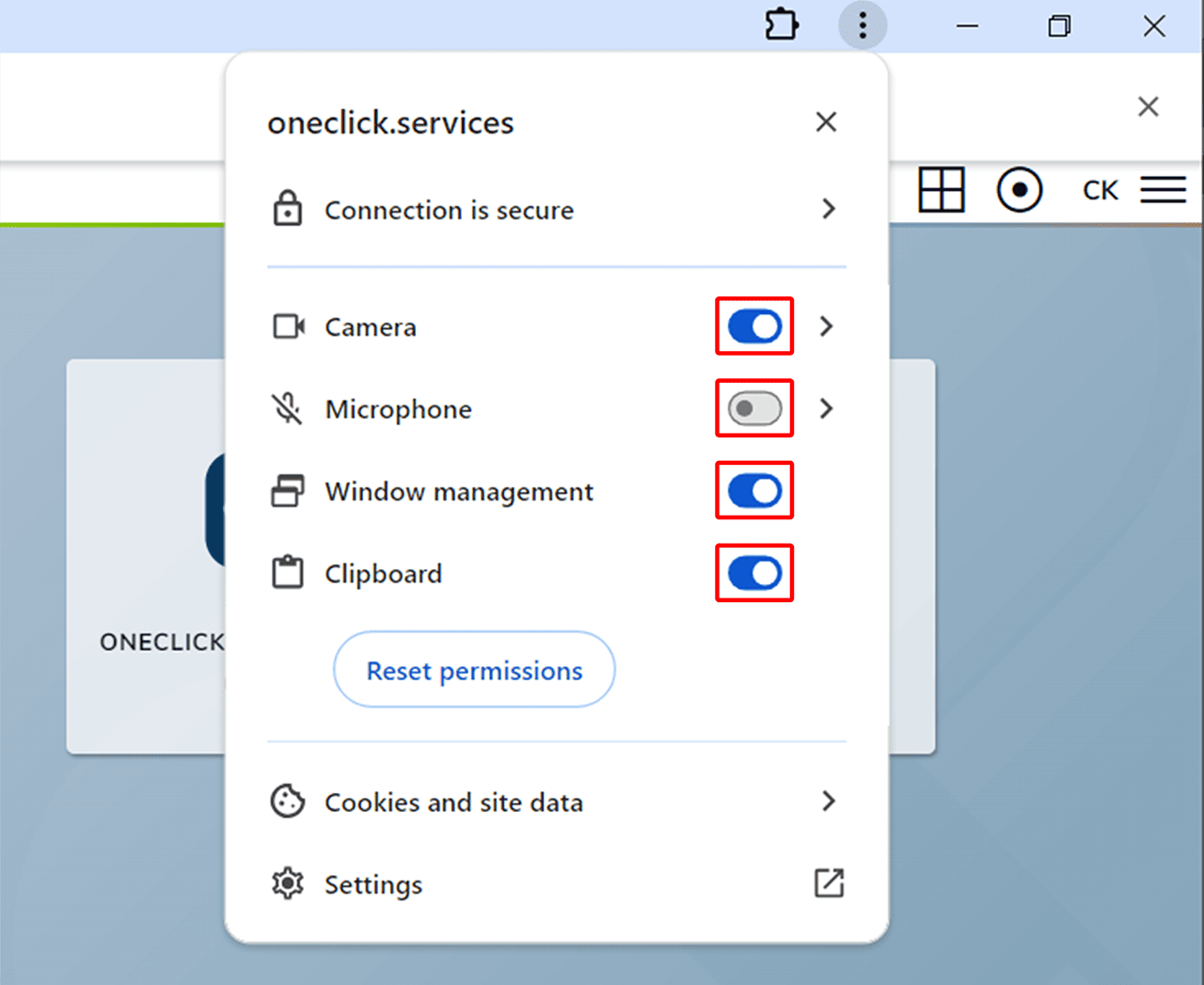
After you have installed oneclick™ as a web app on your desktop and pinned it to your taskbar/Dock, you should ensure that the app you have created has access to the camera, microphone and clipboard. To do this, carry out the following steps:
- Open the app you have created. The app should open in a new window automatically.
- Sign in to oneclick™.
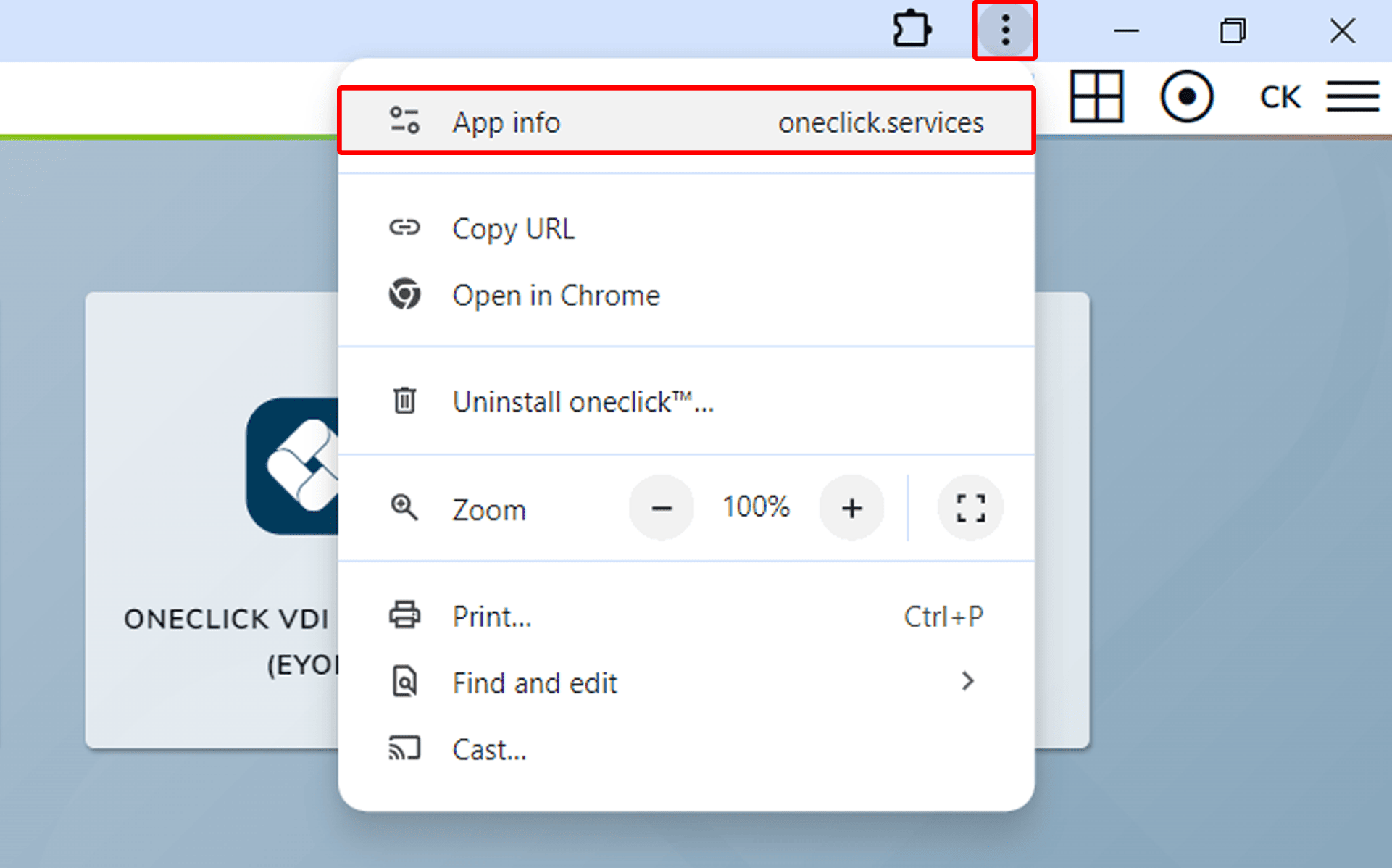
- Click on the browser menu with the three dots at the top right and select the App info item.
- In the window that now opens, you can grant access to the camera, microphone and clipboard using the corresponding switches.
Microsoft Edge: Install website as an app
Proceed as follows to install oneclick™ as an app using Microsoft Edge:
-
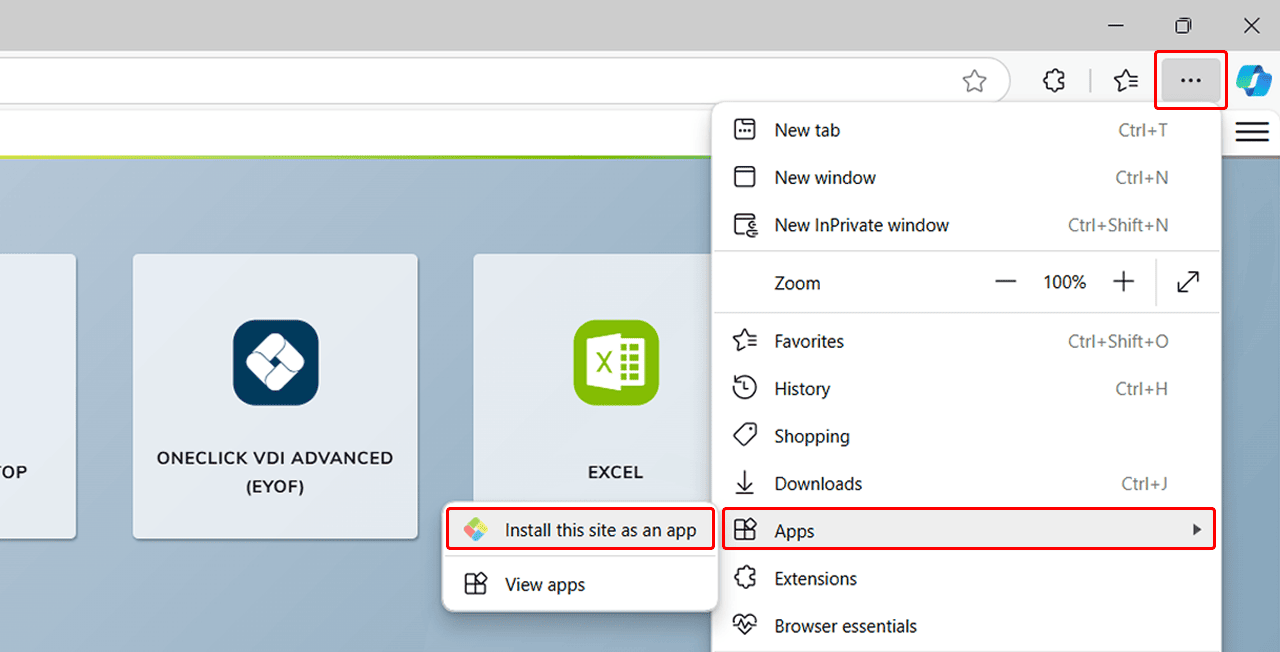
Go to the browser menu with the three dots in the upper right corner.
-
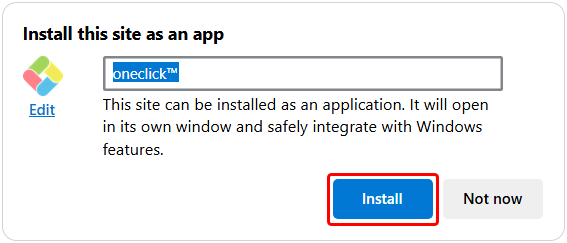
Click on Apps, and then click on Install this site as an app.
-
A popup opens. Name the app (e.g. oneclick™) and click on Install.
-
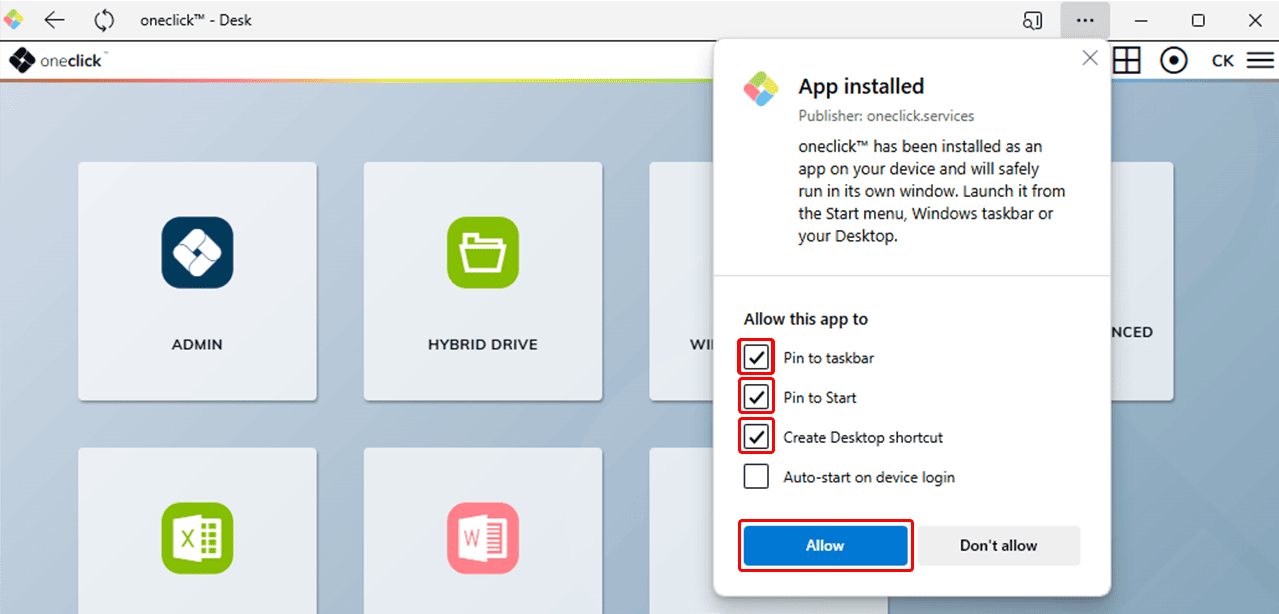
A new window will open where you can choose the locations you want the app to be attached.
-
Select "Create Desktop shortcut" or "Pin to taskbar" and click on Allow. Your app will now appear on your desktop or taskbar.
Manage access permissions for the app in Edge
After you have installed oneclick™ as a web app on your desktop and pinned it to your taskbar, you should ensure that the app you have created has access to the camera, microphone and clipboard. To do this, carry out the following steps:
- Open the app you have created.
The app should open in a new window automatically. - Sign in to oneclick™.
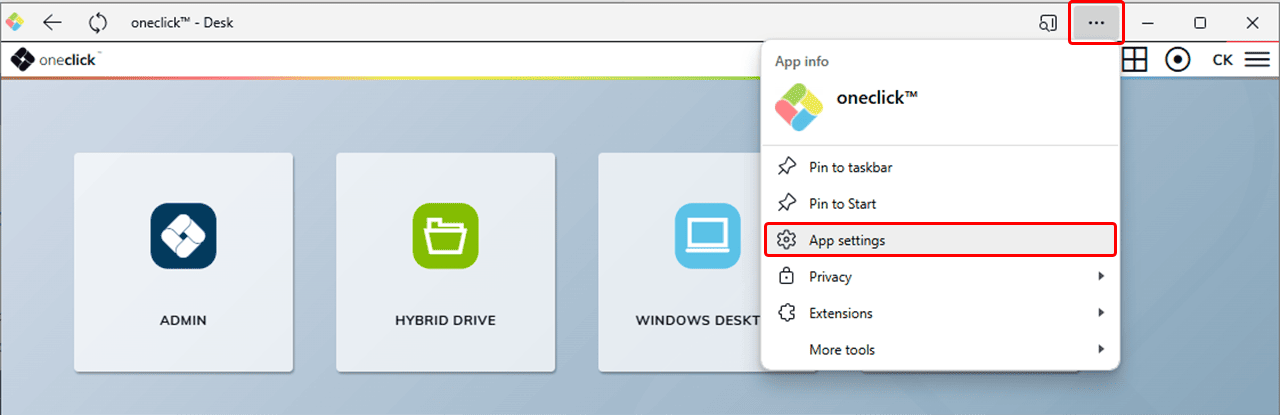
- Click on the browser menu with the three dots at the top right and select the App settings item.
- In the “Permissions” section, click on See permission details for oneclick.services.
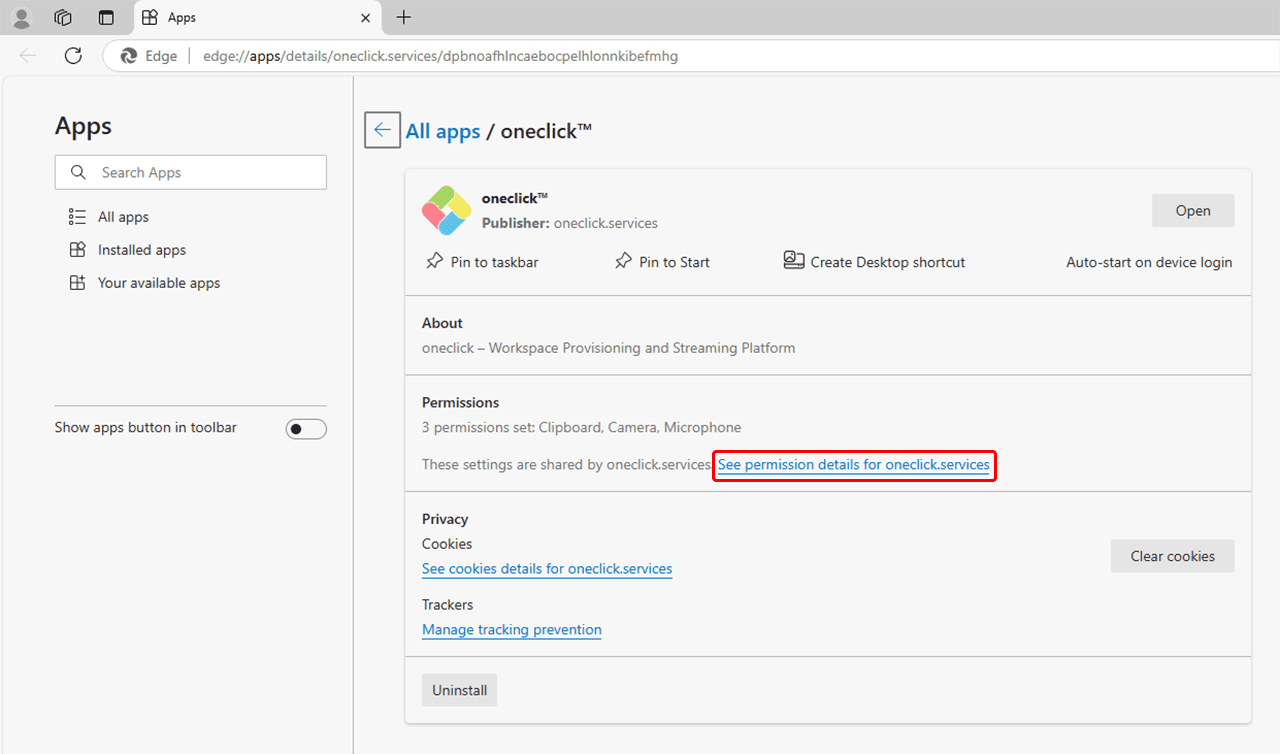
- In the list that is now displayed, change the authorization for “Camera”, “Microphone” and “Clipboard” by opening the corresponding drop-down menu on the right-hand side for each of these entries and selecting the “Allow” entry.
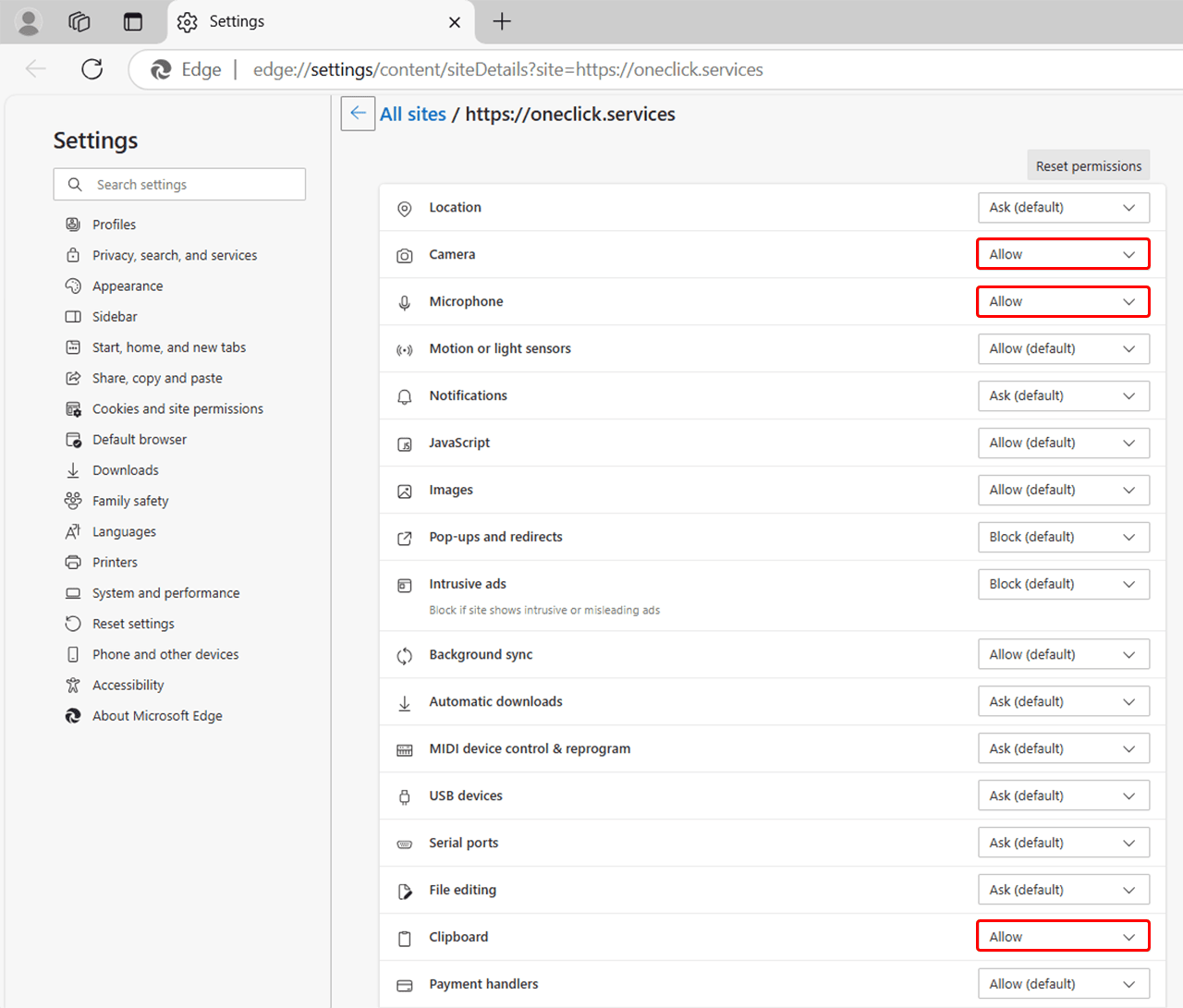
- Close the settings. It may be necessary to restart the browser for the new settings to take effect.
Other browsers: Convert to locally usable program through a tool
In addition to the above-mentioned variants through Google Chrome and Microsoft Edge, there are numerous tools such as WebCatalog or Web2App that will help you convert web pages and web apps into desktop apps.
Integration of oneclick™ into another workspace
oneclick™ apps can also be integrated into other workspaces, such as Office 365. Contact your respective administrator to set this up.