Remote App – Delete files in the Hybrid Drive
If you use a Windows Remote App (a single program) without desktop access, you will not have direct access to the Hybrid Drive. In this configuration, the Hybrid Drive is exclusively used for uploading files via drag-and-drop. Over time, this may result in the Hybrid Drive running out of storage space.
Therefore, regularly check if there are files in the Hybrid Drive that are no longer needed, and delete them if necessary to optimize the available storage space.
Follow these steps in your application:
- Click on File and then Open.
This process may vary depending on the application; you may also need to click on Browse or a similar option. - In the left navigation menu, click on "Hybrid App Share on oneclick" and then right-click on Open in new window.
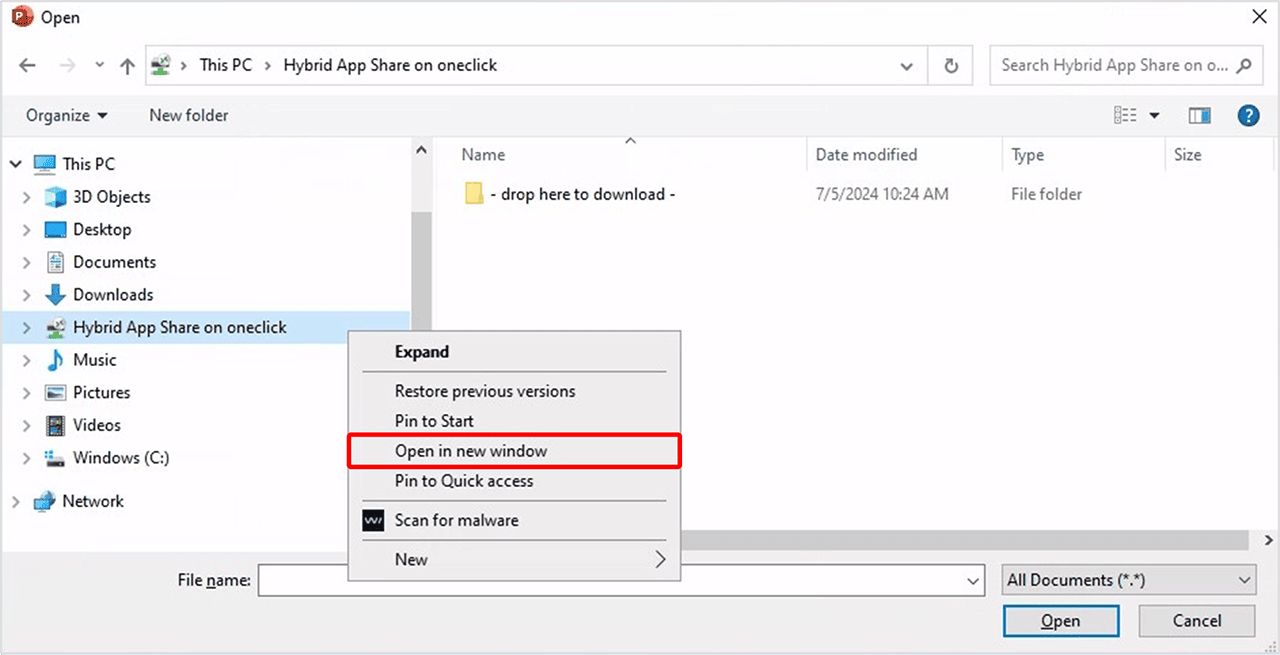
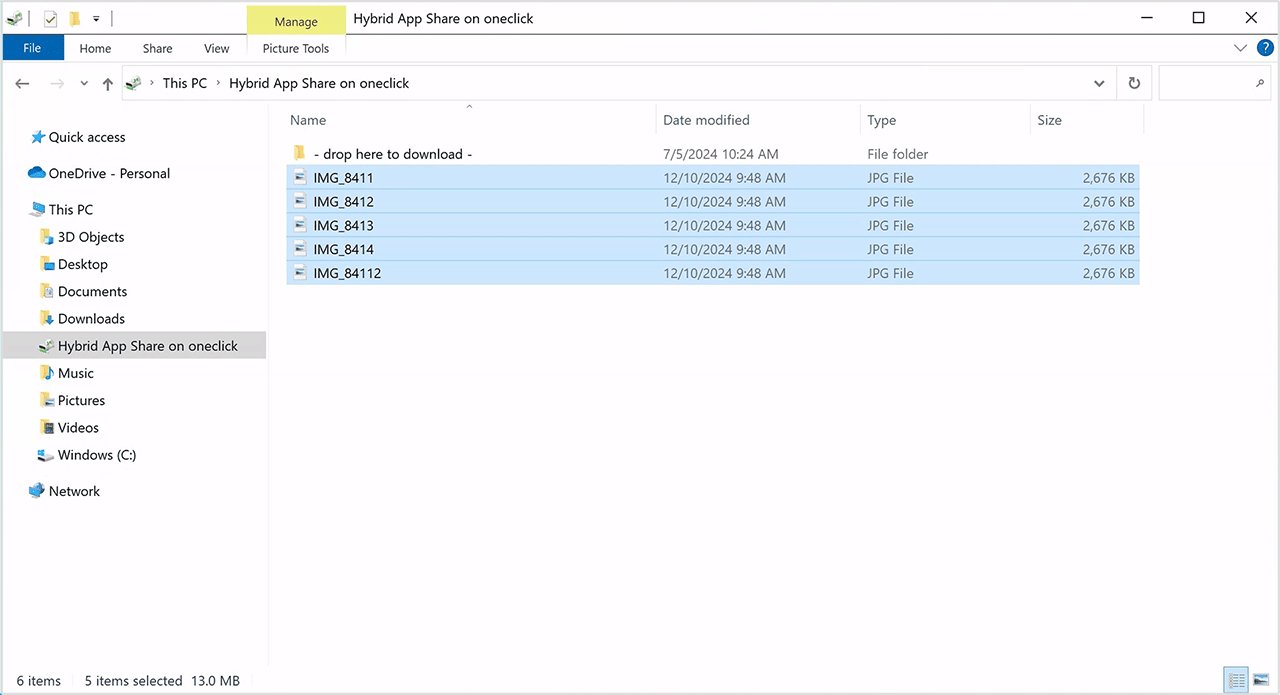
- In the newly opened window, select the files you no longer need and delete them. Afterwards, close the window and continue using your application as usual.
For easier and more comprehensive file management, we recommend a license upgrade. This will grant you access to the Unified Workspace, allowing you to manage the Hybrid Drive directly. Please contact your administrator for assistance.