Print in oneclick™
You want to print files from the oneclick™ app? With the oneclick™ Hybrid Printer, you can create printable PDF files and print them directly from your browser. Be sure to choose the correct settings in the print dialog of your remote desktop or app, as these determine the final print result. Proceed as follows to print your files.
- Go to “Print” in your oneclick™ app as usual.
- The print dialog of the remote desktop/app opens. Select the “oneclick™ Hybrid Printer V2” and click on Print.
From Microsoft Windows Server version 2016, the “oneclick Hybrid Printer V2” is available and will be preselected by default. “oneclick Hybrid Printer V1” should only be selected, if V2 is not available.
Please note that all settings you already made in the print dialog of the remote desktop/app are decisive for how the print PDF is generated. For instance, if you set “Black and white” in the remote desktop/app print dialog, you can no longer switch to “Colour” in the browser print dialog.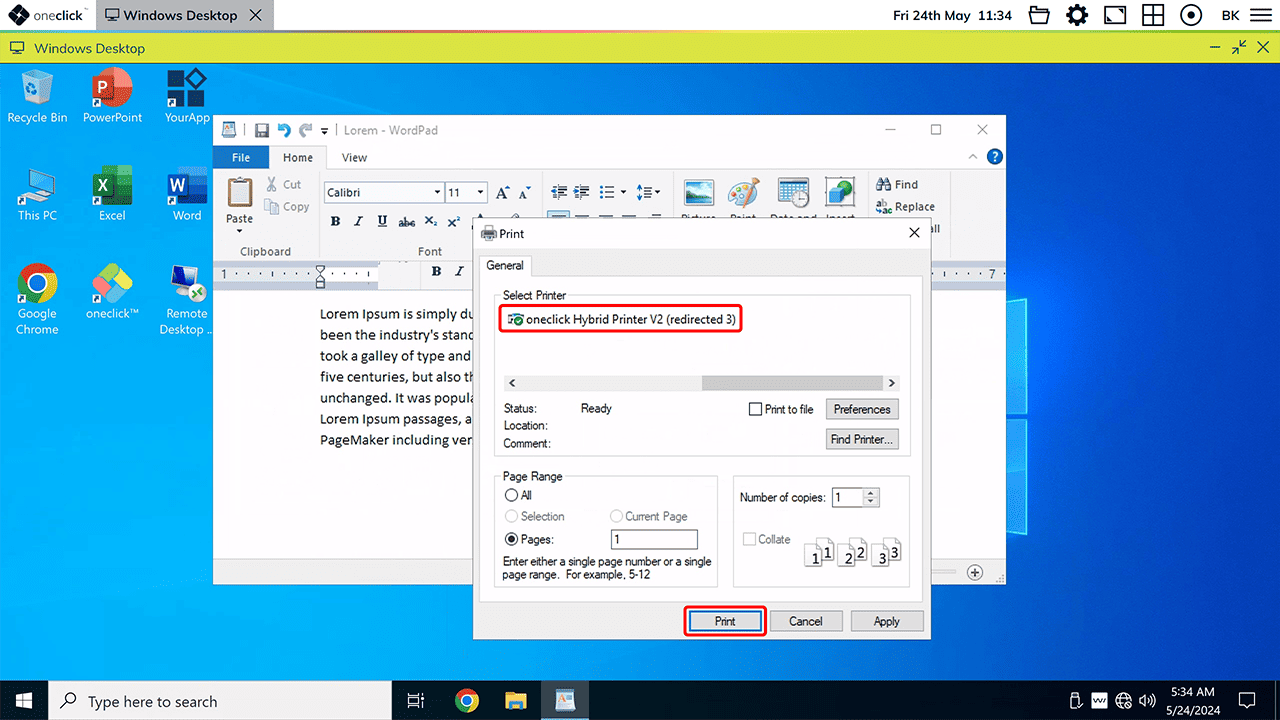
- A printable PDF file is created. The oneclick™ menu opens and displays the finished PDF file.
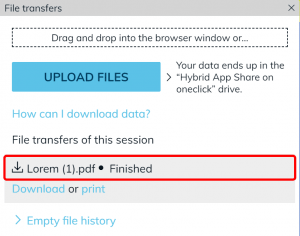
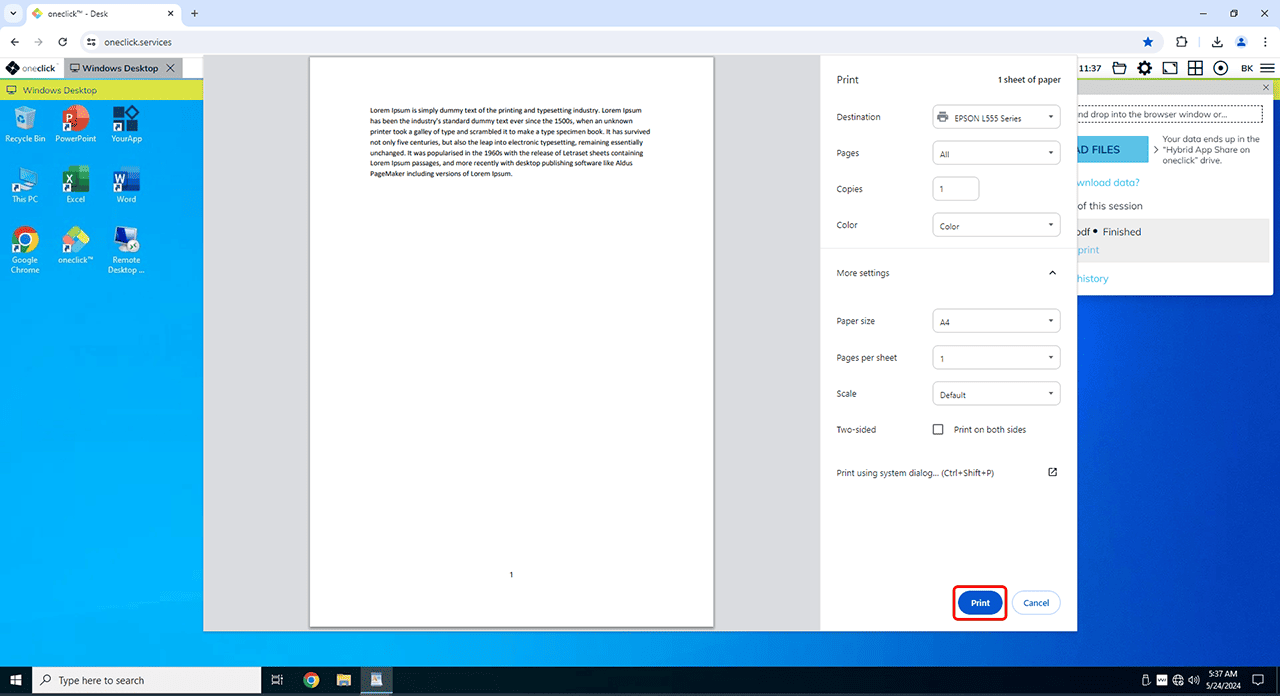
- The browser print dialog opens directly in Google Chrome, which you can now use to print your file.
Other browsers:
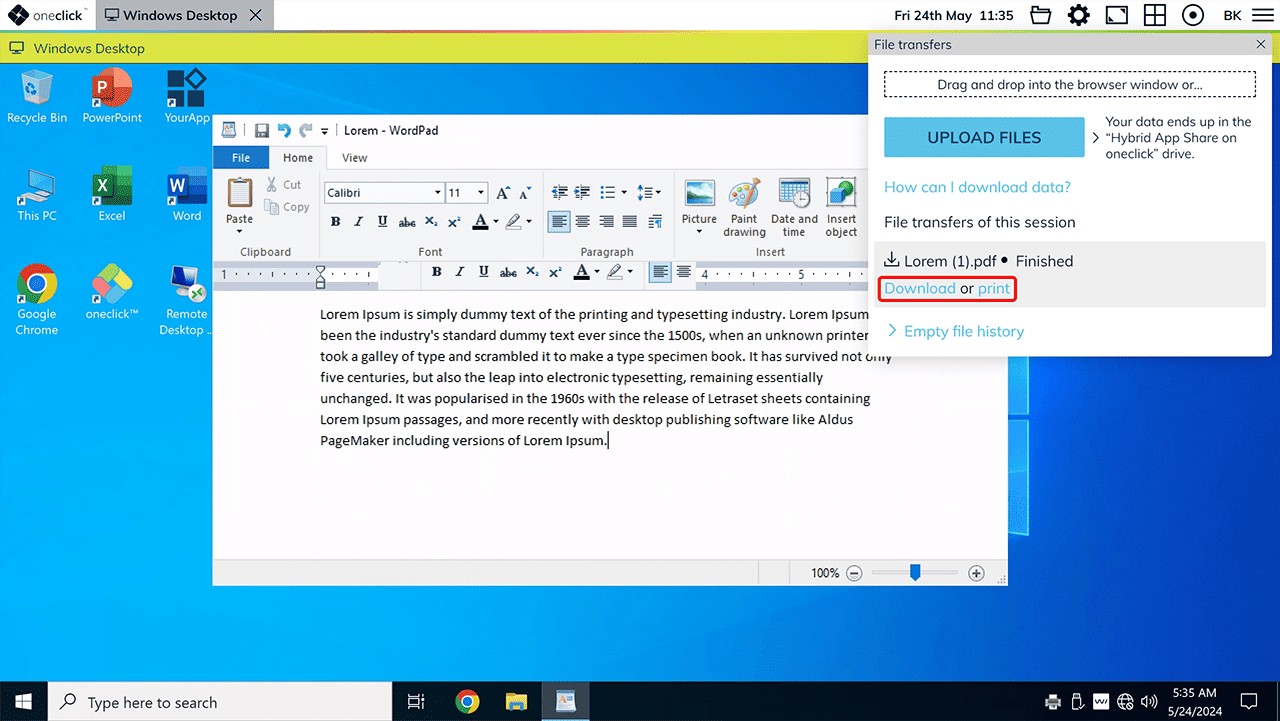
- Download the PDF file by clicking on Download and print it from your local device.
- Or click on Print to start the browser print dialog instead.
Printing files – via third-party solutions such as Printix or Ezeep
- For more complex printing scenarios, please contact us directly. We are happy to advise you.
- If you need support for Printix, you can find help here.
- You can read how to connect a USB printer here.