Use of additional mouse buttons
The standard mouse buttons can be used as usual in oneclick™. By default they are assigned as follows:
- Left (first) mouse button: normal click (selection/positioning)
- Right (second) mouse button: opens drop-down menu
- Mouse wheel (third mouse button): scrolling
In addition, oneclick™ supports the use of the fourth and fifth mouse buttons (usually on the side of the device). In Windows, these are usually assigned to the “Page forward” and “Page backward” functions and can be used in the browser, for example.
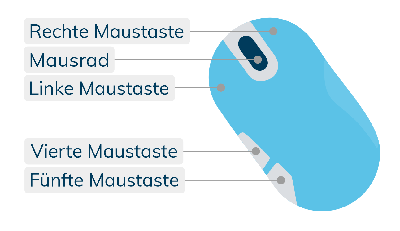
If scrolling does not respond as expected, check the mouse settings on your local Windows device.
If you want to connect more complex devices to oneclick™, our partner company reach out to your administrator for a third party solution.
Firefox currently does not forward additional mouse buttons to the connected working environment. Using these buttons causes an error.
Individual assignment of mouse buttons in oneclick™
You want to change the assignment of individual keys on your mouse? In general, we always recommend that you first check the use of the software that the manufacturer delivers for the device. If this is installed and optimally set on the end device through which you want to access oneclick™, the changed keys are normally recognized by the system and passed on correctly by the browser.
If the manufacturer of your device does not provide any software, it is still possible to assign individual mouse buttons through a third-party program. We recommend X-Mouse Button Control for working in Windows. With this program, up to five mouse buttons can be reassigned quickly and easily.
Unfortunately, Windows itself does not offer the possibility to change the assignment of individual keys in the system controls without installing any additional software.
Assignment of individual mouse buttons using X-Mouse Button Control in Windows
The installation of the program should be done within the connected Windows server and can be executed by any user, even within an RDSH environment. Note that the changed settings are only active when the program continues running in the background. As soon as X-Mouse Button Control is closed completely (e.g. via the task manager) the original function of the mouse button is restored.
Also note that the changes made are only effective within the respective Windows environment in oneclick™ where X-Mouse Button Control was installed, but not on the end device itself.
Proceed as follows to change the button assignment of your mouse using X-Mouse Button Control in oneclick™:
- Download the X-Mouse Button Control installation file from the website of the provider and install the program within your oneclick™ Windows environment. To do this, follow the installation wizard.
- Afterwards, open the program through the Windows start menu within oneclick™. You will immediately see the main menu.
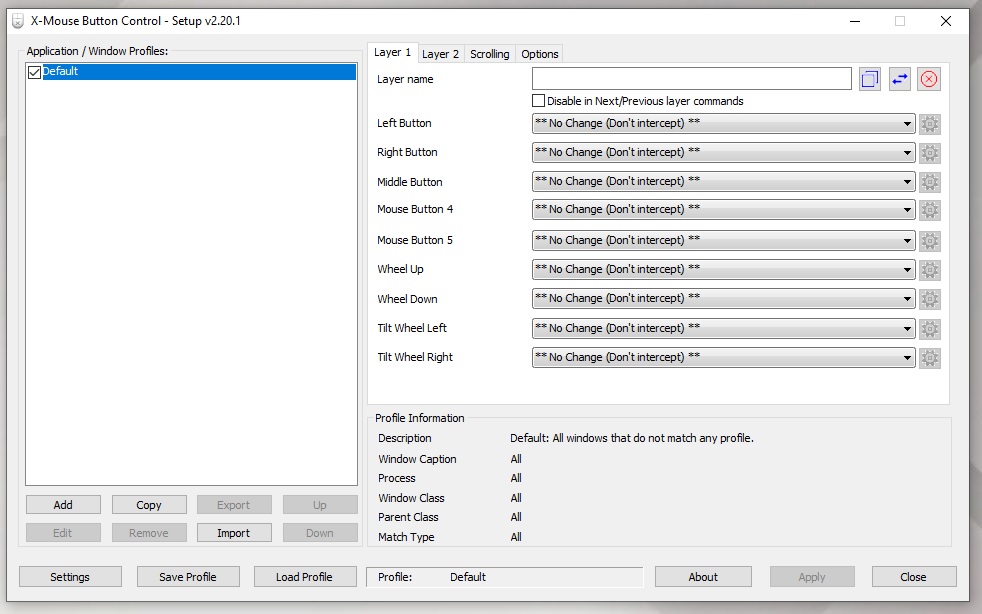
- Press any specific button on your mouse you want to reassign. In X-Mouse Button Control, the corresponding entry is now highlighted in yellow as long as you are holding the button.
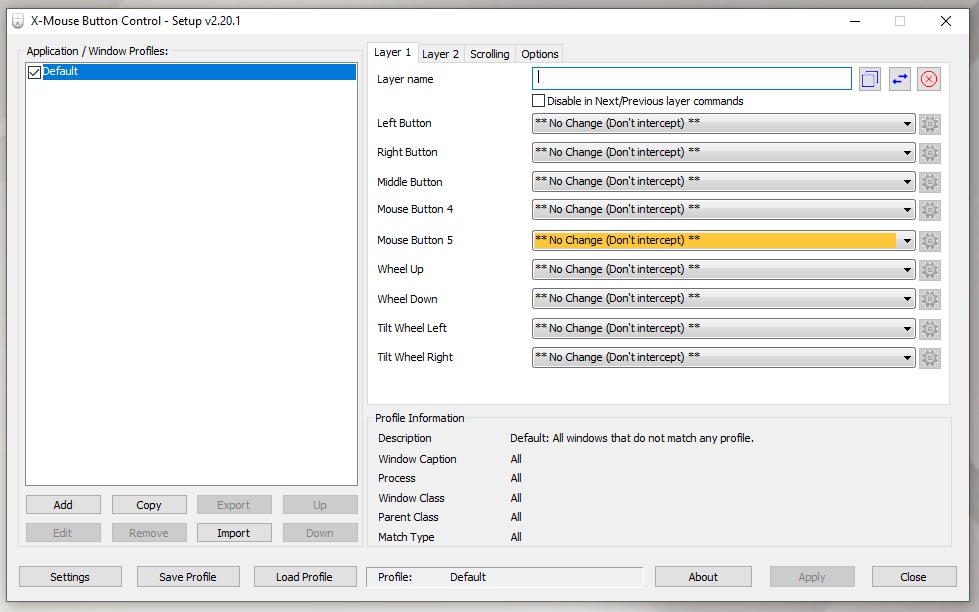
If none of the lines is marked yellow, X-Mouse Button Control does not recognize the button. In general, the program recognizes only a maximum of five separate buttons. If you want to use a special mouse with more than five buttons, please contact the manufacturer for the appropriate software. - Clicking on this highlighted item opens a drop-down menu. Select the function to which you want to assign the button to.
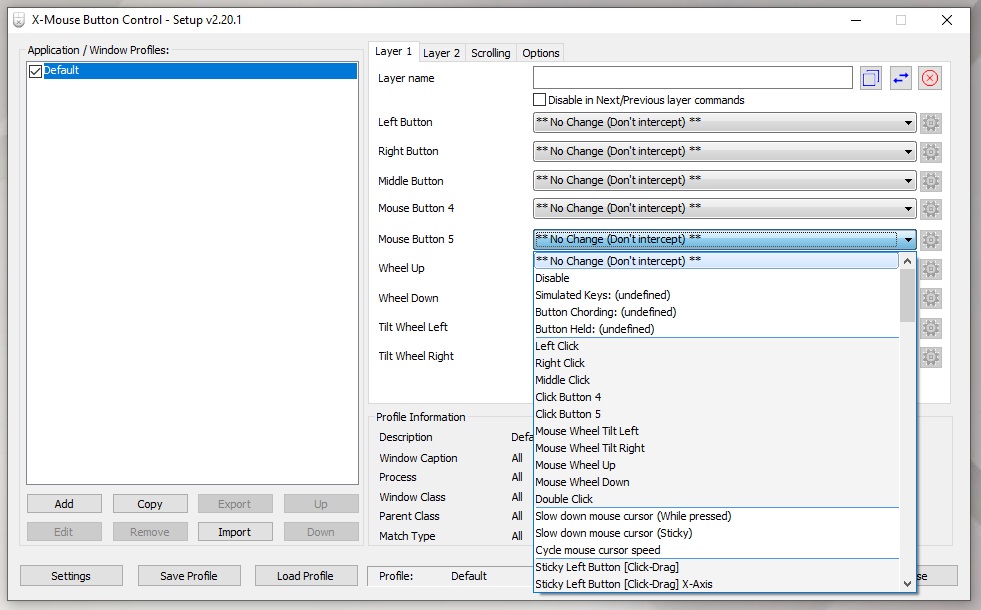
- Then click on Apply to accept the change. All settings made in this program are user-specific and must be made by each user within the Windows environment in oneclick™.
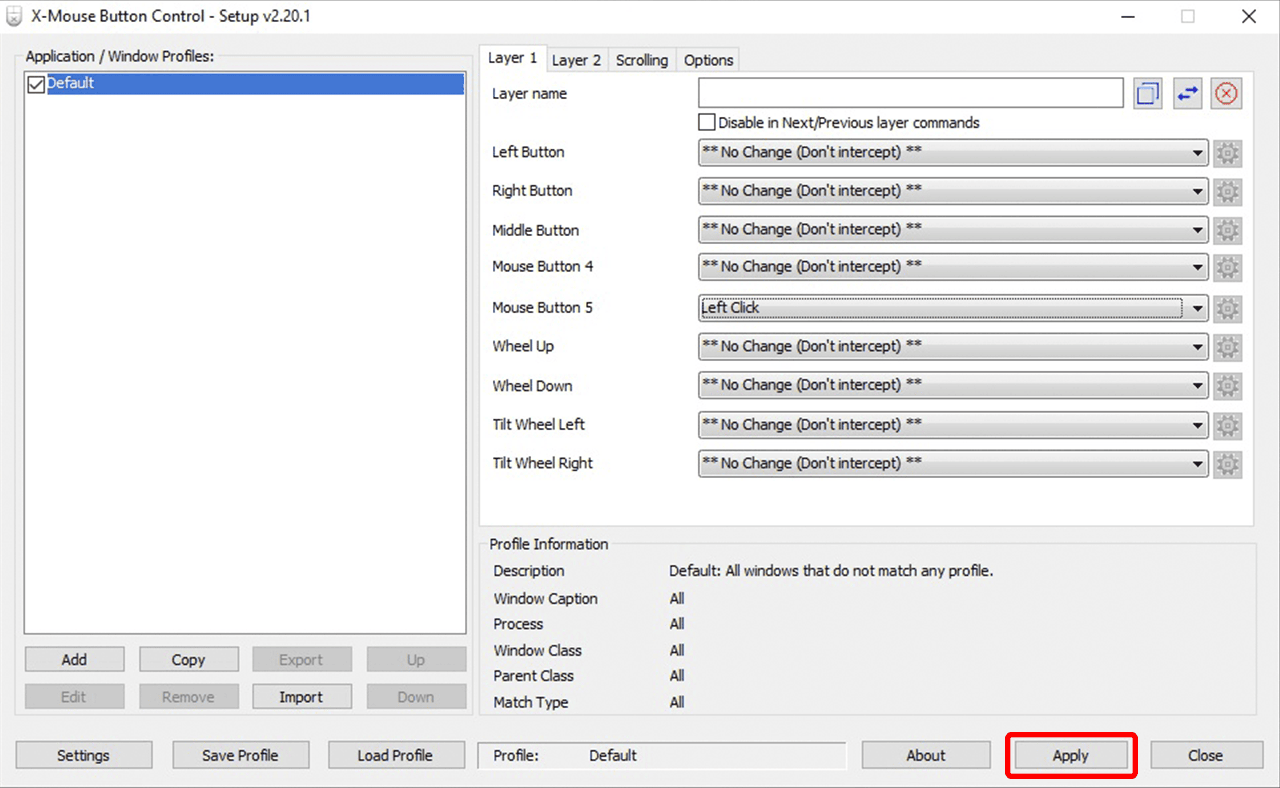
The mouse button should now be assigned to the new function within the oneclick™ Windows environment.