Slow scrolling
This article helps you if you are working on a Windows computer and scrolling in your working environment does not feel right and responds very slowly.
Check the scrolling behavior with your mouse wheel in the mouse settings of your local Windows device – that is, on the computer you use to log in to oneclick™, not in the working environment itself.
The "One screen at a time" setting can affect scrolling within the working environment.
This article applies to local Windows devices with a mouse and mouse wheel because the scrolling signal is transferred from the local device to the working environment. If you use a touchpad, tablet, or Mac, this article is not relevant to you. If scrolling still does not feel right, please contact your administrator.
Change the mouse setting in Windows
- Open Settings on your local Windows device.
- Click Bluetooth & devices.
- Click Mouse.
- In the Scrolling section, find the Roll the mouse wheel to scroll setting.
- Select Multiple lines at a time.
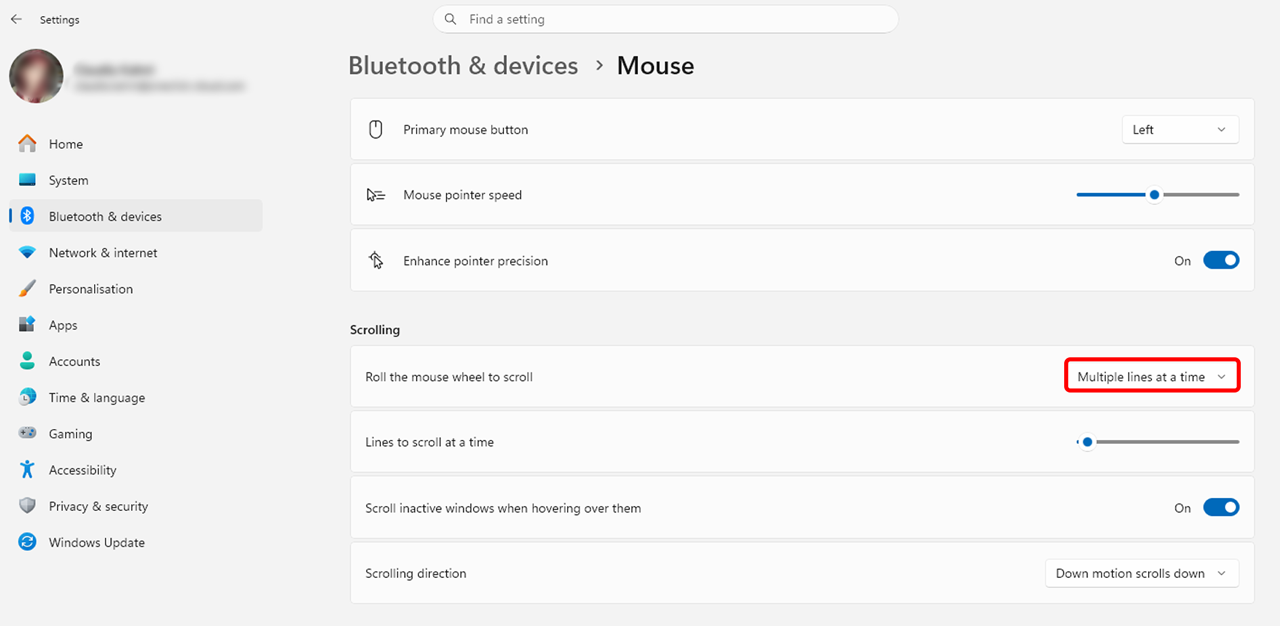
Windows applies the setting immediately.
Microsoft describes additional Windows mouse settings in the article Change mouse settings.
Check the scrolling behavior
- Open your working environment in oneclick™.
- Scroll down and up within the working environment.
- Check whether the content now moves more smoothly and scrolling responds normally again.
If scrolling still does not feel right, check whether "Multiple lines at a time" is still selected on your local Windows device.
Special input devices, such as mice used for 3D environments, may have their own hardware or manufacturer settings that can also affect scrolling behavior. In this case, also check the settings of the input device.
If the problem persists, contact your administrator.