Troubleshoot performance issues
Performance issues in oneclick™ can have different causes, including your internet connection, browser, or connection streaming settings. This article brings all relevant checks together so that you can identify the cause of a slow connection, choppy video, or delayed input.
Checklist at a glance
Check the following points in order:
- Test your internet speed and use a LAN connection where possible
- Clear the browser cache and disable Memory Saver or add an exception
- Set the browser zoom to 100%
- Adjust streaming optimization to match the way you work (Depending on the administrator's settings)
- Check warnings about smooth streaming and forward them to your administrator
1. Check your internet connection
A fast and stable internet connection is essential for good performance in oneclick™ because it connects your device to the remote system.
- First, test your internet speed. For instructions, see Test your internet speed.
- Connect your device using a LAN cable instead of WLAN where possible.
- Disconnect devices that you do not need from your network to free up bandwidth.
- For more ways to improve your connection, including router placement, firmware updates, and Quality of Service, see 10 tips for better internet.
2. Check and optimize your browser
Your browser can also affect performance.
- Clear the browser cache: A full or outdated cache can slow down your device and cause display issues. For instructions for your browser, see Clear the browser cache.
- Disable Memory Saver: Some browsers free up memory from tabs when they become inactive. This can interrupt the connection. To disable this function for oneclick™ or add an exception, see Disable Memory Saver.
3. Set the browser zoom to 100%
Set the browser zoom to 100% so that oneclick™ displays the Unified Workspace and apps correctly.
For more information, see System and browser zoom.
4. Adjust streaming optimization
Depending on the administrator's settings
Do you mainly work with text-based content or with videos and animations? In either case, it’s worth adjusting the streaming optimization to suit your workflow.
- If this feature is enabled for you, you can adjust streaming optimization directly via the gear icon on your app tile.
- Select Low Latency if you need oneclick™ to respond quickly to your input. Videos and animations may appear less smooth with this setting.
- Select Smooth Videos if you mainly work with videos or animations. This setting displays motion more smoothly and requires less bandwidth because it uses a different transmission method.
For detailed instructions, see Adjust streaming optimization.
5. Check warnings about smooth streaming
How to find the message:
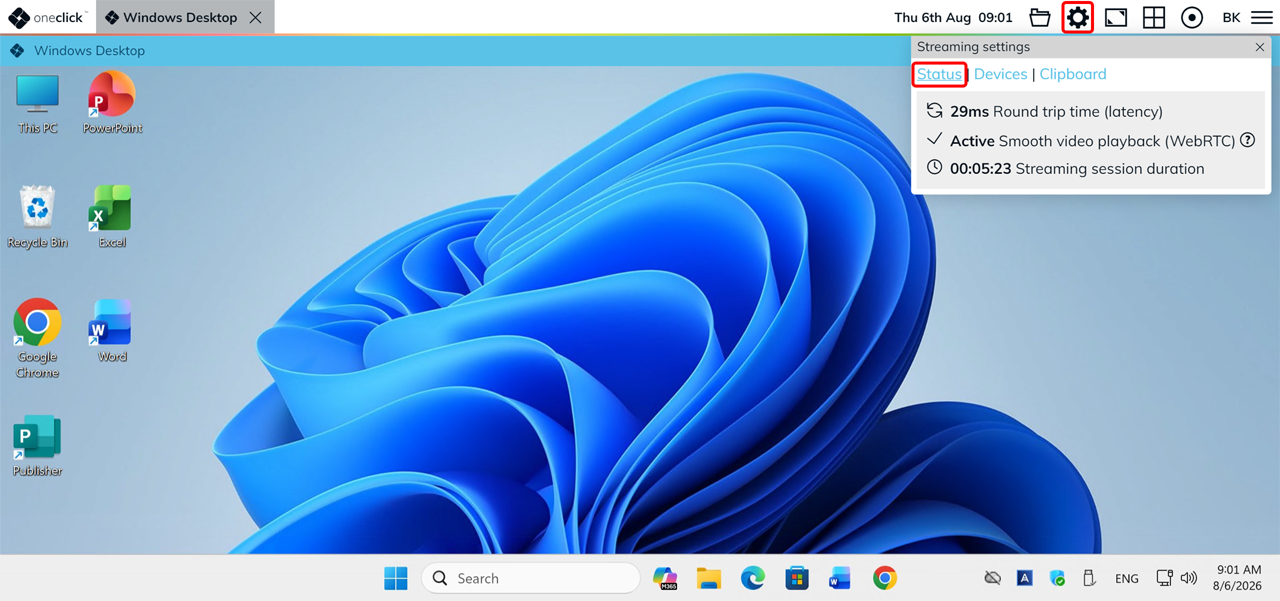
- During an active connection, click the Gear icon in the oneclick™ menu to open the Streaming settings.
- Click Status.
If the Streaming settings show a message that a firewall setting needs to be adjusted for smooth streaming, the Smooth videos option in the streaming optimization has no effect for the time being.
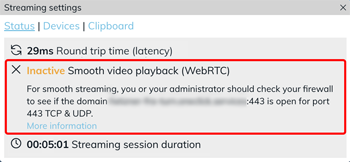
- If your application works as usual despite the message, you can continue working.
- Forward the message to your administrator anyway. They can make the required firewall adjustment.
For more details, see Performance limitations for moving images.
Even if you have checked all of the above, the cause may be outside your control, for example, an issue with the Cloud Provider or server. If the problems persist, contact your administrator.