Disable Memory Saver
Having connection issues in oneclick™ after temporarily minimizing the tab your app is running in (e.g. your Windows desktop or program)?
Among other things, the “Memory Saver” feature has been integrated into Google Chrome with version 111.0.5563.111. If activated, the RAM of inactive tabs is released in order to save resources and to be able to use more RAM for active windows. As a consequence, minimizing the window in which oneclick™ is running, or setting the corresponding tab in your browser to the background, Chrome may also release the RAM here. This may result in a loss of connection to the server. Similar functions are also implemented in other browsers, such as Opera or Microsoft Edge, which can lead to connection problems.
With a few simple steps, you can ensure that certain pages are permanently executed, even if minimized or set to the background in your browser. Proceed as follows:
Disable Memory Saver in Google Chrome
- In Google Chrome, open the menu by clicking on the icon with three bars, at the top right next to the URL.
- In the drop-down menu click on Settings.
- In the settings menu, select the Performance tab.
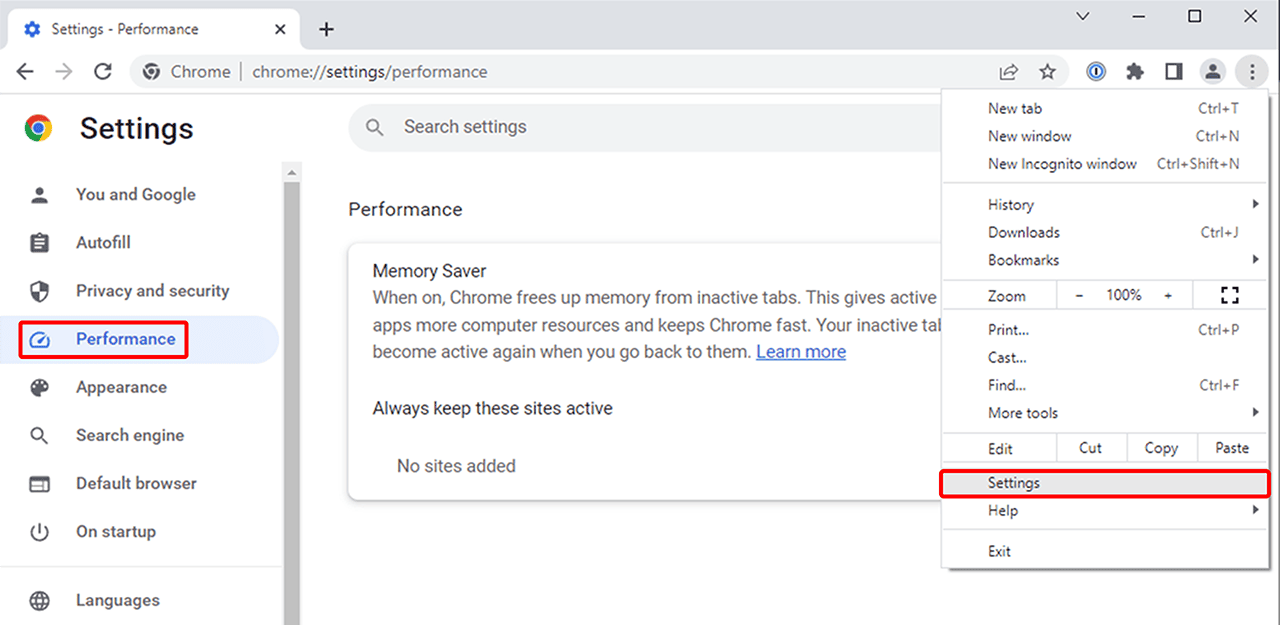
- Here you will find the item “Memory Saver”.
- Go to the entry “Always keep these sites active” and click on Add.
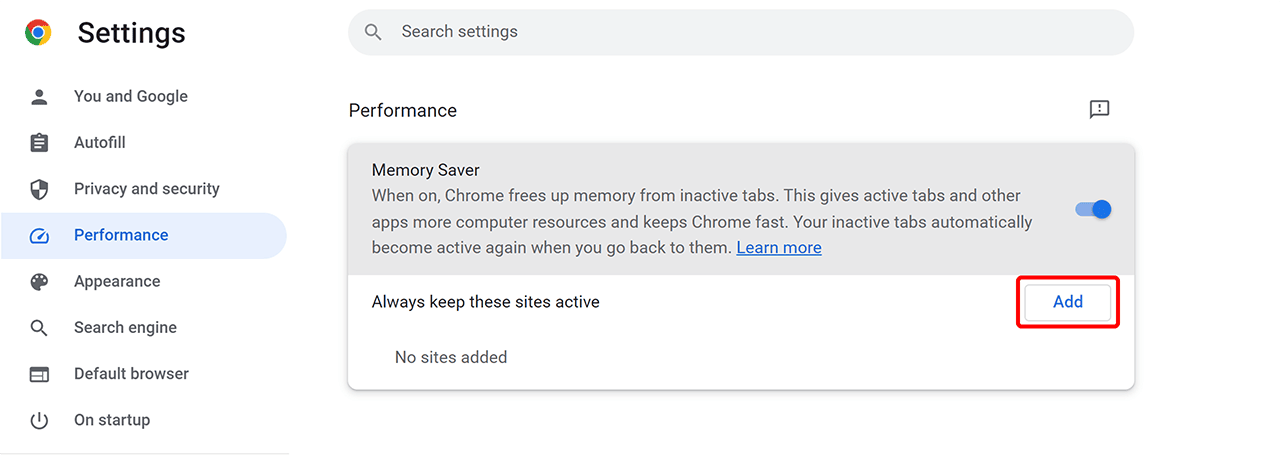
This creates a list of websites that are excluded from this feature. By adding all necessary websites here, the Memory Saver can remain activated. - A small dialog window opens. Enter the page https://*.oneclick.services and confirm with Add.

- Your entry should now appear below “Always keep these sites active”.
- If you want to disable the feature in general to keep all your tabs running in the background, you can alternatively disable the switch next to the corresponding entry (see step 4).
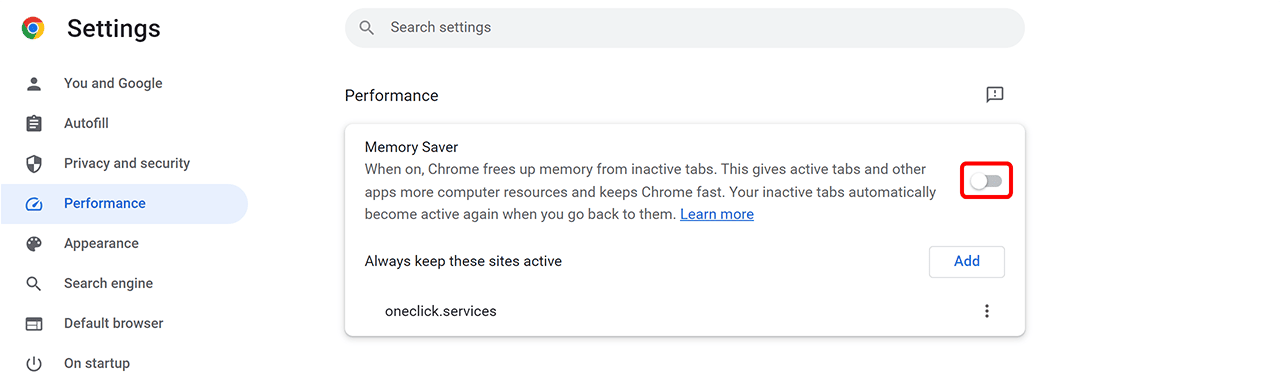
By activating this switch, it is no longer necessary to enter individual websites in the exceptions list below.
Disable Memory Saver in Microsoft Edge
- In Microsoft Edge, open the menu by clicking on the icon with three bars, at the top right next to the URL.
- In the drop-down menu click on Settings.
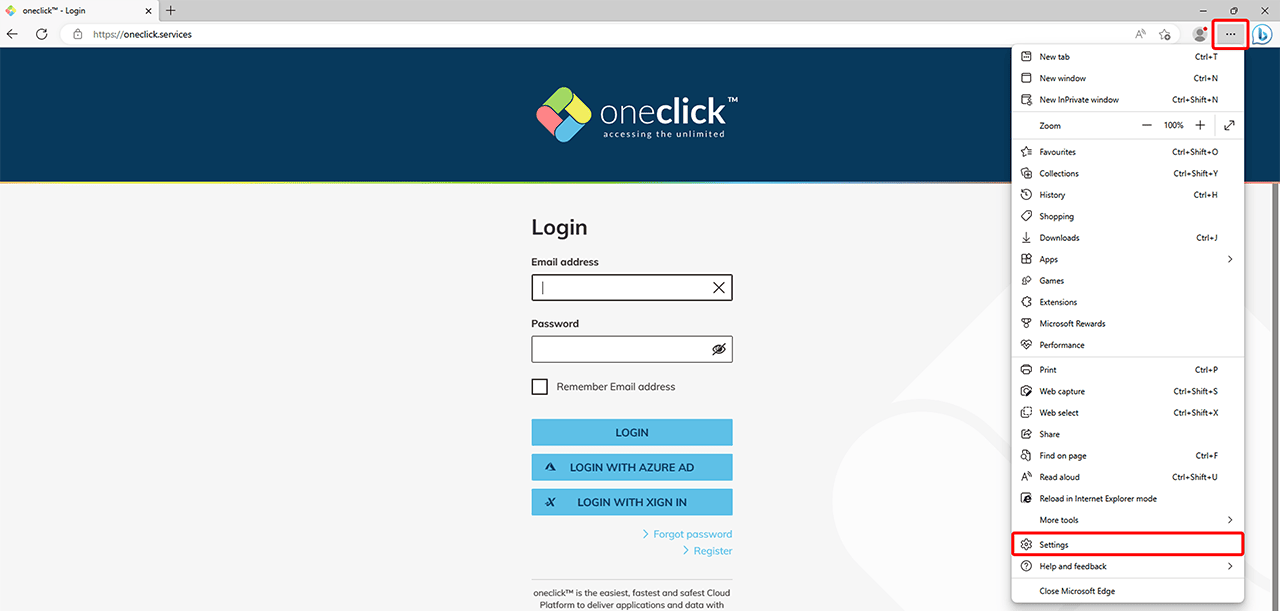
- Select the tab System and performance on the left side.
- Under “Optimize Performance” you will find the entry “Never put these websites to sleep”.
- Click on Add to the right of the entry.
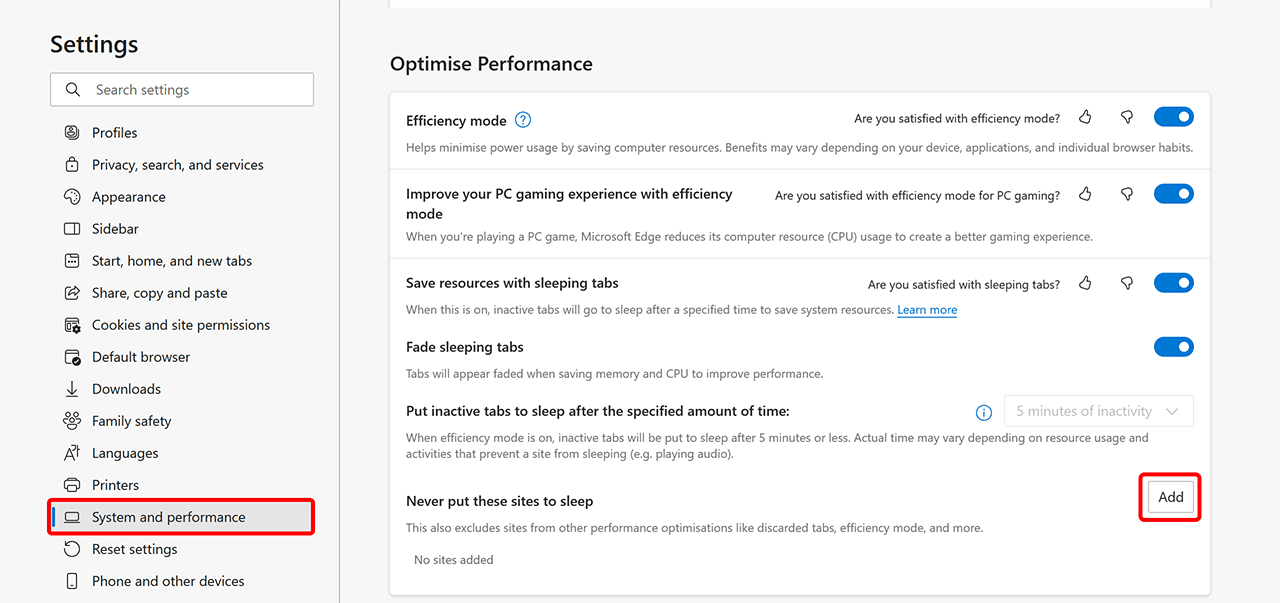
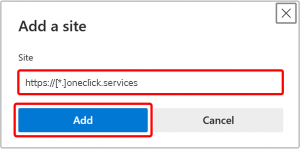
- In the now opened window you can add all the pages that you want to exclude from this rule.
- Enter https://[*.]oneclick.services here and confirm your entry with Add.
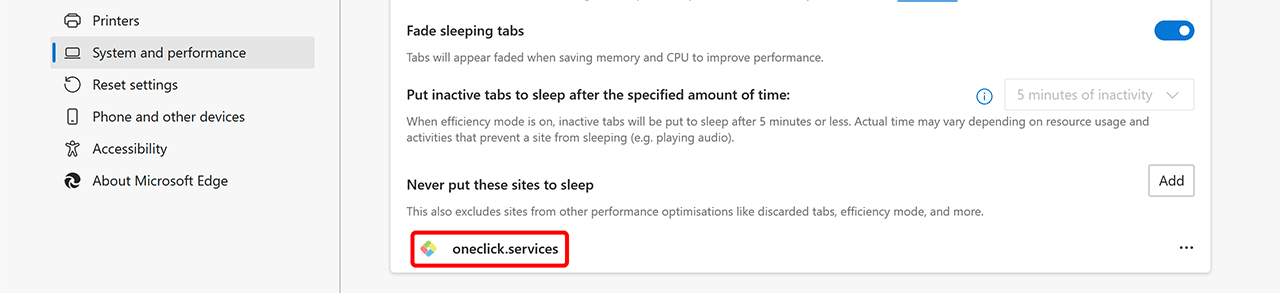
- The page is now listed below.
- If you want to disable the feature in general to keep all your tabs in the background running, you can alternatively disable the switch to the right of the entry “Save resources with sleeping tabs”.
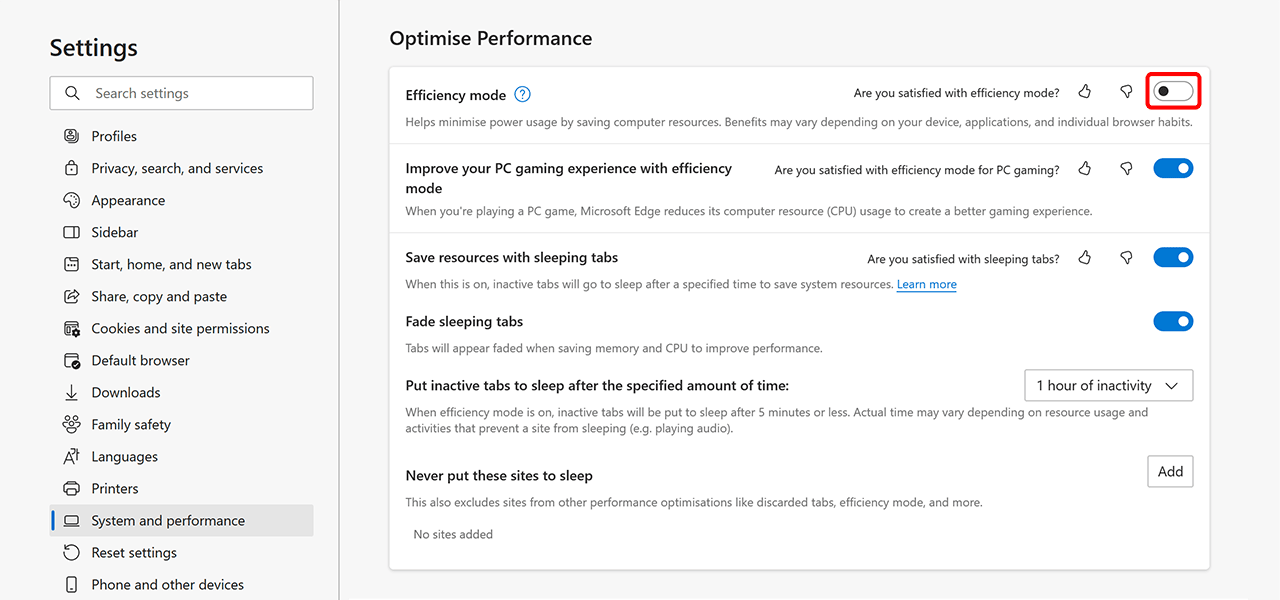
By activating this switch, it is no longer necessary to enter individual websites in the exceptions list below.
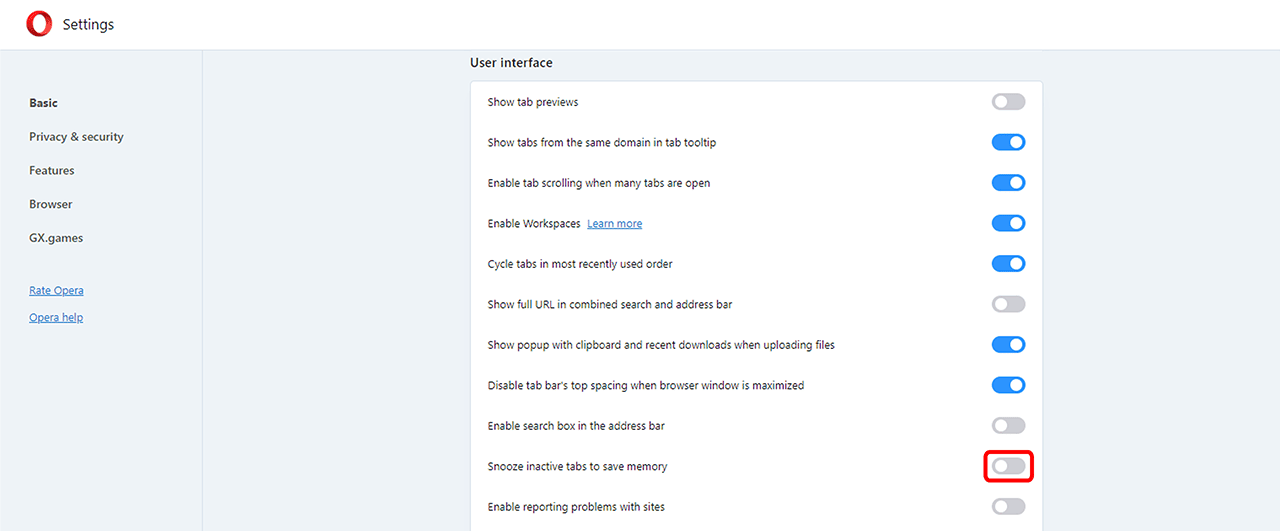
Disable Memory Saver in Opera
- In Opera, open the menu by clicking on the icon with three bars, at the top right next to the URL.
- Scroll all the way down and click Go to full browser settings.
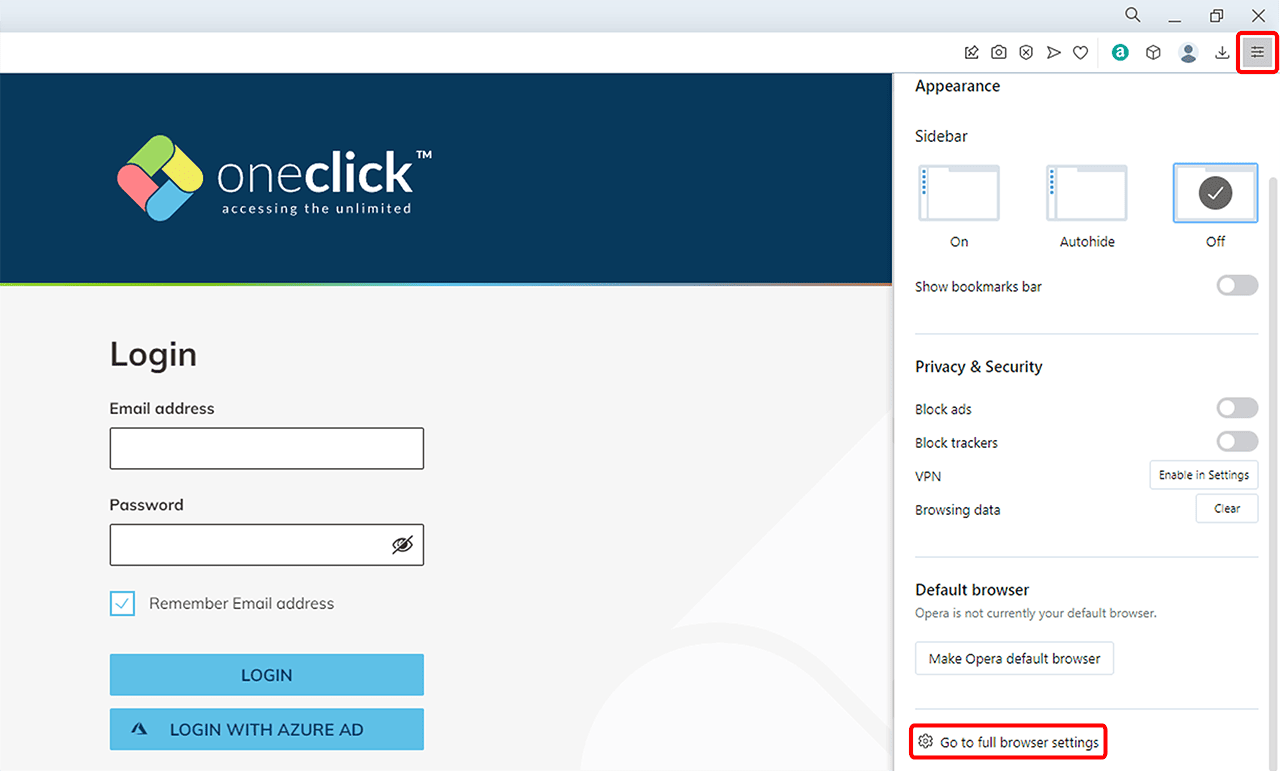
- In the menu that appears, scroll all the way down again and click Advanced.
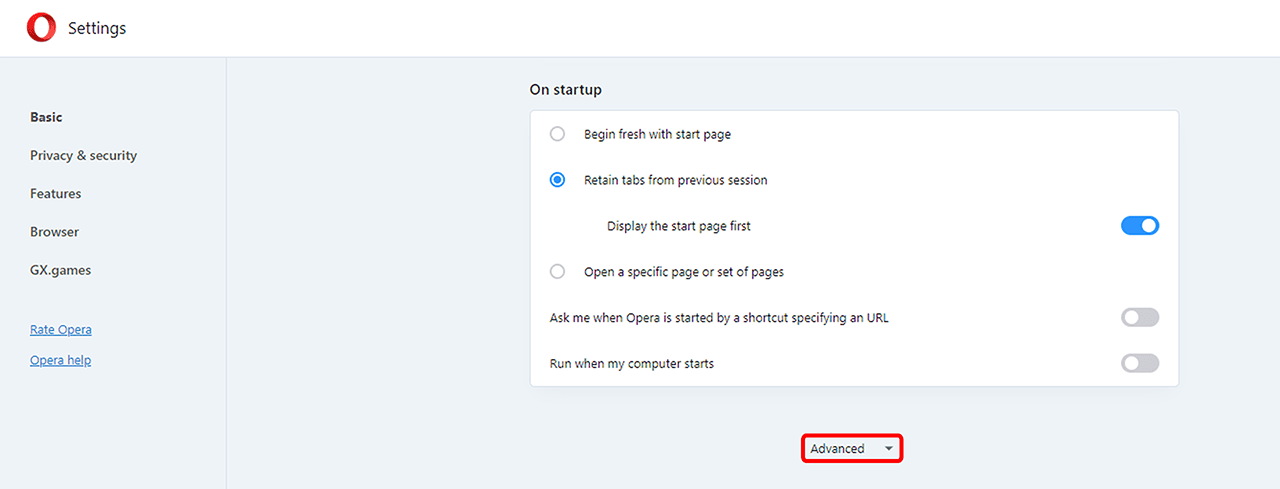
- Scroll down the page again until you reach the “User interface” heading.
- In this section, disable the switch next to the entry “Snooze inactive tabs to save memory”.