Change microphone and camera in your browser
In oneclick™, your microphone and camera are automatically selected by the browser you are using.
Below we describe how you can change the settings for your microphone and camera in Google Chrome.
Google Chrome automatically uses the default microphone and camera for web applications and websites. However, if you want to use a different device, such as an external USB microphone or change your default camera, you can easily do this in the settings of your browser.
1. Setting up the correct microphone
- Open Google Chrome.
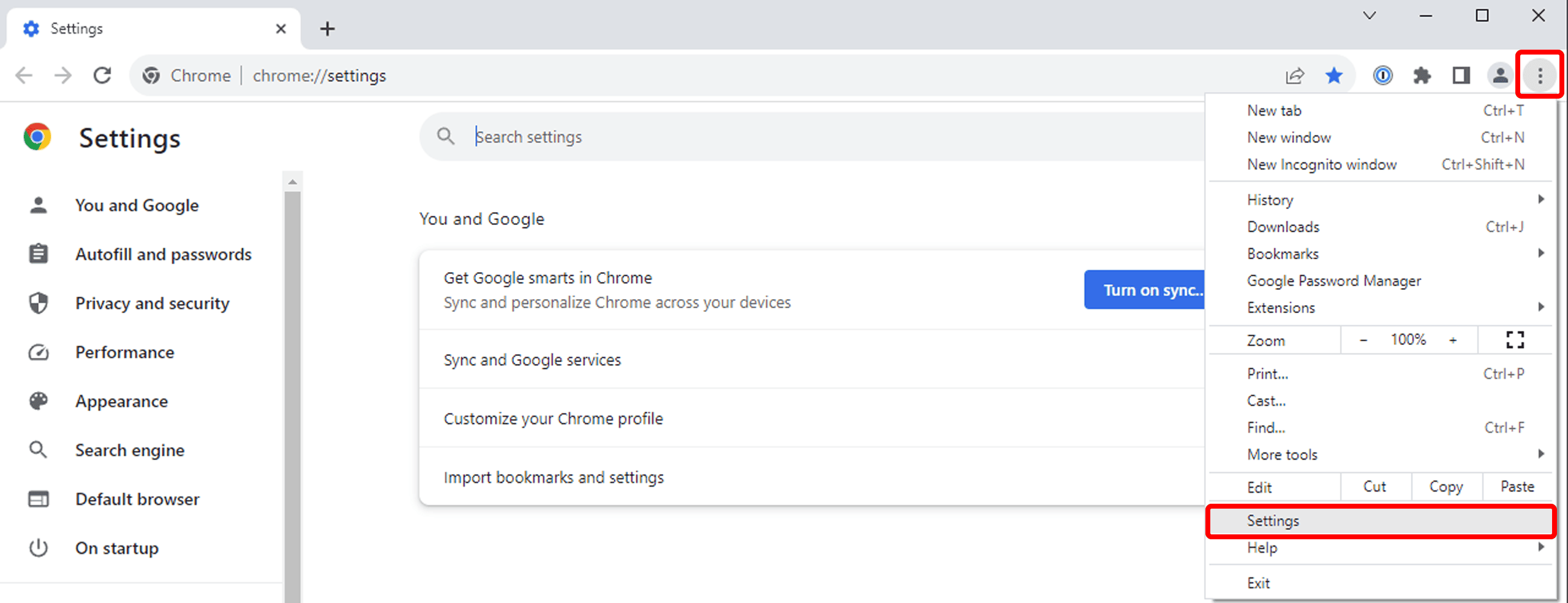
- Click on the Menu icon (three vertical dots) in the top right corner of the browser window and select Settings.
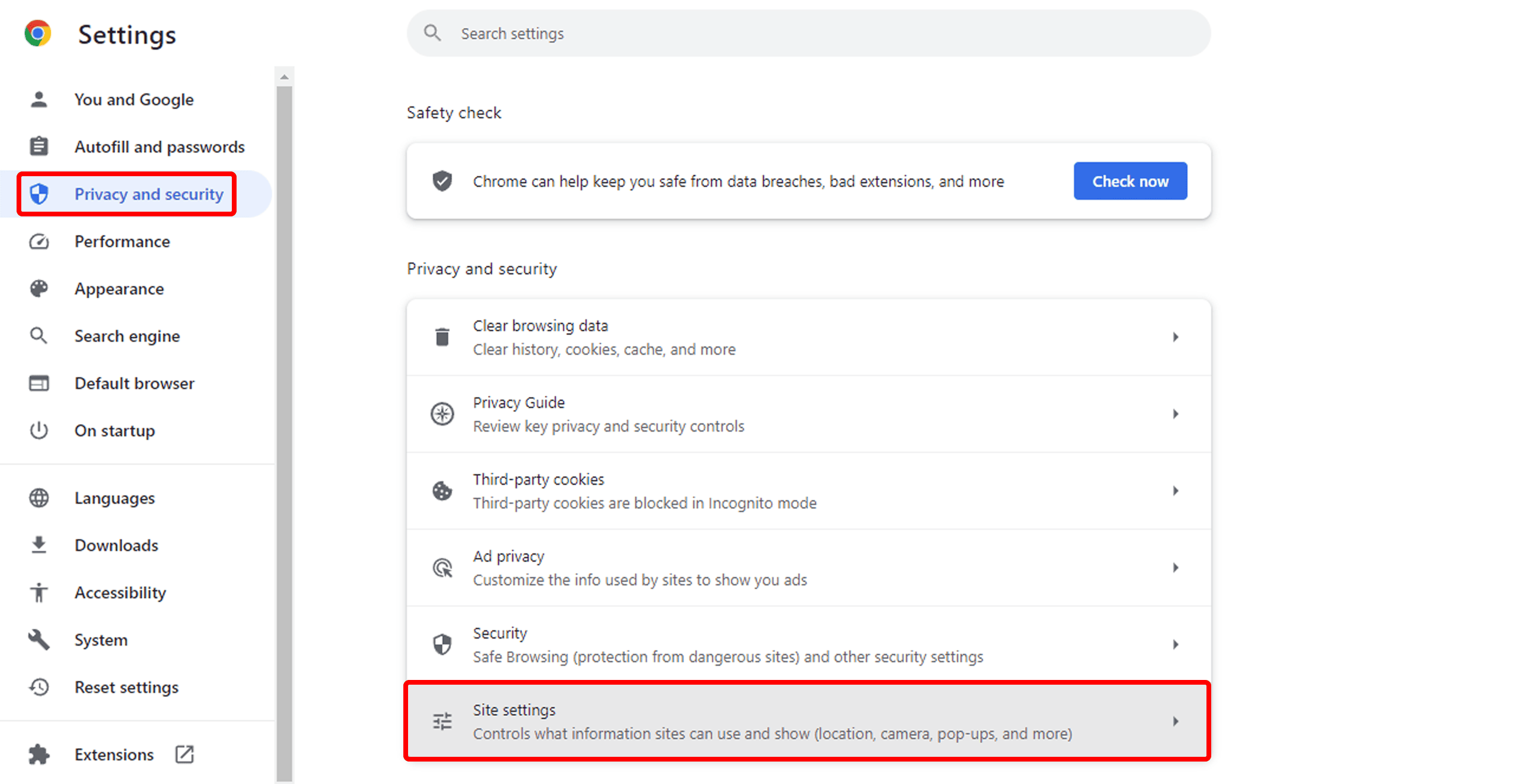
- Then click on the Privacy and security tab on the left and then on Site settings.
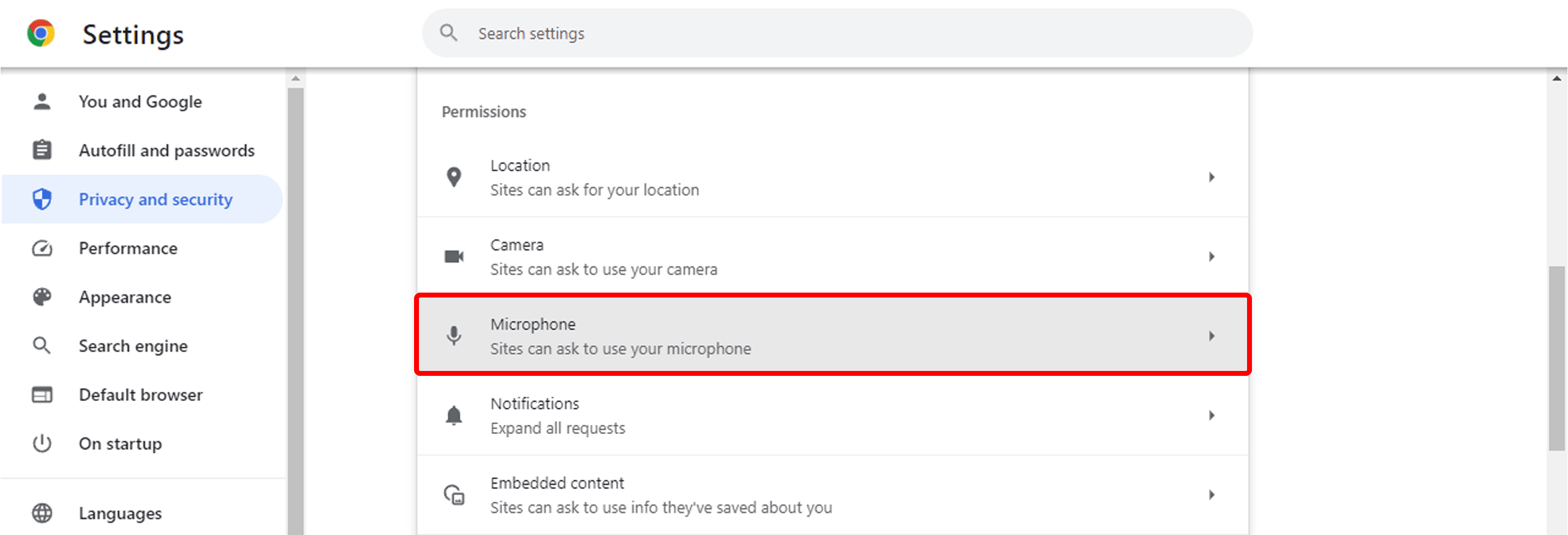
- Scroll down the settings page until you reach the Microphone section and click on it.
- Change the default camera setting by clicking on the down pointing arrow and selecting a different microphone.
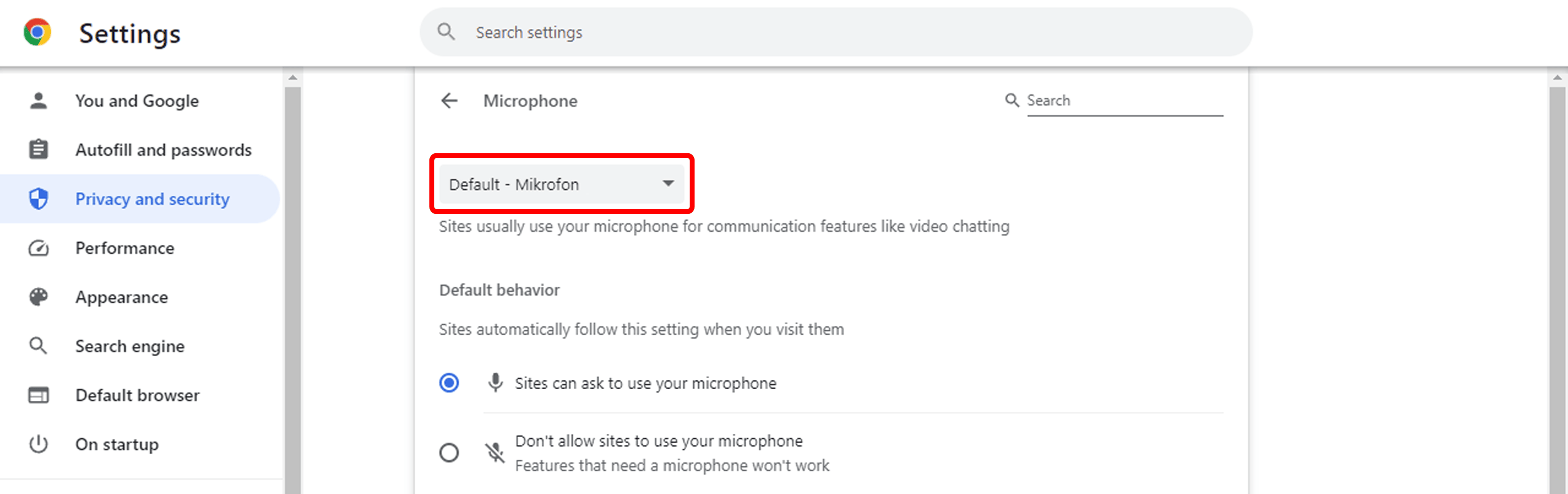
- A drop-down menu will open and you see a list of all microphones available.
- Select the microphone you want to use as the new default.
- Close the settings. Chrome will save your changes automatically.
2. Setting up the correct camera
- Open Google Chrome.
- Click on the Menu icon (three vertical dots) in the top right corner of the browser window and select Settings.
- Then click on the Privacy and security tab on the left and then on Site settings.
- Scroll down the settings page until you reach the Camera section and click on it.
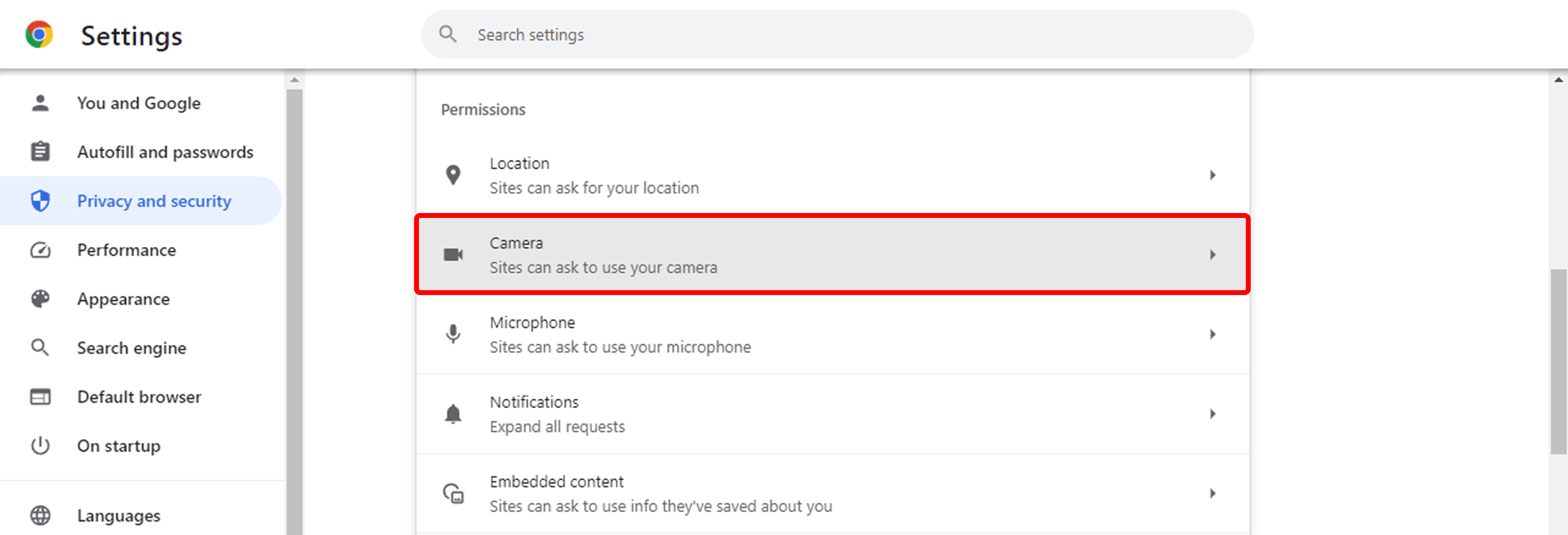
- Change the default camera setting by clicking on the down pointing arrow and selecting a different camera.
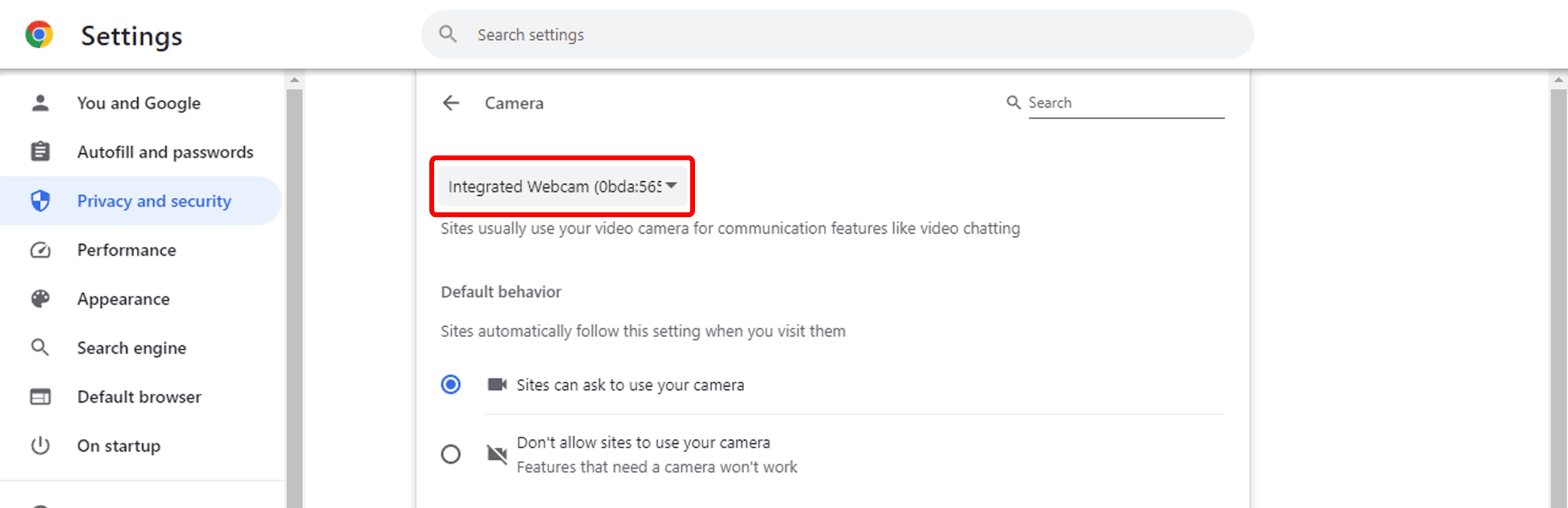
- A drop-down menu will open and you see a list of all cameras available.
- Select the camera you want to use as the new default.
- Close the settings. Chrome will save your changes automatically.
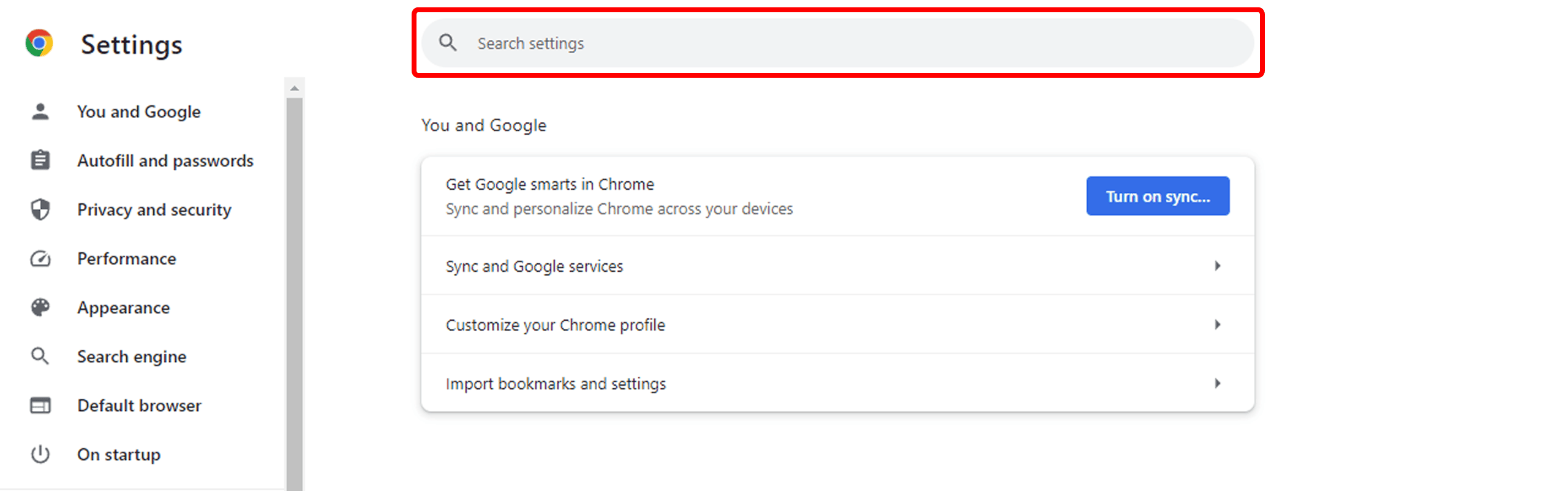
3. Alternative method: Using the search function
Instead of the steps 1.3 and 1.4 or 2.3 and 2.4, you can also use the search function in the Chrome settings. To do so, click on the Magnifying Glass icon at the top of the settings and enter "microphone" or "camera". A supercategory is displayed and a yellow info box shows how many search results can be found in which subcategory. By clicking on it, the corresponding search results in the menu are highlighted in yellow and you can follow them to the corresponding menu item.