First steps in the oneclick™ Workspace
To ensure that you have the best possible experience when working via browser, please observe the following instructions:
The 6 most important points for smooth use
- You need a stable Internet connection. Generally, the higher the available bandwidth (Mbps) and lower the latency, the better the performance. You will achieve a faster speed by accessing the Internet via LAN cable instead of WLAN.
- For the best user experience, we recommend using oneclick™ via the Google Chrome browser - preferably in the latest version.
- Make sure your browser zoom is set to 100%. You can do this easily by pressing the key combination CTRL+0.
- Allow access to the clipboard when your browser prompts you. This allows you to copy and paste text between your local device and oneclick™. If you accidentally clicked "Block", you can change this at any time via the lock icon in the browser address bar. For more information, see Granting access permissions in the browser.
- Switch to full screen mode by clicking on the Full screen icon in the oneclick™ menu to use keyboard shortcuts as usual.
This works in Google Chrome, Microsoft Edge and Opera browsers.

- If antivirus software (especially from Kaspersky, McAfee, ESET, Bitdefender or Trend Micro) is installed on your device, add oneclick™ to the allowlist in your antivirus software. These settings should be made by an administrator. Read the configuration settings for adding allowlist entries in your antivirus software accordingly. If you are authorized to do so, add the first oneclick™ IP address from this article to your allowlist.
Overview
The following image shows an overview with labels explaining the individual elements.
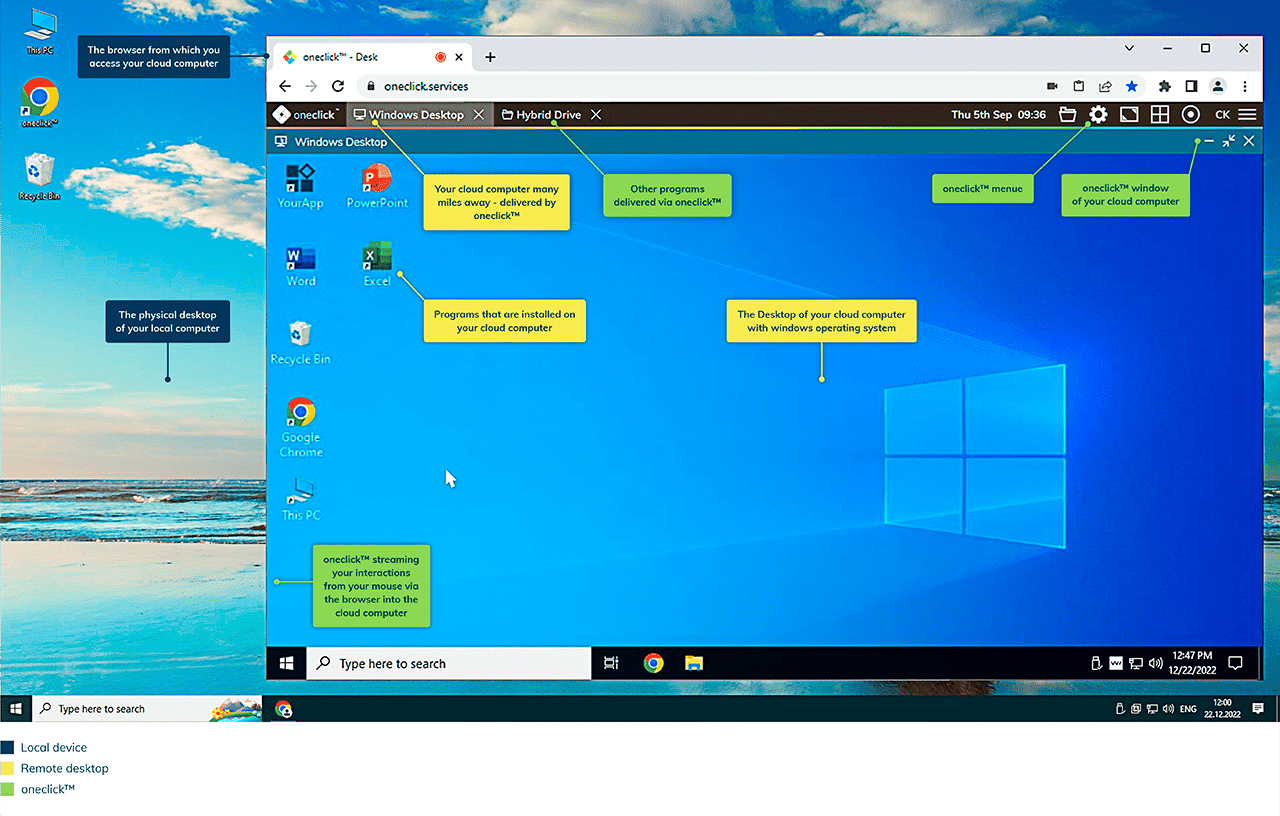
Overview of the most frequently used functions in oneclick™
- Login to oneclick™
- Upload files
- Download files
- Keyboard shortcuts in the browser
- Clipboard
- oneclick™ Move app menu
- Print in oneclick™
- Multi monitor use
- Reset oneclick™ password
- Change password in Windows
- System and Browser Zoom
- Logout
- Arranging apps (oneclick™ Desk)
- Open app in a new browser window (oneclick™ Desk)