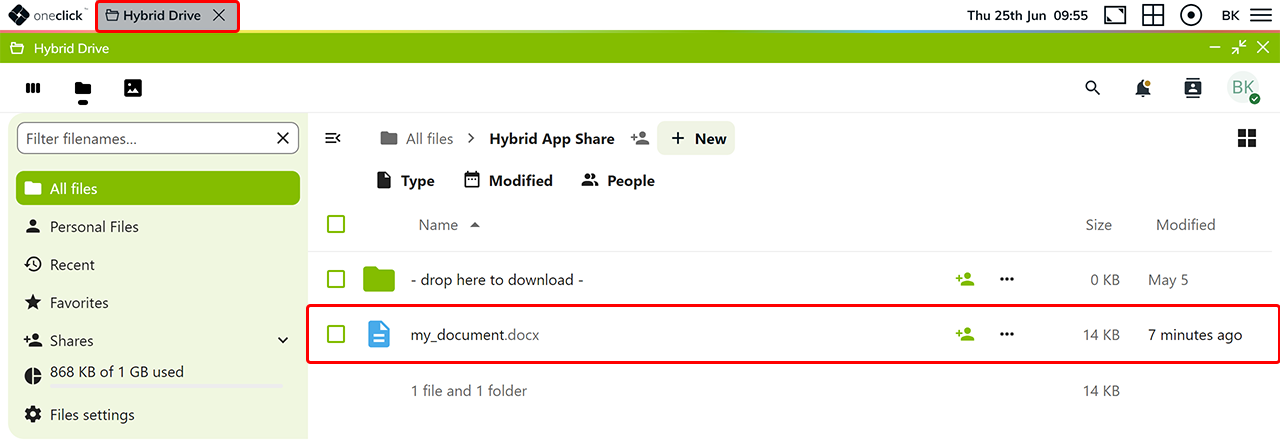
Upload files
The following steps will show you how to upload data directly from your local device to the oneclick™ app quick and easy.
- Drag and drop the desired files from your local device into the app window. All files are automatically stored in the “Hybrid App Share on oneclick” drive/folder.
The successful process will be displayed in the oneclick™ menu.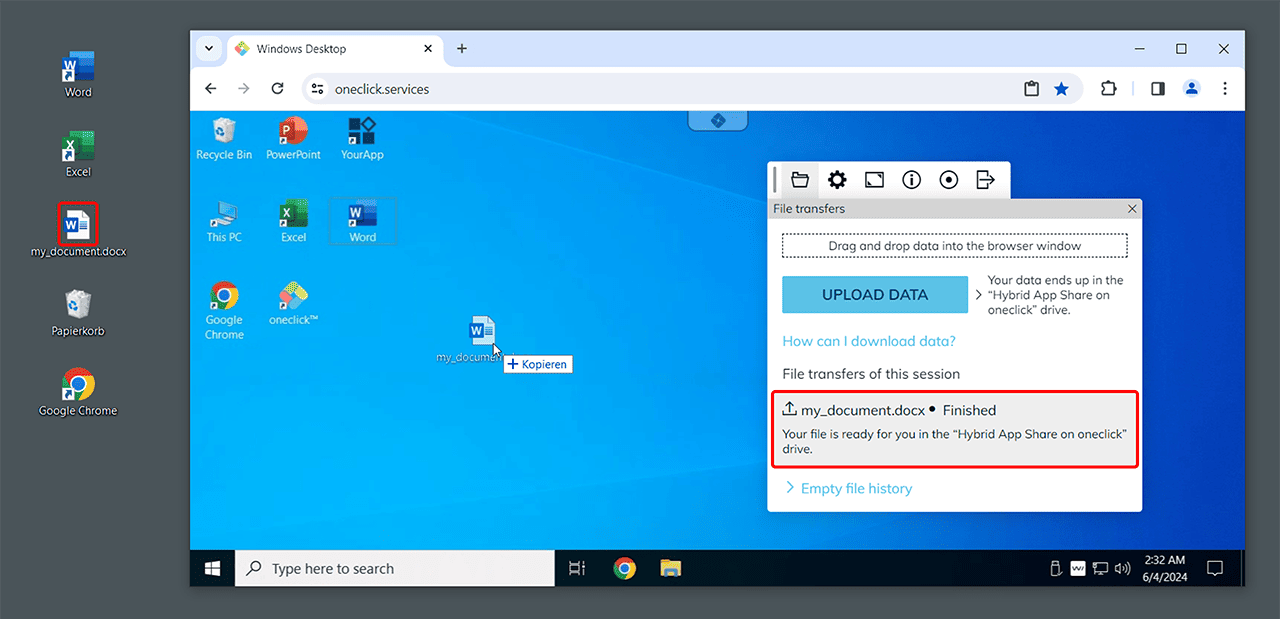
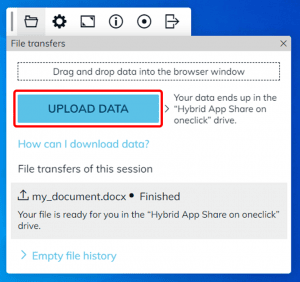
- You can also click on Upload data to upload files from your local device. These will as well be displayed in the “Hybrid App Share on oneclick” afterwards.
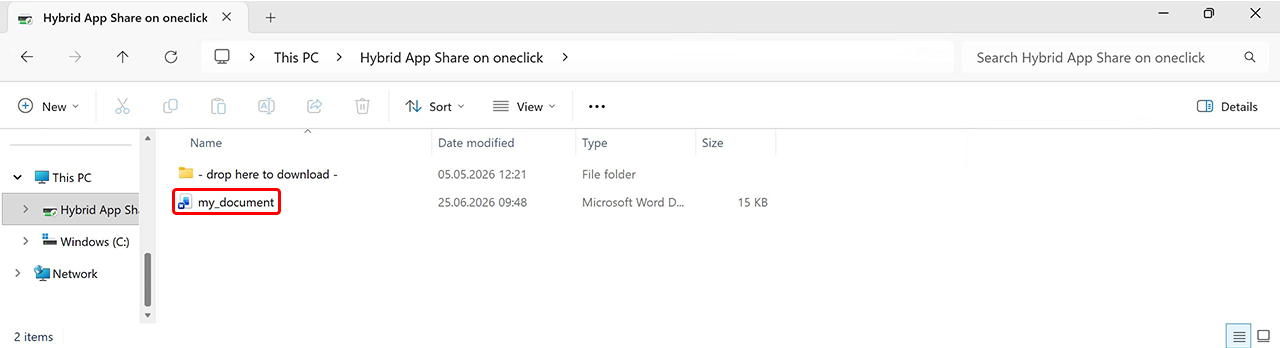
- To get to “Hybrid App Share on oneclick”, open your Windows Explorer and select This PC in the navigation area on the left.
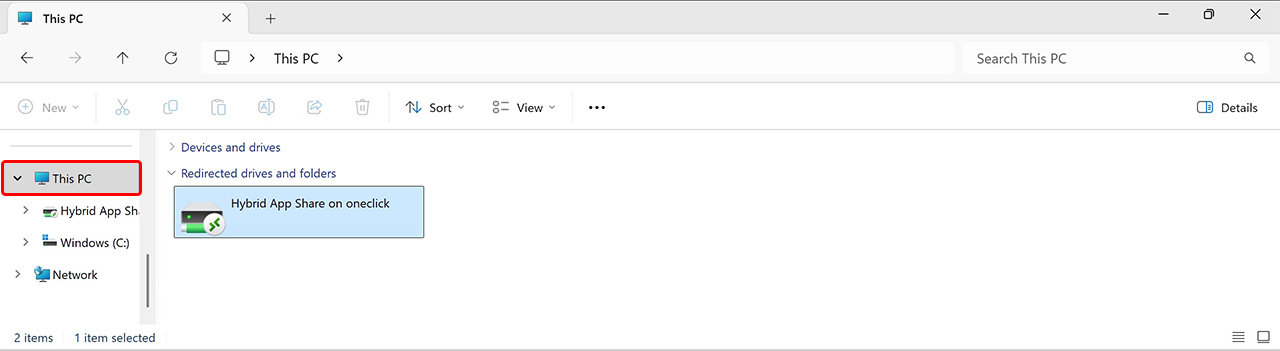
- Open the “Hybrid App Share on oneclick” drive. Your copied files will be located here.
Files should not be opened and edited directly in oneclick™ Hybrid Drive, as this can lead to stability problems. Instead, store the files you want to edit on the hard disk of your remote desktop. From there you can open, edit and save these files as usual.
Note for users with access to the Unified Workspace and the Hybrid Drive app
Users with access to the Unified Workspace have the option to install the Nextcloud Client to access their data directly from their local device. If you have installed the Nextcloud Client to access your data directly from your local device, you do not need to download the file.
You can also download the files you need directly from the Hybrid Drive app by simply clicking on them without draging them to the download folder.