Files on various end devices
With the Nextcloud desktop client, you can access and synchronize your files in the oneclick™ Hybrid Drive from a local device. The Hybrid Drive app is automatically available to you on your oneclick™ Desk with a Professional user license. You do not need a separate Nextcloud account. The following instructions describe how to set up the Nextcloud desktop client on Windows.
Install Nextcloud and Log in
-
Download the Nextcloud desktop client and install it on the device you want to use.
-
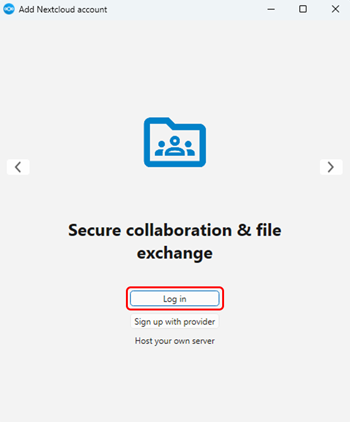
Then open Nextcloud and click Log in.
-
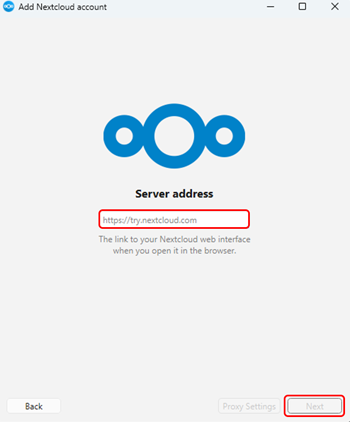
The server address prompt appears. You can find this in your Hybrid Drive app.
-
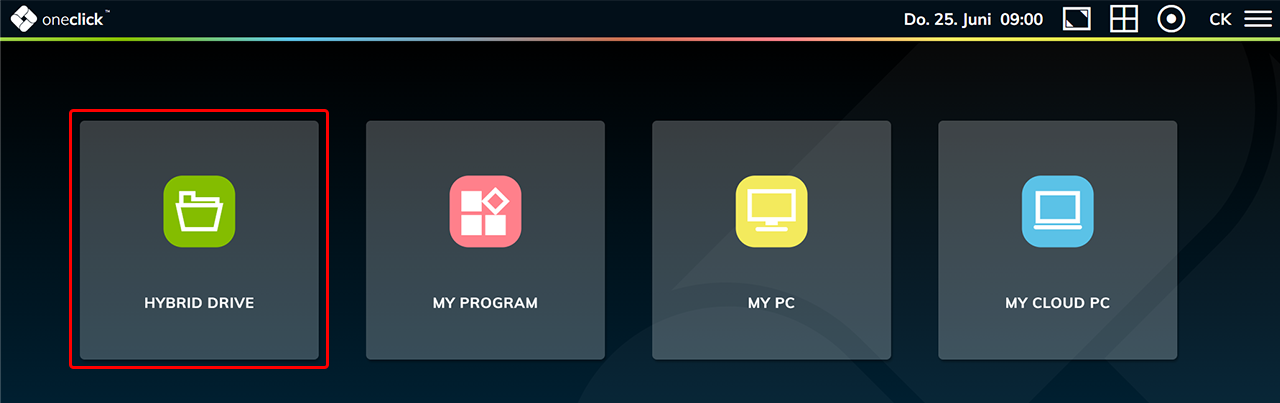
Open the Hybrid Drive App via your oneclick™ Desk.
-
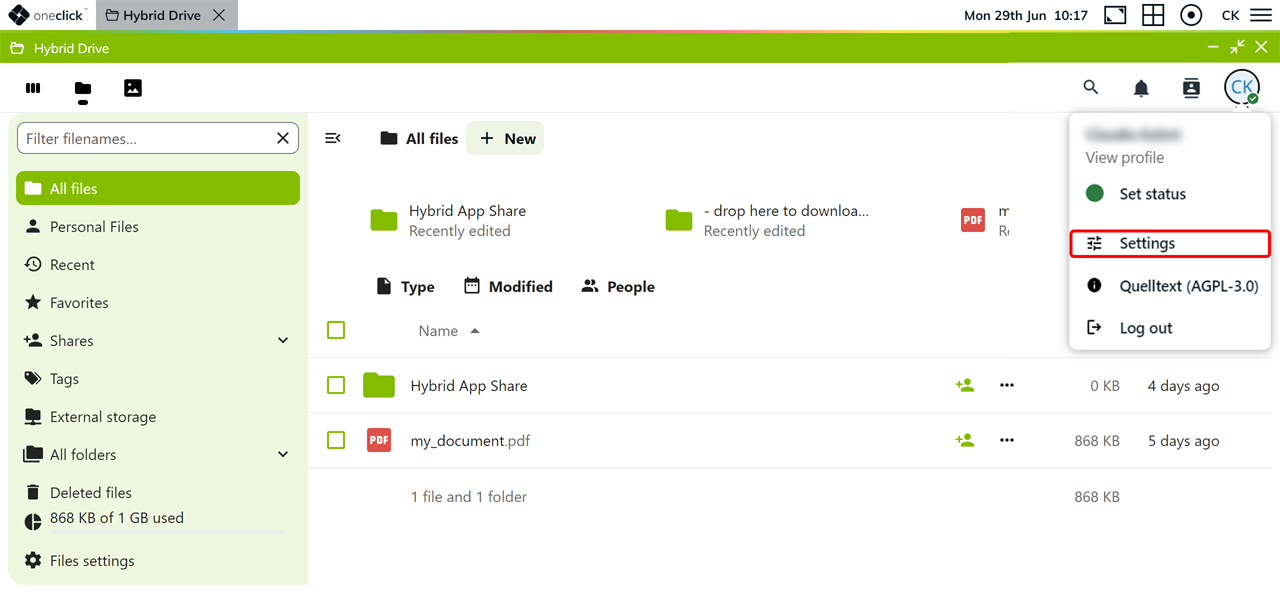
Click your profile in the upper-right corner and then click Settings.
-
Click Sharing in the menu. Under Federated Cloud, you will find your personal "Federated Cloud ID". This is the identifier and address of your Hybrid Drive server.
A Federated Cloud ID can look like this, for example:
user@drive.oneclick.service -
Copy the part after the
@sign and addhttps://in front of it.
From our example, this results in the server address:
https://drive.oneclick.services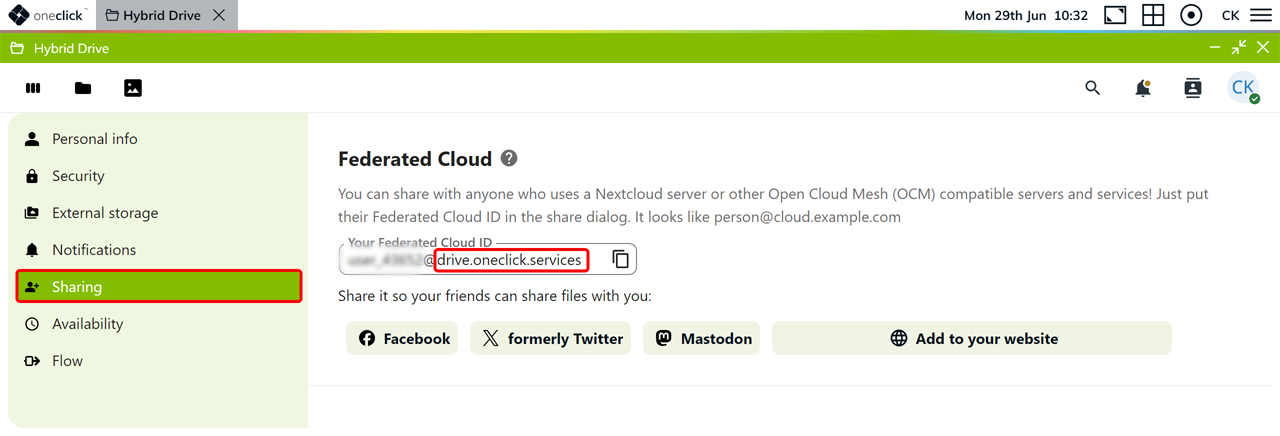
The server address depends on your datacenter. Check under Datacenter in your systemdata which datacenter you are using. You can find the matching address in the table under Allowlisting oneclick™ IP addresses in the Hybrid Drive row.
- Switch back to the Nextcloud desktop client. Enter your server address and click Next.
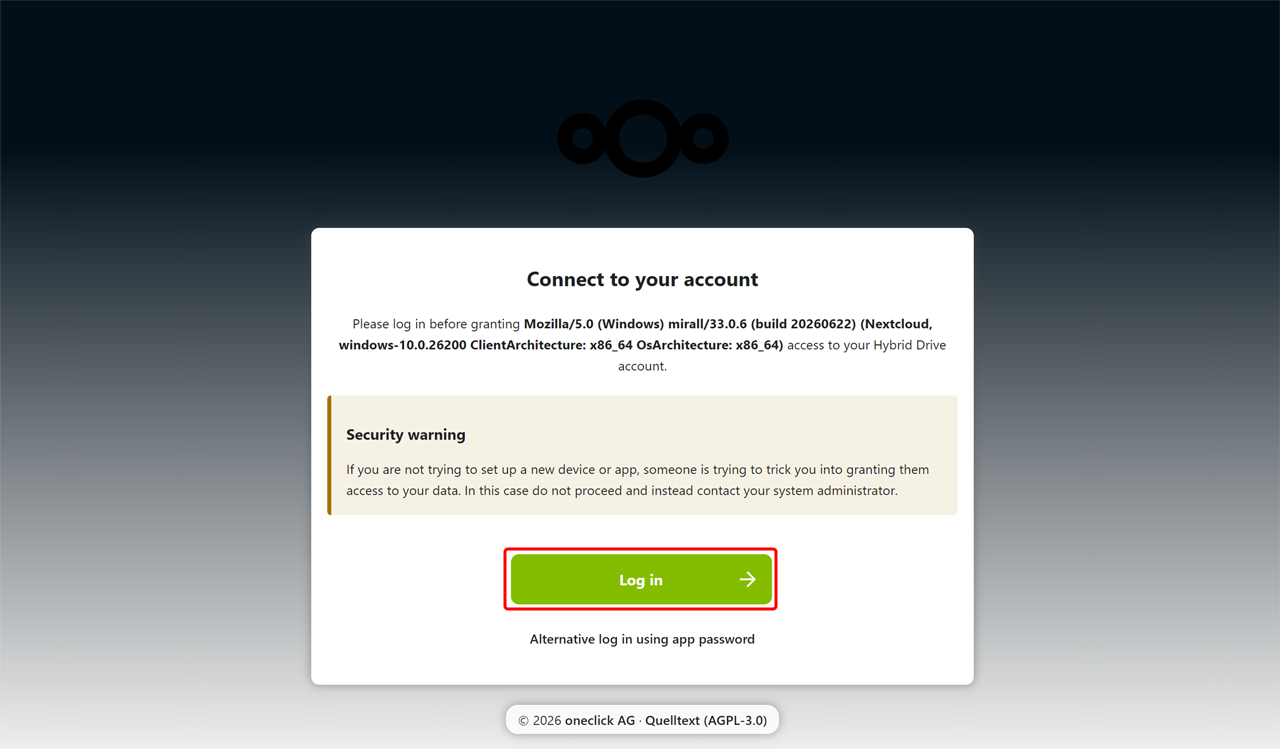
- Your default browser opens the Connect to your account page. Click Log in.
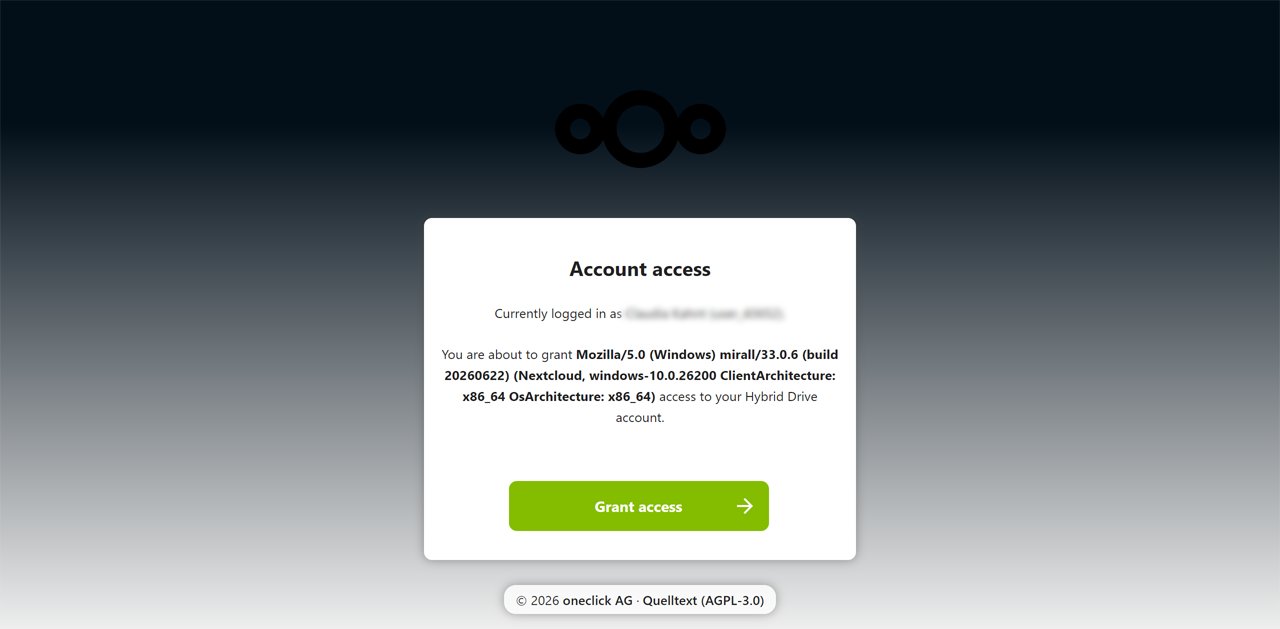
- Nextcloud then shows which device or client you are granting access to your Hybrid Drive. Check the details and click Grant access.
Signing in with a different default browser
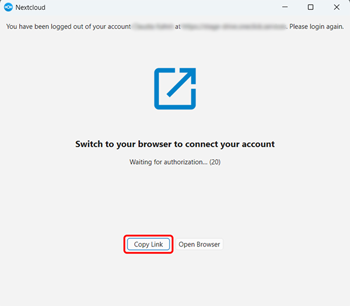
If you have not opened oneclick™ in the Windows default browser, Nextcloud may display a sign-in page for account name and password.
- In this case, click Copy link.
- Open a new tab in the browser in which you are already signed in to oneclick™.
- Paste the copied link into the address bar and open the page.
Create an app password
Nextcloud prompts you to enter a password. You create this in your Hybrid Drive app.
- Switch to the Hybrid Drive app. Click your profile picture in the upper-right corner and then click Settings.
- Click Security in the menu and then click Set password.
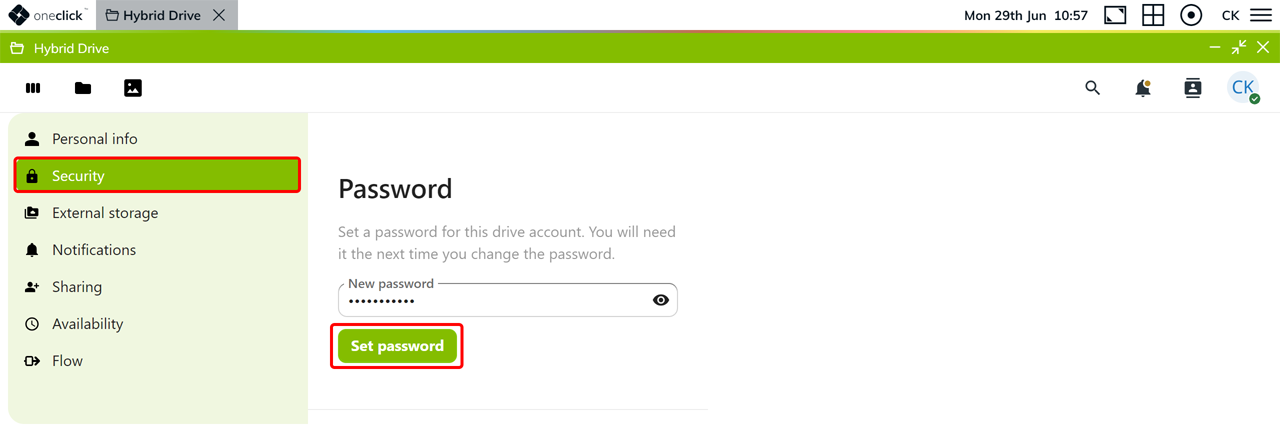
Be sure to copy and save the password immediately after creating it, and store it securely. You can only set the app password once. It cannot be reset.
- Switch back to the password prompt in Nextcloud.
- Enter the newly created Password and click Confirm.
- After a successful login, Nextcloud displays the message Account connected.

Open status and settings
- Click Show hidden icons in the notification area of the Windows taskbar and then click the Nextcloud icon.
MacOS users can find the Nextcloud icon in their menu bar at the top right of the screen. - The status window of the Nextcloud desktop client opens. There you can see the current synchronization status. Click Sync now to start synchronization manually.
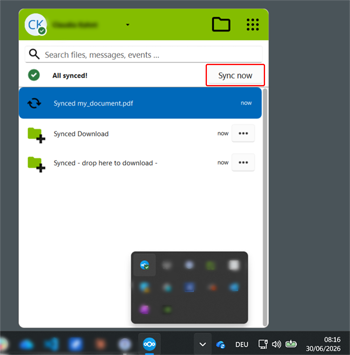
You can access all files that you place in the Hybrid App Share folder from within your oneclick™ Windows RDP apps via the Hybrid App Share on oneclick drive. Do not use Nextcloud to place files in the - drop here to download - folder. Your files may be damaged as a result.
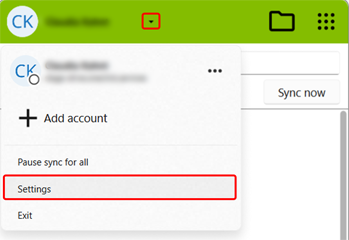
- Open the Nextcloud settings by clicking your profile name.
There you can make further personal settings.
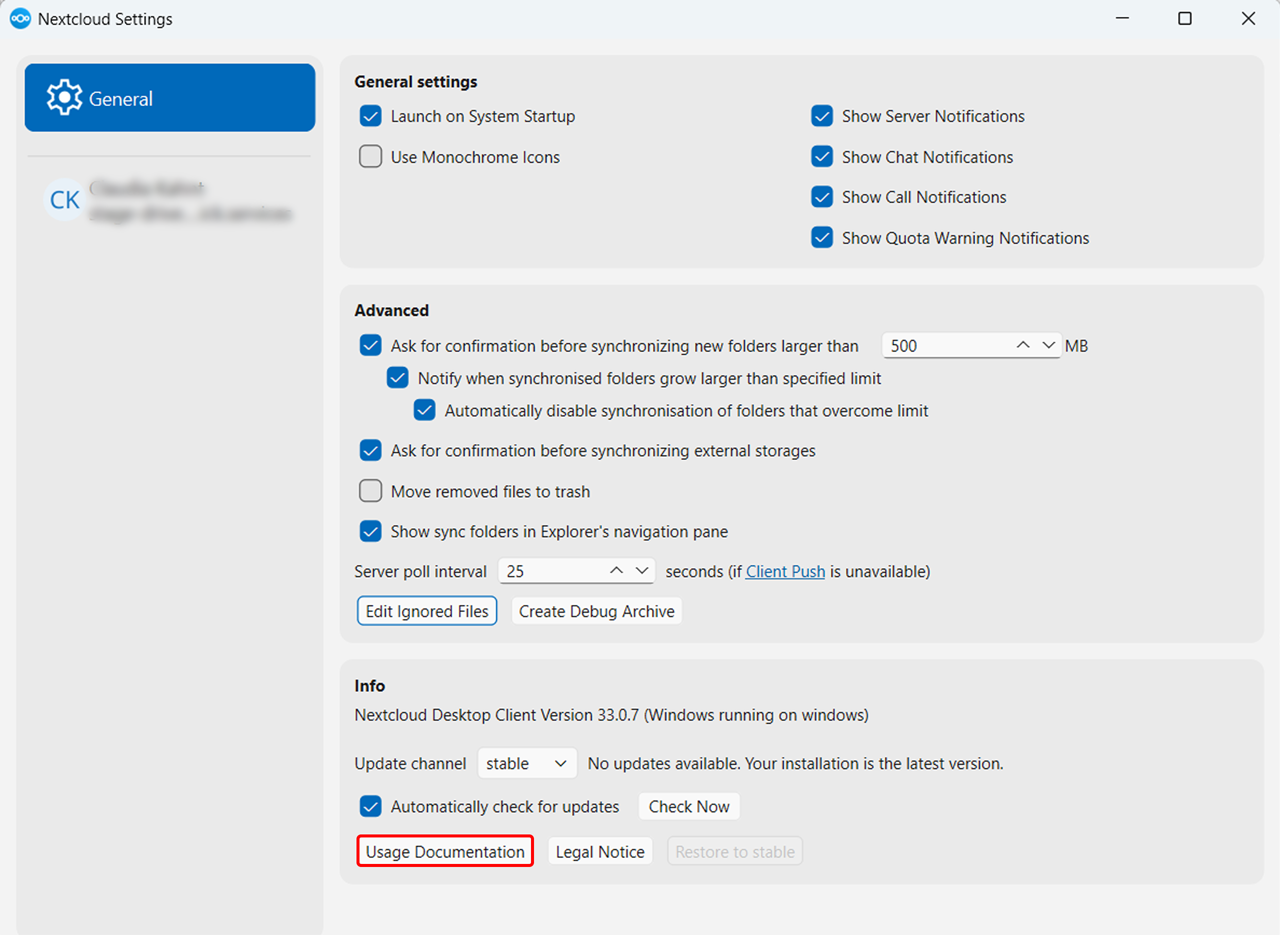
For further information on Nextcloud, see Usage Documentation.