Two-factor authentication with TOTP
If a policy for the two-factor has been defined for your entire oneclick™ Desk, you will see the following screen the next time you log in:
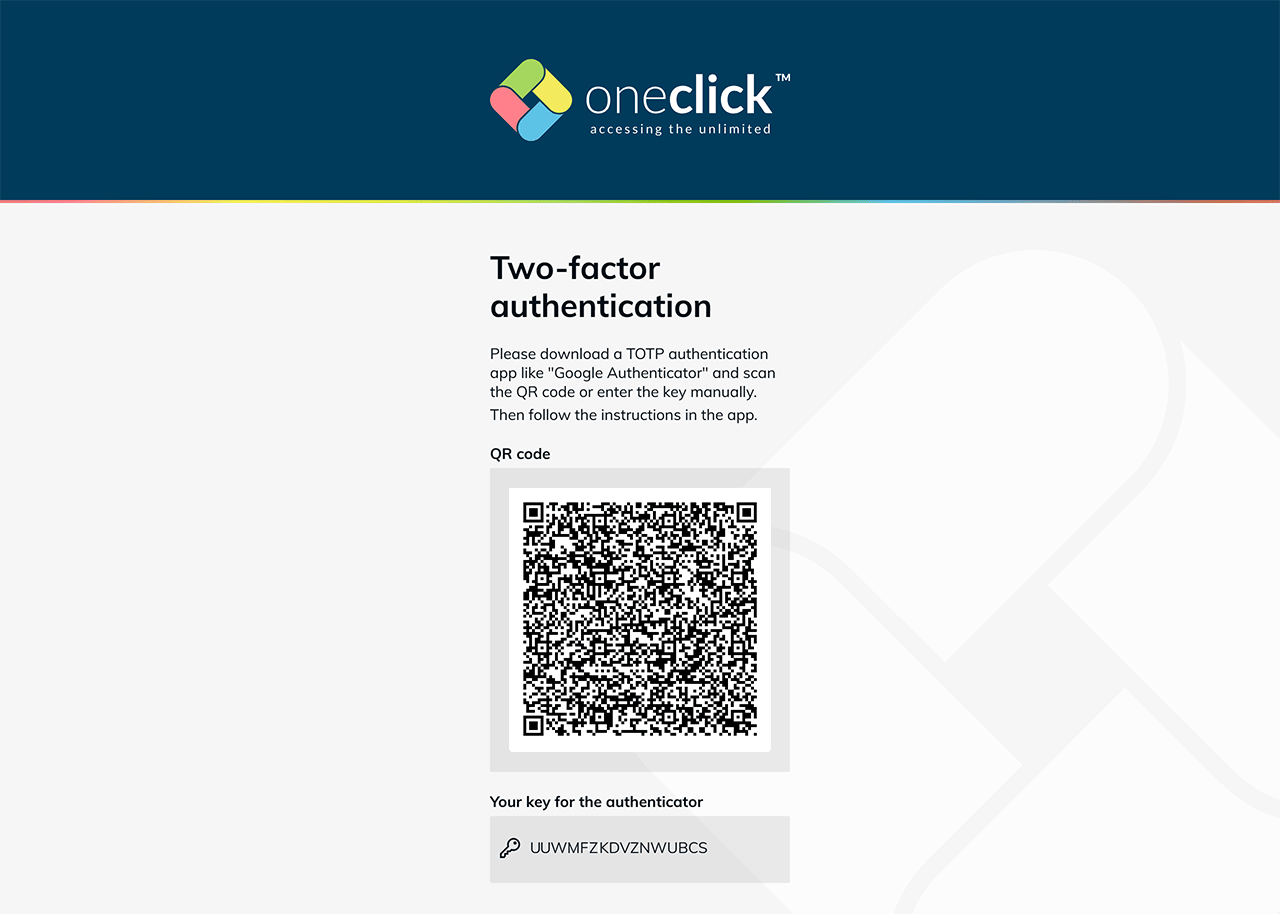
- Follow the instructions on the screen (scan the QR code in your TOTP Authenticator) and then click next.
- Enter the code displayed in your app and click login. Your TOTP Authenticator is now active.
If your code does not work, check that the time on your smartphone is correct.