Clear browser cache
To optimize the workflow in your digital work environment, it is recommended to regularly clear the cache of your browser. If not done regularly, the following problems, among others, may occur:
- The accumulated data in the cache can take up a considerable amount of space on your computer after some time.
- The more information the cache has to store, the slower your computer will work.
- Errors may occur and affect the performance of your computer.
- Changes on websites may not be displayed correctly.
Therefore, make sure that the cache on all your end devices is cleared regularly to maintain an optimal performance of your system.
To clear the cache, depending on which browser you are using, a few simple steps are sufficient. To do this, select your operating system and browser in the linked instructions and follow the step-by-step guide.
Clear browser cache automatically
To automate this process, almost all browsers offer the option to delete all stored data, including the cache, when the program is terminated. For Google Chrome, the following steps are necessary to activate this function:
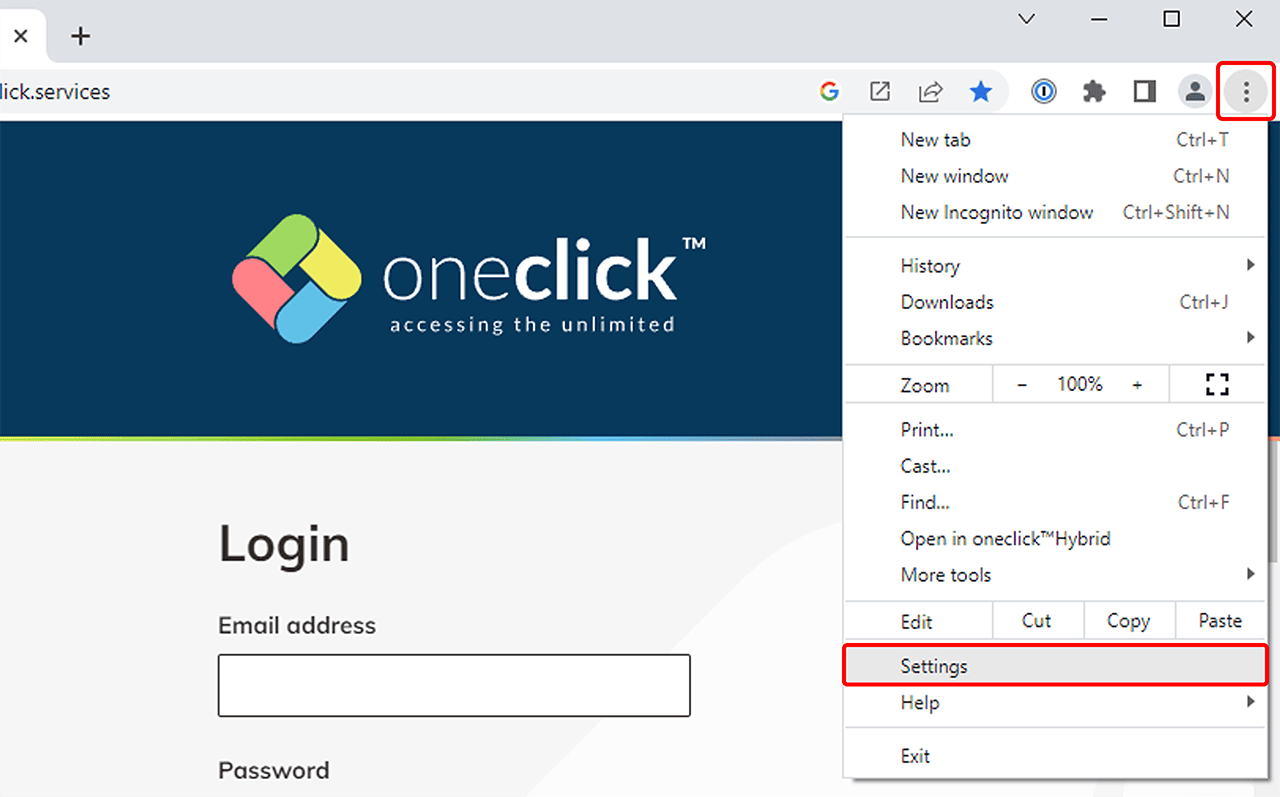
- Click on the menu button with the three dashes at the top right of the URL and select Settings here.
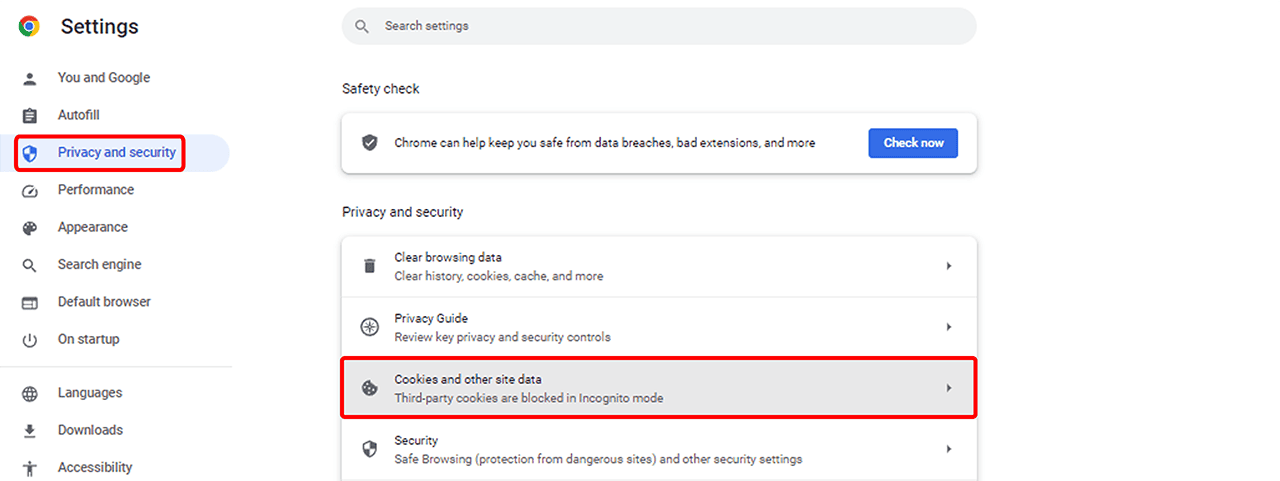
- Then click the Privacy and security tab on the left, and then click Cookies and other site data.
- Scroll down to the entry "Delete cookies and data when you close all windows" and activate the switch to the right of it.
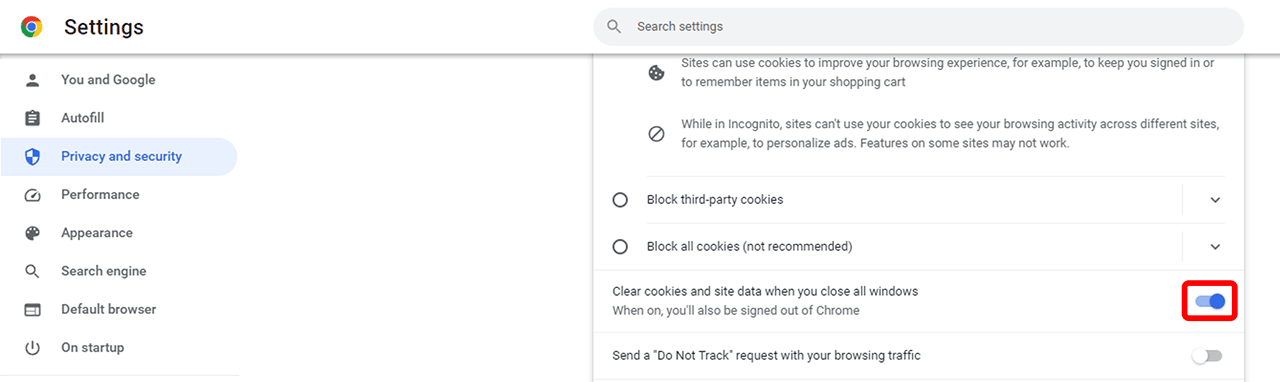
Note that when you enable this feature, all cookies already accepted must be reconfirmed for all pages already visited.