Keyboard on mobile devices
Entering the key combination does not work?
Proceed as follows and use the keyboard for mobile devices:
- After starting your app, the oneclick™ icon will appear at the top of the screen on your desktop interface.
- Click on it to access the oneclick™ menu.
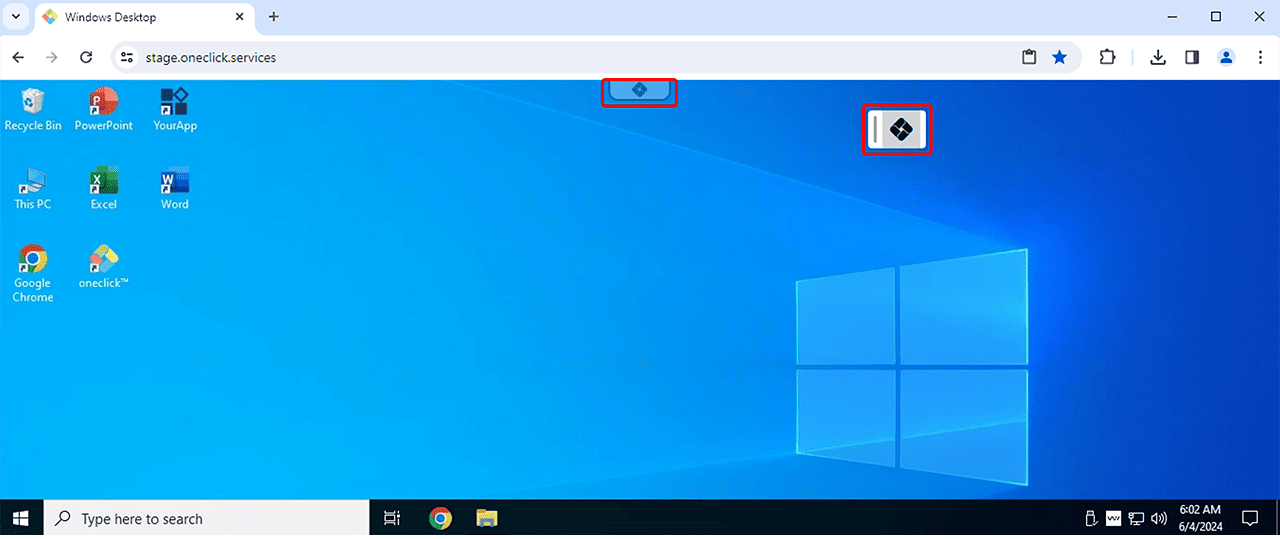
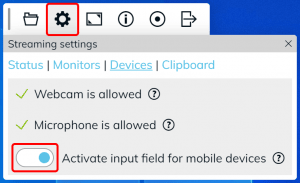
- In the oneclick™ menu, click on the Gear icon and then on Devices.
- Activate the switch next to “Activate input field for mobile devices”. A text line and keys such as Ctrl, Alt, Esc, Tab and Del will appear.
- Click the key combination ALT + TAB on the visible keyboard.
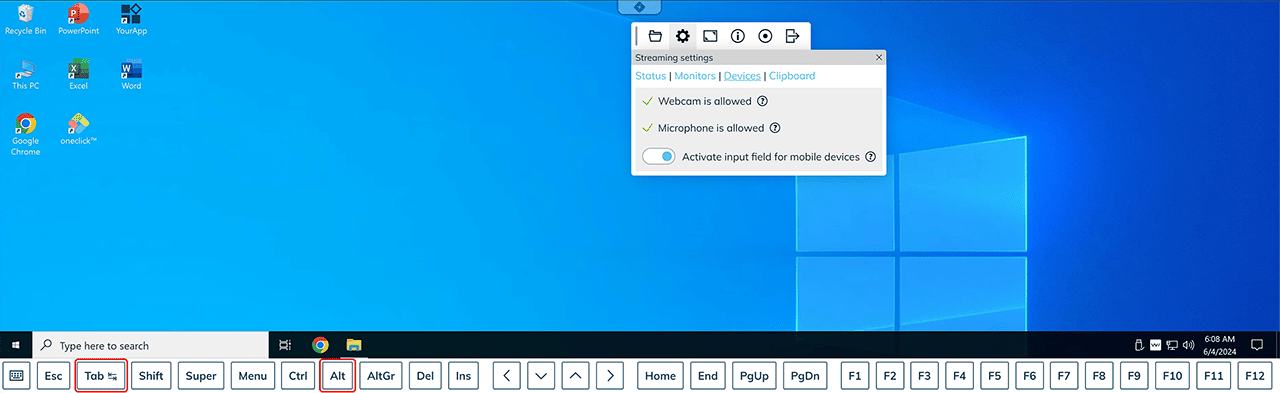
Using Alt + Tab you can display all open programs and windows in Windows 10 in a thumbnail preview and by holding down the Alt key and pressing the Tab key several times, you can then easily switch between the programs or file windows. - Before switching back to the external keyboard, please ensure that all keys on the visible keyboard are deactivated.
- To deactivate “Activate input field for mobile devices”, click on the switch again in the oneclick™ menu under Devices.