Clipboard
In the expanded menu, you will find the clipboard of oneclick™. This serves as a temporary storage and for the transmission of texts between your local device and the app. If the browser asks you, allow access to the clipboard. Then use copy and paste as usual. 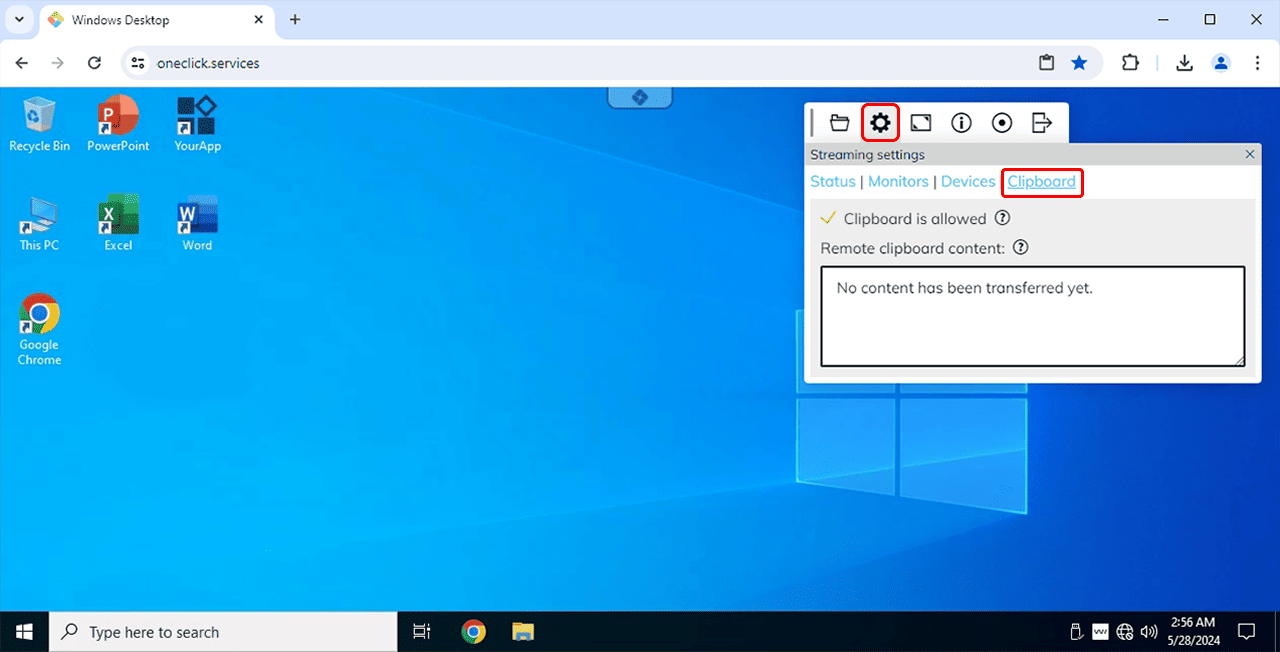
The clipboard transfers plain text only between your local device and the app. Formatting such as bold, italics, fonts, colors, lists and tables as well as images is lost. When you paste, the text takes on the formatting of the target location. Between two apps within the same destination, however, the formatting is preserved. To move formatted content, save it as a file and transfer the file instead, for example via the oneclick™ Hybrid Drive.
Clipboard not working?
If your clipboard is not working even though you have allowed it in your browser and your administrator has permitted its use:
- Check your browser permissions as described in Granting access permissions in the browser.
- Log out of Windows completely and log back in.
- If the problem persists, restart the destination.
Transfer files
For security reasons, files cannot be transferred via the clipboard. Use one of the following options instead:
File upload
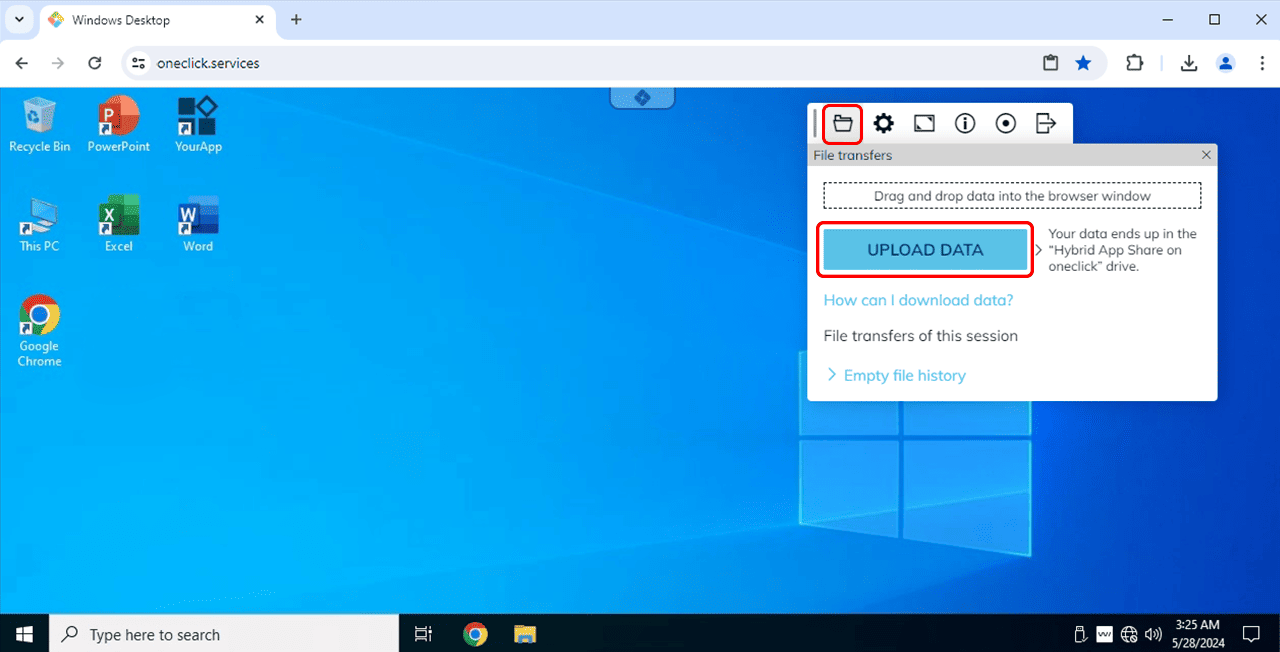
- In the expanded oneclick™ menu, click the Folder icon.
- Click Upload data.
- Select the file you want from your local device.
You will find the uploaded files in the Hybrid App Share on oneclick drive.
oneclick™ Hybrid Drive
Use the oneclick™ Hybrid Drive to exchange files between your local device and your oneclick™ app.
For example, you can drag and drop files into the app window.
Cloud storage
Alternatively, you can use cloud storage services such as Microsoft OneDrive.
For more information, see oneclick™ Hybrid Drive & Microsoft OneDrive in comparison.