Changing the language in oneclick™
The login always appears in the language which is set in your browser.
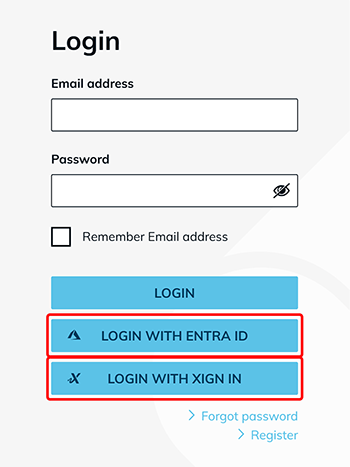
You can change the language in your browser directly by making your choice in your browser menu in the Settings and Language tab.
If you are logged into oneclick™ and find yourself in the oneclick™ Workspace, you can change the language in the desk-menu .
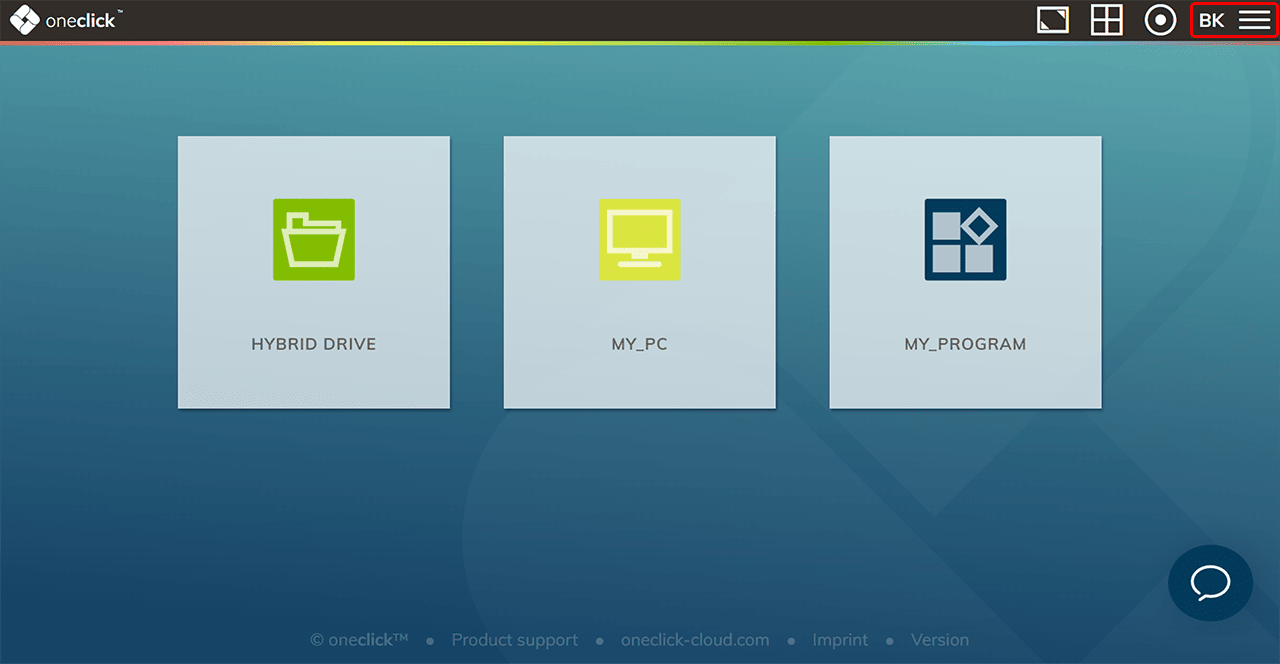
- To do so, click on the Burger icon in the upper right corner.
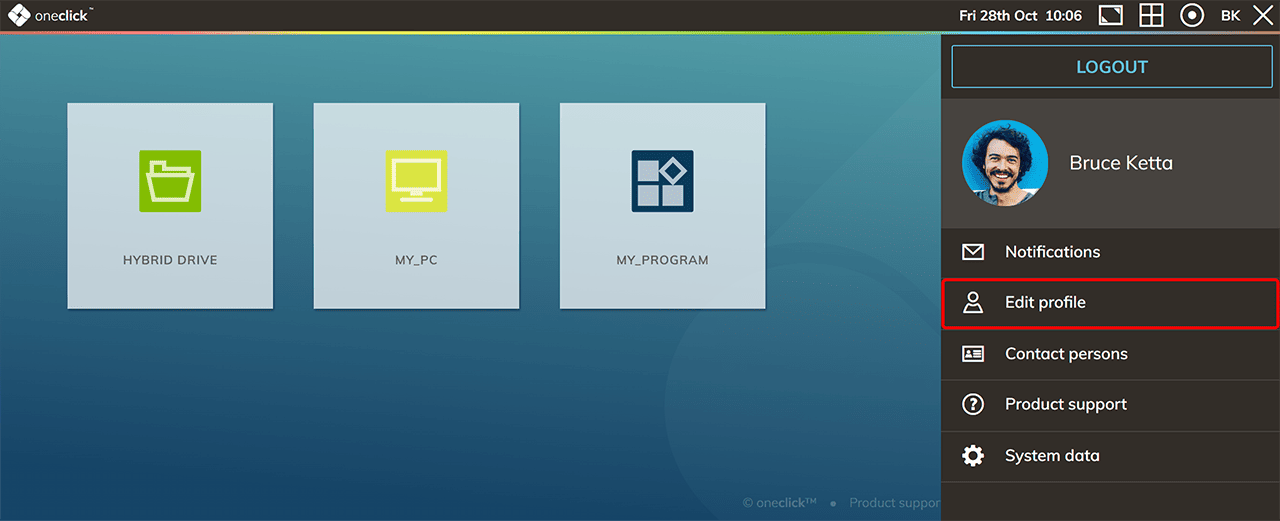
- In the now opened menu select Edit profile.
- Make your choice in the Language tab and Save your settings afterwards.
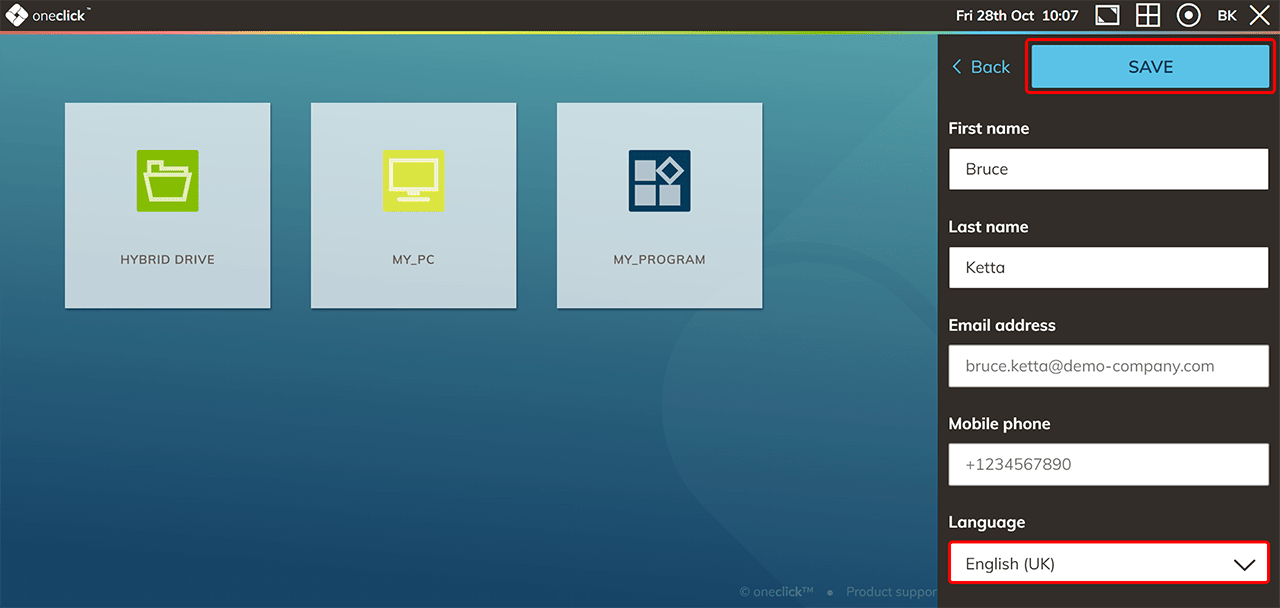
You now changed the language of your menu navigation.
Language of the Windows desktop / program
The language of the Windows desktop or your application you are accessing through oneclick™ remains unchanged. If you want to change the language within the application, contact your administrator.
Changing the language in the Hybrid Drive
- Open the Hybrid Drive on your oneclick™ Workspace by clicking on it. In the oneclick™ Hybrid Drive, click the Initials-Icon in the top right corner and then click on Settings.
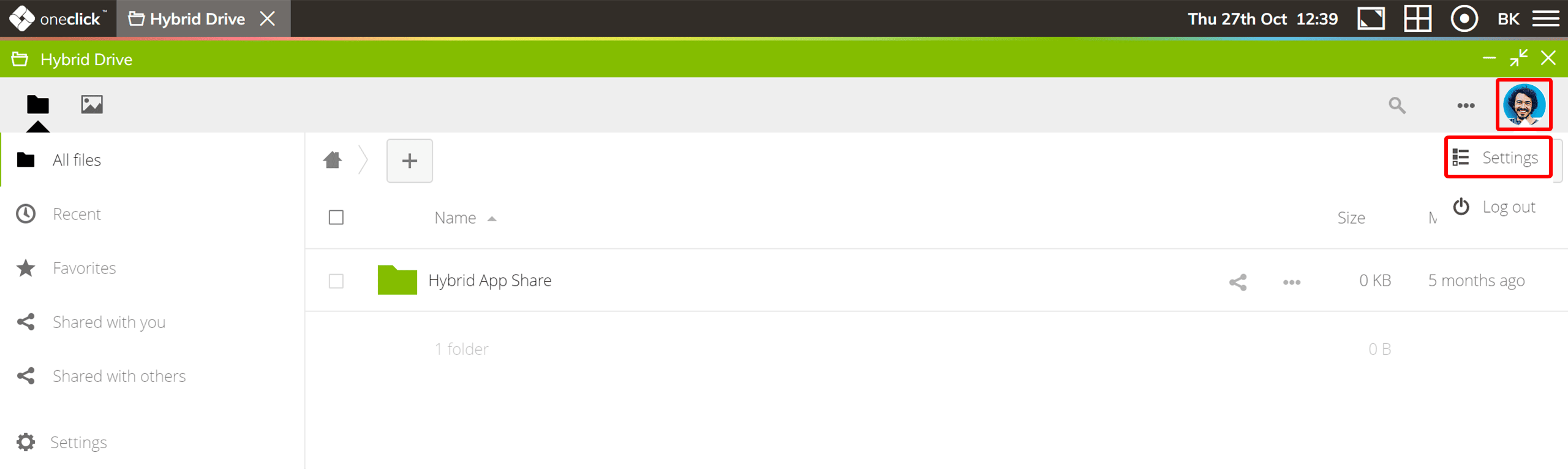
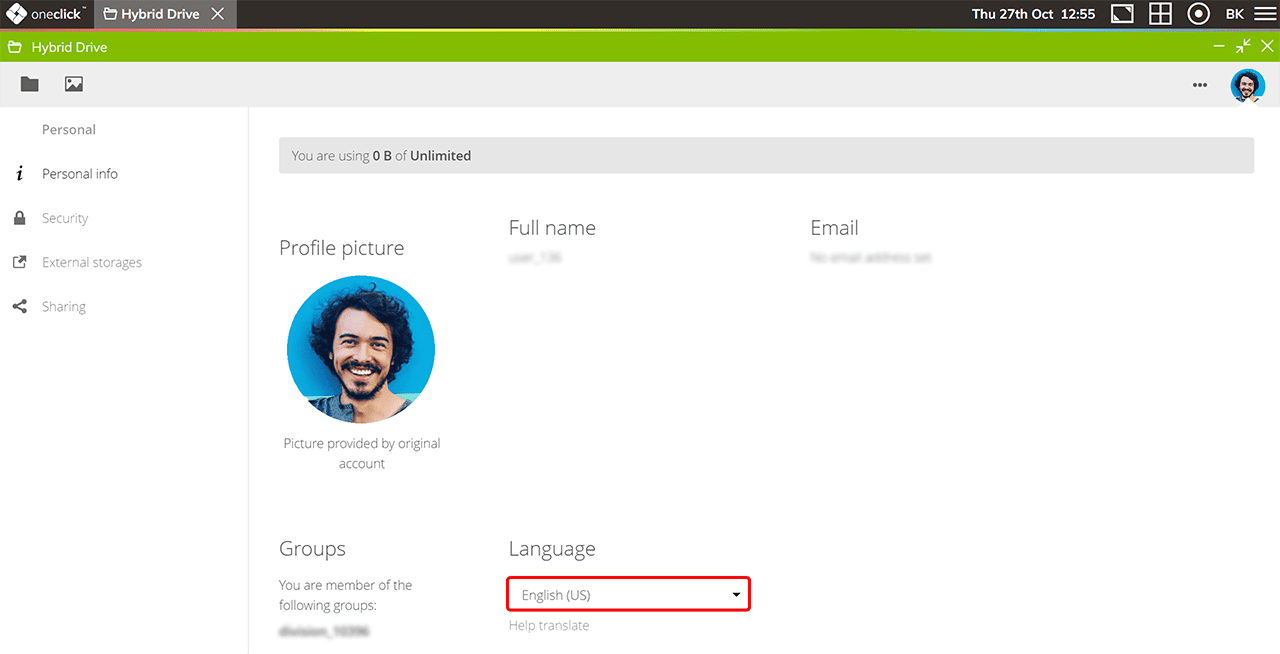
- By clicking on Settings your are opening your Personal info where you can select your language. After making your choice here, your changes will be saved automatically.