Edit profile
Under Edit profile in the Desk menu, you manage your personal settings. This article shows which details you can change yourself and which ones only an administrator can change for you.
Open your profile
- Click the Burger icon in the upper right corner.
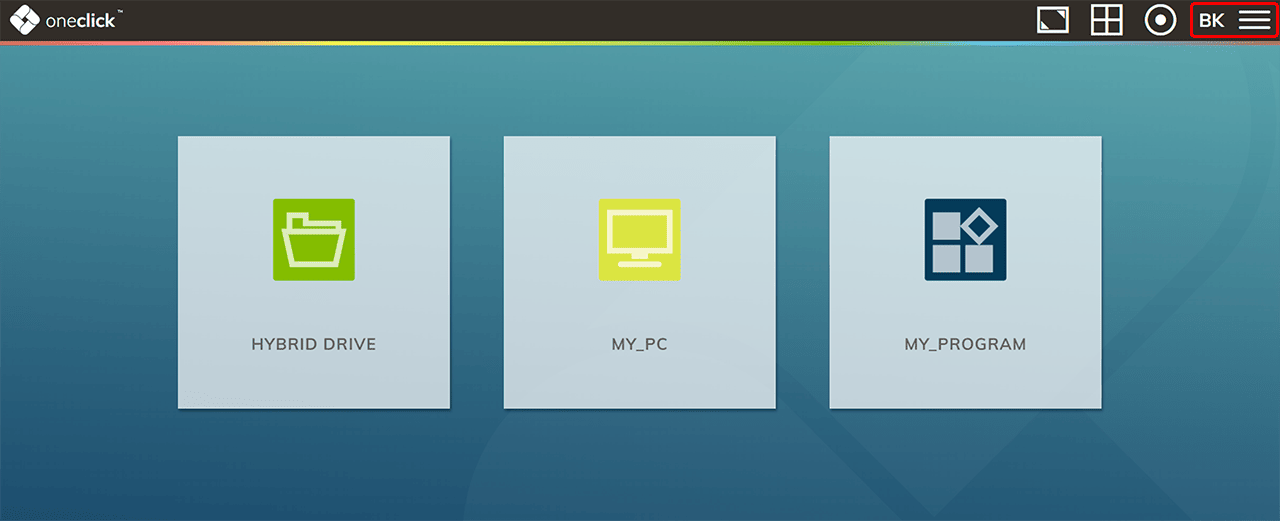
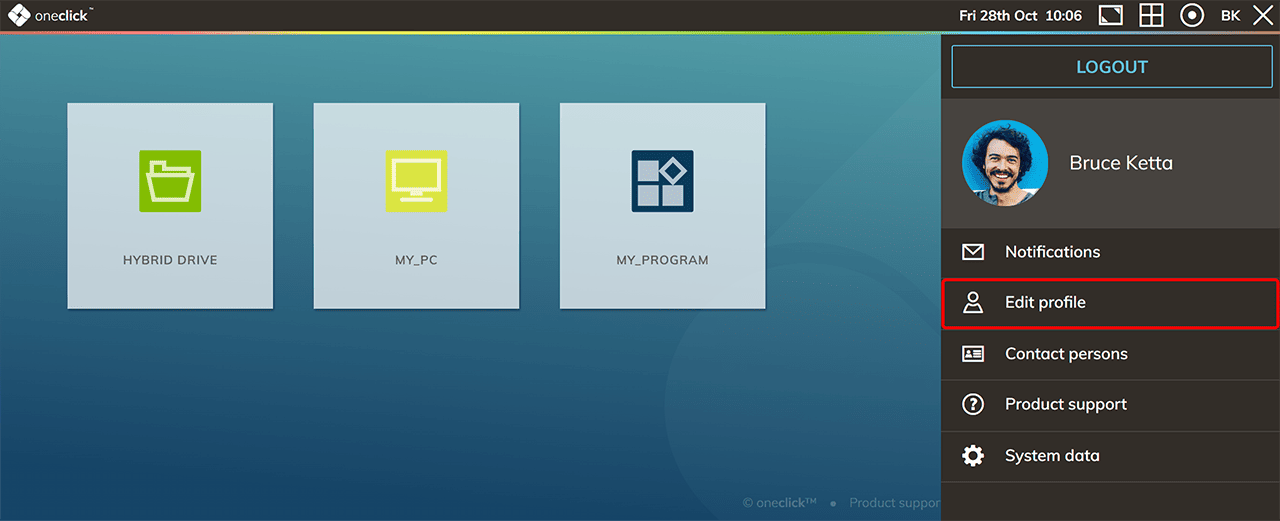
- Select Edit profile.
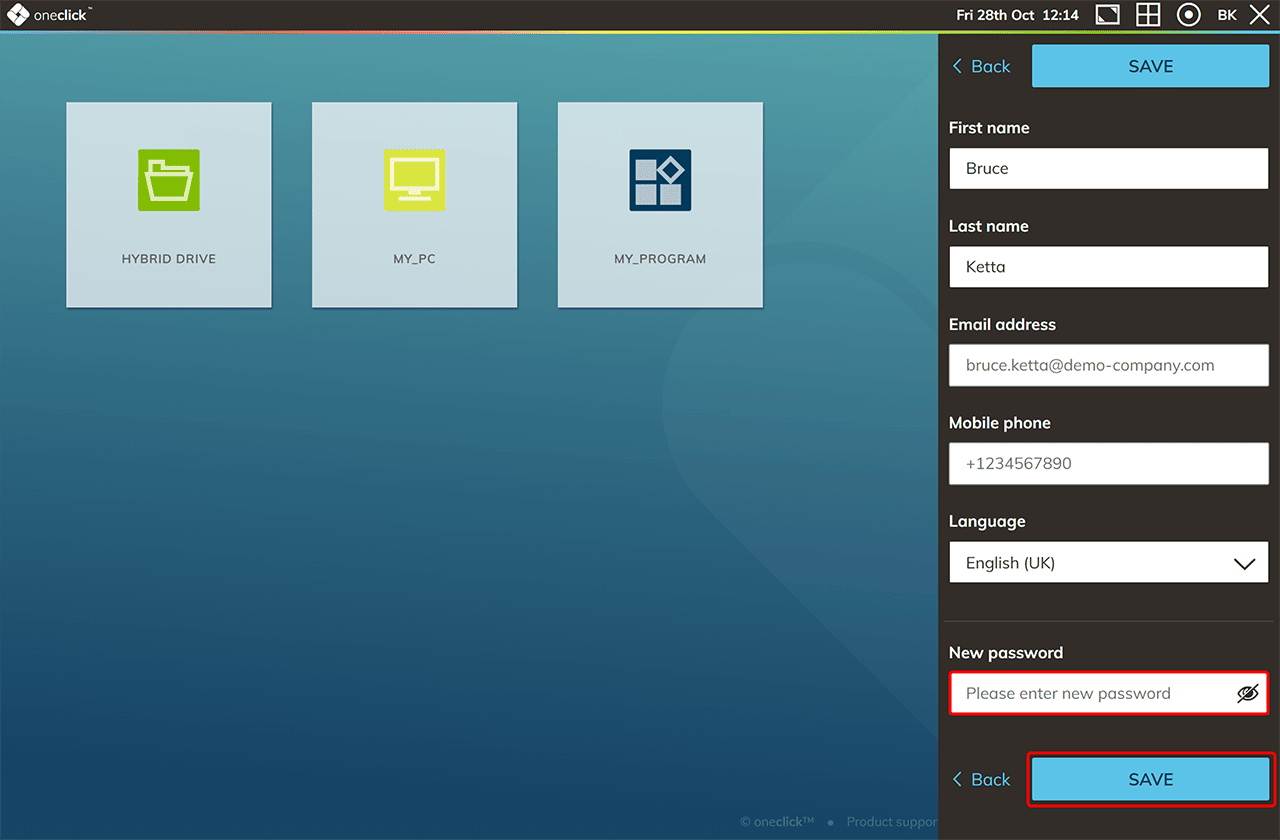
- Change your details and click Save.
What you can change yourself
| Detail | Can you change it? | More information |
|---|---|---|
| First name | Yes | — |
| Last name | Yes | — |
| Email address | No | Contact your administrator |
| Mobile phone number | No | Contact your administrator |
| Language | Yes | Changing the language in oneclick™ |
| Password | Yes, via Change password | Change oneclick™-password |
| Workspace appearance | Yes | Workspace appearance |
| Profile picture | No, comes from Gravatar | Profile picture |
Email address and mobile phone number
Your email address and your mobile phone number are bound to your user account. Both fields appear in your profile, but they stay inactive — you can read them, not edit them.
Your email address is the address you use to sign in to oneclick™. Your mobile phone number is used for two-factor authentication by SMS.
To change your email address or your mobile phone number, contact your administrator. Administrators with rights for user management can adjust these details for you.
An email address usually stays as it is. It is only changed in exceptional cases, for example after a change of name. Once your administrator has changed your email address, sign in to oneclick™ with the new address.
Profile picture
oneclick™ synchronizes your profile picture automatically with the picture stored in Gravatar. Make sure that the email address you use for oneclick™ is also stored as the primary email address in Gravatar. If your email address in oneclick™ changes, update it in Gravatar as well — otherwise oneclick™ can no longer show your profile picture.