Multi Monitor Use
If you want to use a oneclick™ app, e.g. a remote desktop on several monitors, the "Multi monitor" add-on must be activated in your app licence. Please contact your administrator for this.
The Multi monitor add-on can be selected when purchasing a Standard or High Performance app. If you need an additional monitor, select a Standard or High Performance App licence. Up to four monitors are available in the High Performance App licence.
Add Monitors
Your main monitor is the window that opens after logging in. The complete menu at the top of the screen is only available in the main monitor. In addition, you can open any number of virtual secondary monitors and arrange them on your screens as required.
-
First, make sure that the browser zoom is set to 100% for all monitors to be added and deactivate/hide all sidebars. Check the search bar at the top right of the URL. If there is no magnifying glass icon, the browser zoom is already set to 100% and you do not need to change anything.
If the browser zoom is not set to 100%, a small magnifying glass will appear at the top right of the URL with a minus in it (-) if the zoom is lower, or a plus (+) if it is higher. Click in the search bar and press Ctrl+0 to set the browser zoom to 100%.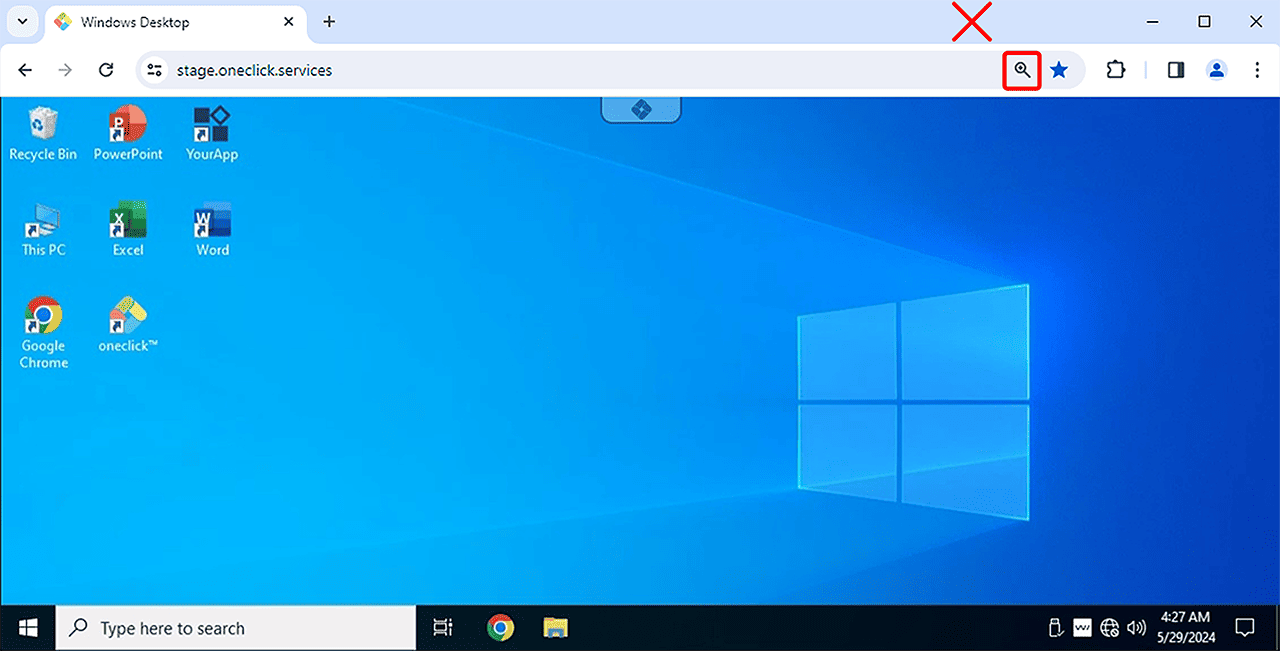
-
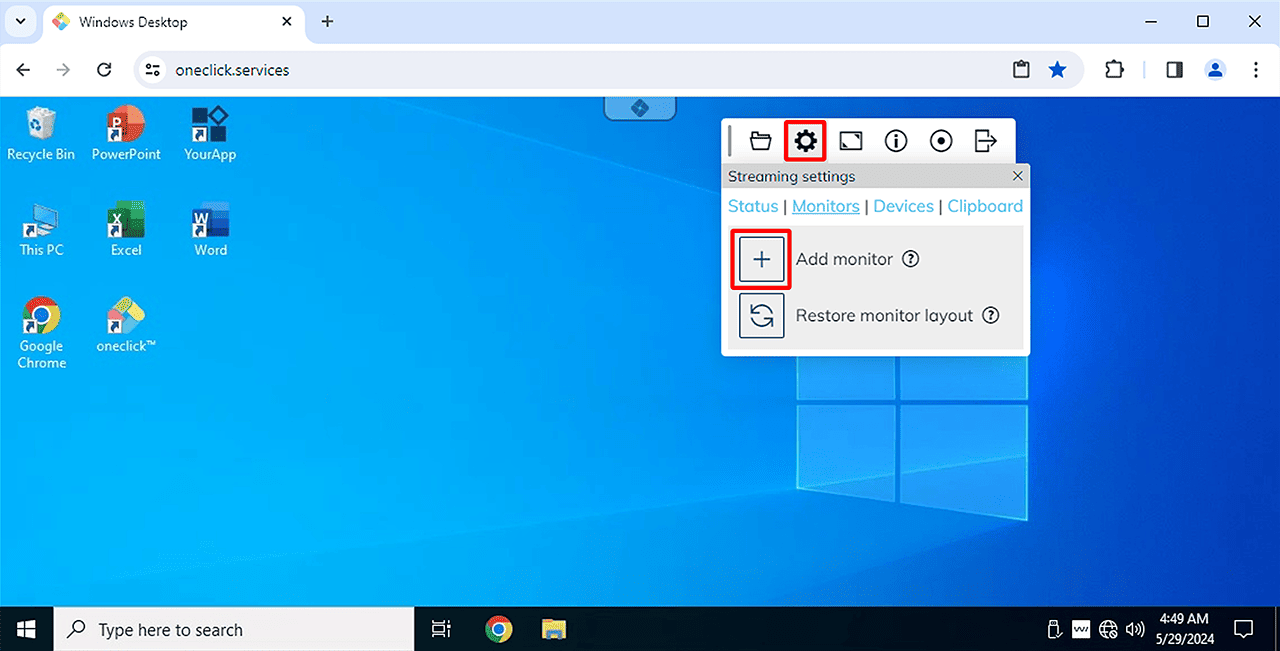
Open the oneclick™ menu and click on the Gear Icon.
-
To add another monitor, click on the Plus icon under “Monitors”.
-
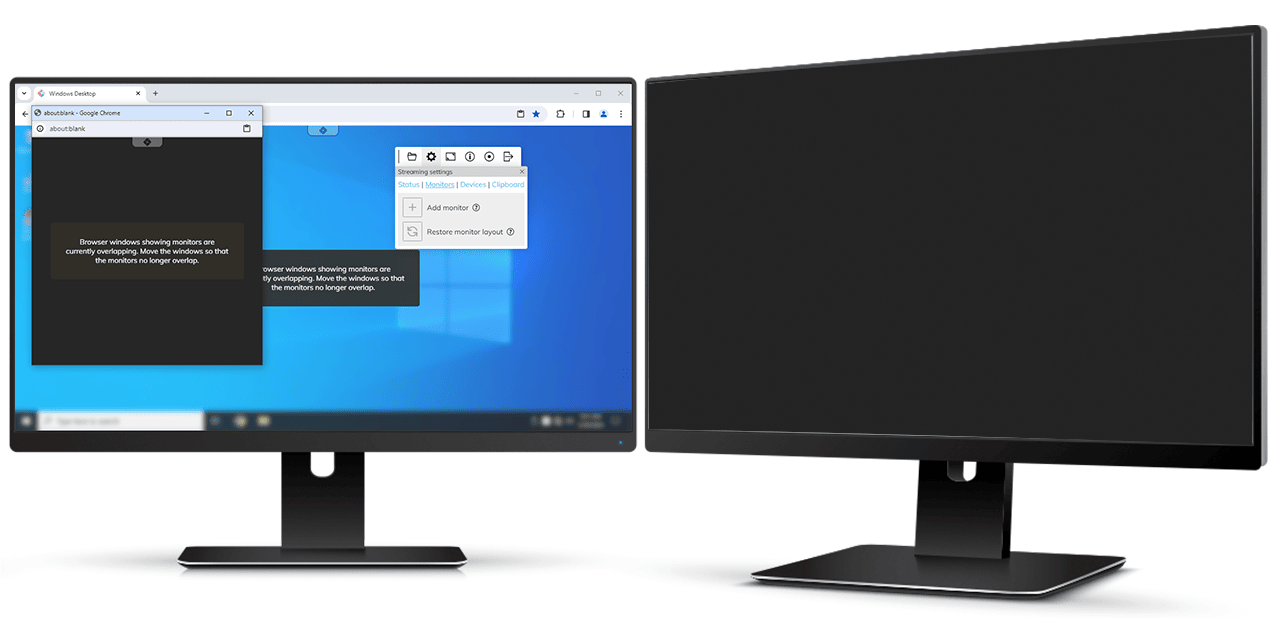
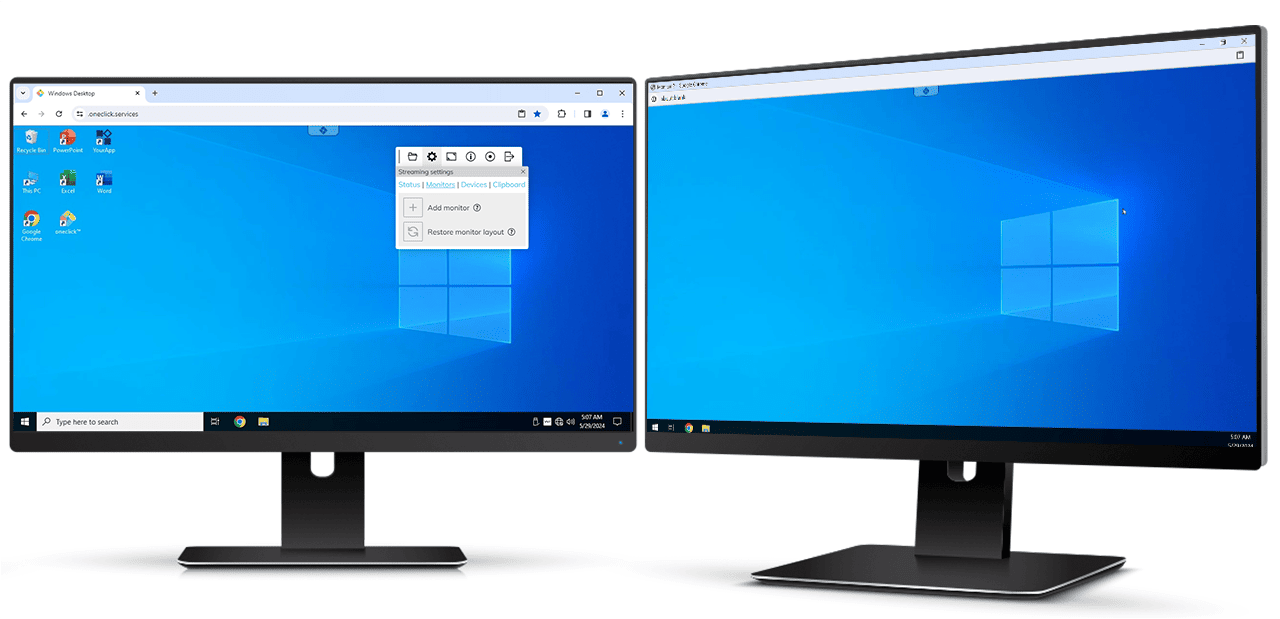
Drag and drop the open monitor window to the desired screen and adjust the size as well as the position to your requirements. If the monitors overlap or if they are not in the foreground, an error message will be displayed. You can only work with oneclick™ after positioning the monitors correctly. An error message will also be displayed if the browser zoom is activated or the sidebar is displayed.
-
Click the Plus icon again to add more monitors and make sure that the zoom is always set to 100%.
-
Drag the newly appeared window to the desired display.
-
Next, set the main monitor to full screen mode by clicking on the button in the upper right corner.

Note that some shortcuts are only passed through by the browser to oneclick™ in full screen mode. -
To exit the full screen mode, press and hold ESC in each oneclick™ monitor. Alternatively, move your cursor to the top of the screen and click the button with the X on it that appears there.
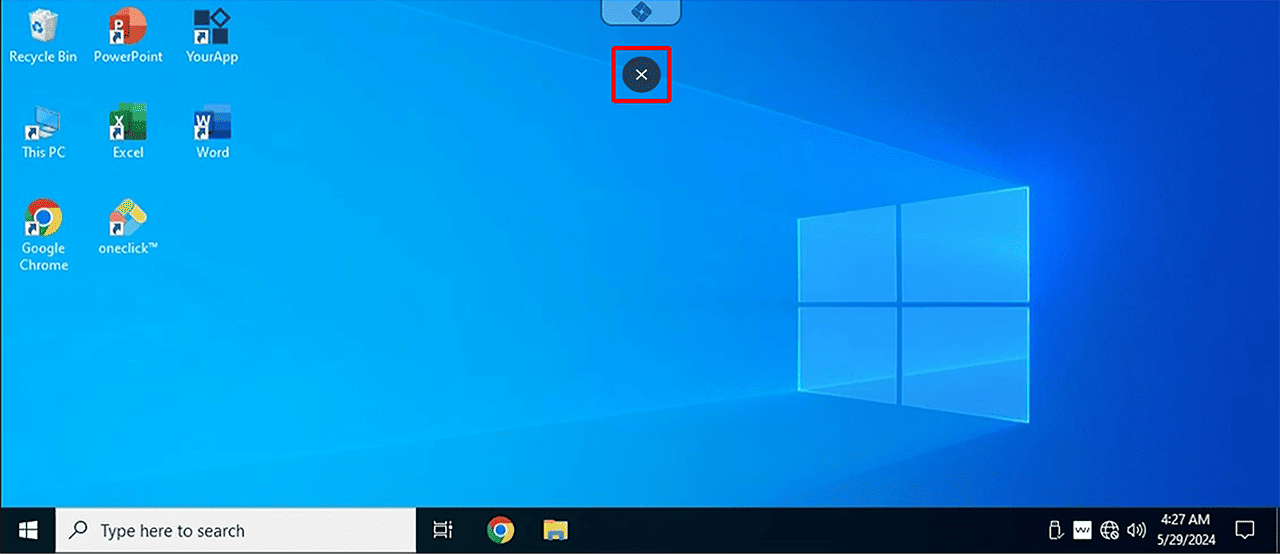
-
You can also exit full screen mode in the main window by clicking on the corresponding icon in the oneclick™ menu.

Quick Tips for Positioning Multiple Monitors in Windows
- Use the shortcut CTRL + 0 to set the browser zoom to 100%.
- Pressing the shortcut WINDOWS + LEFT ARROW KEY or WINDOWS + RIGHT ARROW KEY the selected window automatically takes the respective half of the screen. Press this combination several times in order to move the corresponding window to another screen.
- Using the shortcut WINDOWS + UP ARROW the selected window adapts the size of the screen.
- WINDOWS + ARROW DOWN minimizes the corresponding window.
- If you want to move a window to another screen, use the key combination WINDOWS + SHIFT + ARROW LEFT/RIGHT. In this case, the corresponding window retains its size and position.