Windows Layout Manager
The Windows Layout Manager (WiLMA) is a practical tool if you regularly work with multiple windows on different monitors and want to quickly and easily adjust their position and size.
The software allows you to create, save, and quickly restore individual layouts, especially when using multi-monitor setups.
The following example shows how to download, install, and run the software using WiLMA. There are also other software solutions that offer similar functionality.
1. Installation
- Download the software from the website of Stefan Didak - WiLMA.
Scroll down the page and download the latest version of WiLMA. If the link does not work when clicked, right-click on the link, select “Save link as...”, and then click “Save”. The ZIP file will then be downloaded. - The software is downloaded as a ZIP file, which you can find in the download folder.
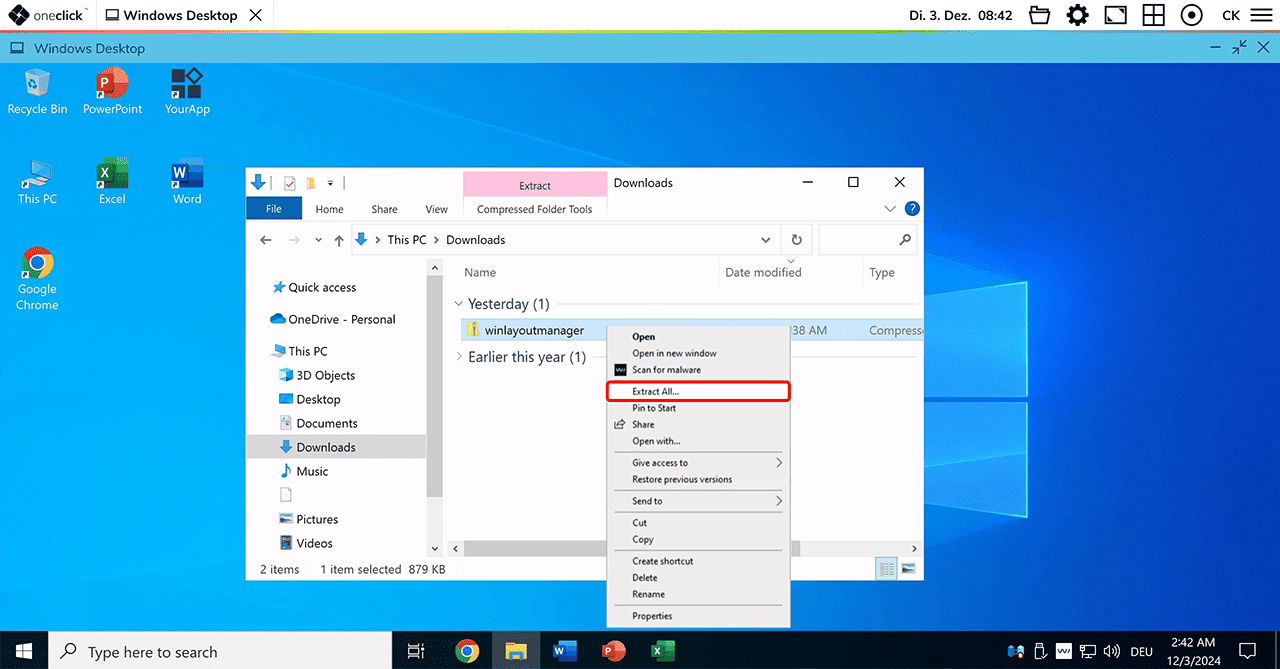
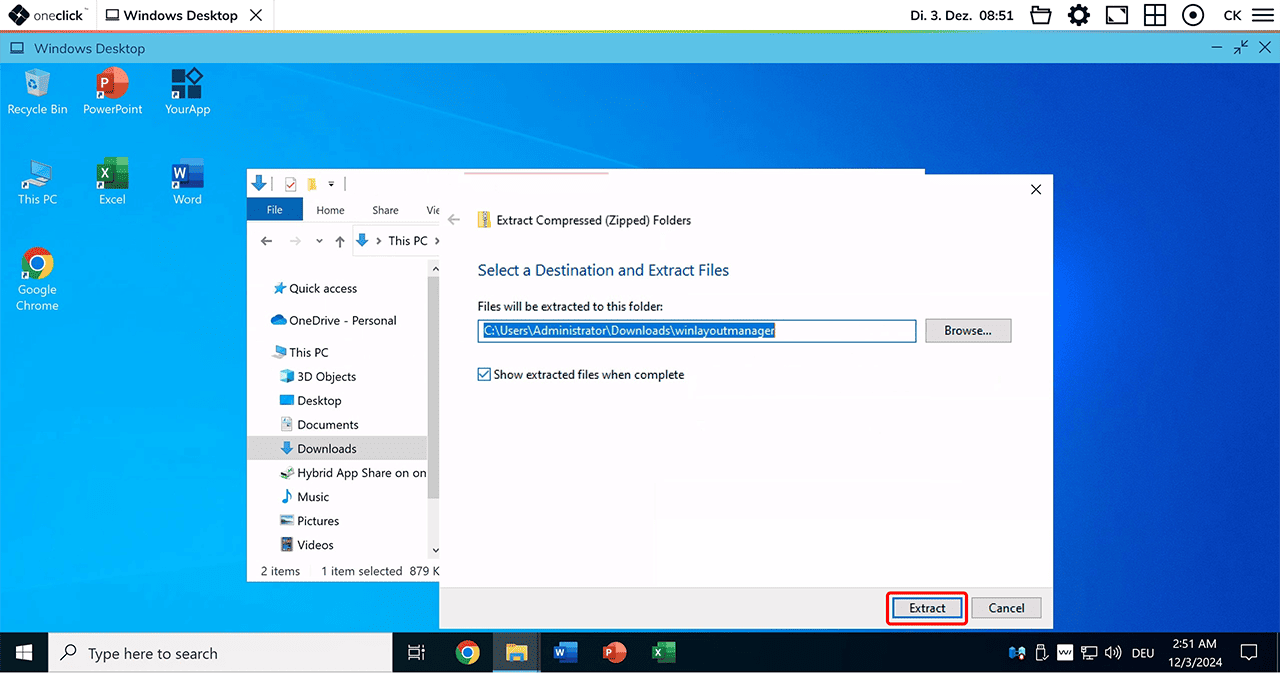
- Extract the file into a directory of your choice.
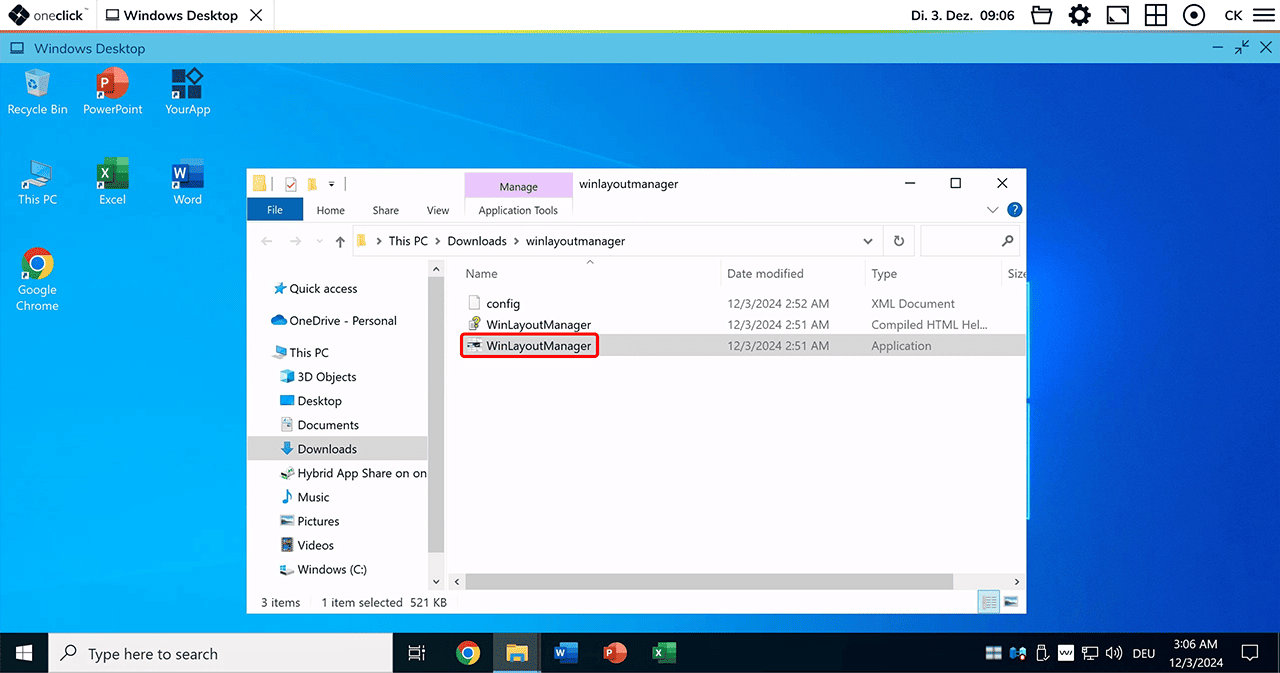
- Open the directory where you extracted the files, and then double-click the file WinLayoutManager to start the program.
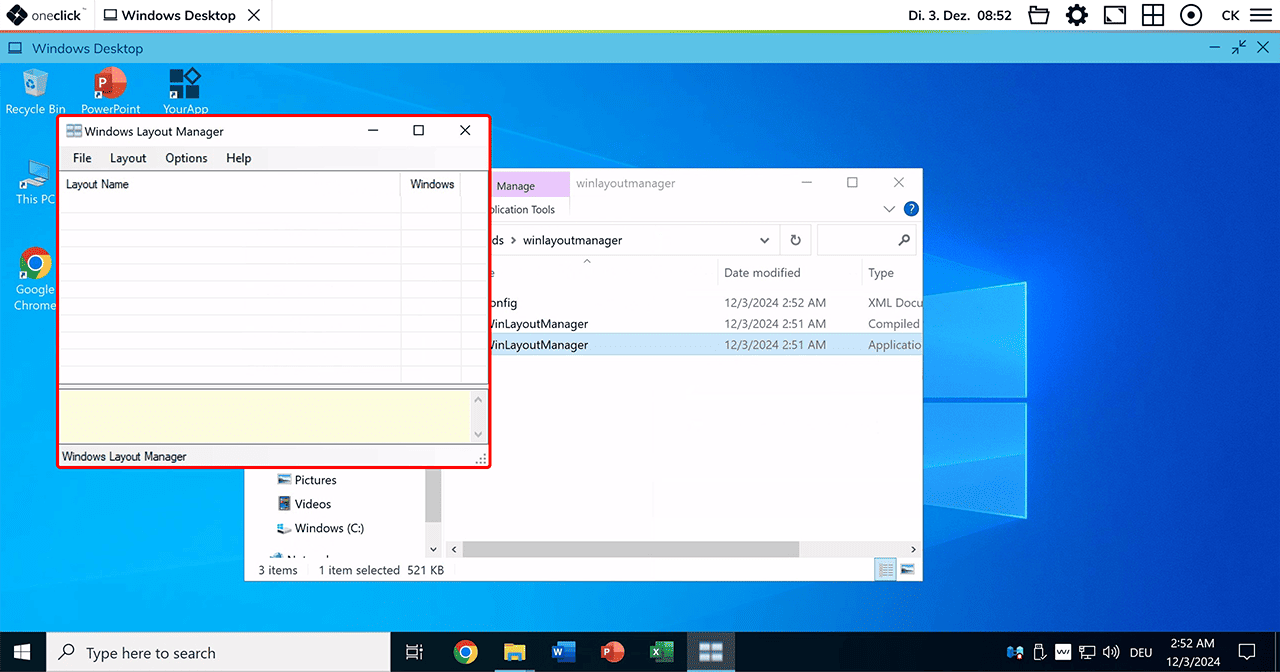 Installation is not required as the software runs as a portable application. After a restart, you may not see the WiLMA application in the notification area of the taskbar. We therefore recommend that you pin the program directly to the taskbar in order to start it from there.
2. Creating a Layout
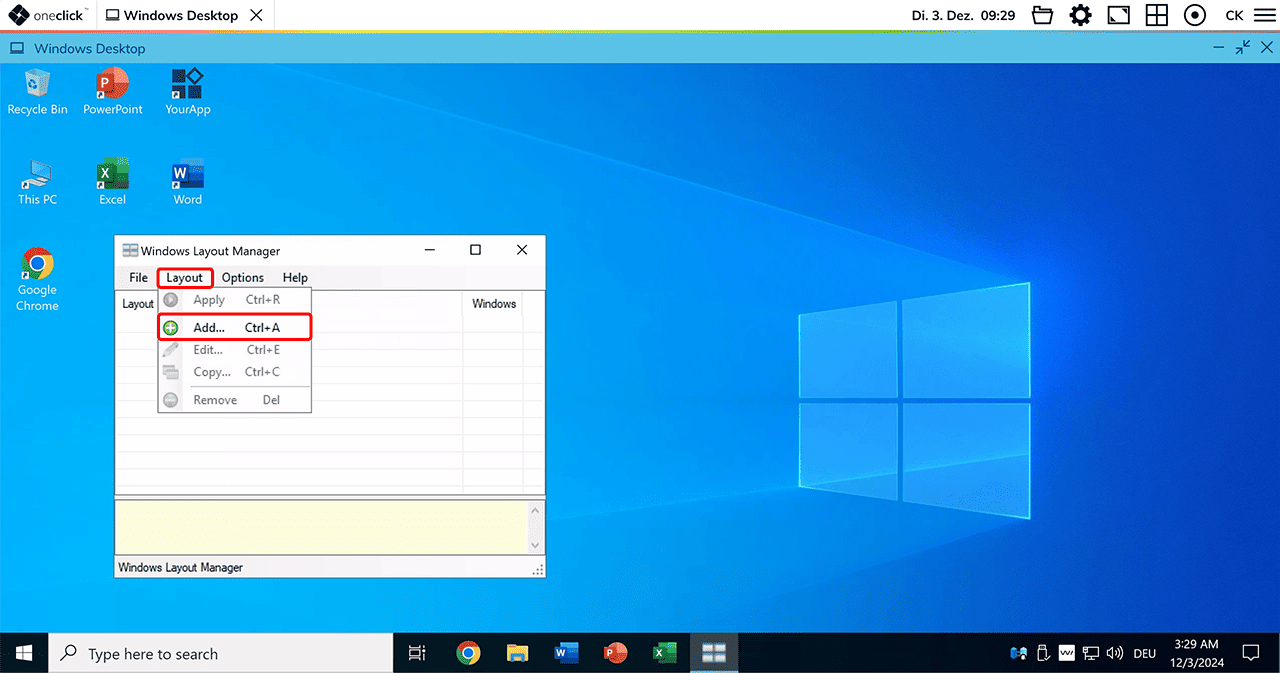
- Create your personal Layout by clicking on Layout and then selecting Add.
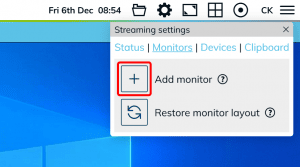
- If not already done, add one or more monitors in the oneclick™ menu.
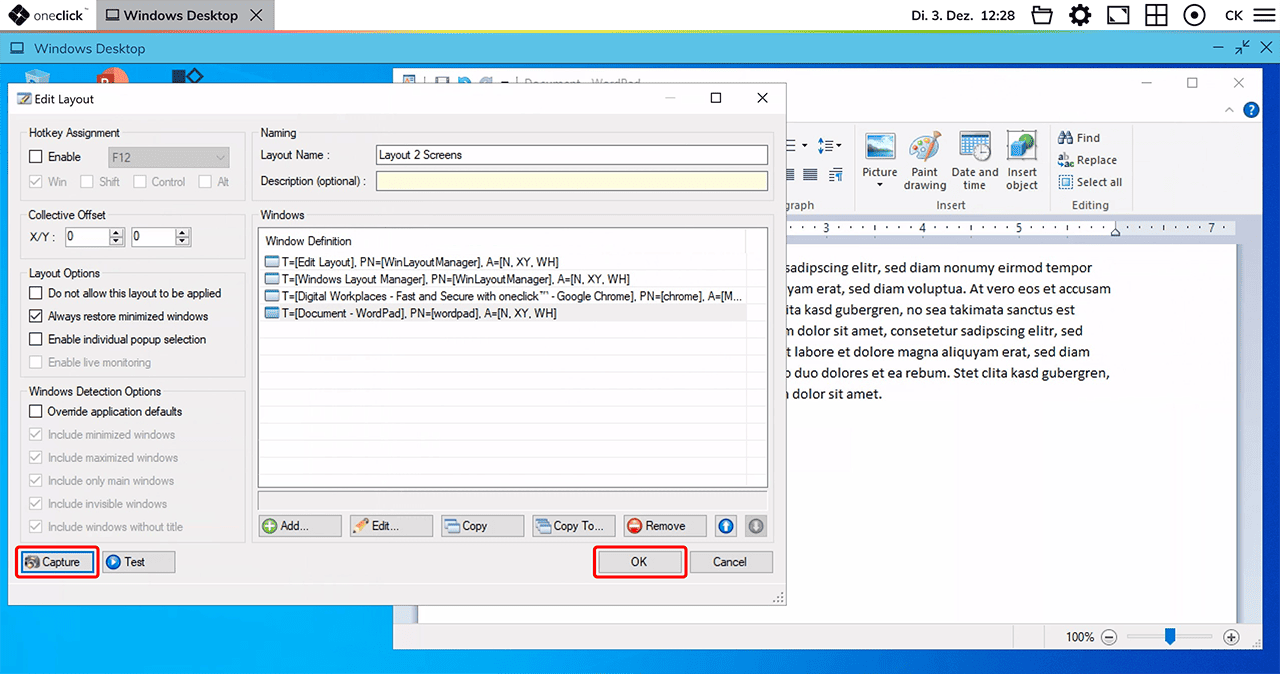
- Arrange the windows on the different monitors as desired and adjust their sizes.
- Click on Capture, and once your layout is saved, you can access and execute it at any time.
3. Executing a Layout
Even if your session is interrupted or you log out and log back in the next day, WiLMA ensures that the windows are restored to their correct monitors and saved positions. All programs that were open when the connection was disconnected will be displayed on the primary monitor, as they are automatically moved there.
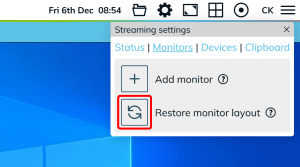
- First open the oneclick™ menu and click on Restore Monitor Layout.
- To allow WiLMA to restore your saved layout, open the programs that belong to the corresponding layout.
- Now execute your saved layout in WiLMA:
- Open the WiLMA application, select your Layout, and click on Apply.
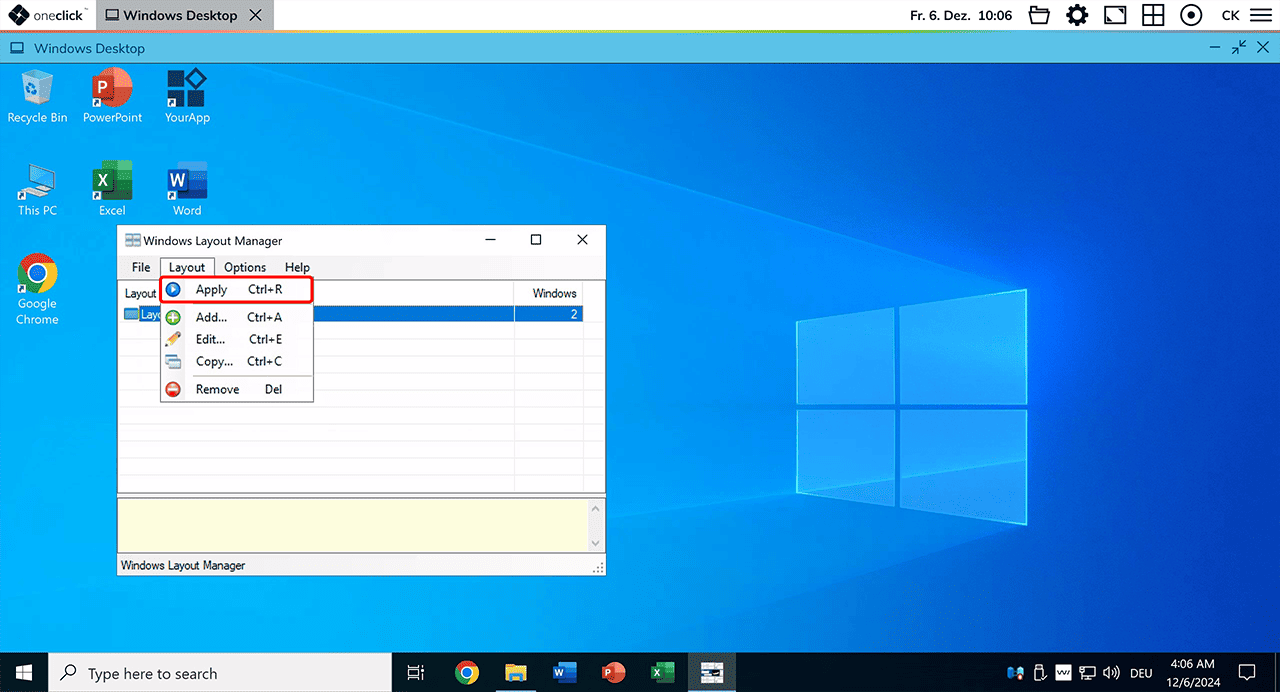
- Open the WiLMA application, select your Layout, and click on Apply.
- After closing WiLMA, a small WiLMA icon will appear in the notification area of the taskbar. You can also start your saved layouts from this icon.
- Right-click on the WiLMA Icon and select the desired layout.
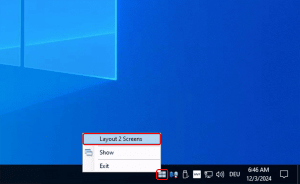
- Right-click on the WiLMA Icon and select the desired layout.
Want to Learn More?
A detailed help file was downloaded along with the program and is located in the folder where you extracted the files. Additionally, the instructions are available online.