Logout
Understand the difference between disconnecting and logging out when you pause or finish your work.
Disconnecting
If you only disconnect (for example, by closing the browser window), your session remains active on the server.
This means:
- Your working environment remains open
- Your progress is preserved
- You can continue working later
Save your work before any interruption to prevent data loss.
How long your session remains active depends on your IT department’s settings.
To disconnect, simply close the browser window or tab in which you are working with oneclick™ by clicking the X.
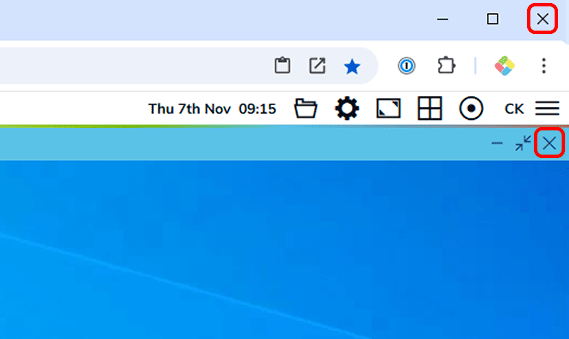
Alternatively, you can log out of oneclick™. However, this does not sign you out of the Windows system. Your session on the remote system remains active.
This means: Logging out of oneclick™ is functionally equivalent to disconnecting.
Logout via oneclick™
-
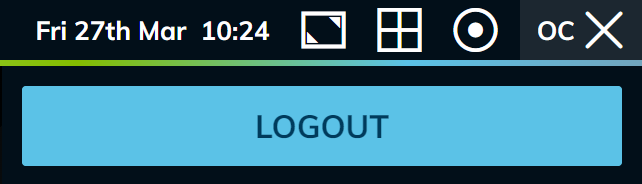
Click the Burger icon (three horizontal lines) in the top right corner.

-
Click Logout.
Sign out of the Windows system
If you sign out of the Windows system, your session is completely terminated.
All applications and windows in oneclick™ are closed, and unsaved changes will be lost.
We recommend signing out if you are taking a longer break (for example, at the end of the workday, over the weekend, or during extended breaks).
To sign out, follow these steps:
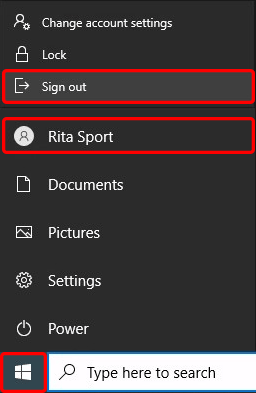
- Click Start and then your Username.
- Select Sign out.
- Your user session is now terminated.
If you are unsure which approach is best for your situation, contact your IT department.