Secure Browser
You have selected the product Secure Browser under Marketplace. Now configure the license settings.
If you have not selected the product yet, start with the Marketplace license.
Request a Secure Browser license
- Enter a Name for the license.
- If required, enable the Webcam redirection add-on.
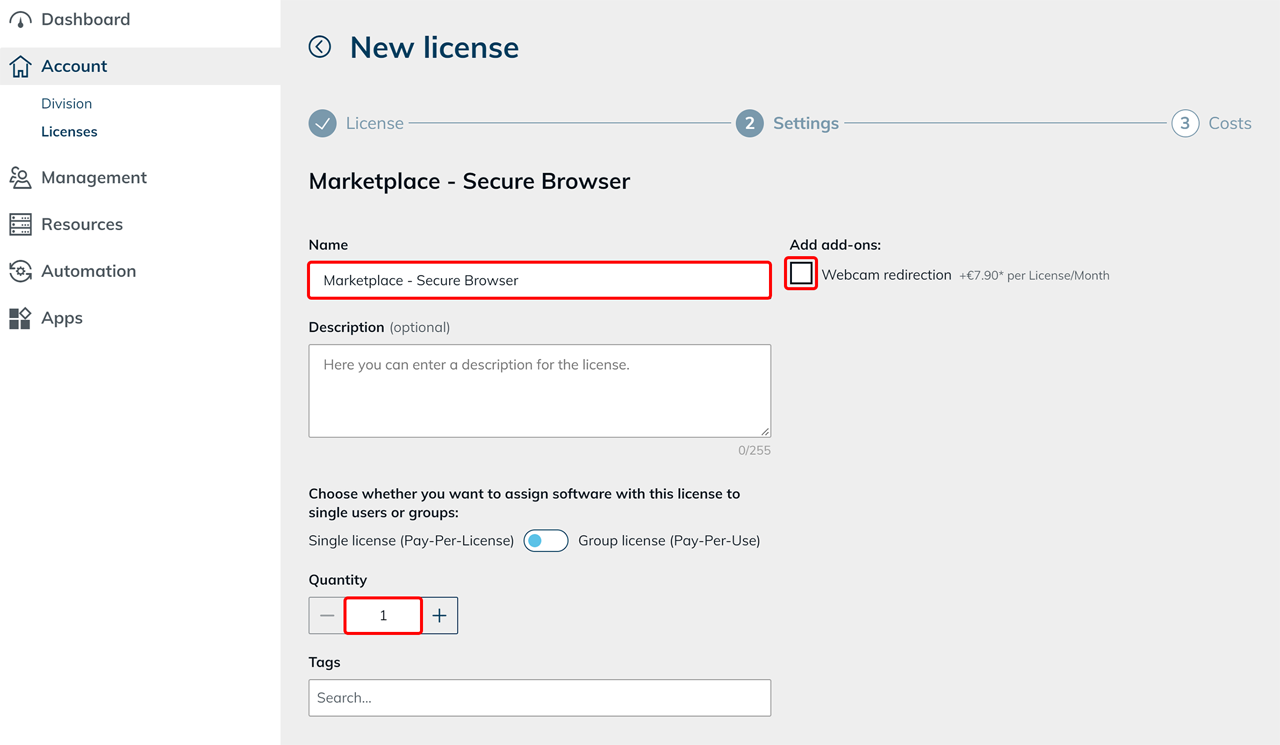
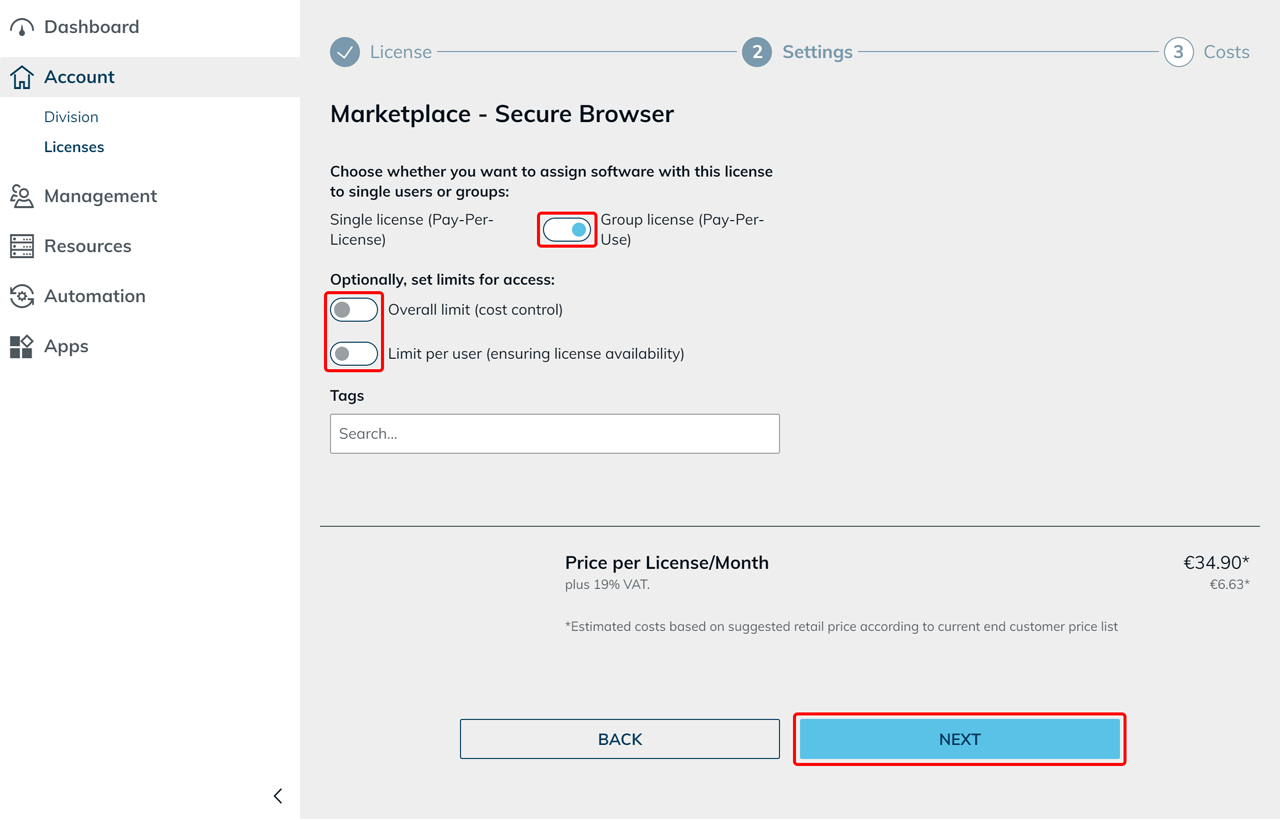
- Choose whether you want to assign the license to single users or groups:
- Single license (Pay-Per-License): Set the desired Quantity.
- Group license (Pay-Per-Use): If required, set an Overall limit (cost control) and a Limit per user (ensuring license availability).
- Click Next.
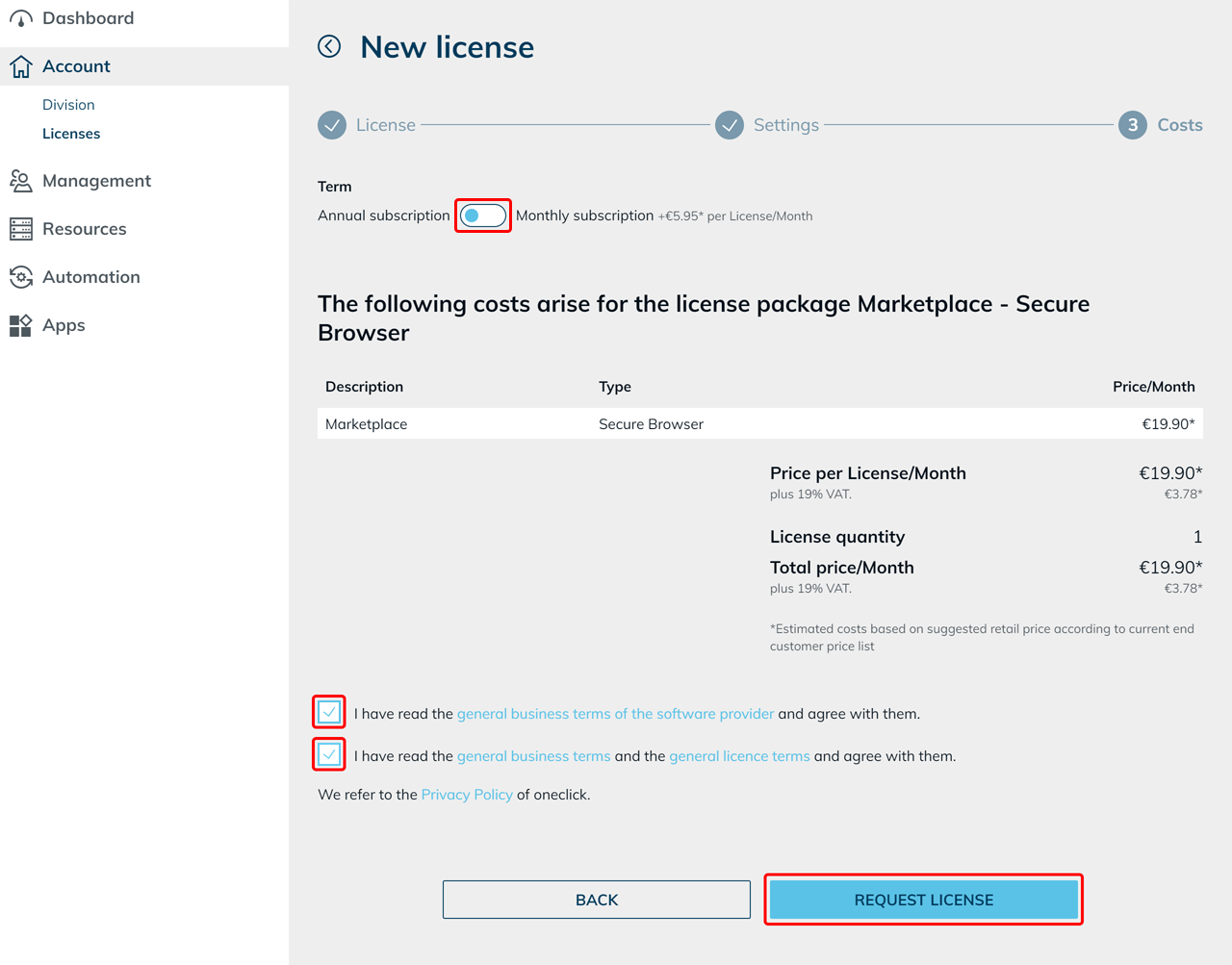
- Select the term Annual subscription or Monthly subscription and review the cost overview.
- Accept the general business terms of the software provider as well as the general business terms and the general licence terms by selecting both checkboxes.
- Click Request License.
Create an app configuration
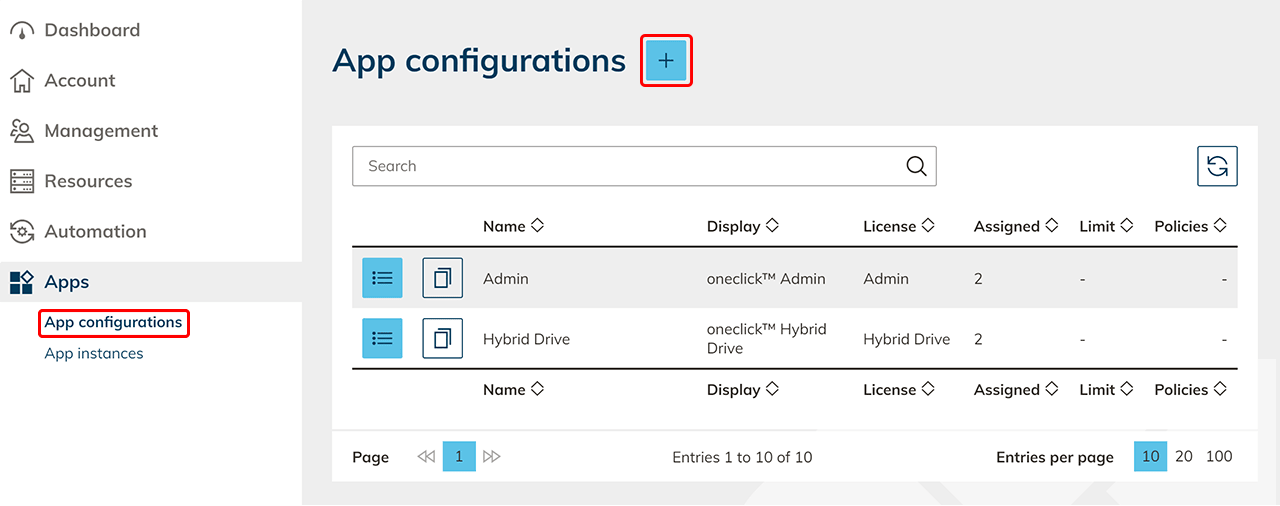
- Click Apps in the menu, and then click App configurations.
- Click the Plus icon.
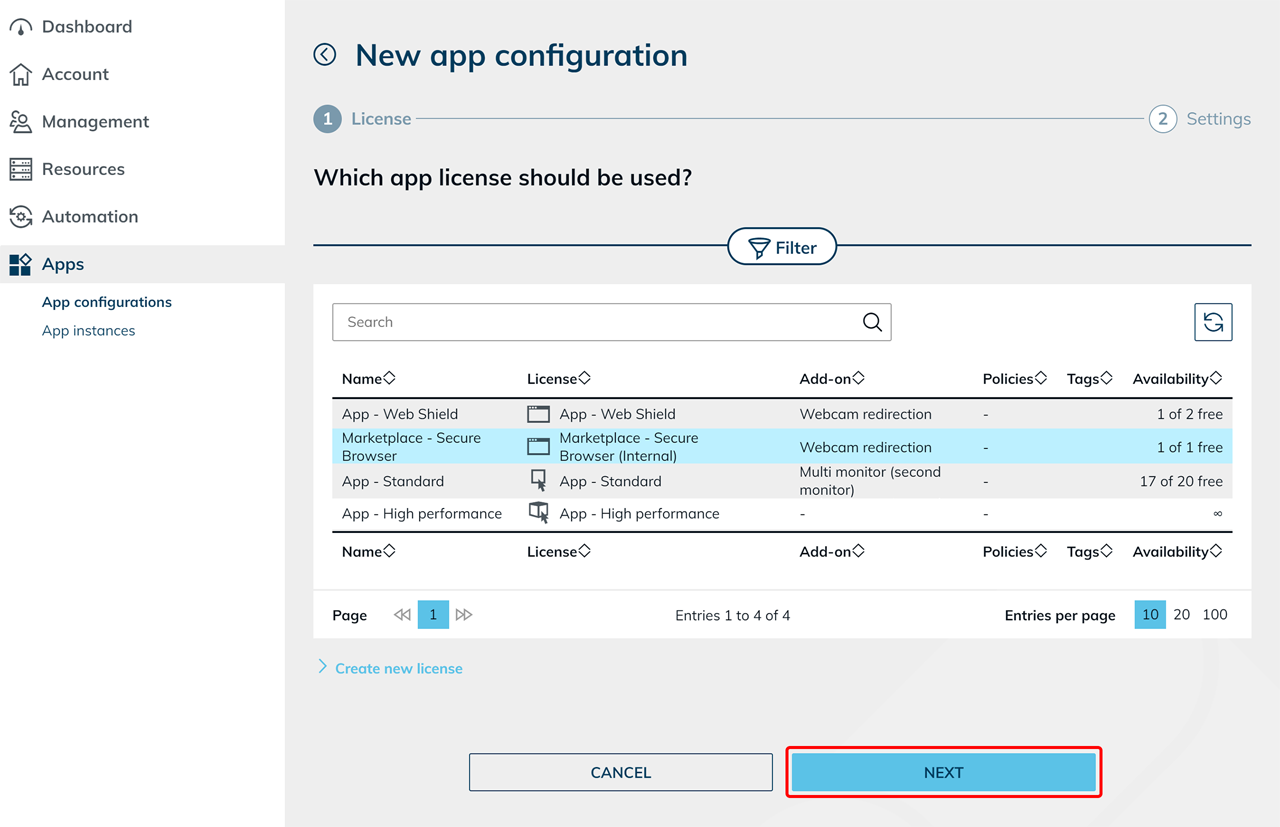
- Select your Marketplace license for Secure Browser and click Next.
- Enter a Name for the app configuration.
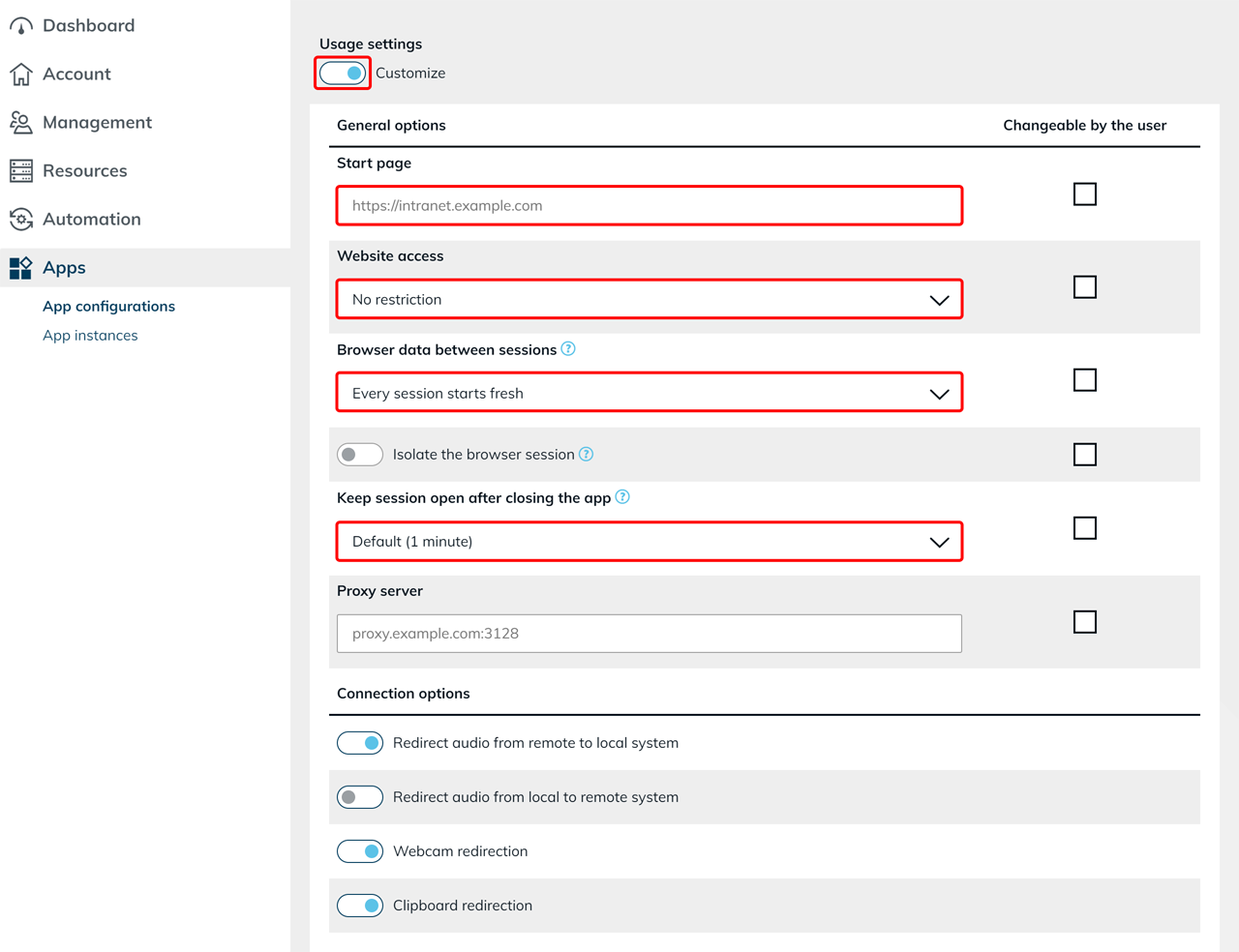
- Under Usage settings, enable the Customize option and then configure the desired settings.
Users whose user license includes the oneclick™ Desk can adjust approved usage settings themselves. This requires Edit app settings (login data, access and app-specific settings) to be enabled on the app tile. To do this, enable Changeable by the user for the desired options. For more information, see Changeable by the user.
General options:
- Start page: Enter the URL of the website that opens when the Secure Browser starts. If Keep cookies, logins and tabs is selected under Browser data between sessions, the most recently opened tabs open instead. Without an entry, google.com opens.
- Website access: Specify which websites users are allowed to open. Select "No restriction", "Allow only these addresses", or "Allow all addresses except these". For the last two options, enter the desired addresses in the Addresses, one per line field.
example.comincludes all subdomains,.example.comonly the domain itself. With Allow only these addresses, the start page always remains allowed. With Allow all addresses except these, the Secure Browser also blocks an entered start page. - Browser data between sessions: Select Every session starts fresh (default) or Keep cookies, logins and tabs to keep cookies, website logins, and open tabs for later sessions. This also keeps passwords that users save in the browser—unless you also enable Isolate the browser session.
- Isolate the browser session: Blocks Chrome sign-in and sync, the password manager, guest and additional profiles, and all third-party extensions in the Secure Browser. The Secure Browser deletes saved passwords at every session start. The change applies from the next session.
- Keep session open after closing the app: Specify how long the session remains open after the app is closed. Select Default (1 minute), 2 minutes, 10 minutes, 1 hour, or 2 hours.
- Proxy server: If required, enter the address of a proxy server, e.g.,
proxy.example.com:3128. The fields Proxy user, Proxy password, and Addresses without proxy, one per line then appear. If you leave the user and password empty, the Secure Browser asks the user for the credentials.
Connection options:
Enable or disable the desired connection functions:
- Redirect audio from remote to local system: Transfers the sound of the Secure Browser to the local device.
- Redirect audio from local to remote system: Allows the local microphone to be used in the Secure Browser.
- Webcam redirection: Allows users to use their local webcam in the Secure Browser. The option is available if the Secure Browser license includes the Webcam redirection add-on.
- Clipboard redirection: Allows text and images to be copied and pasted between the local device and the Secure Browser in both directions. Users transfer files via file transfer. Not every browser transfers images; Firefox only transfers text.
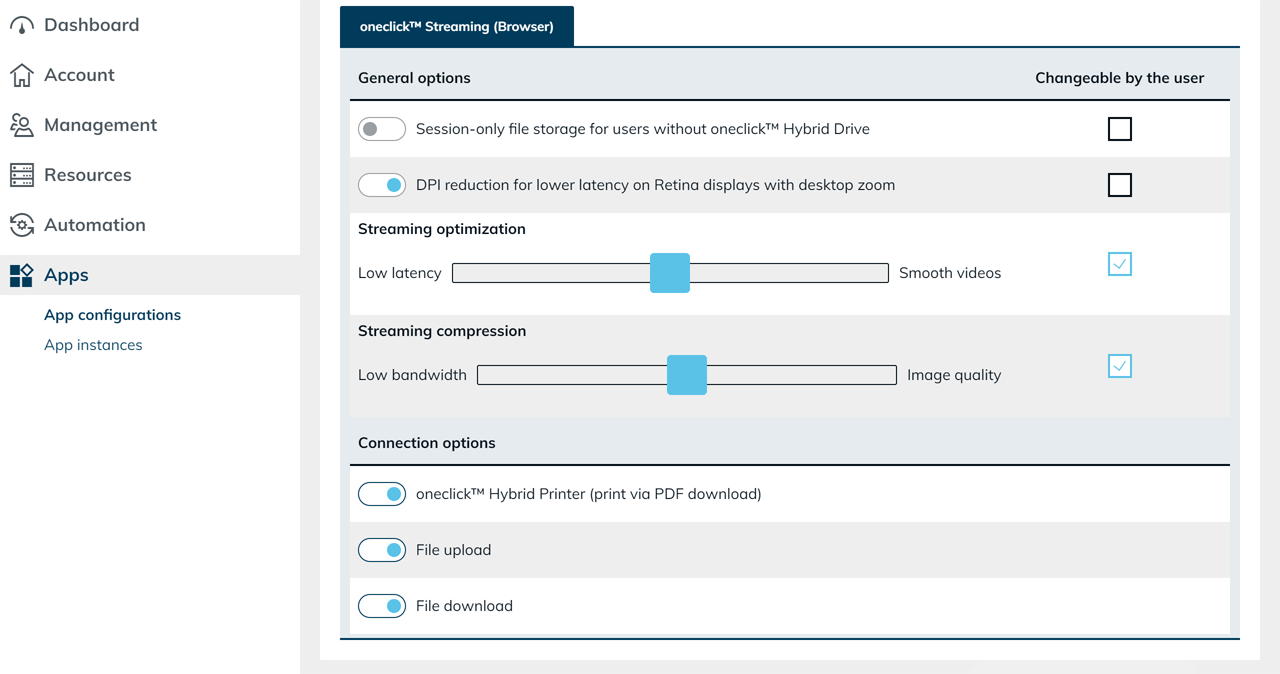
oneclick™ Streaming (Browser):
- Session-only file storage for users without oneclick™ Hybrid Drive: Provides users without oneclick™ Hybrid Drive with temporary file storage that only exists until the end of the session. Printing, uploading, and downloading only work with oneclick™ Hybrid Drive or with this option. If neither is available, there is no printer and no Upload data button, and downloads do not arrive on the local device. The option is disabled by default.
- DPI reduction for lower latency on Retina displays with desktop zoom: Reduces the display resolution on these displays to lower the latency.
- If required, adjust the streaming settings.
- oneclick™ Hybrid Printer (print via PDF download): Allows websites to be printed as a PDF file. The Secure Browser automatically transfers the PDF file to the local device. If the function is disabled, printing is not available.
- File upload: Allows users to transfer files from their local device to the Hybrid App Share. If the function is disabled, the Upload data button does not appear.
- File download: Allows users to download files from websites to their local device. If the function is disabled, the Secure Browser blocks these downloads.
The PDF printer works independently of the File download setting.
If you enable the PDF printer, users can download generated PDF files to their local device even if you have disabled regular file downloads.
Also disable the PDF printer if users must not transfer PDF files via this function either.
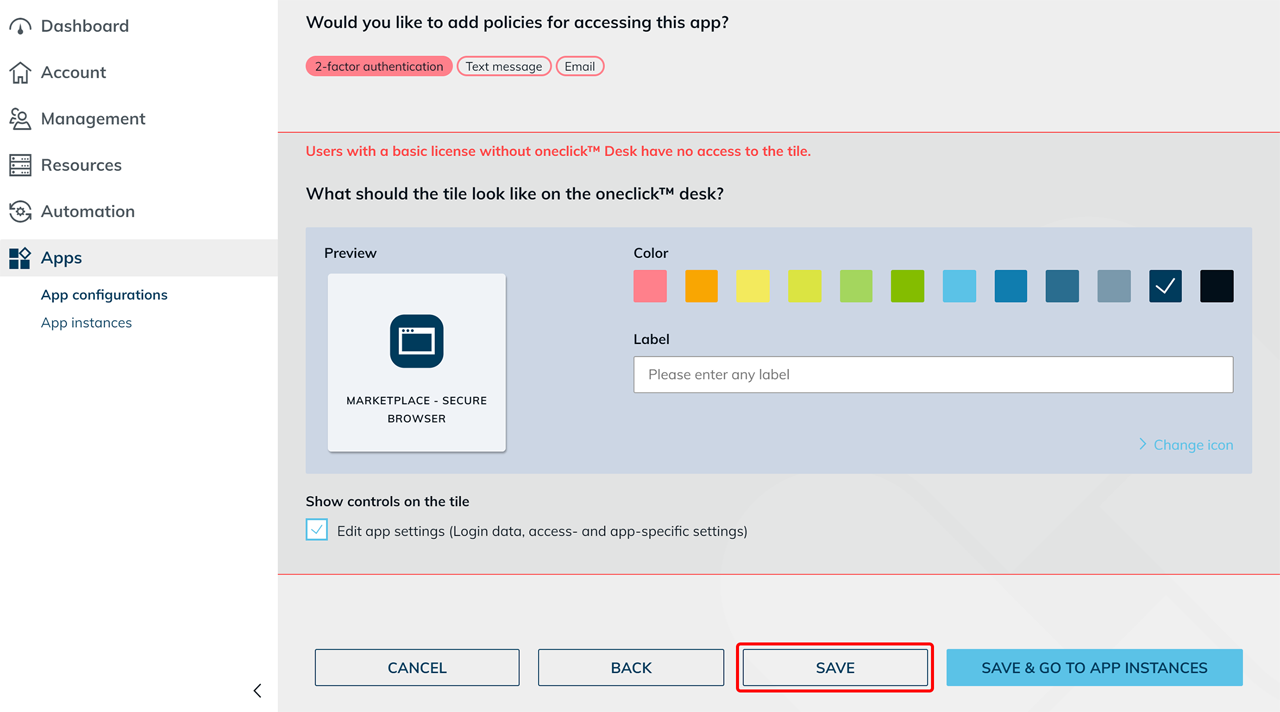
Changes to the Secure Browser settings apply from the next session. After closing, a session remains open for the time selected under Keep session open after closing the app. Only then does the Secure Browser start with the changed settings. Inform your users about this waiting time.
If you select Every session starts fresh again under Browser data between sessions, oneclick™ immediately ends all running sessions of this app and deletes the saved browser data.
Assign an app instance
Assign the app to the intended users or groups using Create app instances for users.
To learn which functions are available to your users in the Secure Browser and how your approvals and restrictions affect usage, see Working in the Secure Browser.