Create destination pools
A destination pool is a collection of related destinations. One or more destinations can be assigned to a destination pool.
You can then provide these as an Entire desktop, as a Single program (RDP) or as a Shell / Console.
Destination pools enable the central management of multiple destinations.
After creation, you can define default destinations and store default credentials for them. In addition, oneclick™ offers the option to activate dynamic load balancing for your destination pools and thus adjust the system utilization to your requirements.
To proceed, at least one destination must exist.
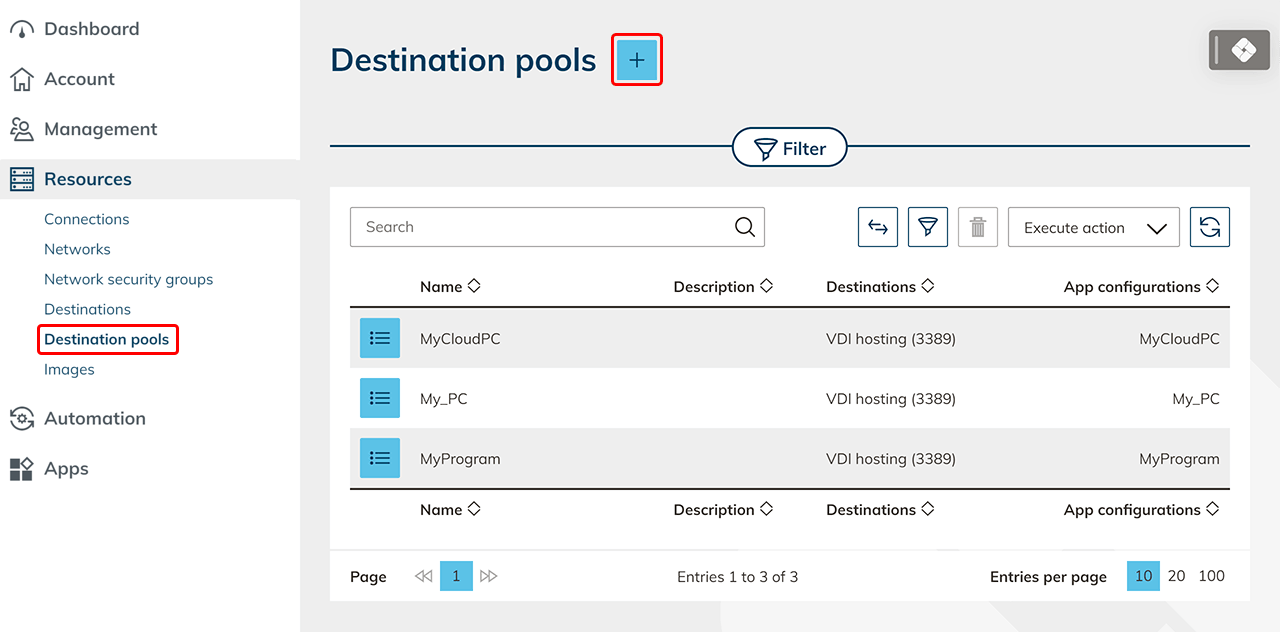
- Open Resources in the oneclick™ menu, select Destination pools, and click the Plus icon.
- Select the destinations from the list that you want to add to the Destination pool and click Next. :::note Port and protocol configuration
Make sure that all destinations within a destination pool use the same connection port and the same protocol.
This port is used to establish the connection to the resource.
:::
For cloud resources created in oneclick™, RDP over port 3389 is used by default for oneclick™ streaming.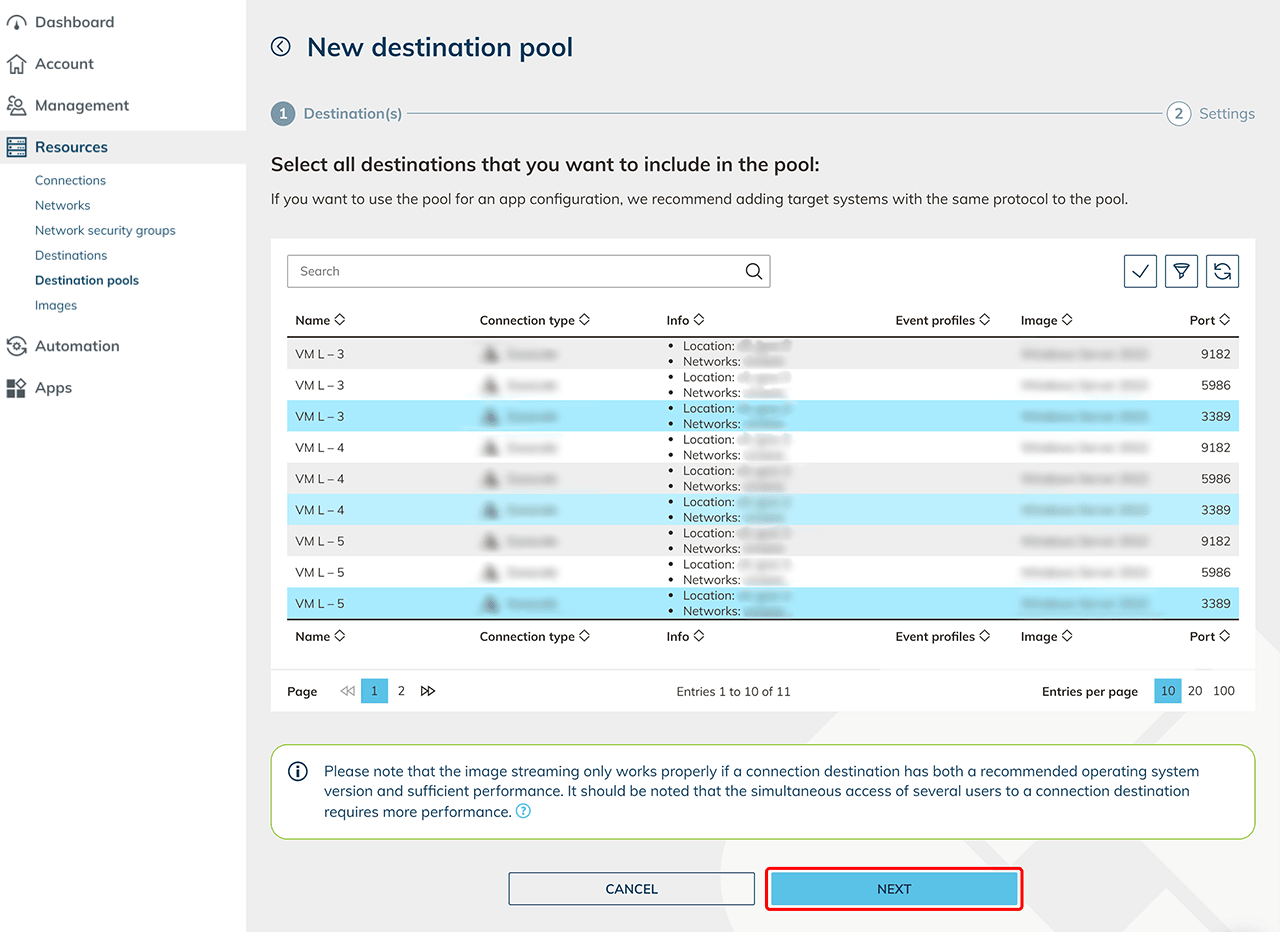
- Assign any Name to the new destination pool and Save your entries.
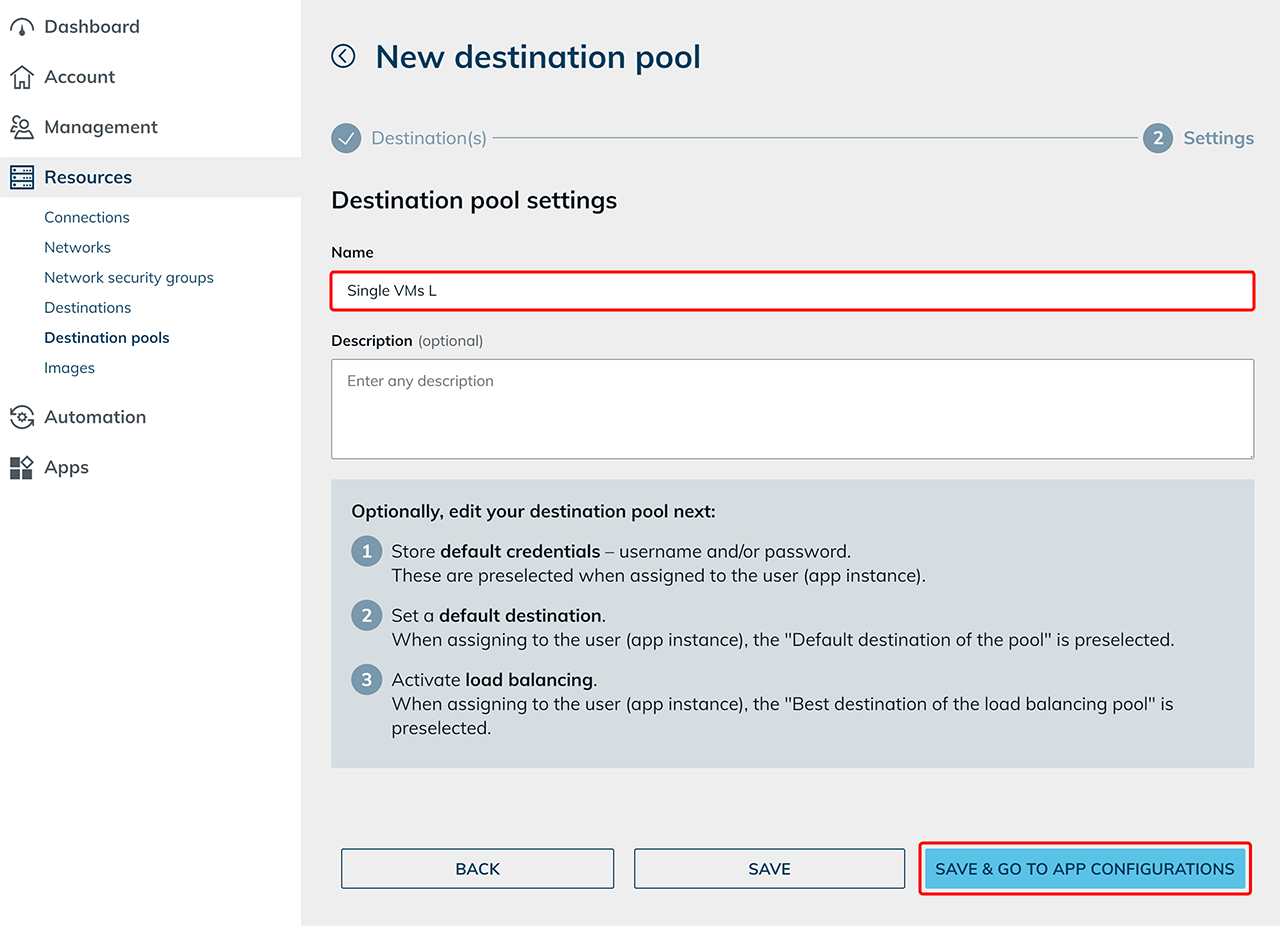
- If you want to access the destinations via oneclick™ streaming, configure the app access…
- … and then create app instances for your oneclick™ users.
- Enable load balancing to optimize the utilization of your systems. (optional)
Edit destinations in a destination pool
You can add or remove destinations from an existing destination pool at any time.
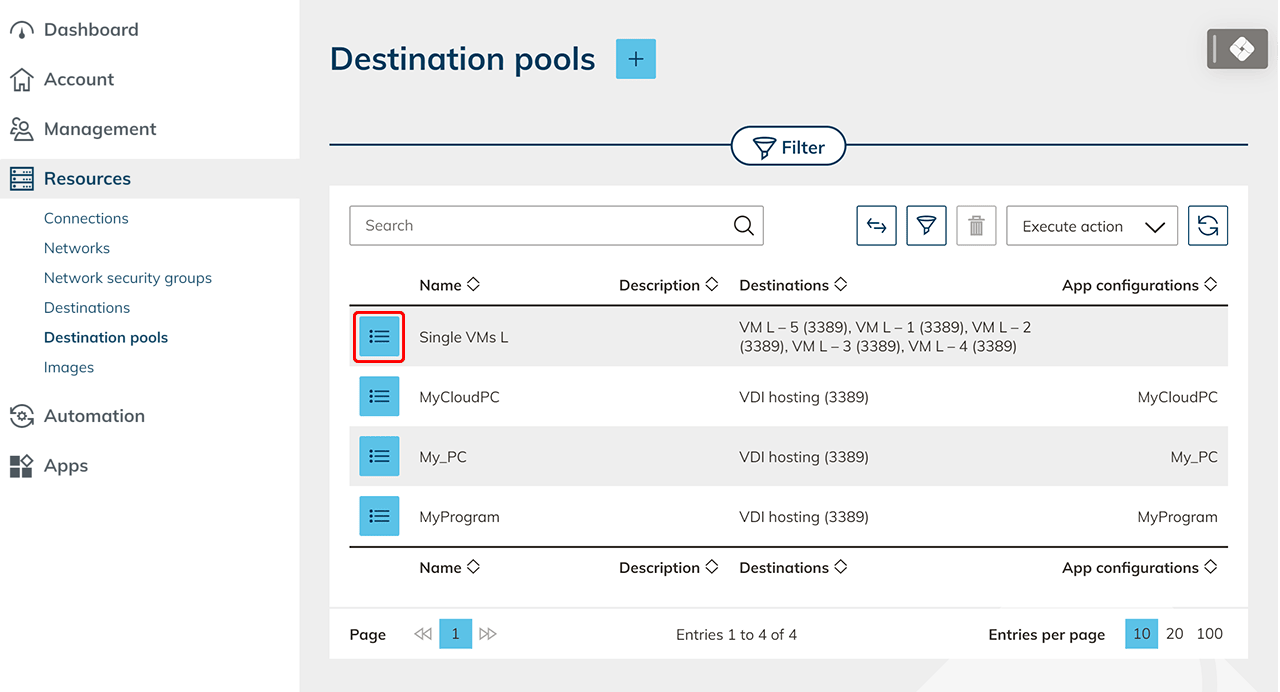
- Open Destination pools in the Resources menu.
- Click the List icon to open the detail view of the desired Destination pool.
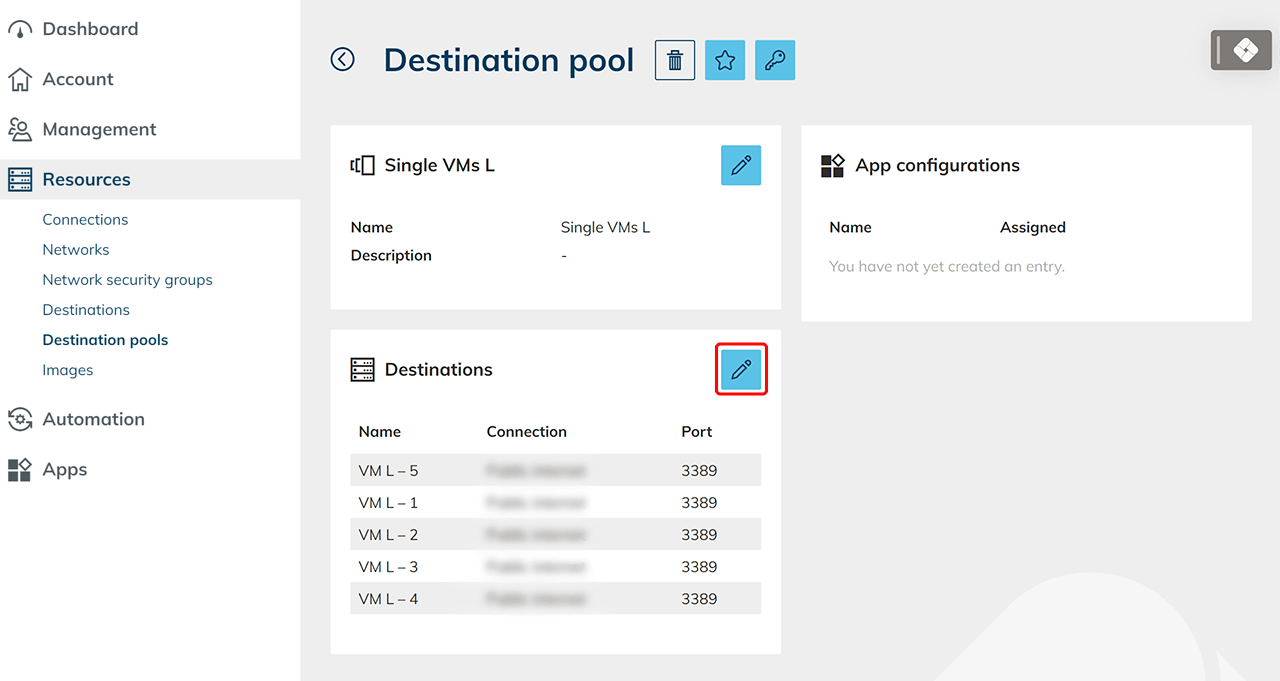
- In the "Destinations" tile, click the Pencil icon.
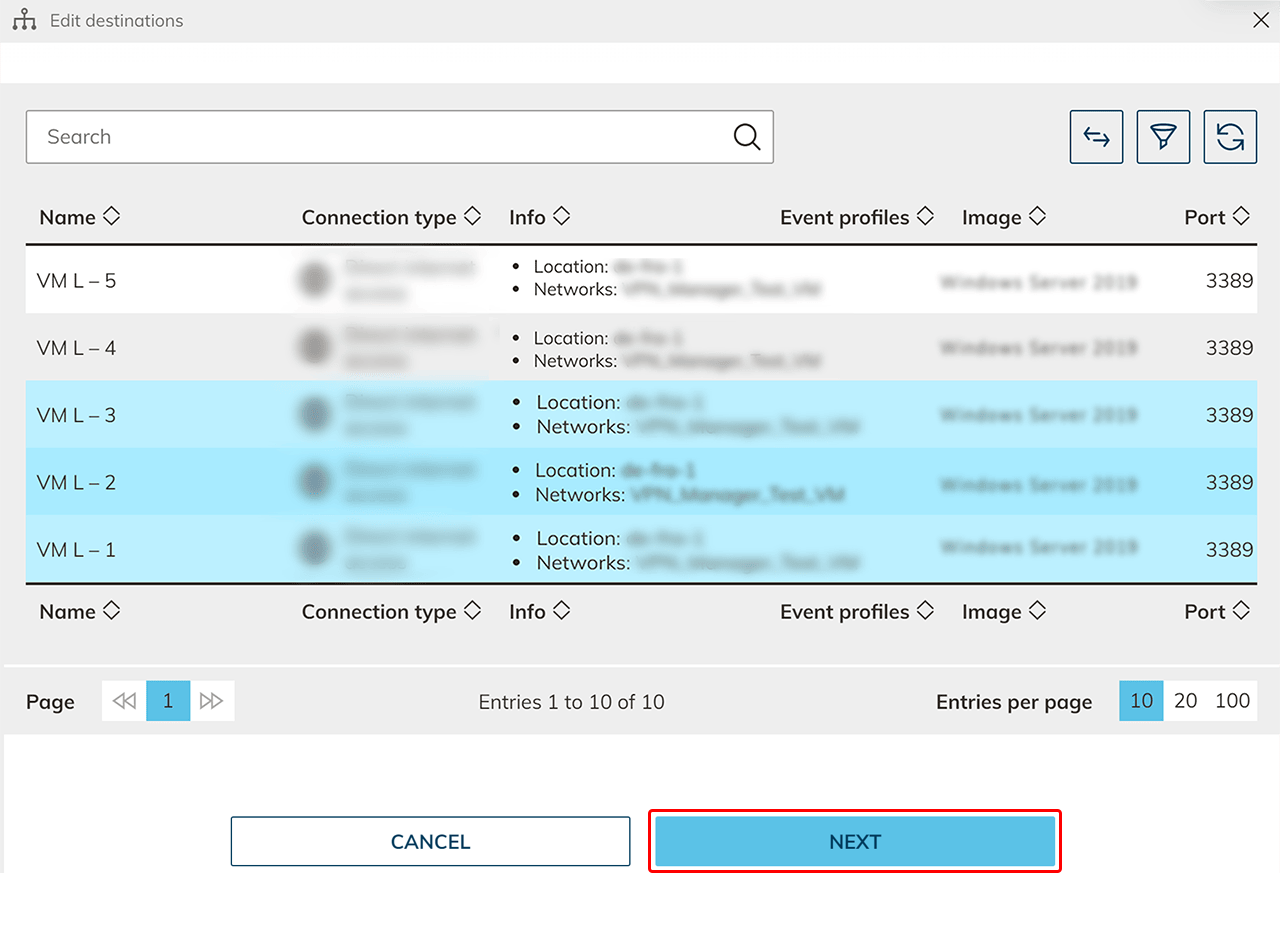
- Adjust the selection of destinations:
-
Enable destinations that you want to add.
Pay attention to the port and protocol configuration. -
Disable destinations that you want to remove.
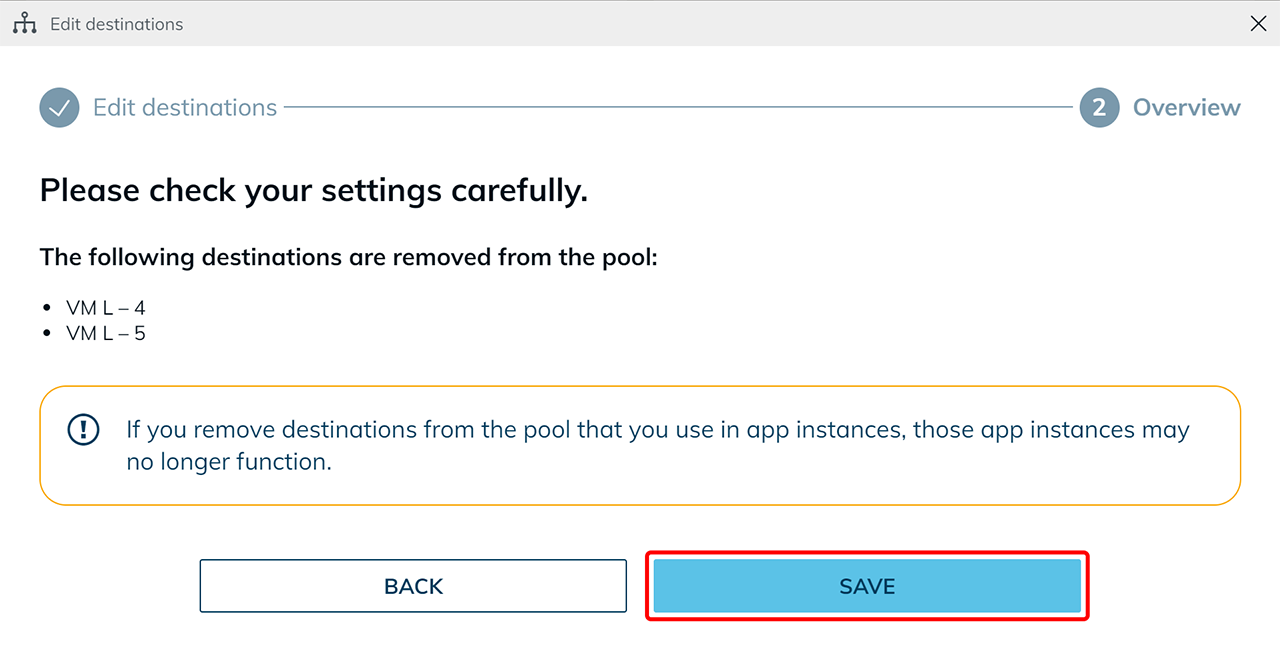
Impact on app instancesIf a destination is removed that is already used in an app instance, this app instance will no longer be functional.
- Click Next.
- Click Save.
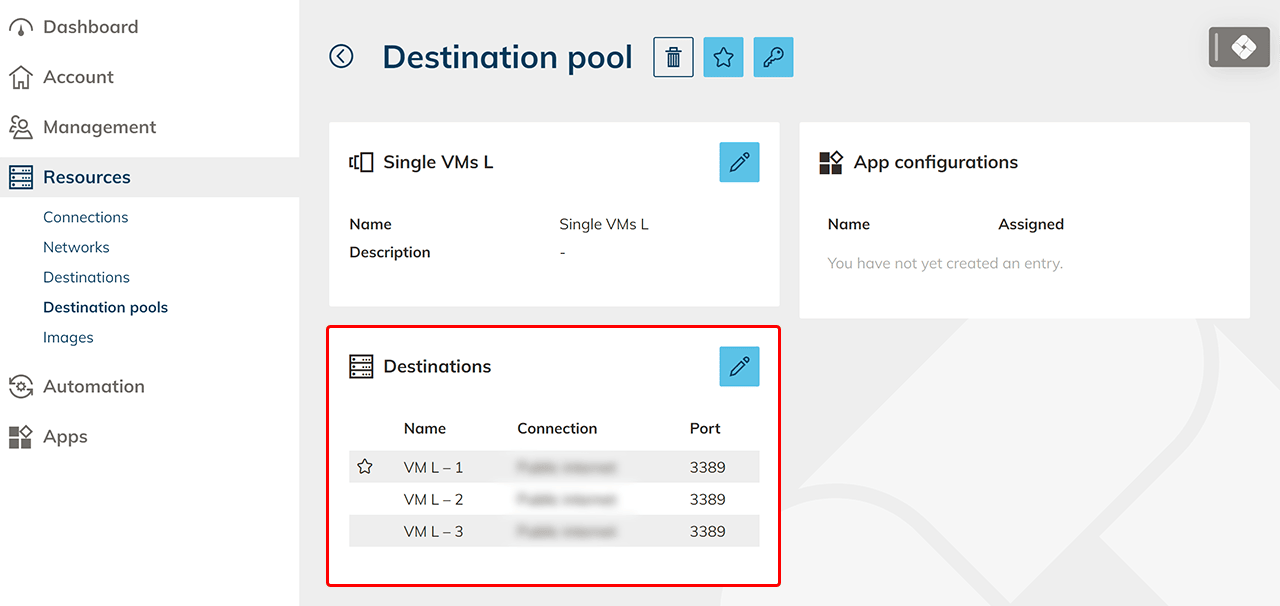
An overview of all destinations contained in the destination pool can be found in the Destinations tile.