Public website with Web Shield
With oneclick™ Web Shield, you provide a public website or Web App in an isolated session. For this setup, you need a Web Shield license. The article App license describes how to request the license. Web Shield calls the website directly over the internet, so you do not need a connection or VPN.
Create an app configuration
- Click Apps in the menu, and then click App configurations.
- Click the Plus icon.
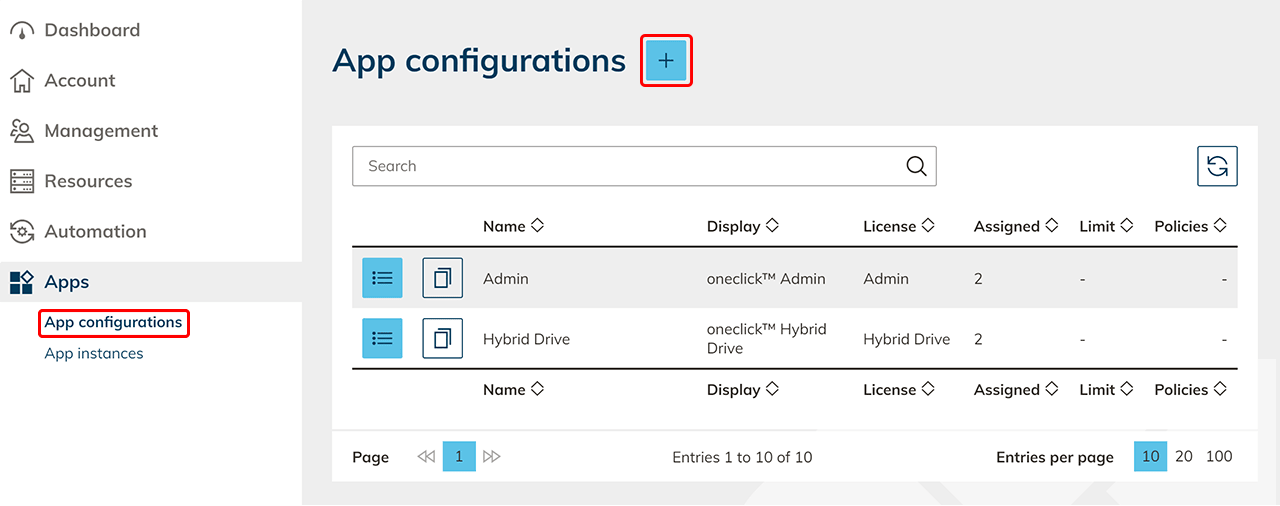
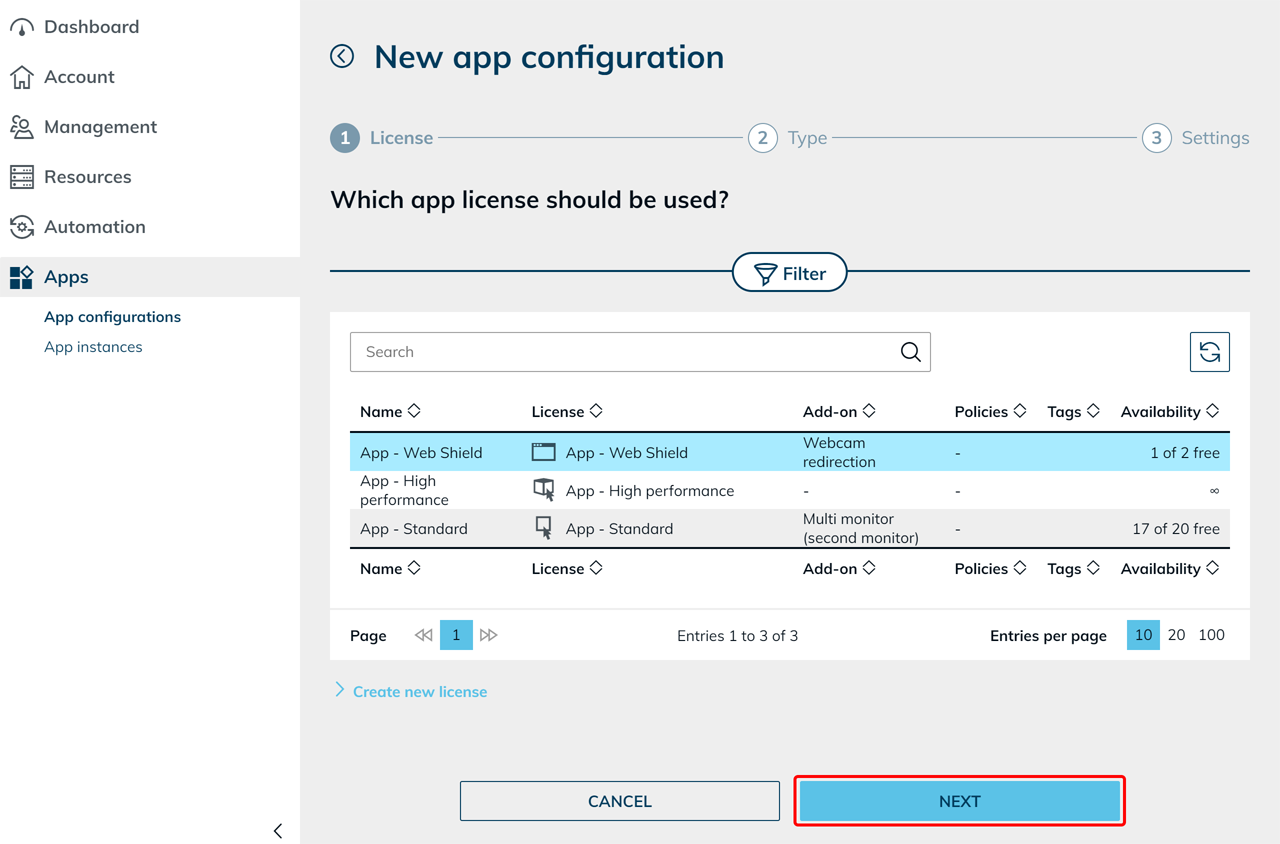
- Select your Web Shield license and click Next.
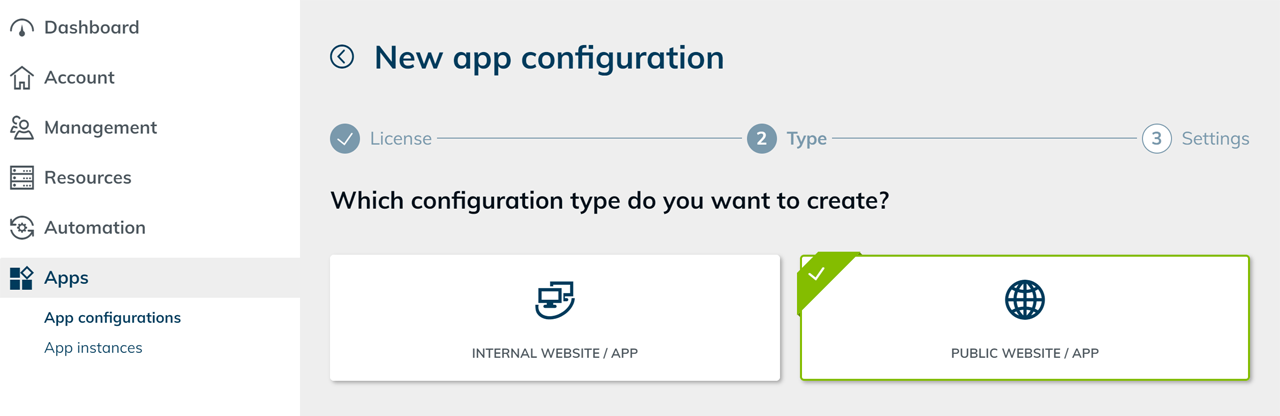
- Select the configuration type Public website / app.
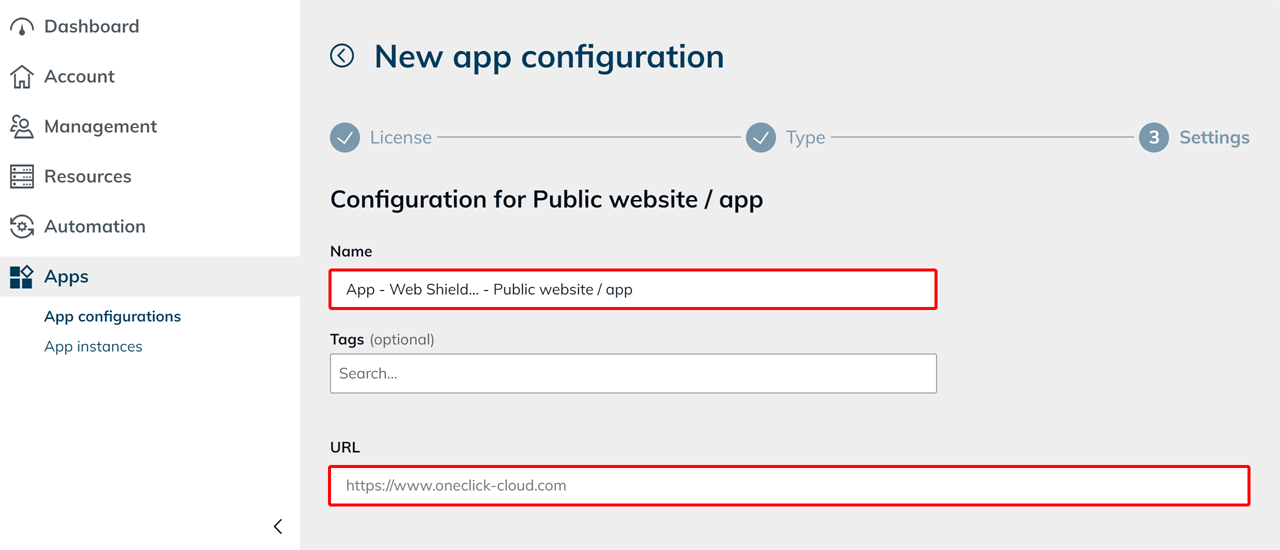
- Enter a Name for the app configuration.
- If required, add Tags.
- Under URL, enter the full address of the public website. The URL is a required field.
- Under Login when starting the app, specify how users can use their login data:
- Allow login data to be entered when starting the app: Users can enter their login data when starting the app.
- Allow saving of login data: Users can save their login data.
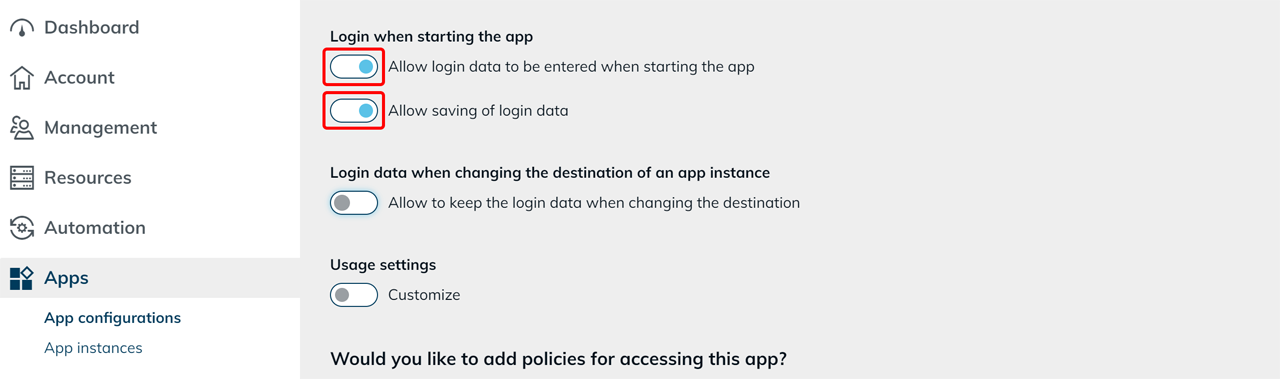 If users are to enter their credentials themselves when starting the app, leave the fields for user name and password empty during the app assignment.
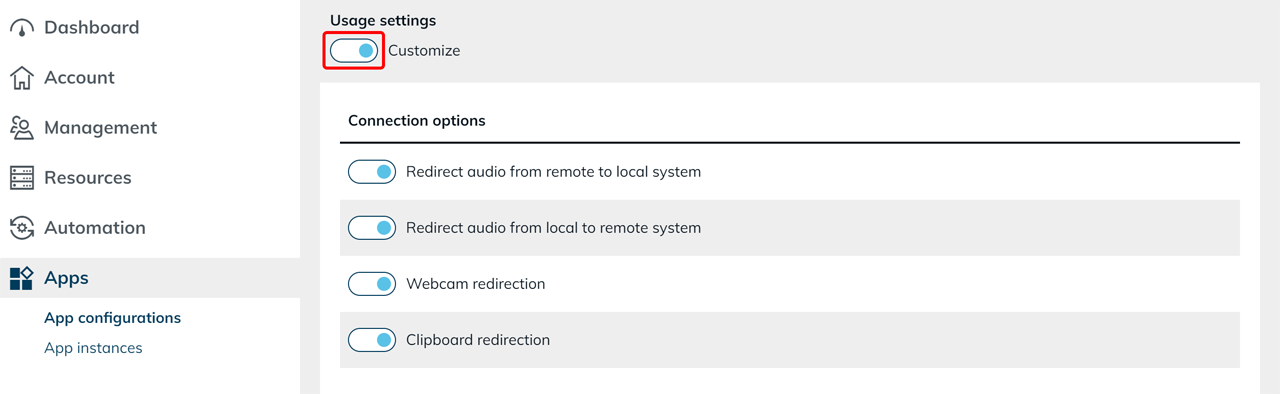
- Under Usage settings, enable the Customize option and then configure the desired settings.
Users whose user license includes the oneclick™ Desk can adjust approved usage settings themselves. This requires Edit app settings (login data, access and app-specific settings) to be enabled on the app tile. To do this, enable Changeable by the user for the desired options. For more information, see Changeable by the user.
- Connection options:
Enable or disable the desired connection functions:- Redirect audio from remote to local system: Transfers the sound of the Web Shield app to the local device.
- Redirect audio from local to remote system: Allows the local microphone to be used in the Web Shield app.
- Webcam redirection: Allows users to use their local webcam in the Web Shield app. The option is available if the Web Shield license includes the Webcam redirection add-on.
- Clipboard redirection: Allows text and images to be copied and pasted between the local device and the Web Shield app in both directions. Users transfer files via file transfer.
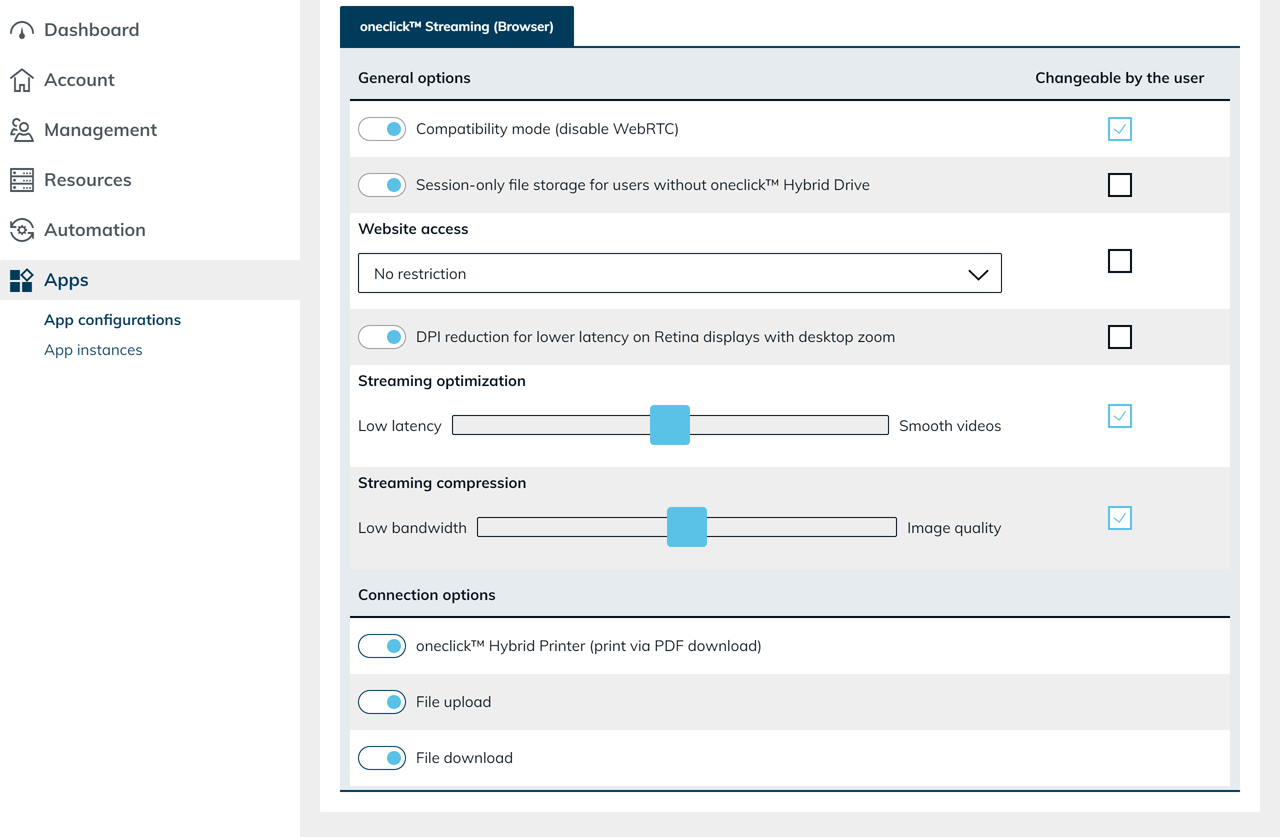
- oneclick™ Streaming (Browser):
- Compatibility mode (disable WebRTC): Enable this option to disable WebRTC for the streaming connection.
- Session-only file storage for users without oneclick™ Hybrid Drive: Provides users without oneclick™ Hybrid Drive with temporary file storage that only exists until the end of the session. Printing, uploading, and downloading only work with oneclick™ Hybrid Drive or with this option. If neither is available, there is no printer and no Upload data button, and downloads do not arrive on the local device. The option is disabled by default.
- Website access: Specify which websites users are allowed to open:
- No restriction: Allows access to other websites.
- Allow only these addresses: Allows access exclusively to the entered addresses.
- Allow all addresses except these: Blocks access to the entered addresses.
For the last two options, enter the desired addresses in the Addresses, one per line field.example.comincludes all subdomains,.example.comonly the domain itself. With Allow only these addresses, the start address of the app always remains allowed. With Allow all addresses except these, Web Shield also blocks an entered start address. Web Shield blocks navigation to addresses that are not approved.
- DPI reduction for lower latency on Retina displays with desktop zoom: Reduces the display resolution on these displays to lower the latency.
- If required, adjust the streaming settings.
- oneclick™ Hybrid Printer (print via PDF download): Allows websites to be printed as a PDF file. The Web Shield app automatically transfers the PDF file to the local device. If the function is disabled, printing is not available.
- File upload: Allows users to transfer files from their local device to the Hybrid App Share. If the function is disabled, the Upload data button does not appear.
- File download: Allows users to download files from websites to their local device. If the function is disabled, Web Shield blocks these downloads.
The PDF printer works independently of the File download setting.
If you enable the PDF printer, users can download generated PDF files to their local device even if you have disabled regular file downloads.
Also disable the PDF printer if users must not transfer PDF files via this function either.
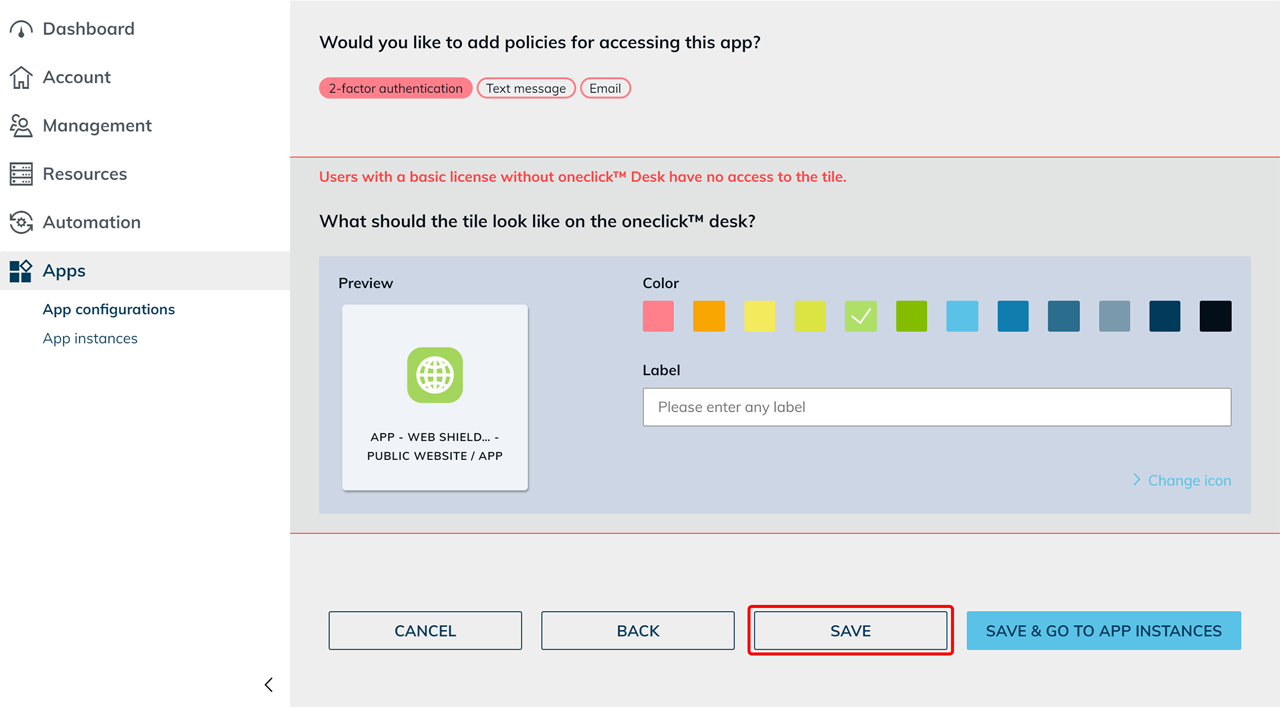
Assign an app instance
Assign the app to the intended users or groups using Create app instances for users.
Changes to the app configuration settings apply from the next session. If you change the URL, oneclick™ immediately ends all running sessions of this app.
Allowlisting Web Shield on the website
Web Shield opens public websites through a oneclick™ proxy, not from the data centre's own IP address. If the website only accepts requests from known IP addresses, add the proxy IP address of the data centre where your oneclick™ account is located to its allowlist.
Not sure which is the correct data centre? Check your system data.
| Datacenter | Proxy IP address |
|---|---|
| Germany – Central | 178.104.126.231 |
| Switzerland – Zurich New | 178.104.126.231 |
| USA East Coast – Ashburn | 5.161.209.119 |