Public website without Web Shield
You can set up public websites and web apps in oneclick™ as app configurations and assign them to specific users or groups. This gives your users access to the desired web apps through their assigned apps.
The website opens within oneclick™ or, alternatively, in an external browser window. To set it up, you need an app license.
Access in an isolated session
With this app configuration, access takes place without an isolated session.
To access a website in an isolated session, create an app configuration with Web Shield.
Create an app configuration
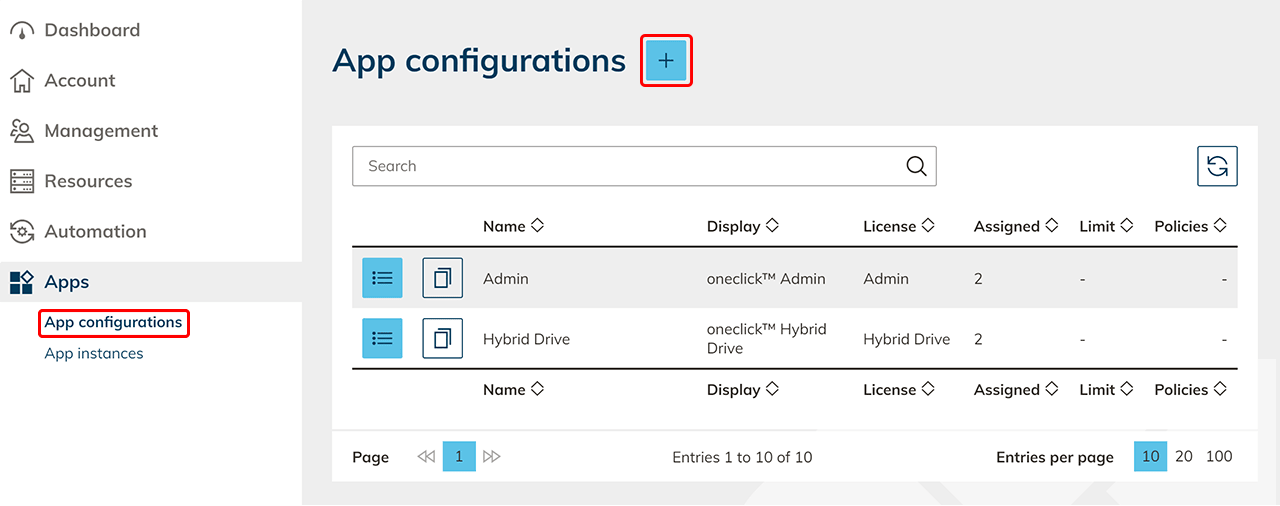
- Click Apps in the menu, and then click App configurations.
- Click the Plus icon.
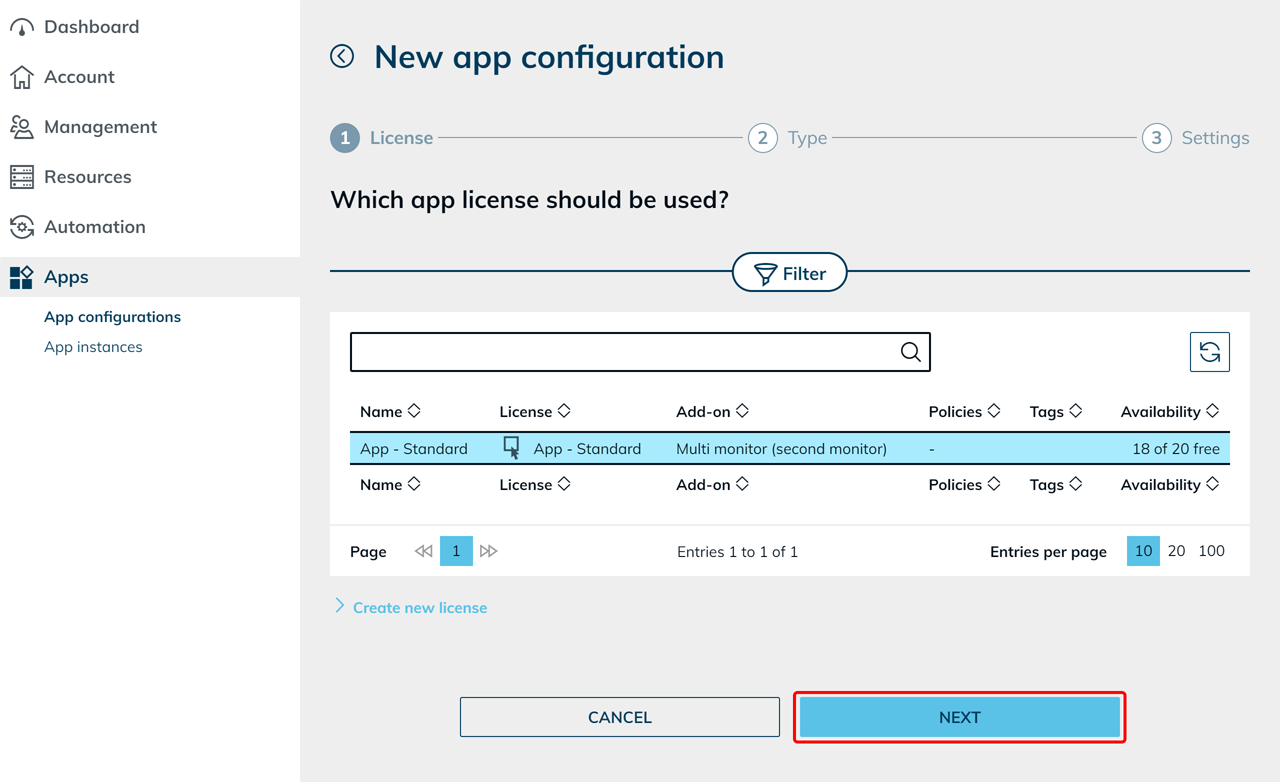
- Select the desired app license and click Next.
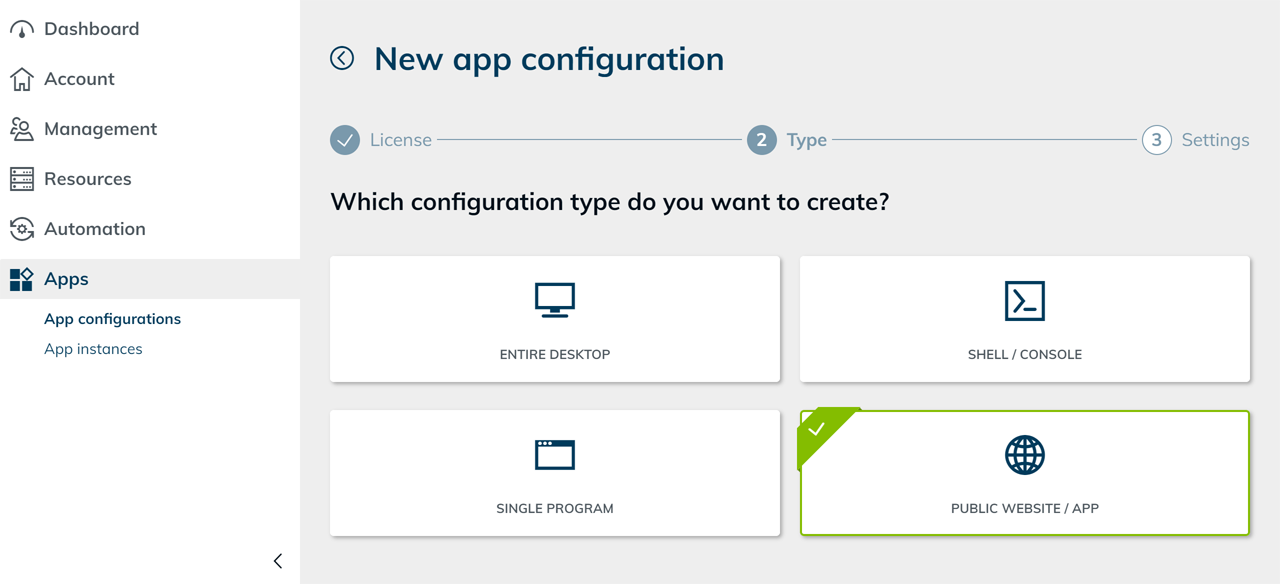
- Select the configuration type Public website / app.
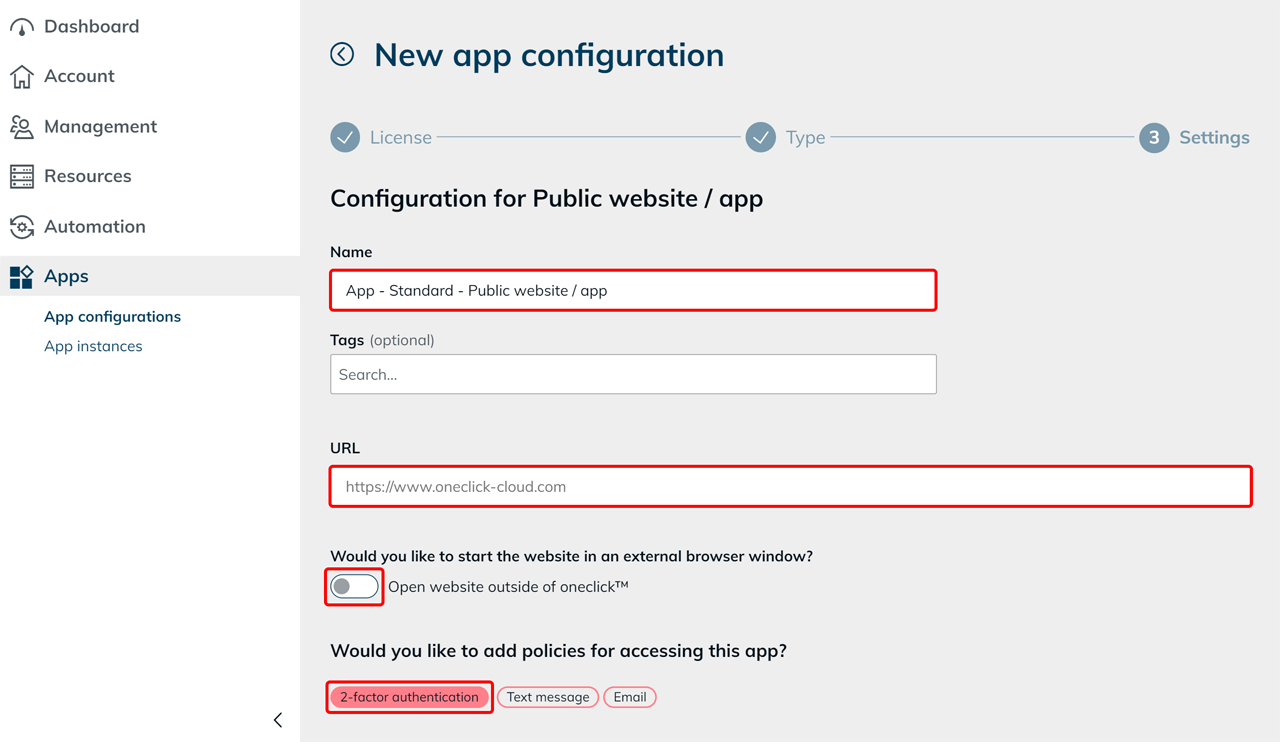
- Enter a Name for the app configuration.
- Enter the full address of the public website under URL.
- Enable Open website outside of oneclick™ if you want the website to open in an external browser window.
Enable this option especially if the website does not allow itself to be displayed in an iframe. - Add policies if you want to secure app access further.
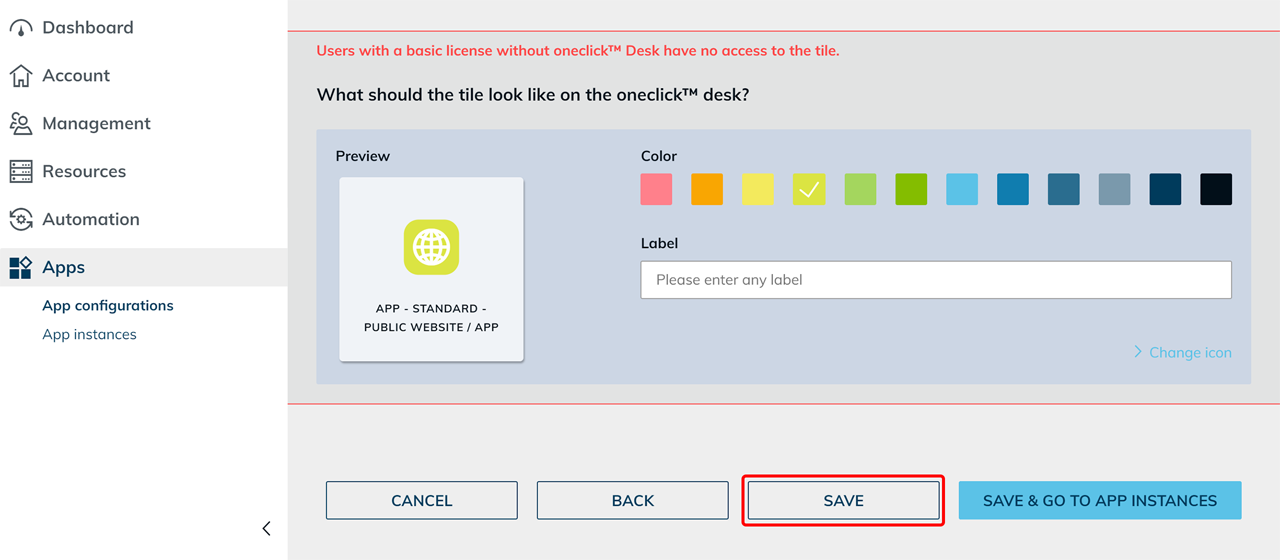
- Customize the app tile for users with a Professional license. Adjust the color, label, and icon, or upload your own icon.
- Click Save.
Assign an app instance
Assign the app to the intended users or groups using Create app instances for users.