Automatic and Manual User Locks
oneclick™ temporarily limits further login attempts after repeated incorrect password or code entries.
Find lockout times and required steps for users at Lockout periods after incorrect login attempts.
Incorrect password or code entries do not set the userLocked status. Only an administrator can permanently lock a user.
Distinguish between automatic and manual locks
After the lockout time expires, oneclick™ automatically lifts the automatic lock. The associated attempt counters also expire automatically. An administrator does not need to manually unlock.
When an administrator manually locks a user, oneclick™ sets the userLocked status.
Check technical feedback
For a time-limited lock for a user and an IP address, the login service responds with the HTTP status code 429 Too Many Requests.
The message during login shows the user the remaining wait time.
The same locking mechanisms apply for local login with oneclick™ credentials and login via LDAP or Active Directory.
Check logging
oneclick™ does not send email notifications for incorrect login attempts or automatically triggered locks.
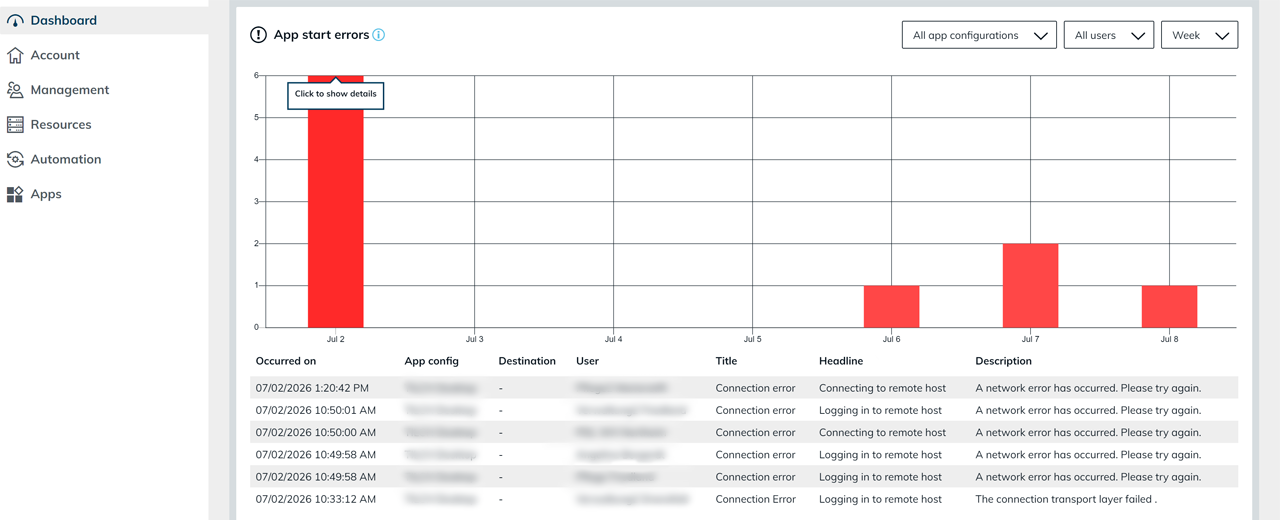
The system logs the events in the system log under App Start Error on the dashboard.
Login still not possible
- Check whether the full lockout time has expired.
- Check whether an administrator has manually locked the user and thus set the
userLockedstatus. - Click App Start Error on the dashboard and check the system log for repeated failed attempts.
- Contact oneclick™ Support if login is still not possible despite correct credentials.