Change/reset password
You can change or reset the password of your users in the administration area of oneclick™.
-
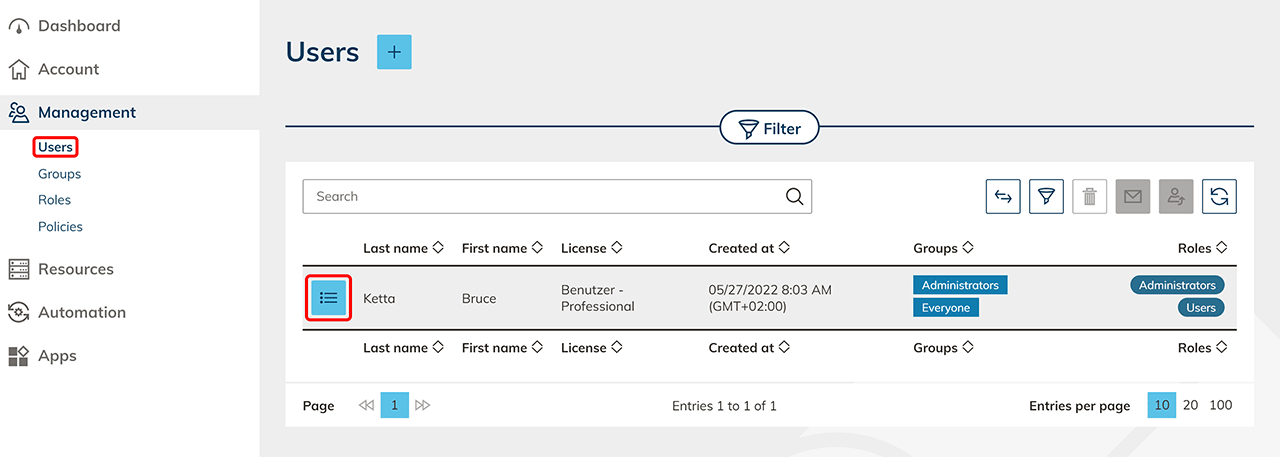
In the Management tab, click Users.
-
Go to the details page of your user by clicking on the List icon.
-
Click on the Key icon.
-
Now you can select the way how you want to reset the password:
Reset access via one-time password
- If the stored email address is not correct, or access to it is not possible, you have the option to assign a one-time password for your users via oneclick™.
- To do this, select the option "With a one-time password without sending e-mail".
- oneclick™ automatically generates a secure password.
- In the field on the right side you have the possibility to change the length of this password by using the plus- and minus button.
The system requires a minimum length of 8 characters here. - On the other hand, right-click in the left field if you want to assign an individual password yourself. To ensure the best possible security, the length of the passwords in oneclick™ should be at least 8 digits. A combination of special characters, at least one number, capital letters and small letters is recommended. From a length of 10 or 12 characters, one or two of the character types can be omitted.
- Then copy the password and click Apply.
Afterwards send the copied password to the user of this account e.g. via email or messenger.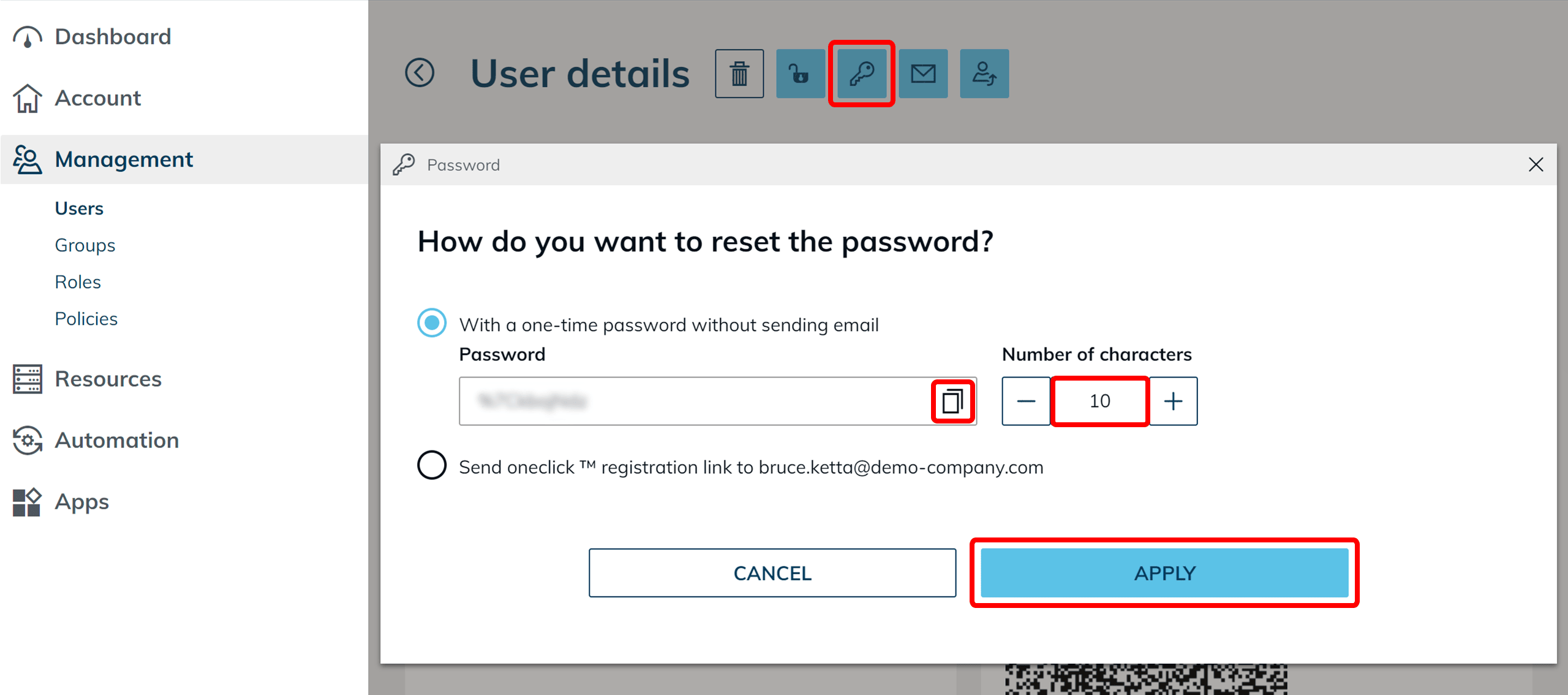
Send recovery link to user
- If your users should choose a password themselves, you have the option to send a recovery link to the stored email address.
- To do so, select "Send oneclick™ registration link to [...]" and hit on Apply.
- The system will now send a link to the user he can change or reset his password with, independently.
We strongly recommend you to advise your users to choose a secure password to protect your company data.