Optimize streaming performance
Check the following points to improve streaming performance.
- Check whether the latency is possibly caused by a third-party solution in use: Turn off virus software and backup solutions and recheck performance.
- Check whether your user has made any settings that may lead to performance losses. For example, if the "Desktop background can be changed by user" option is activated, you can force this to be deactivated.
- Add the IP addresses listed in the article oneclick™ IP addresses to your firewall allowlist.
- Add the ingoing IP address of oneclick™ streaming to the allowlist on the client (if the firewall restricts outgoing internet connections).
- Add the outgoing IP address of oneclick™ streaming to the allowlist on the connected server.
- ! When allowlisting (formerly whitelist), make sure that traffic to and from oneclick™ is excluded from packet inspection.
- If your users receive a red warning message, add the hostname of the displayed turn server to the allowlist.”
- Check all performance dependencies in oneclick™:
- Check whether the Streaming optimization matches your users' usage patterns. For more information, see WebRTC and streaming optimization.
Configure the firewall for WebRTC
If users see the following message in the oneclick™ menu, the connection required for WebRTC may be blocked by the firewall:
For smooth streaming, you or your administrator should check your firewall to see if the domain datacenter-turn.oneclick.services is open for port 443 TCP & UDP.
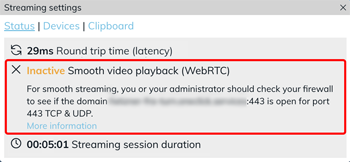
Check whether your users' firewall allows inbound and outbound UDP traffic for the domain displayed in the message.
Proceed as follows:
1. Determine the datacenter
Check which datacenter is being used for the user.
Users can find this information in the system data under Datacenter.
As an administrator, you can find this information under Division > Datacenters > Delivery cluster.
2. Allow UDP Higher Ports
Check whether UDP Higher Ports are allowed through the firewall.
3. Allow DNS name and ports
Add the displayed DNS name to your firewall allowlist and allow ports 443 TCP and UDP. This ensures that the WebRTC streaming protocol works.
DNS entries by datacenter
| Datacenter | DNS entry |
|---|---|
| Germany – Central | hetzner-fra-turn.oneclick.services |
| Germany – Magdeburg | otc-eu-de-turn.oneclick.services |
| Switzerland – Zurich | ch-turn.oneclick.services |
| USA East Coast – Ashburn | hetzner-useast-turn.oneclick.services |
Firewall only supports IP addresses
Refer to the article Allowlisting oneclick™ IP addresses for the IP address associated with the datacenter.
4. Check WebRTC functionality
Using the Streaming settings (recommended):
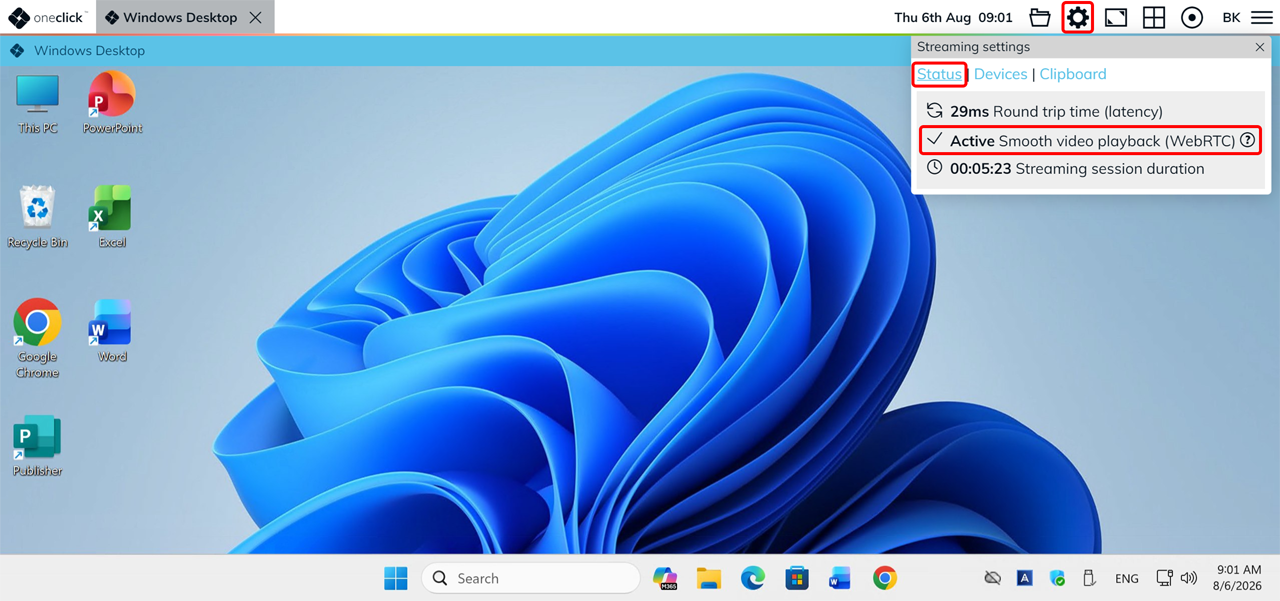
Ask the affected user to click the Gear icon in the oneclick™ menu during an active connection and then click Status.
If the Streaming settings show "Active Smooth video playback (WebRTC)", the firewall configuration was successful.
Additionally (optional):
Use the WebRTC test to check whether WebRTC works on the client in general.
WebRTC and streaming optimization
WebRTC enables smooth transmission of moving images. The Streaming optimization setting determines how quickly WebRTC is used for transmission:
- Low latency: WebRTC is not used. This setting is particularly suitable for text-based content and applications with few image changes.
- Smooth videos: WebRTC is preferred. This setting is suitable for applications with videos or frequent image changes.
If your users regularly work with videos or other moving content, adjust Streaming optimization further toward Smooth videos in the Streaming settings.
If users should be able to adjust the streaming optimization themselves, enable Changeable by the user for Streaming optimization in the Usage settings.