Assign an app to one or more users
note
You need an existing app configuration with a single license — either created by you or generated automatically through the Marketplace. For apps with a group license, see Groups.
You can create app instances for one user or for several users in a single step. With a single license, each user gets their own app instance — for example a license package for 12 users requires 12 individual instances, which you can create in one step here.
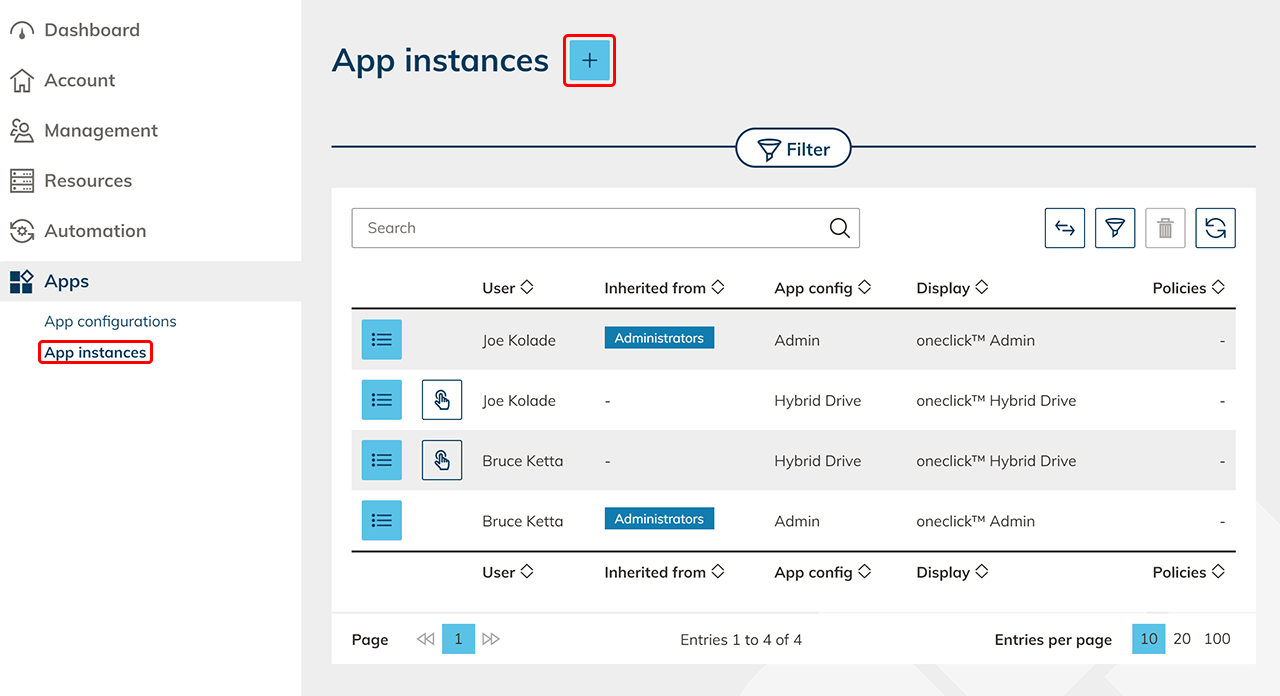
- In the menu, click Apps and then App instances.
- Click on the Plus icon to create a new app instance.
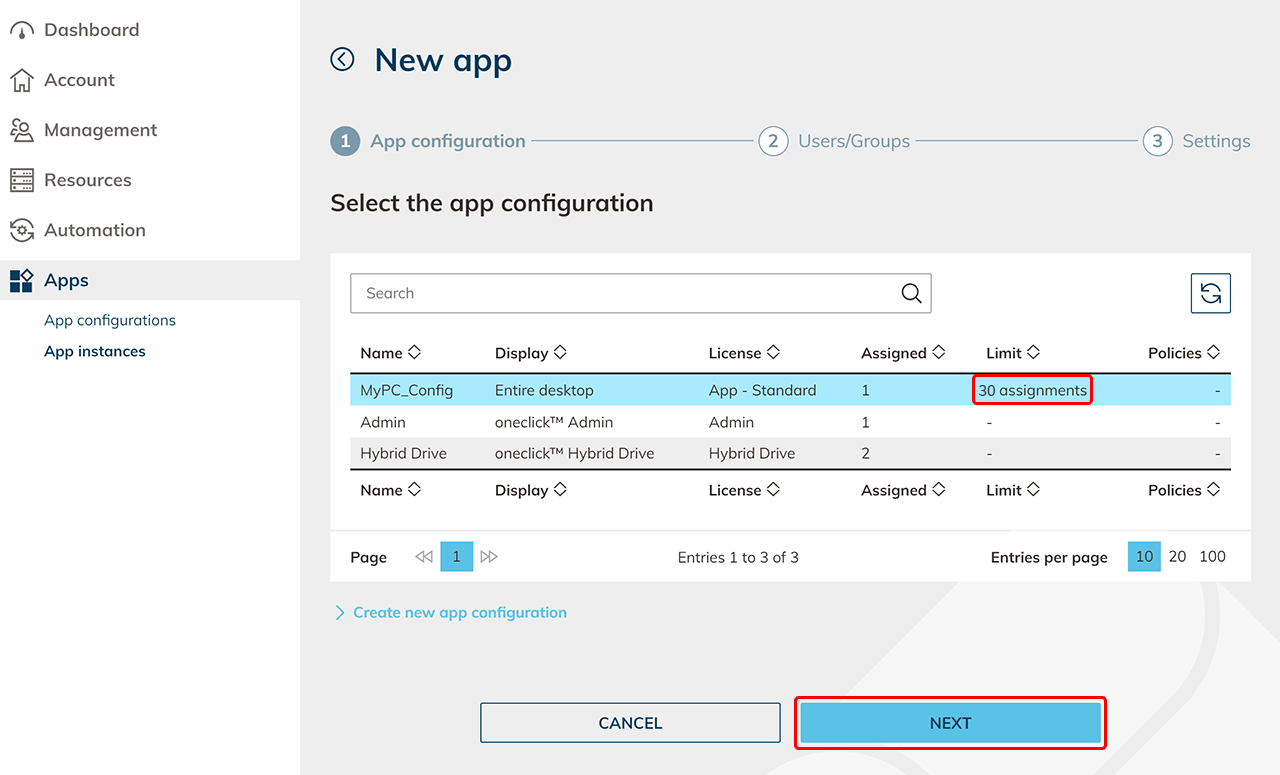
- Select the app configuration from which you want to create an app instance and click Next. The app license is stored in the configuration and determines how often you can assign the app configuration.
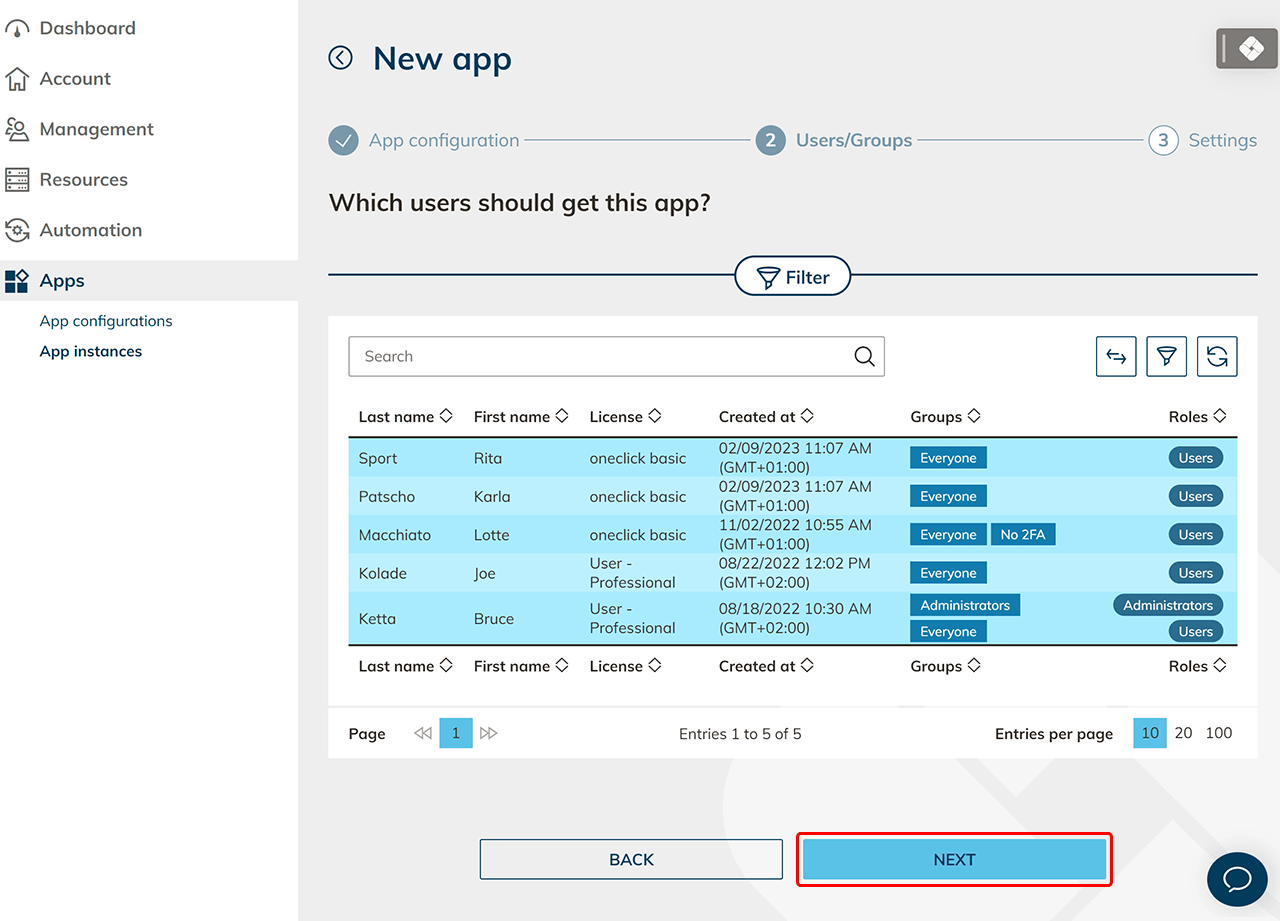
- Select one or more users for whom an app instance of this configuration type should be created and click Next.
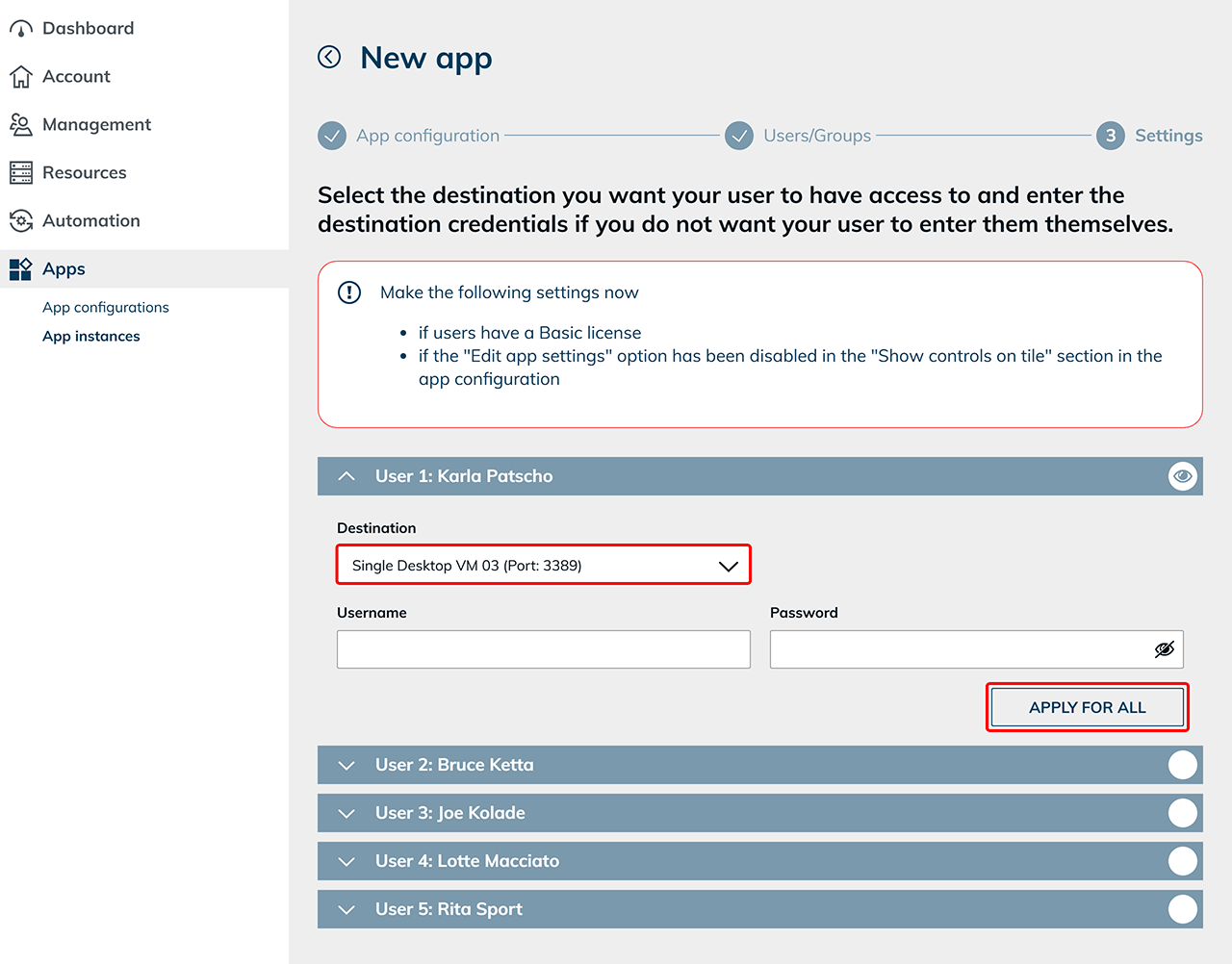
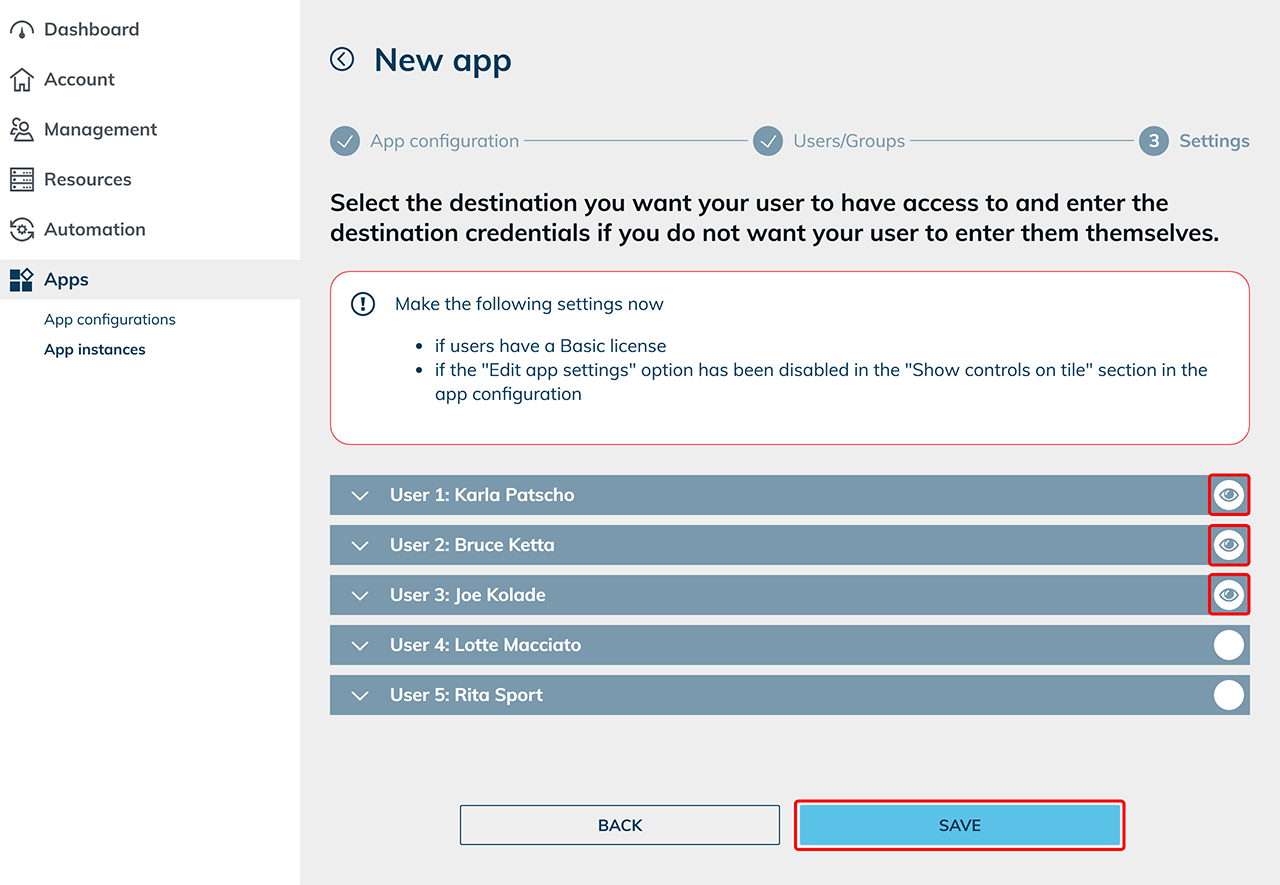
- Configure the settings for the individual users or for all users at once. Select the destination from the destination pool to which the users should be granted access. Enter the credentials stored in the respective resource. (Input fields vary by configuration)
If you have previously defined a default destination or default credentials, they are already entered here.- If you assigned the app to several users and they should receive the same destination and/or the same credentials, click Apply for all. This automatically applies the currently entered destination and credentials to all users in the list. The button is only displayed if more than one user is present.
- If you leave the fields empty, Professional users can enter their credentials later themselves via the app tile on the oneclick™ Desk.
- For Basic users who should enter their data themselves, the option "Allow entering login credentials at app start" must be activated in the app configuration.
- The Eye icon indicates that the entry has already been viewed; the fields are not checked or evaluated. The Eye icon appears in the first opened entry even without clicking into a field.
- Save your entries.
- If you want to configure additional settings for your users on the resources, click the Open icon to set them up now.

- If you assigned the app to several users and they should receive the same destination and/or the same credentials, click Apply for all. This automatically applies the currently entered destination and credentials to all users in the list. The button is only displayed if more than one user is present.
- Send the oneclick™ registration link to your users.