Allow user to enter credentials
Do you want your users to sign in to the destination with their own login data and change their password themselves if needed?
Enable the corresponding settings in the app configuration.
Update login data after changing the password
If a user changes their password directly on the destination, they must also update the new password in oneclick™. If users are not allowed to enter their login data themselves, they cannot update the new password and lose access until an admin updates the login data. To learn how users can update their login data in oneclick™ after changing their password on the destination, see Store the remote system password in oneclick™.
Edit the app configuration
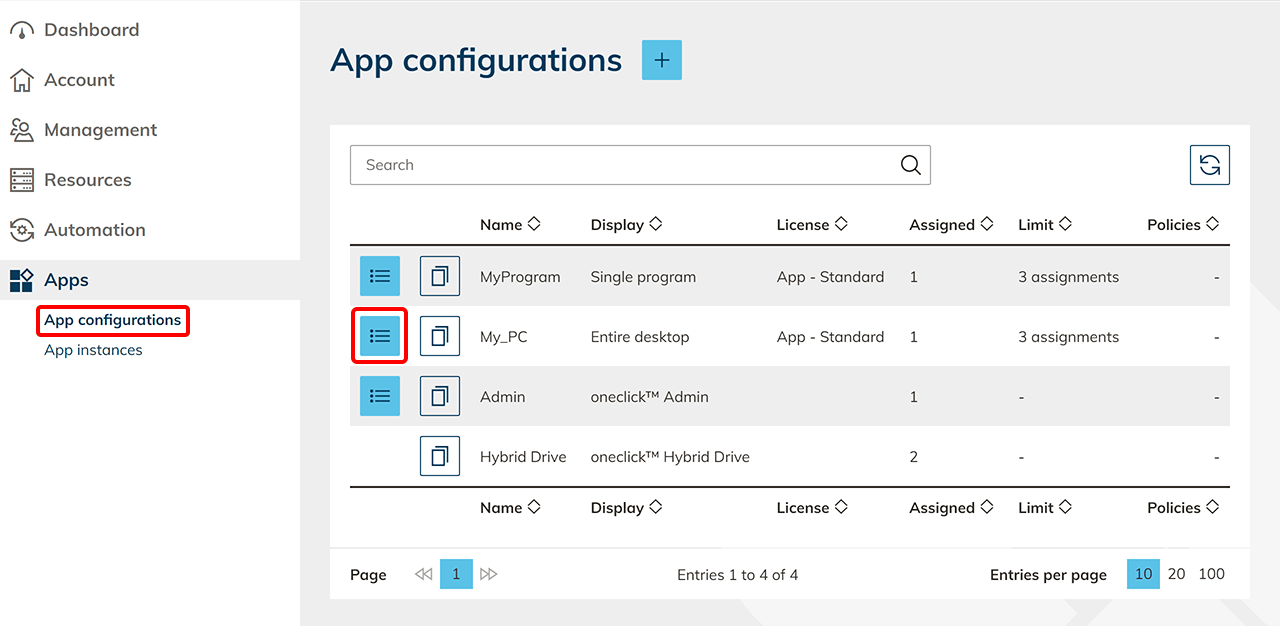
- Click Apps in the menu, and then click App configurations.
- Select your app configuration and click the List icon to open the details page.
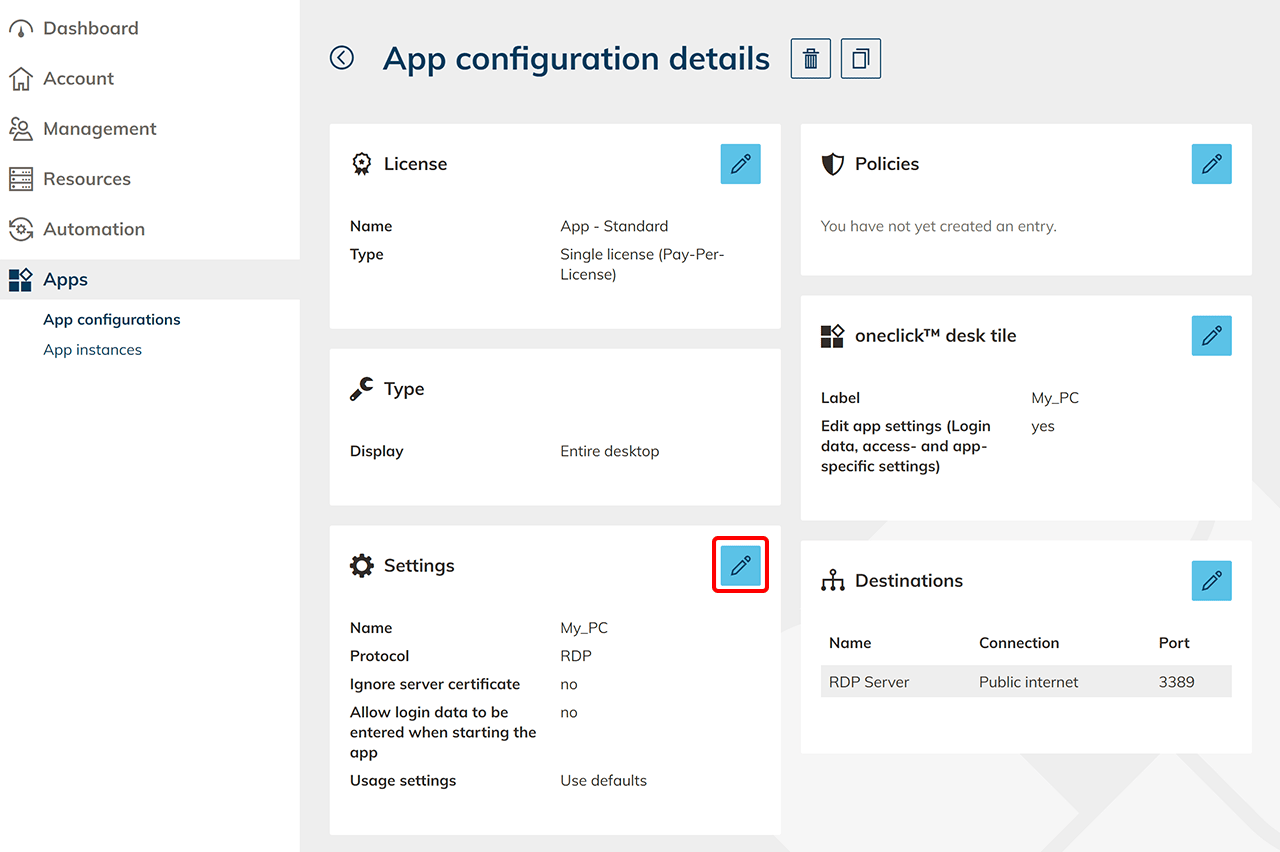
- On the Settings tile, click the Pencil icon.
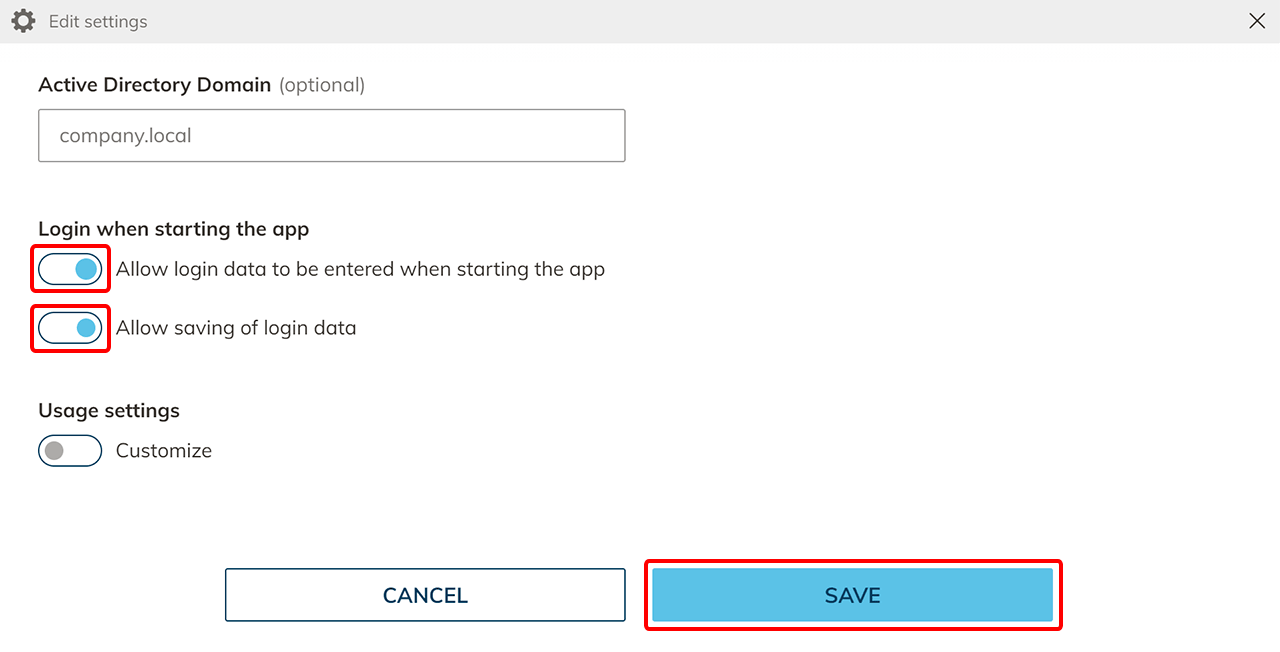
- Enable Login at app start and Allow login data to be saved.
- Click Save.
Login data when assigning the app
To allow the user to enter their login data when starting the app, leave the Username and Password fields empty when assigning the app.