Assign apps to a user via user details
You need existing app configurations with a single license — either created by you or generated automatically through the Marketplace. App configurations with a group license cannot be assigned via user details; assign them through the group instead, see Groups.
Give a user access to one or more apps directly from their user details page.
-
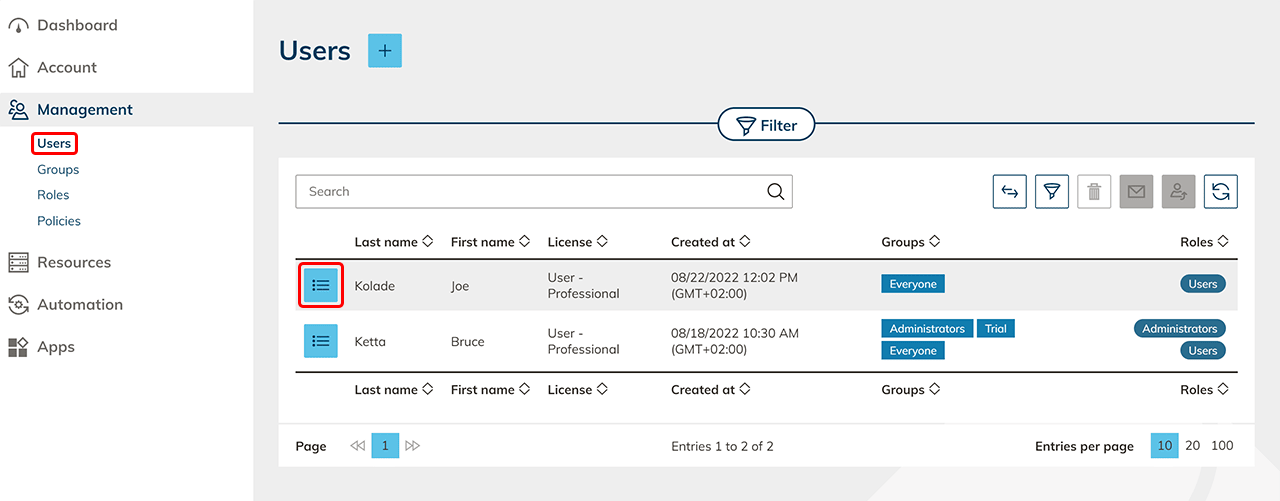
In the menu, click Management and then User. In the line of the user you want to assign apps to, click on the List icon to head to the details page.
-
Click on the Plus icon in the "Apps" tile.

-
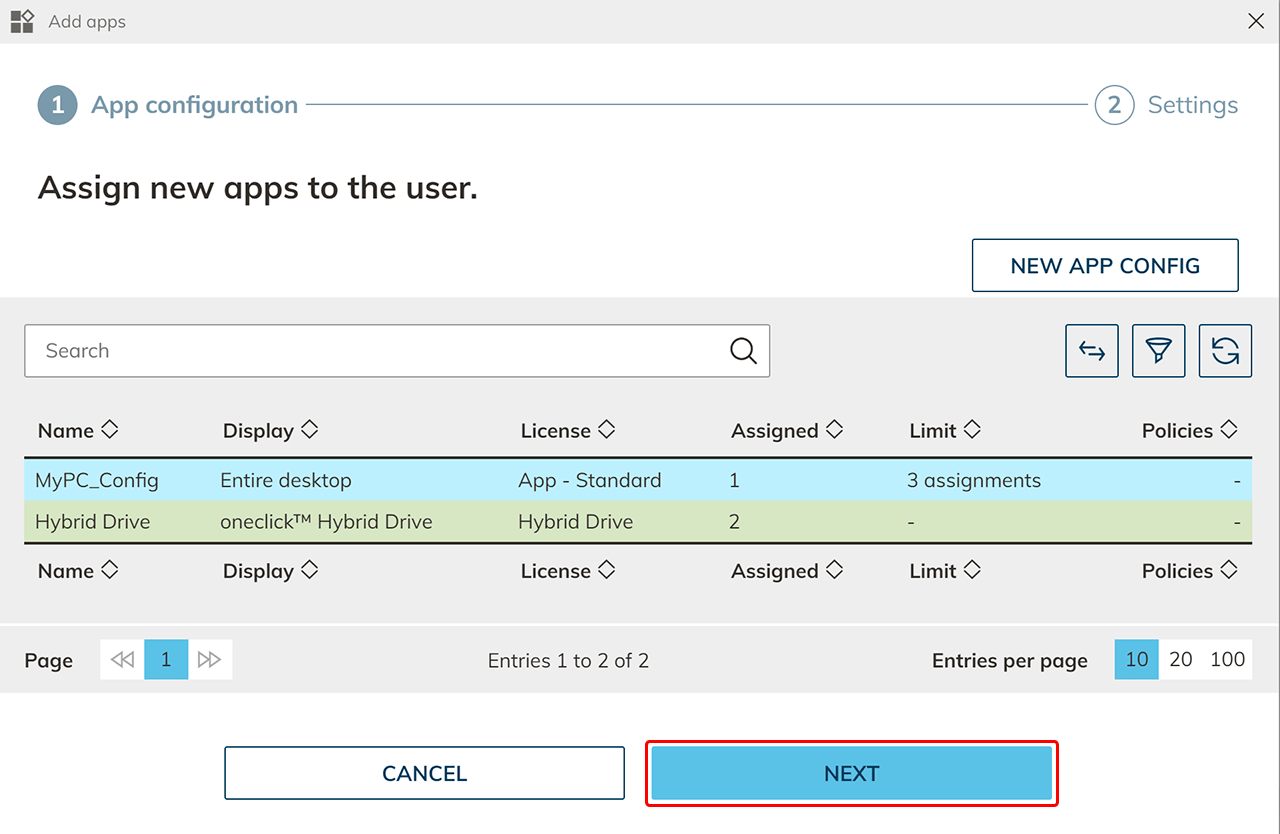
Select one or more app configurations you want the user to get an instance of and click Next.
-
Make settings for the user per app if necessary and click Save.
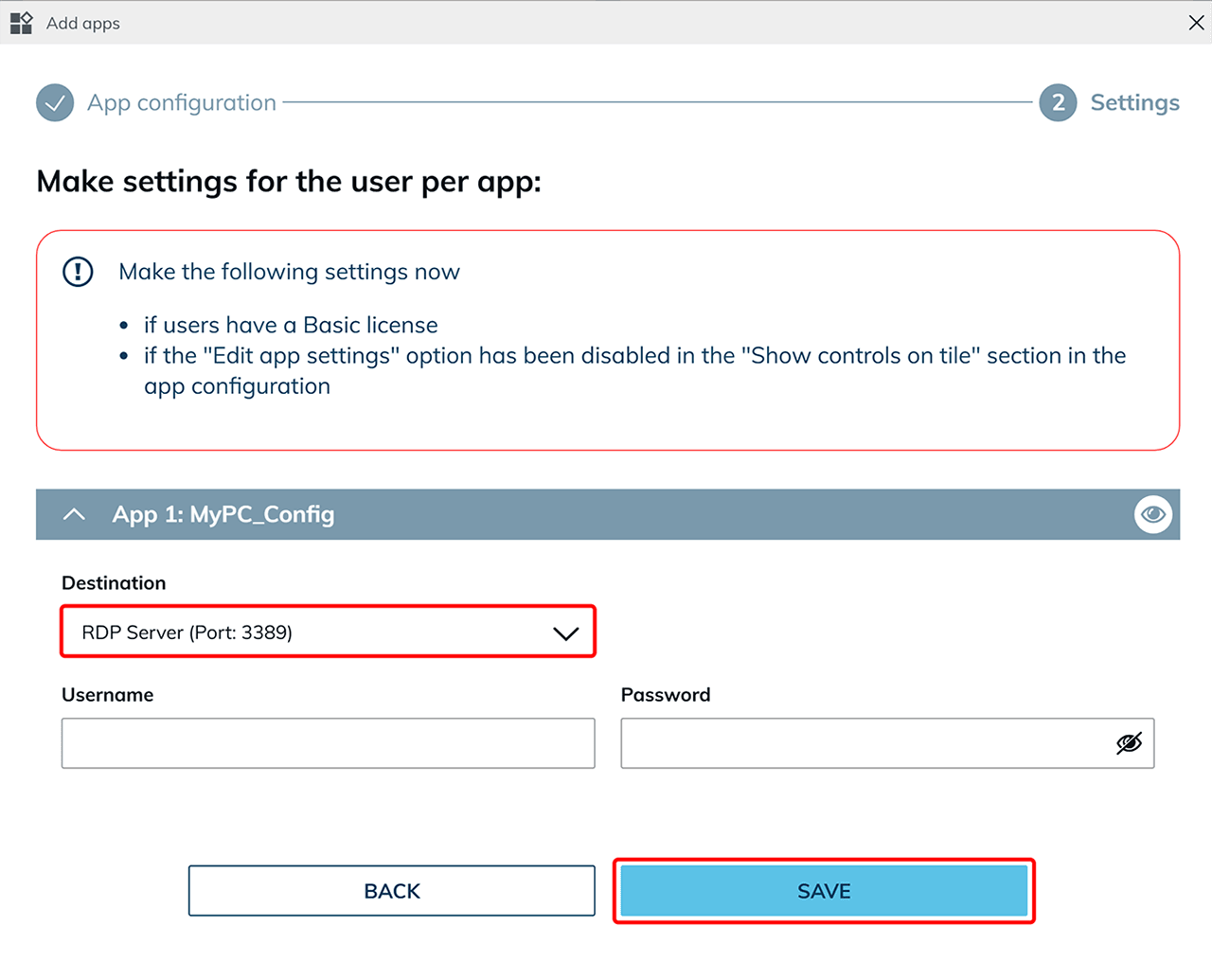 The user now has access.info
For apps with a group license, assign the app configuration to a group the user belongs to — not via user details.
-
Send the oneclick™ registration link to the user.