MTU Test
The MTU test determines the maximum packet size that can pass through your VPN IPsec tunnel to a system in your network without being split. If the measured value is lower than the configured MTU, adjust the MTU of your connection accordingly.
When you need the MTU test
Every packet that passes through the VPN IPsec tunnel receives additional IPsec headers. If the internet path at your site only allows smaller packets, for example DSL with PPPoE or a mobile connection, packets that are too large may be dropped. The connection still shows Connected, but larger transfers stall or break off.
Run the MTU test:
- before you lower the MTU of a connection, so that you do not have to guess the value
- if websites load only partially, file copies stall, or Remote Desktop sessions freeze
- after changes to the internet connection or the VPN end device at your site
Run the MTU test
- The VPN IPsec connection is established.
- You know the IPv4 address of a system in your network that is inside the remote subnet of the connection, for example a server or the internal address of your VPN end device.
- This system answers ping (ICMP echo). Allow ICMP from the address space of the oneclick™ network in the firewall of your network if necessary.
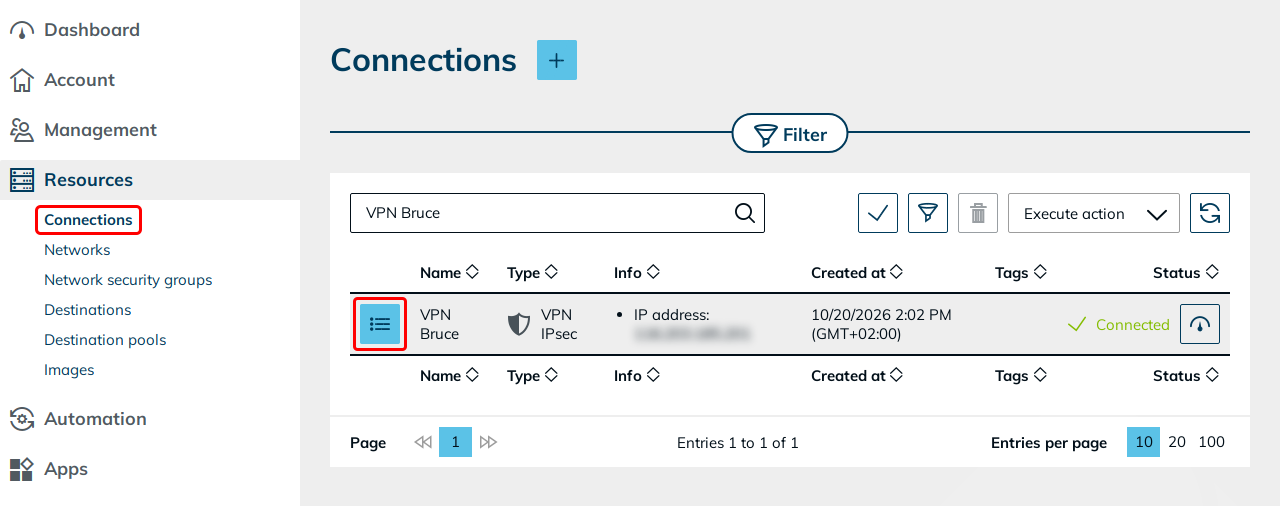
- In the menu, click Resources and then Connections.
- In the row of your VPN IPsec connection, click the List icon.
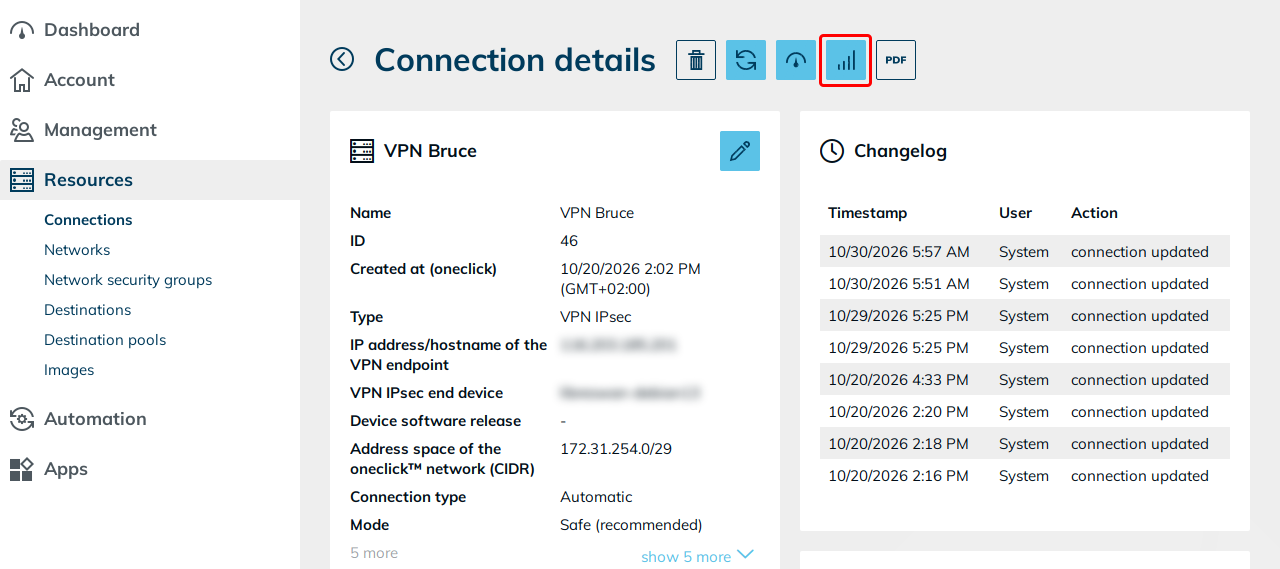
- Click the Signal icon (Find MTU).
- In the IP address field, enter the IPv4 address of the system in your network.
- Click Find MTU.
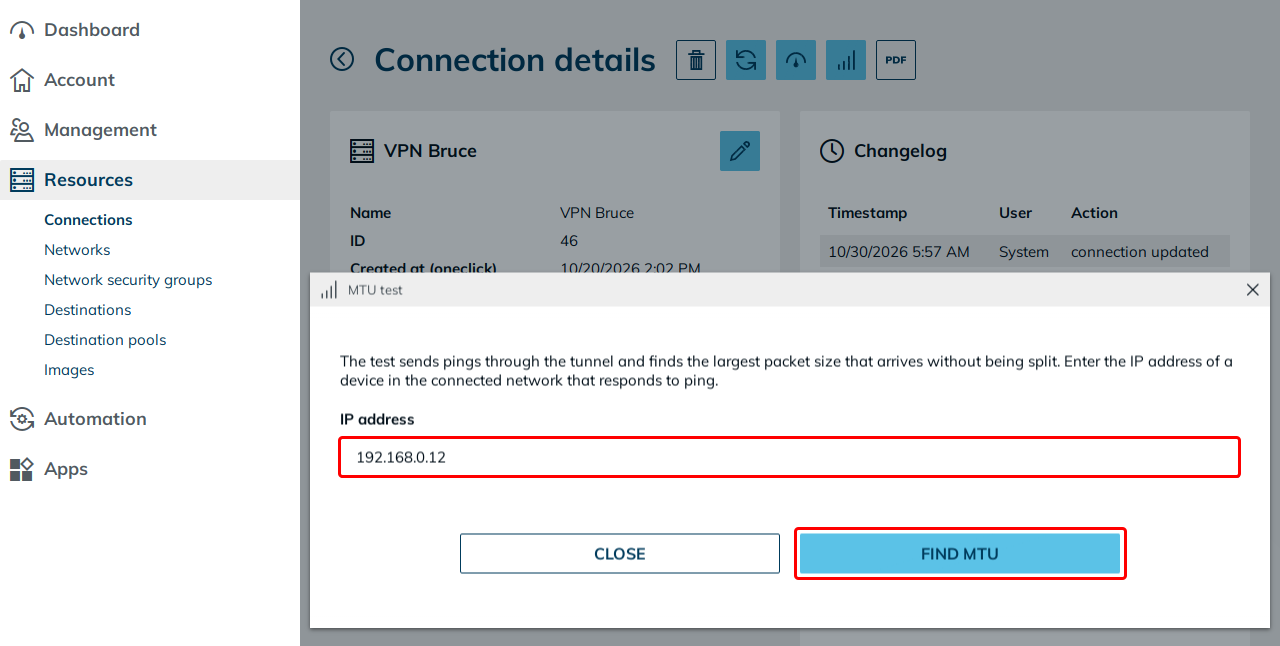
The test takes up to 20 seconds. While it runs, the button shows Testing…. The connection is not interrupted during the test.
Read the result
- Measured MTU: The largest packet that reached the target and was answered. The value is the complete packet size including the IP header, so you can enter it directly in the Maximum Transmission Unit (MTU) field of the connection.
- Configured MTU: The MTU that is currently set for the connection.
- MSS: The matching maximum segment size for TCP, which is measured MTU − 40.
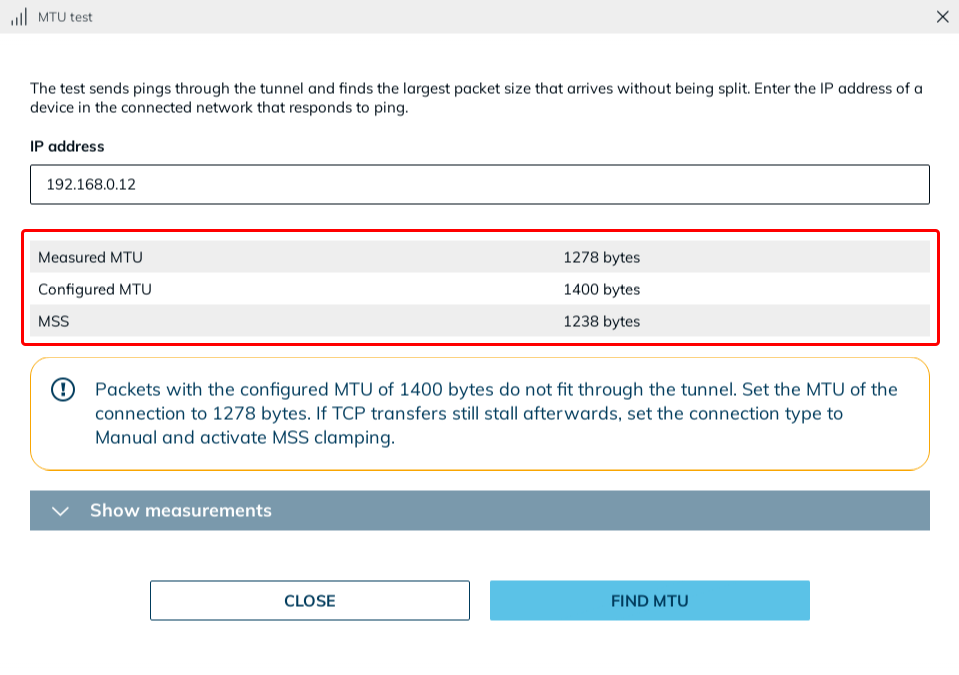
Depending on the result, the dialog shows a notice:
| Notice | Meaning | What to do |
|---|---|---|
| The configured MTU fits | Packets with the configured MTU reach the target without being split. | Nothing. |
| Packets with the configured MTU do not fit through the tunnel | The configured MTU is larger than the measured MTU, so large packets do not reach the target. | Set the MTU of the connection to the measured MTU. If TCP transfers still stall afterwards, set the connection type to Manual and turn on MSS clamping. MSS clamping on its own does not help, because it derives the MSS from the configured MTU. |
| The configured MTU limits the test | The test cannot measure beyond the configured MTU. The tunnel may allow larger packets. | For an exact result, temporarily set the MTU of the connection to 1500 bytes and run the test again. |
To see every packet size that was tested, click Show measurements. The list is sorted by packet size.
Ping payload is the packet size minus 28 bytes for the IP and ICMP headers. If a router on the path reported a smaller MTU for a packet, the result shows it as reported path MTU.
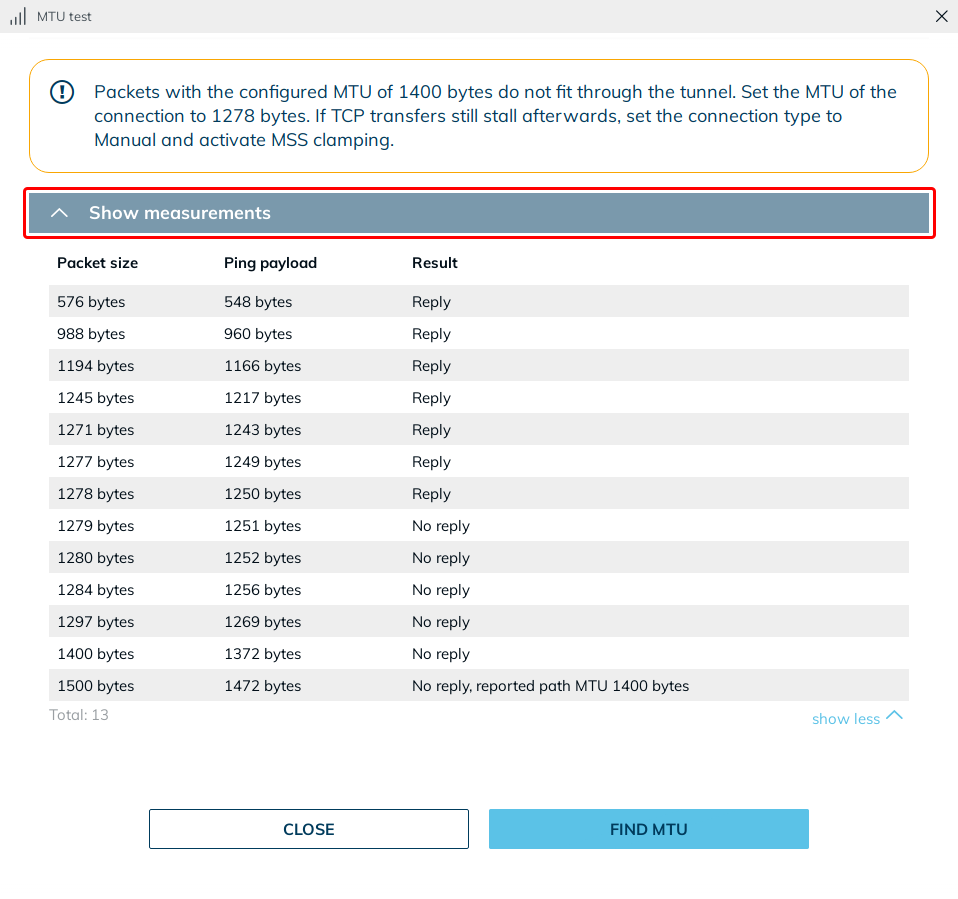
To adjust the MTU of your connection based on the test result, follow these steps:
- In the MTU test dialog, click Close.
- Click the Pencil icon, enter the measured value in the Maximum Transmission Unit (MTU) field, and click Save.
oneclick™ reinitializes the connection. The tunnel is briefly interrupted during this time.
For more information on selecting the correct MTU value, see Choose the right MTU.
How the MTU test works
oneclick™ sends ping packets with the "Don't Fragment" bit set through the VPN IPsec tunnel to the target. A packet with this bit must not be fragmented along the way. If it is too large for a section of the path, it does not arrive and the target does not respond.
The test starts with 1500 bytes. If this packet does not get through, the test halves the range between 576 and 1500 bytes step by step until it has found the largest packet that is answered. This takes up to 13 probes. Every probe consists of two pings, so that a single lost packet does not distort the result.
Error messages
If the test cannot determine an MTU, the dialog shows the reason and what you can do:
| Message | Cause |
|---|---|
| This IP address is outside the connected network. | The address does not belong to the networks behind your VPN end device. Enter an address from the remote subnet. |
| The device does not respond to ping. | The system is switched off, does not exist, or a firewall blocks ICMP. Check the address and the firewall, or use another system. |
| The device responds, but only to very small packets. | The path only allows packets of less than 576 bytes. Check the internet connection and the VPN end device at your site. |
If the problems persist, see Connection Issues VPN IPsec.